

Limit an administrator to part of the organisation
Let someone manage the signatures of one subsidiary, brand or department without seeing anyone else's, by giving them a scope, with a worked example for a company with two subsidiaries.
A group company often wants each subsidiary to look after its own people's signatures, without the subsidiary seeing anyone else's details or changing head office's design. A scope does that. It is a named part of your organisation, such as a subsidiary, a brand or a department, and a portal user or group given a scope sees and changes only the people in it.
Footer365 makes the Scopes page available to organisations gradually, so it may not be in your portal yet. See Early access pages and features.
Scopes are Footer365's own. They do not use Microsoft Entra administrative units, and they change nothing in Microsoft 365. Without any scopes, everyone with portal access sees the whole organisation, exactly as before.
To make scopes, and to give them to people, you need the Manage portal access permission. Super Admins have it.
What a scope is
A scope is a name and one or more conditions. A person is in the scope when they match any one of its conditions:
- Company name: the person's company name in your directory, such as Contoso Engineering Ltd.
- Department: the person's department.
- Synced group: the person is a member of a group synced from Microsoft 365, as of the last directory sync.
- Email domain: the person's primary email address is on this domain, such as contoso-eng.example.
Company names, departments and domains are not case sensitive. You choose each value from a list of what your directory holds, so a misspelling is not possible. An organisation can have up to 100 scopes.
Make a scope
- Go to Access > Scopes (open it).
- Select Add scope.
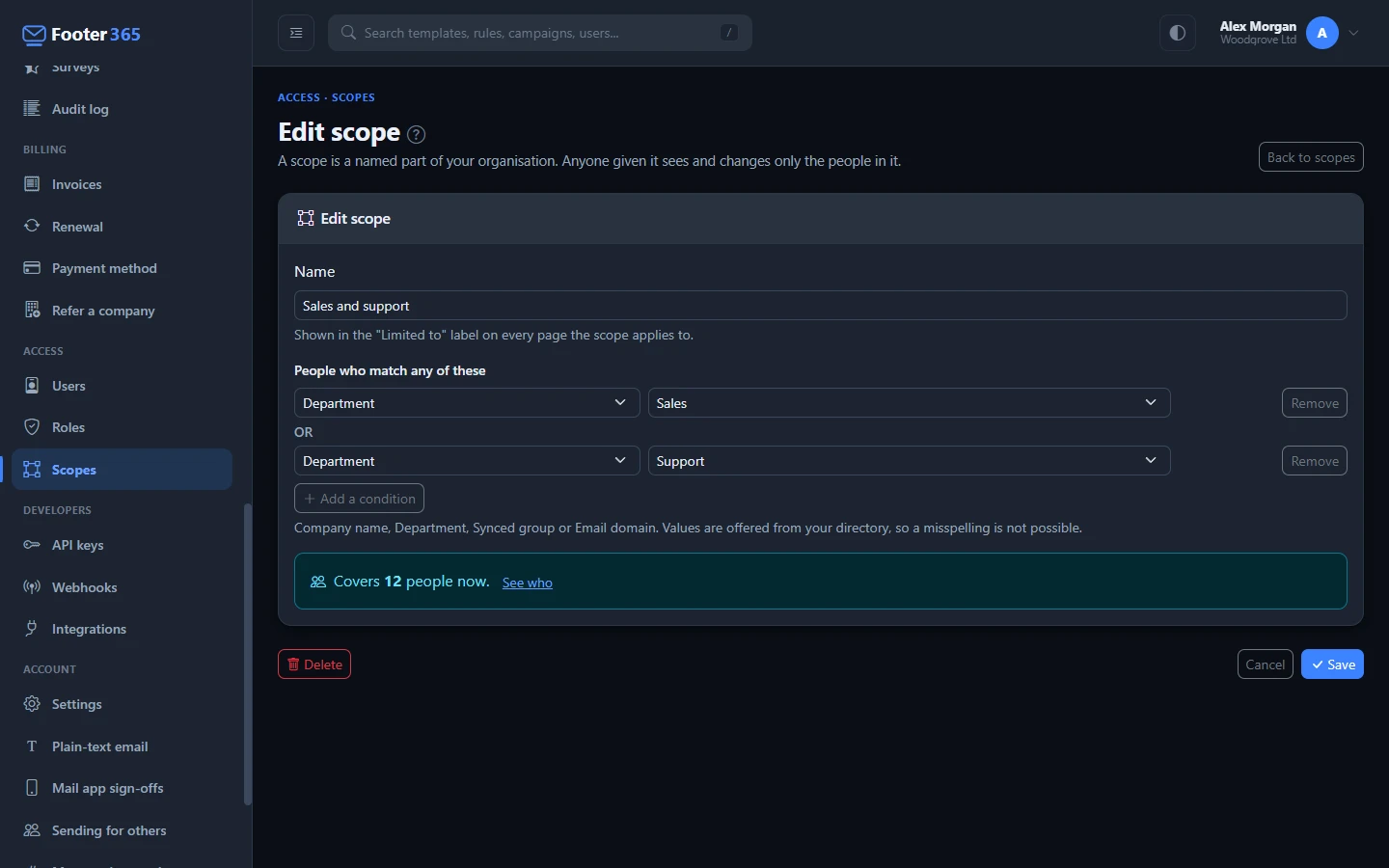
- Type a Name, such as Contoso Engineering Ltd. Each scope needs a different name. The name is shown to the people given the scope, as "Limited to" followed by the name.
- Under People who match any of these, choose the kind of condition and then the value. Select Add a condition to add another. The conditions are joined by "or".
- Check the line under the conditions, "Covers 214 people now", and select See who to read the list.
- Select Save.
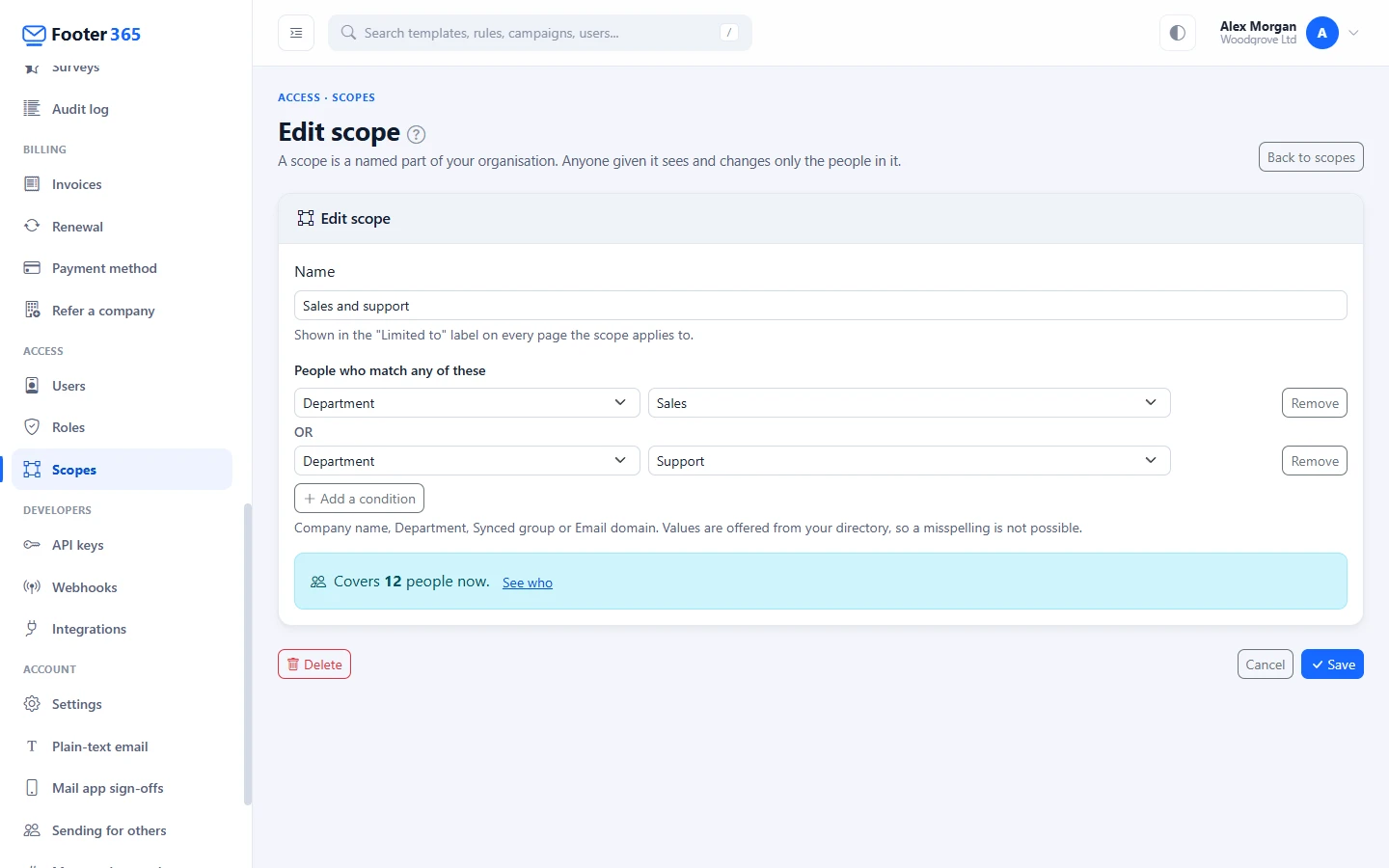
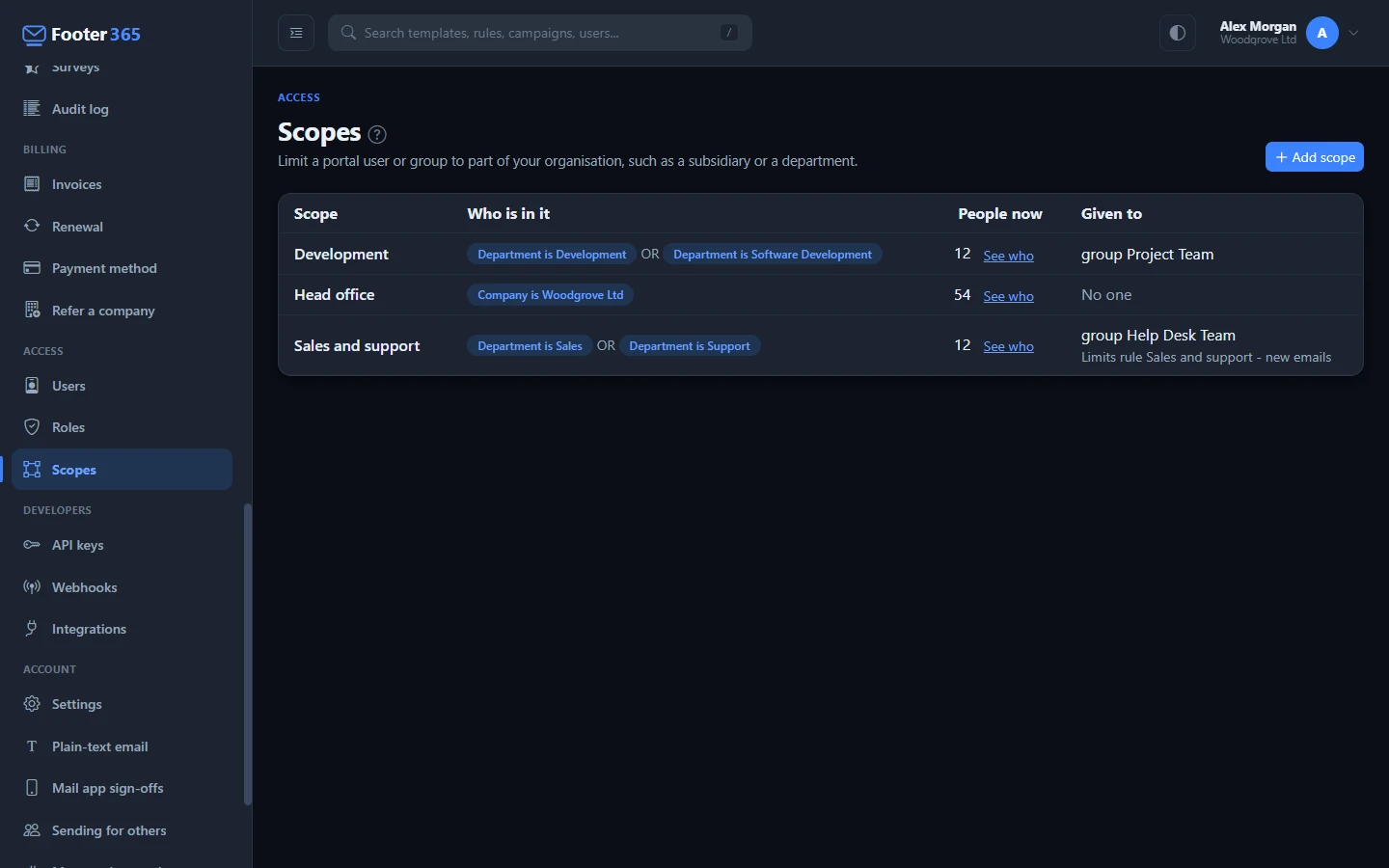
The Scopes page lists every scope with Who is in it, People now (the enabled users and mailboxes it covers now, as Users and groups counts them) and Given to. When some people are in no scope at all, a note says how many, with See who: only someone who sees the whole organisation can manage them.
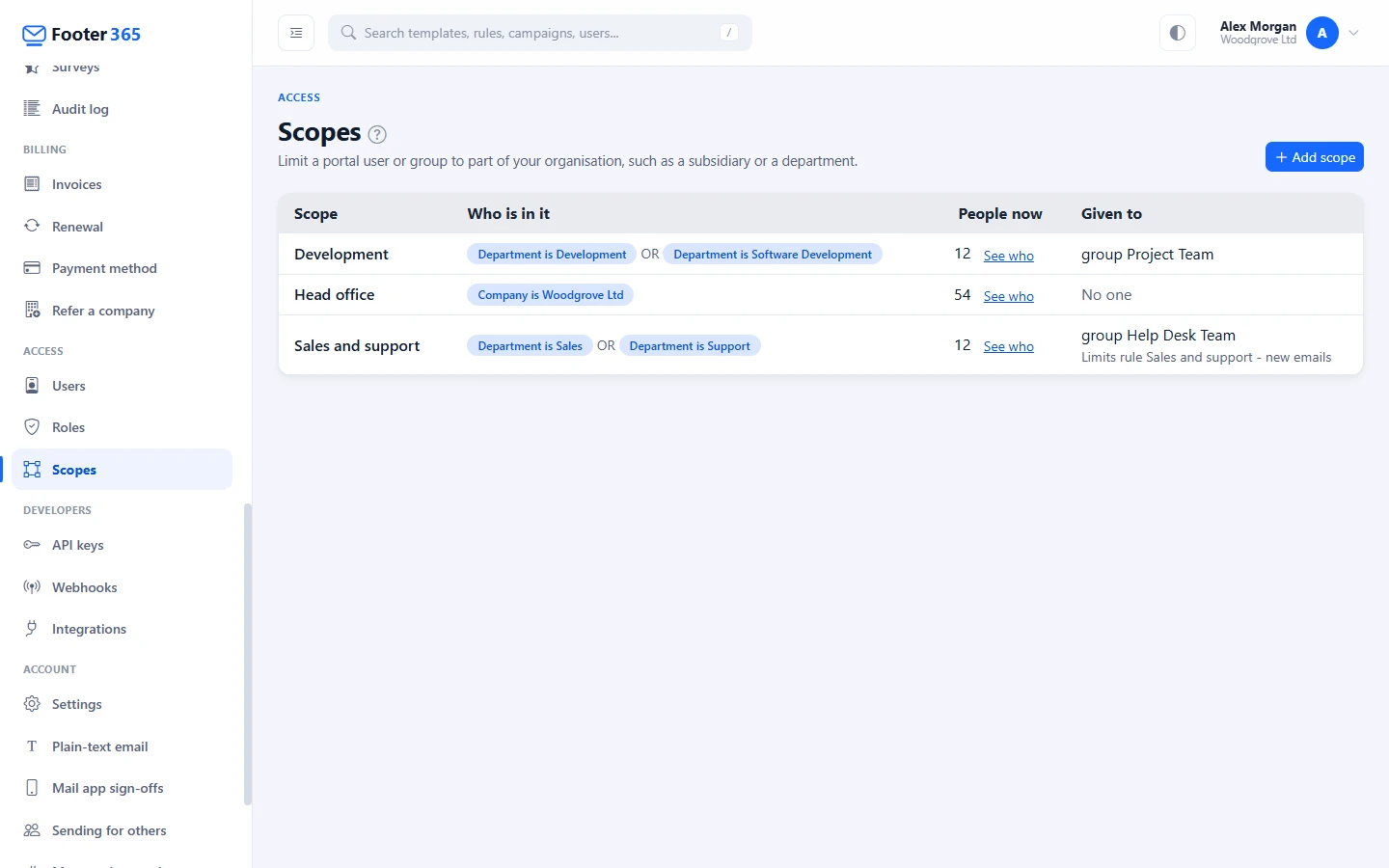
A scope with no conditions covers nobody. Change a scope's conditions at any time: everyone who holds it is limited to the new list within a few minutes.
With the scope wizard
Footer365 makes the scope wizard available to organisations gradually. Where your organisation has it, Add scope opens the same form one step at a time, and gives the scope to people as it saves it. Editing a scope opens the form as before, and Open the full form instead opens it for a new scope too.
- Who it covers. Choose the conditions under People who match any of these, and check how many people they cover now, with See who to read the list.
- Who it limits. Tick the people the scope should limit. Super Admins, and anyone whose role can manage portal access, always see the whole organisation, so they are not listed. Someone who holds permissions you do not hold, and you yourself, are listed but cannot be ticked, with the reason. Someone already limited to another scope is moved to this one. Tick nobody to save the scope on its own. If your access does not let you change Access > Users, the step says so, and the scope can still be saved for someone else to give.
- Check and save. The Name is suggested from the conditions, such as "Sales or Support", and can be changed. The step sums up who the scope covers and whom it limits, and what they will and will not see. Select Save scope.
Giving a scope in the wizard is checked exactly as on Access > Users, and the audit log records the scope and everyone it was given to in one entry.
Give a scope to someone
- Go to Access > Users (open it).
- To give a scope when adding someone, select Add access, choose the person or group and a role, and choose a Scope. To change someone who already has access, click them in the list to open Manage access and choose a Scope there.
- The Scope box offers Whole organisation, which is the default, or one of your scopes. Select Grant access or Save.
The list shows Limited to and the scope's name under the role of each person and group who has one, and nothing for anyone who sees the whole organisation. A person given a scope is limited to it within a few minutes.
Some rules keep a scope honest:
- Super Admins, anyone whose role can manage portal access, and a reseller's delegated session always see the whole organisation. A scope cannot limit them, because they could otherwise widen their own. The Scope box is switched off for those roles, and choosing one of them for someone who has a scope takes the scope off in the same save.
- A person's own scope decides over their groups'. Someone with a record of their own is judged on that record alone.
- Across several groups the scopes add up, and a group with the whole organisation gives the whole organisation. Members of a group given a scope are limited to it.
- A scope that is given to anyone, or that a rule, disclaimer or campaign was saved under, cannot be deleted. Select Delete on the scope, and if it is in use the window says it cannot be deleted. It names who holds it ("It is given to" and their names) and which rules, disclaimers and campaigns it limits, and tells you to "Save each of them as someone who sees the whole organisation, or delete them, first." Give the people another scope, or the whole organisation, on Access > Users first. A key that holds the scope is let go by revoking it, on Developers > API keys, and the window says "Revoke each key on Developers > API keys". A key that has been revoked or has expired does not stop the delete. The Scopes list shows the same under Given to, with "Limits" and the names of what the scope limits.
What a limited administrator sees
The lists that follow a scope, such as Users and groups, Signature rules and Coverage, show a Limited to pill beside the page title, with the scope's name, so that a person missing from a list is never taken for a sync fault.
| Page | What they get |
|---|---|
| Dashboard | Synced users counts the people in the scope. The email figures, the campaign clicks, Email volume, the Microsoft 365 connection, the setup progress and the SPF warning are not shown. |
| Directory > Users and groups | The people in the scope, and the groups whose every member is in it. A line under the list says how many groups with a member outside it are not listed, so editing a group cannot reach anyone else. Sync now is not offered, and the choice of where signature photos come from is the organisation's. |
| Directory > User details | The download and the import hold only the people in the scope. A row in an imported file for anyone else is not applied, and the message names it. The When a value is entered here settings are the organisation's: they can be seen but not changed. |
| Directory > Out of office | The automatic replies of the mailboxes of the people in the scope, which they can set if their role allows. The reply templates and the organisation's switch are listed and cannot be changed. |
| Directory > Detail changes | The changes the people in the scope asked for, to approve or reject. |
| Insights > Coverage | The people in the scope and the mail they sent. |
| Signatures > Signature rules | Every rule they can see by folder, in its place in the one running order. They change only the rules aimed wholly inside the scope, and a rule they save applies only to senders inside it. See below. |
| Signatures > Campaigns | They change a campaign only when its banner reaches nobody outside the scope, and a campaign they save goes out only on messages from senders inside it. The others are listed read only, without their click figures. A rotation is managed by someone who is not limited. |
| Signatures > Disclaimers | They change a disclaimer only when it is aimed wholly inside the scope, and a disclaimer they save is added only to messages from senders inside it. Adding one from the Footer365 library is refused, because it applies to everyone until it is aimed. |
| Signatures > Templates and the editor | As folders decide. The editor previews and sends a test message as the people in the scope, and as the person themselves. Backing up, restoring and importing signatures are the organisation's. |
| Signatures > Approvals | The changes in the folders they can open, for someone who holds Approve and publish. A disclaimer or campaign change that reaches anyone outside the scope is Read only. See below. |
| Signatures > Brand | They can look at the brand kits and the image library, and pick them in the editor. They cannot make, change, apply or delete a kit, or upload, replace or delete a library image. |
| Developers > API keys | The keys that carry their scope, and the keys they make carry it. See Create and revoke API keys. |
The pages that are about the whole organisation are not offered, and are refused if the address is typed in: Analytics, Surveys, the Audit log, Attribute mapping, Custom fields, Sources, Staff self-service, Contact cards, Folders, Webhooks, Integrations, Getting started, the Billing pages and everything under Account. The window that opens says This page covers the whole organisation, "Your access is limited to" the scope's name and "Ask a Super Admin if you need it", with Back to the dashboard. The attempt is recorded in the audit log.
The setup wizard that Getting started opens is the whole organisation's too. A limited administrator who is also a Microsoft 365 Global Administrator can still open it, because Microsoft's own authority over the tenant is not Footer365's to limit.
Signature rules
A limited administrator can make and change a rule when everyone it applies to is inside the scope:
- All users is not available. The tile reads "Not available: your access is limited to" the scope's name.
- A user, group, department, job title or domain that reaches anyone outside the scope is refused with a message such as "Sales includes 41 people outside Contoso Engineering Ltd. Choose a target wholly inside your scope." A user or group outside the scope is "not found", as it would be if it did not exist.
- Rules they did not make are listed, read only, in their place in the running order, so a head office rule that wins for their people is in sight. They move only their own rules, which take the places those rules held between them.
- The rule tester answers only for the people in their scope.
What a rule, disclaimer or campaign carries
A signature rule, a disclaimer or a campaign that a limited administrator saves carries their scope, and Footer365 applies it only to senders inside that scope, whoever it is aimed at. An administrator whose access is made of more than one scope saves it under all of them, and it reaches the people in any one.
This is checked each time a message is signed, from the sender's own details and groups at that moment, and not only when the item is saved. So an item saved under Contoso Engineering Ltd:
- never reaches someone outside it who later joins a department or group the item names, or who is added to a group that was empty when the item was saved;
- reaches someone who moves into the scope from their next message, and stops reaching someone who moves out;
- is applied the same way by the Footer365 mail relay, by the Outlook add-in, by Test a rule and by previews and test messages, so what you see is what is sent.
If a scope an item was saved under cannot be found, or cannot be read, the item reaches nobody, never everybody. A change to a scope itself, such as another condition, reaches mail within five minutes.
What people see:
- A pill. A Limited to pill with the scope's name sits beside the item in the Signature rules, Disclaimers and Campaigns lists, so head office can see which items are held to part of the organisation. Hover over it to see who saved the item.
- In the editor, for the limited administrator: "What you save here applies only to senders inside" their scope, "even if someone outside it later joins a group or department" the item names.
- In the editor, for someone who sees the whole organisation: "This rule is limited to" the scope, or "This disclaimer is limited to" or "This campaign is limited to", with who saved it, and "Saving it here, as someone who sees the whole organisation, removes the limit."
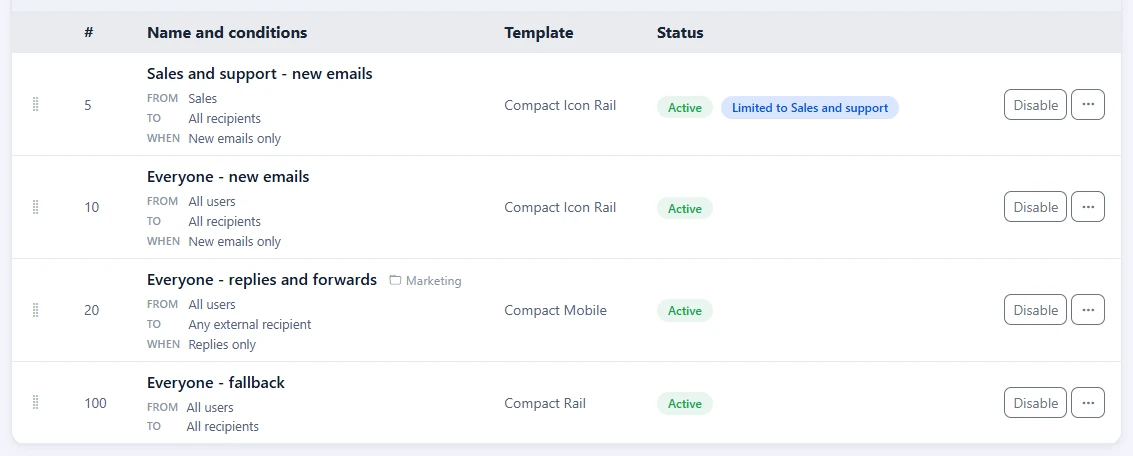
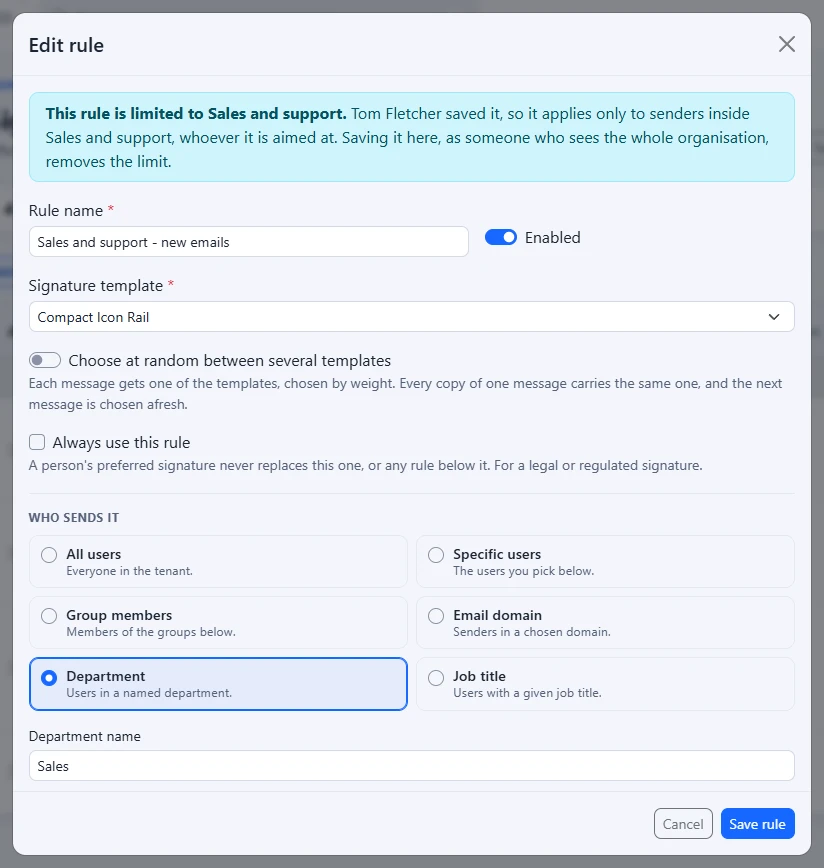
Only saving changes the limit. Saved by a limited administrator, an item carries their scope. Saved by someone who sees the whole organisation, it carries none, and reaches the people it is aimed at again. A new item, and a copy of one, carries the scope of the person who makes it. Turning an item on or off, dragging it in the order, moving it to another folder, and pausing or resuming a campaign, in the portal or through the API, leave the limit as it is.
A signature backup does not hold the scope an item was saved under. Backing up and restoring are for people who see the whole organisation, so a rule, disclaimer or campaign you restore carries no limit.
Approvals
A limited administrator who holds Approve and publish decides a disclaimer or campaign change only when it reaches nobody outside their scope, judged the way the Disclaimers and Campaigns pages judge a change they make themselves. A template change is governed by its folder, as before.
- Approvals lists every change in the folders they can open. One they may not decide shows a Read only pill beside Review, with a line saying it reaches people outside the scope and that someone who sees the whole organisation decides it. Review still opens the comparison, so they can read the change.
- The number beside Approvals in the menu counts only the changes they may decide.
- On the comparison page the Reject and Approve and publish buttons are replaced by the same sentence.
- Footer365 refuses the decision itself, whatever the page shows: approving, rejecting, publishing now and setting a time to publish. Each attempt is recorded in the audit log as a permission denied that names the scope.
- A change set to publish at a time keeps the scope of the person who set the time or approved it, and is judged again when the time comes. If the disclaimer or campaign has been aimed at more people since, it is not published: it goes back to being a draft with a note saying who set the time and why, and that person is emailed. Someone who sees the whole organisation can publish it.
See Drafts, publishing and approval.
Keep the master design with head office
A scope limits people, not designs. Templates, campaigns and disclaimers follow folders, which a scope does not change, so head office keeps its master design with the folders and approval that already exist. There is no separate lock.
The example below is a group company, Contoso, with two subsidiaries, Contoso Engineering Ltd and Contoso Retail. Jo Patel at head office is a Super Admin. Sam Lee runs signatures for Engineering and Priya Shah for Retail.
- Make a scope for each subsidiary on Access > Scopes. Contoso Engineering Ltd has a Company name condition for Contoso Engineering Ltd. Contoso Retail has a Department condition for Retail, or an Email domain or a Synced group, whichever your directory is tidiest in.
- Make three folders on the Folders page: Head office, Contoso Engineering and Contoso Retail. Move head office's master templates and disclaimers into Head office. See Folders and who can use them.
- Set who can use each folder. Give Head office its own list with Sam and Priya on it as View only. Give Contoso Engineering its own list with Sam as Manage, and Contoso Retail its own list with Priya as Manage. Tick Changes need approval before they go live on both subsidiary folders.
- Give each a role and a scope on Access > Users: Sam the Manager role with the scope Contoso Engineering Ltd, and Priya the Editor role with the scope Contoso Retail.
What this gives:
- Sam looks after Engineering's people, and sees only them on Users and groups, User details, Out of office, Detail changes and Coverage. Priya does the same for Retail.
- Sam can use head office's master templates in Engineering's rules, but cannot change them: Head office is a folder where Sam has View only. A folder with its own list cannot be opened by someone who is not on it, so Sam cannot open Contoso Retail's folder at all, even though the Manager role holds Manage signatures.
- A change Sam makes to a template, disclaimer or campaign in Contoso Engineering that is already going out waits for someone with Approve and publish, other than Sam. Jo holds it as a Super Admin. See Drafts, publishing and approval.
- Sam's rules are held inside Engineering by the scope, whatever folder they are in. A rule Sam saves applies only to Engineering's senders when mail is sent, even if someone from Retail later joins a department or group it names. Jo sees a Limited to pill on it, and saving it as a Super Admin would remove the limit.
- If Sam holds Approve and publish, a disclaimer or campaign change that someone else sends for approval, and that reaches anyone outside Engineering, shows to Sam on Approvals as Read only, and Jo decides it.
Check that nothing head office must keep is left in no folder. Items in no folder follow the Manage signatures permission, which a Manager holds, so a template left there can be changed by Sam. Moving it into the Head office folder closes it.
The API and reports
- API keys. A key made by a limited administrator carries their scope, so it reads and changes only the same people, and a rule or campaign it may not change is refused. A limited administrator whose access is made of more than one scope, or of a scope that no longer exists, cannot make a key, because a key carries a single scope. On the API keys page, what a key may do is called its Permissions, and the scope it carries is shown as Limited to. See Create and revoke API keys and The Footer365 API.
- Webhooks and integrations send events about the whole organisation, so they stay with people who see all of it.
- Report emails. A limited administrator can have only the Coverage report emailed, built for the people in their scope each time it is sent. See Have reports emailed to you.
- Emails about waiting changes. The daily email about changes waiting for approval on Detail changes names only the people in the recipient's scope, and is not sent on a day when there are none. The daily email about templates, disclaimers and campaigns waiting on Approvals is not sent to a limited approver, because it lists every folder. They see what waits for them when they open Approvals.
Good to know
- A scope limits what an administrator can see and change. It decides who gets which signature only through the rules, disclaimers and campaigns a limited administrator saves, which carry it. Mail is otherwise signed by the rules, whoever made them.
- Every change is recorded in the audit log: a scope made, changed or deleted, with what it covered before and after, who was given or lost a scope, a rule, disclaimer or campaign saved with or without a limit, and each attempt by a limited administrator to reach beyond theirs. See The audit log.
- A change takes effect within a few minutes for anyone already signed in, the same as a change of role. A change to a scope reaches the mail within five minutes.
- The size meter follows the scope. The signature size meter in the template editor measures the signature filled in with the longest details among the people the administrator can see, so it can read differently from what head office sees.
Related articles
Still stuck?
Tell us what you were trying to do and what you saw. Include the sender, a recipient and roughly when a message was sent, and we can trace it.