

Shared mailboxes and seats
Which accounts count as seats on your subscription, and why shared mailboxes get signatures without being charged for.
You pay for the people who send email as themselves, not for every account in your directory. This article explains how Footer365 tells the two apart, and how to see which accounts it has counted.
The kinds of mailbox
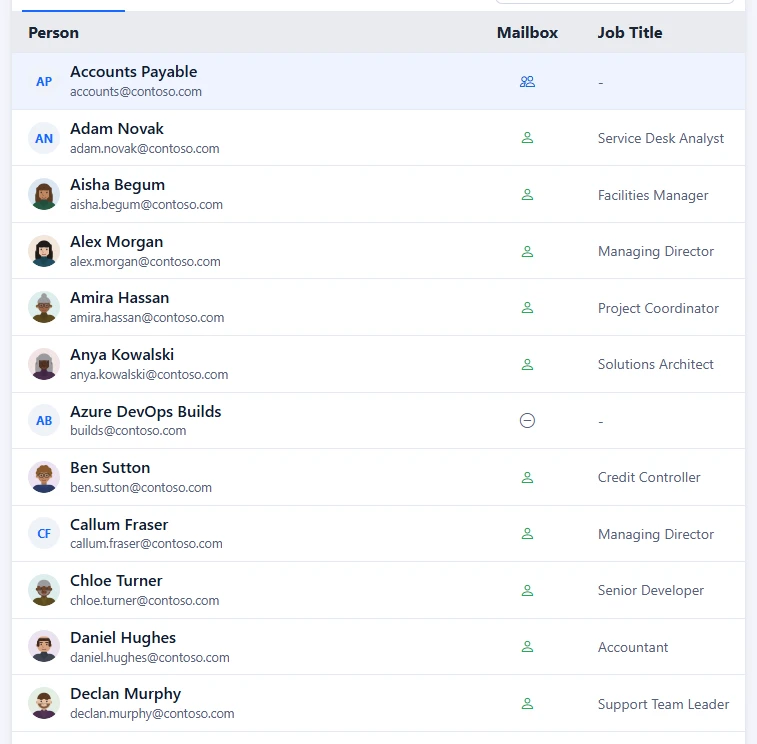
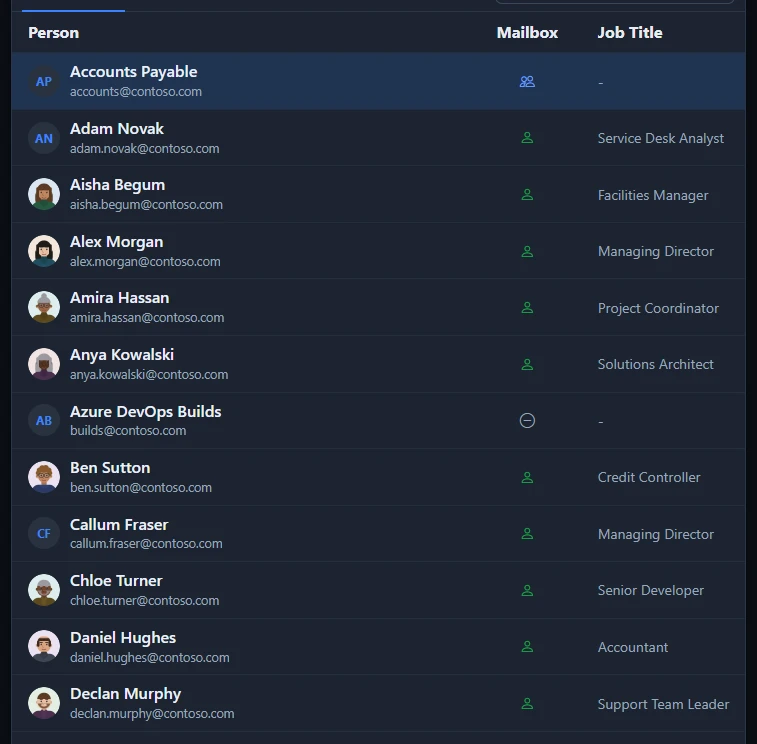
Every account copied from Microsoft 365 is sorted into one of these kinds. You can see which one on the Users tab of Users and groups, from the mailbox icon to the right of each name.
| Kind | What it means | Gets a signature | Counts as a seat |
|---|---|---|---|
| User mailbox | The account holds an Exchange licence, so it has its own mailbox and belongs to one person. | Yes | Yes |
| Shared mailbox | The account has a mailbox but no Exchange licence. This is how Microsoft 365 represents a shared, room or equipment mailbox. | Yes | No |
| No mailbox | The account has no Exchange mailbox, so it sends no mail. | No mail to sign | No |
| Not yet classified | Footer365 has not read the licence data for this account yet. The next directory sync sorts it out. | Yes | See below |
Hover over, or tab to, the mailbox icon to see the explanation for that account.
Shared mailboxes are free
Mail sent from a shared mailbox such as info@ or sales@ gets a signature in exactly the same way as mail sent by a person, and your signature rules can target it. It is not charged for.
Guests, and accounts with no Exchange mailbox, are not charged for either.
When someone sends from a shared mailbox, the message gets the mailbox's signature unless you choose otherwise. You can have it signed as the person sending instead, or with the mailbox's signature and a line naming who sent it, on the Sending for others page. Choosing a different signature does not change who is counted: the shared mailbox still costs nothing, and the person sending is counted for their own mailbox as before. Delegates, Send As and Send on Behalf
See who is being counted
- Go to Directory > Users and groups (open it).
- Look at the user mailboxes figure above the list. The number is the count your subscription uses.
- Hover over it, or tab to it, to see how many accounts were left out as shared or without a mailbox.
- Select it to narrow the list to user mailboxes only. The list then says Showing user mailboxes only. Select Clear, or the synced users figure, to see everyone again.
The user mailboxes figure covers your whole directory, so it does not change when you type in the search box.
If the count says estimated
If the figure reads user mailboxes, estimated, with a warning sign, Footer365 could not read your organisation's licence data. Until it can, it counts every account that can sign in. Shared, room and equipment mailboxes are still left out, but an account with no mailbox is included, so the figure may be slightly high. The next directory sync will refine it. You can run one straight away with Sync now.
How the count affects your bill
- During a free trial, your seat count follows the number of user mailboxes each time the directory syncs. You do not enter a number of users when you sign up.
- On a monthly subscription, your seat count follows the user mailboxes counted at each sync, and each invoice is raised on them.
- When a 12, 24 or 36-month term starts or renews, Footer365 counts your user mailboxes again from Microsoft 365 that day, and that number becomes the term's committed seats: the least you are billed for until it renews. At renewal they are counted again, so they go down if you have fewer mailboxes. To commit to fewer, remove or convert the mailboxes you no longer need before then.
- During a term, each invoice is raised on whichever is higher: the committed seats or the user mailboxes counted at the last sync. Every user mailbox in your Microsoft 365 tenant counts, whether or not it receives a signature, including people outside your sync scope and new starters waiting for approval. So if you add people in Microsoft 365, they are covered and appear on your next invoice, without any notice first, and if you remove them they stop being billed, down to the committed seats. The Seats and user mailboxes card on Billing > Invoices shows both figures and which one you are billed on.
You cannot change your seat count in the portal. It comes from your directory.
A sync scope does not change the seats
A seat is a user mailbox in your Microsoft 365 tenant, so you have as many seats as your tenant has user mailboxes. If you choose who is synced under Sync settings, the scope decides who is listed and signed, not what you pay:
- People outside the sync scope are not signed and are not in the list, but their user mailboxes are still seats. After 30 days outside the scope Footer365 deletes them and keeps no details of them, only how many user mailboxes they have, which each directory sync counts again from Microsoft 365. If that count cannot be read, the last one is kept, so your seats never drop because of a failed read.
- New starters waiting for approval are not signed until they are approved, but are seats from the sync that first finds them.
The user mailboxes figure, a trial's seat count and your invoice all count every user mailbox, inside the scope or not. Hover over the figure to see how many of them Footer365 keeps no record of. The Sync settings window shows the seats as you choose the groups, and they stay the same whichever groups you choose. Shared, room and equipment mailboxes stay free either way. See How directory sync works.
Changing how an account is counted
The kind of mailbox comes from Microsoft 365, not from Footer365. If an account is counted wrongly, for example a mailbox that should be shared still holds an Exchange licence, change it in Microsoft 365, then run Sync now.
Removing an Exchange licence from a person's mailbox in Microsoft 365 has consequences beyond Footer365. Check with whoever manages your Microsoft 365 licences first.
Related articles
Still stuck?
Tell us what you were trying to do and what you saw. Include the sender, a recipient and roughly when a message was sent, and we can trace it.