

Keep lists of recipients to reuse
Name a set of addresses and domains once, such as your key accounts or your competitors, and choose it in any rule, disclaimer or campaign. Fill it from a CSV file, by typing, or from another system through the API.
A recipient list is a named set of email addresses and domains that you keep in one place, such as your key accounts, your partners or your competitors. You then choose the list in a signature rule, a disclaimer or a campaign, instead of typing the same entries into each. Change the list once and everything that uses it follows.
Footer365 makes the Recipient lists page available to organisations gradually, so it may not be in your portal yet. See Early access pages and features.
Make a list
- Go to Signatures > Recipient lists in the portal, or open Recipient lists.
- Select New list.
- Type a Name, such as Key accounts. Each list needs a different name. A Description is optional.
- Select Make the list. The new list opens.
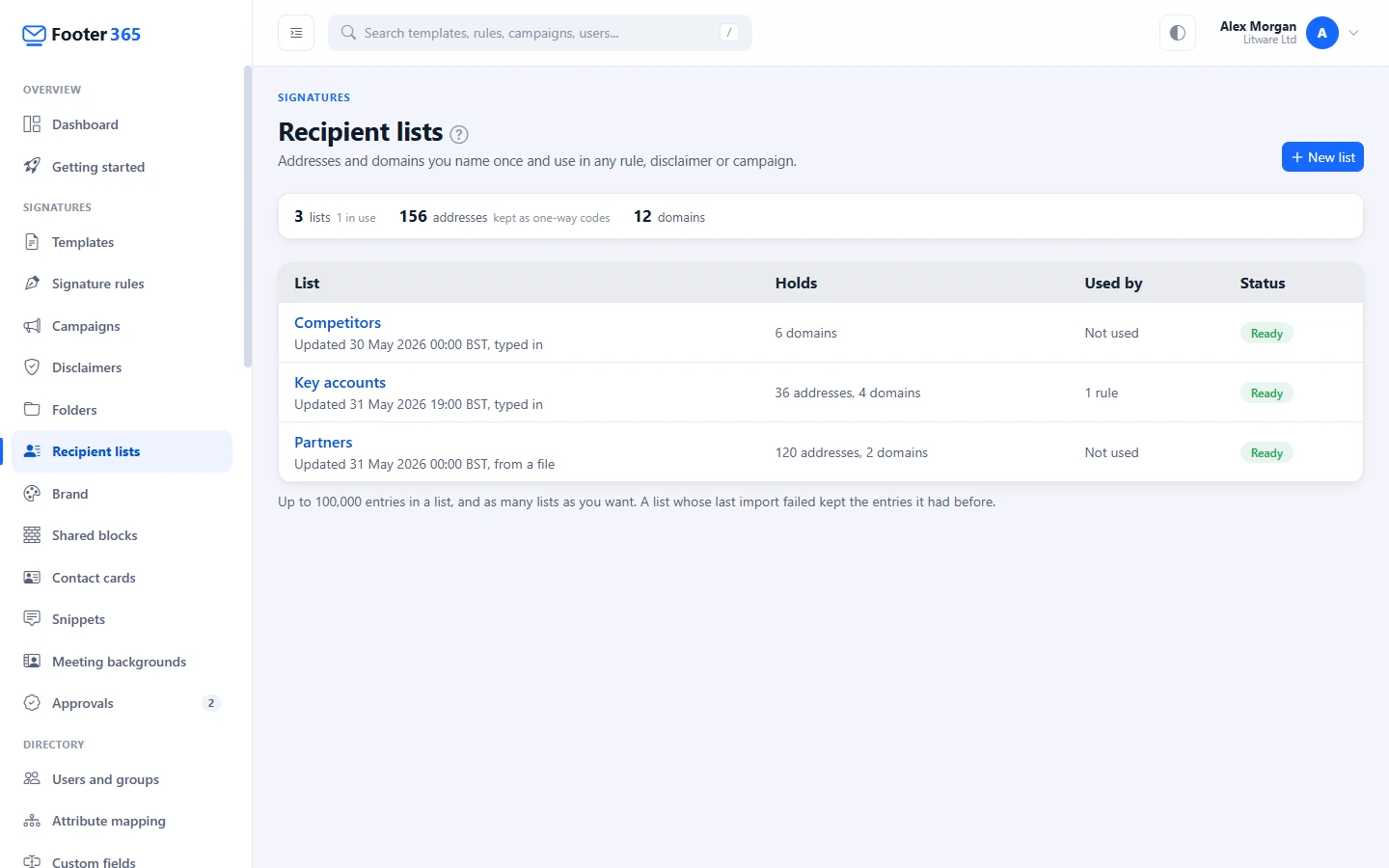
A list holds up to 100,000 entries, and you can make as many lists as you like. An entry is a whole address, such as [email protected], or a domain, such as northwind.example. A domain covers its subdomains, so northwind.example also covers uk.northwind.example. A wildcard such as *.de is not kept in a list: type it into the rule itself.
Add entries
On a list's page there are three ways to fill it.
Type them. Under Add or remove entries, type addresses or domains, one per line or separated by commas, and select Add. To take entries out, type them in the same way and select Remove. You can type up to 3,000 at a time. For more, import a file.
Import a file. Select Import a file, choose a CSV or text file with one address or domain per line, or with a column named Email, Address or Domain, and select Read the file. The file can have up to 100,000 rows and be up to 20 MB. Before anything changes, the window shows how many addresses and domains it found and how many rows it cannot use, with each row's number and why, for example a value that is not an address or a domain, a wildcard, or a repeat. Then choose:
- Replace the list with this file: the list then holds exactly what the file holds.
- Add this file to the list: the file's entries are added to the ones already there.
Select Import to go ahead. Footer365 does not keep the file. A file with more than 3,000 entries is written in the background: the page shows its progress, the list is used as it was until the import finishes, and the status reads Importing. If an import fails, the list is left as it was and its status reads Last import failed, with the reason, until the next import works.
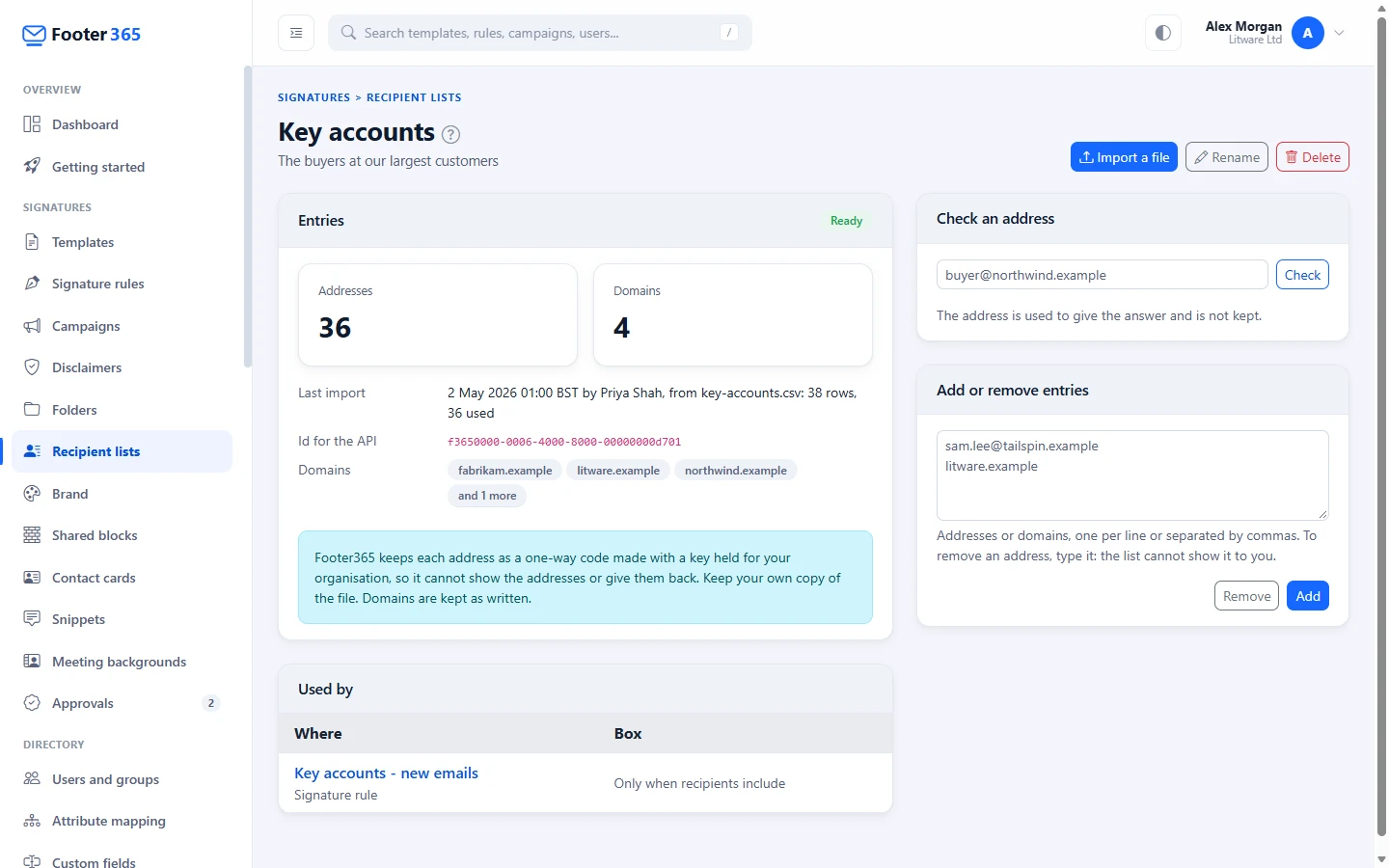
Keep it in step from another system. A system that already holds the addresses, such as a CRM, can replace the list on a schedule through the API. The list's page shows its Id for the API. See The Footer365 API and Create and revoke API keys: the key needs lists.write.
How the addresses are kept
Footer365 keeps a domain as you wrote it. It keeps a whole address only as a one-way code, made with a key held for your organisation. That means Footer365 holds no readable recipient address from a list, and cannot show you the addresses on one or give them back. The page shows how many addresses and domains the list holds, the domains, and when it was last imported. Keep your own copy of the file.
To see whether an address is on a list, use Check an address on the list's page. It answers On the list, as an address, or because its domain is on it, or Not on the list, and it does not keep the address. To remove an address, type it under Remove.
Use a list in a rule, a disclaimer or a campaign
- Open the rule, the disclaimer or the campaign. For a rule, go to Signature rules and select New rule or Edit. Where your organisation has the rule wizard, a new rule's recipient lists are set in the editor: select the arrow beside New rule and then Start blank in the editor.
- Under Who it goes to, select the Only when recipients include or Except when recipients include box.
- Choose the list from the menu under Recipient lists. Typing the start of its name narrows the menu. The list is added as one entry, with the number of entries it holds.
- Save the rule, the disclaimer or the campaign.
A list works like any other entry in the box. With Any recipient is enough, one recipient on the list is enough, and with Every recipient must match each recipient must be on the list or on another entry. See Rules for particular recipients. Changes to a list reach the mail relay within about a minute.
Used by on the list's page names every rule, disclaimer and campaign that uses the list and the box it is chosen in. Test a rule names a list that took a recipient in, such as "is on the list Key accounts".
Rename or delete a list
Select Rename to change a list's name or description. Select Delete to remove a list. A list that a rule, a disclaimer or a campaign uses cannot be deleted: the window names them, and the list can be deleted once it has been taken out of each. An unused list is deleted after you confirm with Delete list, and its entries go with it. This cannot be undone.
In Outlook with the add-in
The Outlook add-in reads only the domains of the recipients while an email is being written, never their whole addresses. A list of domains only is therefore decided while you write. A list that holds any whole address cannot be, so when a rule, a disclaimer or a campaign that could apply uses one, the add-in leaves the email for the mail relay, which sees every address and adds the signature as the email is sent. The rule editor says so when you choose such a list.
With the Outlook add-in only there is no mail relay, so an email such a rule or disclaimer could apply to goes without a signature, and the Coverage page gives the reason as Needs mail flow to choose. A campaign is left off and the signature goes without its banners. Use a list of domains where you can. See Using the Outlook add-in only and Can't see the signature while writing.
Who can use the page
Anyone who can view signatures can open Recipient lists, look at a list, check an address and choose a list in a rule. Making, importing into, renaming, changing and deleting lists needs the permission to manage signatures. See Roles and permissions.
An administrator limited to part of the organisation can look at the lists, check an address and choose a list in their own rules, but cannot make or change one, because a list is shared by everything that uses it, including things outside their part. See Limit an administrator to part of the organisation.
Every list made, changed, imported into or deleted is recorded in the audit log. A change to the entries records how many addresses and domains the list held before and after, and no entry records an address.
Related
Still stuck?
Tell us what you were trying to do and what you saw. Include the sender, a recipient and roughly when a message was sent, and we can trace it.