

Fix wrong or missing details
Find where a name, job title, phone number or link in a signature comes from, and put it right.
When a signature shows the wrong job title, an old phone number or nothing at all where a detail should be, the fix depends on where that value comes from. This article shows you where to look and how to correct it.
Footer365 makes the Staff self-service and Detail changes pages available to organisations gradually, so they may not be in your portal yet. See Early access pages and features.
Where each value comes from
A person's signature is filled in from up to four places. Microsoft 365 comes first unless you choose otherwise: a value entered in Footer365 only fills a field that is empty in Microsoft 365, unless you set that field to Replaces the directory value on User details, or a person sets the value for themselves through Staff self-service on a field whose policy says their value replaces the directory's.
| Source | What it holds | Where to change it |
|---|---|---|
| Your Microsoft 365 directory | Name, email, job title, department, office, company name, business phone, mobile phone, address and profile photo | Microsoft 365 admin centre or Entra admin centre |
| Exchange custom attributes | Social links and other per-person values, through attribute mapping | Exchange admin centre or PowerShell |
| Values entered in Footer365 | Values your administrators enter for one person on Users and groups, for many from a spreadsheet on User details, or that a source keeps up to date from a file your HR system publishes | Directory > Users and groups, Directory > User details or Directory > Sources |
| Your own custom fields | Values for the fields you add on Custom fields, such as working hours or pronouns, entered in Footer365 or read from an Exchange custom attribute or an Entra ID directory extension, with a default for anyone without one | Directory > Custom fields, and each person's panel on Users and groups |
| Staff self-service | Values people set for themselves, in the fields you open up to them, if you turn it on | The person, in Outlook or on their own page; you see every change on Directory > Detail changes |
For the phone number, Footer365 uses the first business phone number held for the person. Microsoft 365 holds only one, so a second or third business number is entered in Footer365, as Phone 2 and Phone 3 in Edit details, where both say Not held in Microsoft 365. A value entered for either is always used, and the When a value is entered here table on User details says Always used: Microsoft 365 holds none for them. See Merge fields and empty fields.
Fix it in Microsoft 365
A wrong value is best corrected in Microsoft 365, because that is where nearly every value in a signature comes from. Your directory then stays right for everything else that uses it, such as Teams and the address book. When you cannot change it there, correct it for signatures in Footer365, as described in the next section.
- Update the person's details in the Microsoft 365 admin centre or the Entra admin centre.
- In Footer365, go to Directory > Users and groups (open it).
- Select Sync now, or wait for the next scheduled sync.
- When Last sync shows a newer time, find the person with Search people beside the tabs, select them in the list, and check the new value in the panel beside it.
Each person in the list shows the photo their signature uses, or their initials when they have none. A missing or out-of-date photo is put right the same way: change it in Microsoft 365, then sync. Or upload a photo for them in Footer365, which is used instead of the Microsoft 365 one. See Upload signature photos.
Beside each name is the person's job title, under the Job Title heading, with a dash where Microsoft 365 holds none. The panel beside the list shows everything else a signature fills in for the person you select, with Not set for each field that is empty. On a phone the panel is below the list.
A value entered in Footer365 is marked in the panel by where it came from: Set here for a value entered on screen, Imported for one from a spreadsheet, Staff for one the person set for themselves, and From with a name, such as From HR system, for one a source set from a file. Point at the mark to see who set it, when, and what Microsoft 365 holds.
Correct one person's details on screen
Anyone with the Manage directory permission can correct a person's details for signatures without a spreadsheet and without access to Microsoft 365.
- Go to Directory > Users and groups (open it) and select the person.
- In the panel beside the list, select Edit details. The panel turns into a form, with each field showing where its value comes from: From Microsoft 365, or the field's setting on User details when a value is entered here or Microsoft 365 holds none.
- Change the values you need and select Save. Cancel puts the panel back as it was.
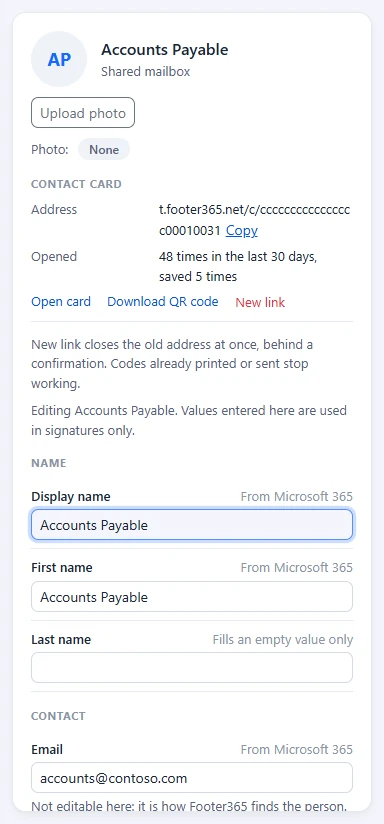
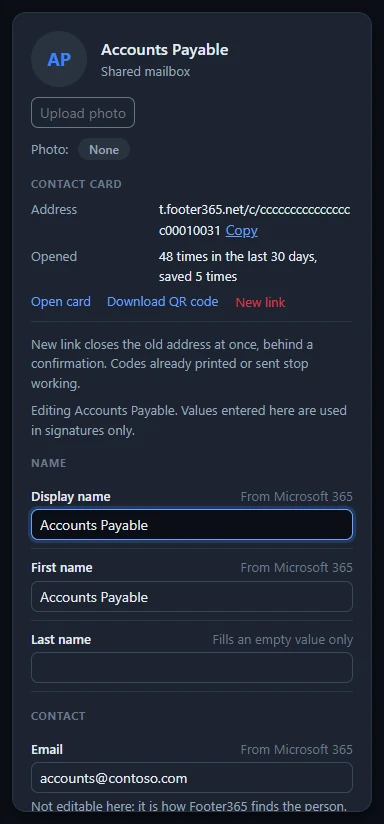
What happens to a value you save depends on the field's setting under When a value is entered here on User details:
- Fills an empty value only, where every field starts: the value is used only while Microsoft 365 holds nothing for that field. If Microsoft 365 holds a value, yours is kept but not used, and the form says so beneath the field.
- Replaces the directory value: the value is used in signatures in place of the one Microsoft 365 holds. The form shows the directory's value struck through beneath it.
Under a value entered here the form says who set it and when. When a source set it, the form says so and warns that a change made here lasts only until the source next changes it: a source applies its file again at every run, so a different value in the file replaces yours. To keep a value of your own, change it in the file, or take the column out of the source. See Keep details up to date from a file. To go back to what Microsoft 365 holds, select Use the directory value beneath the field and confirm. Where Microsoft 365 holds nothing for the field, the link reads Remove this value. Entering the directory's own value, or emptying a field that has a value entered here, does the same when you save.
The email address cannot be changed here, because it is how Footer365 finds the person. A social link read from an extension attribute through Attribute mapping cannot be changed here either; change the attribute in Exchange. Nothing you enter is written to Microsoft 365, and every change is recorded in the audit log with the value before and after.
Your own fields from Custom fields are in the panel too, under Custom fields. A field with a list of values is a drop-down, or a set of tick boxes for a Several choices field, and a field without a value of its own shows its default. A field that reads its values from an Exchange custom attribute shows Exchange beside its value, and one that reads an Entra ID directory extension shows Entra ID; each is changed there, not here. See Add your own signature fields.
Choose when a value entered here wins
On User details (open it), the When a value is entered here card lists every field with its setting, how many people have a value set here, and how many of those are replacing a different Microsoft 365 value now. The setting applies the same way to values entered on screen and to values imported from a spreadsheet. Change a field between Fills an empty value only and Replaces the directory value, and select Save. Before you save, the page tells you how many signatures the change moves. The values themselves are kept either way.
A value a person set for themselves through Staff self-service follows that page's own setting for the field, which only a Super Admin can change. If both a person and an administrator set a value for the same field, the latest one is used, and the panel names who set it.
Fill in many values from a spreadsheet
To fill in or correct values for many people or groups at once, such as a distribution group's phone number, use the spreadsheet on User details.
- Go to Directory > User details (open it).
- Select Download the current details.
- Find the rows and fill in the cells.
- Save the file and import it. See Fill in details Microsoft 365 does not hold for the full steps.
If a field that fills an empty value only is later filled in Microsoft 365, signatures use the Microsoft 365 value from the next sync.
Let people correct their own details
If you would rather people put their own details right, a Super Admin can turn on Staff self-service (open it) and choose, field by field, what people may change and whether a change needs approval. A person's value can either fill a field Microsoft 365 leaves empty or replace the value it holds, as you choose. See Let staff edit their own details.
If a value in someone's signature is not the one Microsoft 365 holds and the panel marks it Staff, check History on Detail changes (open it): the person changed it themselves. Undo puts the earlier value back.
If the panel marks it From and a name, a source set it. Correct it in the file the source reads, or on the source's page under Directory > Sources (open it) check its status and its last run. See Keep details up to date from a file.
Phone numbers look odd
Footer365 shows a phone number exactly as it is written in your directory. It does not add spaces, brackets or a country code. If one person's number is written as +44 20 7946 0000 and another's as 02079460000, their signatures will differ. To make them consistent, write them the same way in Microsoft 365 and run Sync now.
A field is blank
If a field is empty for a person, it is left out of their signature rather than shown blank. Check:
- Is the value in Microsoft 365? Search for the person on Users and groups and select them. The panel beside the list shows Not set for a field that is empty.
- Has a sync run since it was added? Compare the time you made the change with Last sync.
- For a social link or other custom attribute, is the field switched on with Show in signatures on the Attribute mapping page, and is the attribute filled in on the person's mailbox?
- For one of your own custom fields, does the person have a value in the panel, or does the field have a default on Custom fields? A Link value is used only when it starts https://.
- Is the person in the list at all? If not, and they are new, run Sync now.
- Can the field not be set in Microsoft 365? Enter it with Edit details on Users and groups, or fill it in under User details, as described above.
Good to know
- Footer365 writes to your directory only when you turn on write-back to Entra ID for staff self-service, and then only the details staff change, for the fields and people you choose. A value you enter on Users and groups or import on User details is used in signatures only, and is never written to Microsoft 365.
- Seeing the panel needs the View directory permission. Edit details, Use the directory value and the settings on User details need Manage directory.
- You can check what a particular person's signature will look like with the rule tester. See Test a rule.
Related articles
Still stuck?
Tell us what you were trying to do and what you saw. Include the sender, a recipient and roughly when a message was sent, and we can trace it.