

Give colleagues access to the portal
Let other people in your organisation sign in to the Footer365 portal, one at a time or through a Microsoft 365 group.
You can let colleagues sign in to the Footer365 portal with their normal Microsoft 365 work account. There is nothing to install and no separate password. You choose what each person can do by giving them a role.
To manage access you need the Manage portal access permission. Super Admins have it.
Before you start
- The person or group must already be in Footer365's copy of your directory. If they are new in Microsoft 365, go to Directory > Users and groups and select Sync now first. See How directory sync works.
- Only accounts that can sign in are offered. Shared mailboxes and disabled accounts cannot be given portal access.
Add a person or a group
- Go to Access > Users (open it).
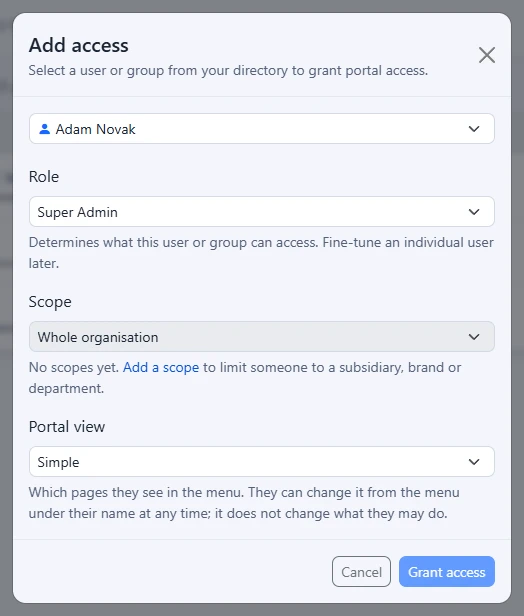
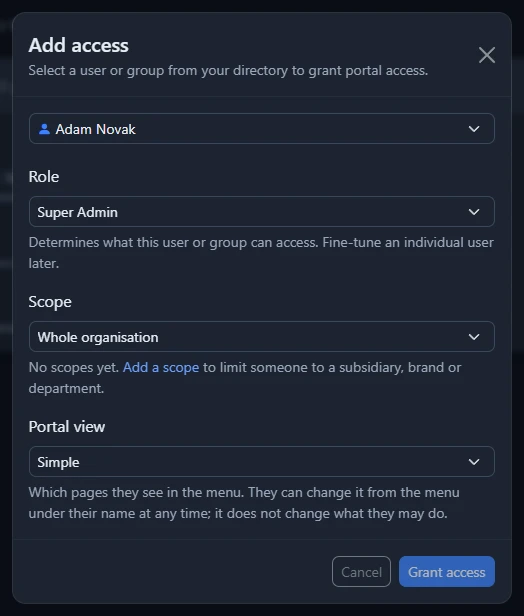
- Select Add access.
- Open the box that says Select a user or group..., type part of a name to search, and choose the person or group.
- Under Role, choose what they can do. See Roles and permissions for what each role allows.
- Under Scope, leave Whole organisation unless the person or group should look after only part of it, such as one subsidiary. See Limit an administrator to part of the organisation.
- If you are a Super Admin and are adding a person, choose their Portal view: how much of the menu they see. It starts on your organisation's starting view, and they can change it themselves. See Choose how much of the portal you see.
- Select Grant access.
They can now sign in to the portal at https://app.footer365.net with their Microsoft 365 account.
The Role box starts on Super Admin, which gives full control, including over who else has access. Choose a smaller role unless the person really needs everything.
What the list shows
The heading of the Who has access list gives the number of people and groups with access. Select the i beside it for a short explanation.
Each row of the list shows:
- the person's photo from Microsoft 365, or their initials when they have none, with their name and email address underneath
- You beside your own name, and Auto beside someone who was let in automatically because they hold the Exchange Administrator role (see Automatic access for Exchange Administrators)
- Disabled beside the name of a person or group whose access is switched off. Their row is shown faded. Anyone without it has access.
- in the Mailbox column, the kind of mailbox they hold, as on Directory > Users and groups. Hover over the icon for what it means, or see Shared mailboxes and seats
- their Role, with Limited to and the name of their scope under it when they have one. Someone with no scope sees the Whole organisation, and nothing is shown
- for Super Admins only, under the role, their portal view: Simple, Advanced or Developer. See Choose how much of the portal you see
- below those, Tour due when they will see the portal tour at their next sign-in, or Tour off when they will not; see The Welcome step, the portal tour and the setup guide
- under Added, the date they were given access
- at the end of the row, the buttons to disable, enable or remove their access (see below). On your own row they are greyed out.
A group is shown as a green square with its initials and a Group tag, and has no mailbox icon.
Beside the list, or below it on a phone or a narrow window, a panel shows how many users and groups have access, how many people were given it by the Exchange Administrator role, and how many more people and groups in your directory are available to add. Under By role it shows how many people and groups hold each role, with a link to Access > Roles. The panel also holds the Exchange Administrators switch: see Automatic access for Exchange Administrators.
Using a group
Giving access to a Microsoft 365 group is the easiest way to manage a team. Everyone in the group can sign in with the group's role, and people joining or leaving the group in Microsoft 365 gain or lose access after the next directory sync.
Clicking a group in the Who has access list opens Manage access, which lists the group's members as of the last directory sync.
If someone has been added on their own as well as through a group, the access given to them on their own is the one that counts.
Give a team one folder only
To let a team look after its own templates, rules, campaigns and disclaimers and nothing else, give its group access here with a role that holds no Signatures permission, then add the group to that folder's own list with Manage on the Folders page. Its members see the Signatures lists holding something in the folder, with that folder alone in them. See Folders and who can use them.
Change someone's role
- On Access > Users, click the person or group in the Who has access list. Manage access opens.
- Under Role, choose a role. The list holds the five built-in roles, then any roles your organisation has made for itself under Access > Roles.
- Select Save. A role change is picked up within a few minutes.
You cannot change your own role, so the Role box is greyed out on your own account.
Change someone's scope
A scope limits a person or group to part of the organisation. To give one, change it or take it off, click the person or group in the Who has access list, choose a Scope in Manage access and select Save. A change is picked up within a few minutes. The Scope box is greyed out on your own account, and is switched off for Super Admin and for any role that can manage portal access, which always see the whole organisation. Choosing one of those roles for someone who has a scope takes the scope off in the same save.
A person with a record of their own is judged on that record alone. Someone who has access only through groups is limited by the scopes of those groups added together, and by none at all if one of the groups has the whole organisation. See Limit an administrator to part of the organisation.
If a person has permissions fine-tuned for them, Manage access says so. Choosing a different role there gives them exactly what that role allows, and the fine-tuning is cleared.
Fine-tune what one person can do
- On Access > Users, click the person in the Who has access list.
- Select Fine-tune this person's permissions.
- Choose a Role. The ticks under Permissions show what that role allows.
- To make an exception for this person only, tick or untick individual permissions. These are saved as overrides for this person and do not change the role for anyone else.
- Select Save changes.
The Super Admin role always has every permission, so individual overrides do not apply to it.
Disable, re-enable or remove access
Use the buttons at the end of the person's or group's row in the Who has access list. The same choices are in Manage access, which opens when you click anywhere else on the row.
- Disable (the pause button) blocks sign-in straight away but keeps the record. You are asked to confirm first. A disabled person cannot sign in even if they are in a group that has access, or hold an administrator role in Microsoft 365.
- Enable (the play button), shown instead for a disabled person or group, lets them sign in again with the role they had before.
- Remove (the cross) deletes the record, after you confirm. You can grant access again later. In Manage access this button is called Remove access.
Things you cannot do
To keep your account safe, Footer365 stops some changes:
- You cannot change your own role, or disable or remove your own access.
- You cannot give anyone a permission you do not hold yourself, or change someone who holds permissions you do not.
- You cannot remove or reduce the last Super Admin.
If a change is refused, a message explains why and the attempt is recorded in the audit log, if your account has one.
Good to know
- Microsoft 365 Global Administrators in your organisation can always sign in, as Super Admins, without being added here.
- Exchange Administrators can be let in automatically too, if you switch that on. See Automatic access for Exchange Administrators.
- The Auto label next to a name means that person was let in automatically because of their Exchange Administrator role.
- Once anyone besides one person has the portal, as a person or through a group, Add a colleague is ticked on the Getting started page. The Getting started page
Related articles
Still stuck?
Tell us what you were trying to do and what you saw. Include the sender, a recipient and roughly when a message was sent, and we can trace it.