

Count clicks on your signature's links
Turn on click counting for a template's own links, such as its website, social icons and booking button, choose which links count, and read the template's report.
Footer365 can count clicks on a template's own links: the website, the social icons, a booking button, a linked logo. It is off for every template until you turn it on, so links go straight to their address unless you choose otherwise. Clicks are counted by the same click service that counts campaign banner clicks, with the same scanner filtering, safety checks and privacy settings.
Footer365 makes the switch to stop counting clicks available to organisations gradually, so it may not be in your portal yet. See Early access pages and features.
Turn it on for a template
- Go to Signatures > Templates and open the template.
- Under the template's name and description, turn on Count clicks on this template's links.
- The template's links are listed underneath, each with the kind of element it is: Text link, Social icon, Teams link, Button, Image or Icon. Every link is ticked when you first turn it on. Untick any you want left direct.
- Select Save.
Only messages sent after you save are affected. You need permission to manage signatures to change a template.


The same choice is in each linked element's own settings. Select the element on the canvas and, under What it shows, use Count clicks on this link in Click counting. The switch there and the tick in the list are the same setting, so changing one changes the other. While the template's switch is off, the element's switch cannot be turned on.
Links that are never counted
- Email and phone links. A
mailto:ortel:link opens the reader's own email or phone app, so it cannot go through a web address. These are not listed. - A link you have unticked, which goes straight to its address.
- Links in a template saved from Advanced: edit HTML. Counting works on a template designed in the editor.
What the reader's link becomes
A counted link points at Footer365's click service instead of straight at your address, for example https://t.footer365.net/s/k7Qm2xPa1c.... When someone clicks it, the click is counted and they are sent on to your address at once. The address you see in the editor and in the previews does not change: the swap happens when each message is sent, whether the Outlook add-in or Microsoft 365 adds the signature.
A click on a link copied out of a message, or on a message more than 30 days old, is shown a page naming where the link goes, with a Continue button, rather than being sent straight on. This stops your links being used to make another address look like it comes from you.
A signature the sender picks by hand from the Outlook add-in's own list of signatures keeps its links direct, so those clicks are not counted.
Personal links
Some links are different for each sender, such as each person's own LinkedIn page or booking page. Footer365 counts a personal link as one element however many addresses it leads to, and the report shows it as the template holds it, such as {{LinkedIn}}, with a Personal label.
A link whose address uses the time sent or the recipient's name or domain is never counted, because Footer365 would have to keep each address it leads to, and it keeps nothing about the recipient. It goes straight to its address. See Merge fields and empty fields.
Safety checks
Every address a counted link goes to is checked with Google Web Risk, Google's lists of unsafe sites, when the template is saved and again every day. A link whose address is listed as unsafe stops being a link:
- New email carries the link's text, or its image or icon, without the link, so nobody can follow it from a new message. This is the same whether Microsoft 365 or the Outlook add-in adds the signature, and whether or not your organisation counts clicks. The same address in any of your other templates loses its link too.
- A click on the link in an email already sent shows a page saying the link is not available.
- The save tells you which address it was, and the template editor shows a Listed as unsafe: notice naming each link and its address until it is fixed. The rule tester's preview shows the link as text, with a note saying why when you point at it.
- Your account owner and technical contact are emailed once for each address listed, and so are your reseller and its distributor if you work with one. The email names the template and the link, but not the address.
To fix it, open the template, replace the address and select Save. The new address is checked as you save, and the link works again in new email once it passes. If the site is yours and has been cleaned up, ask Google to review it: once Google no longer lists the address, the daily check puts the link back in new email and clicks on email already sent go through again.
Only counted links are checked. A link that is not counted goes straight to its address and is not checked with Google.
The Signature links card
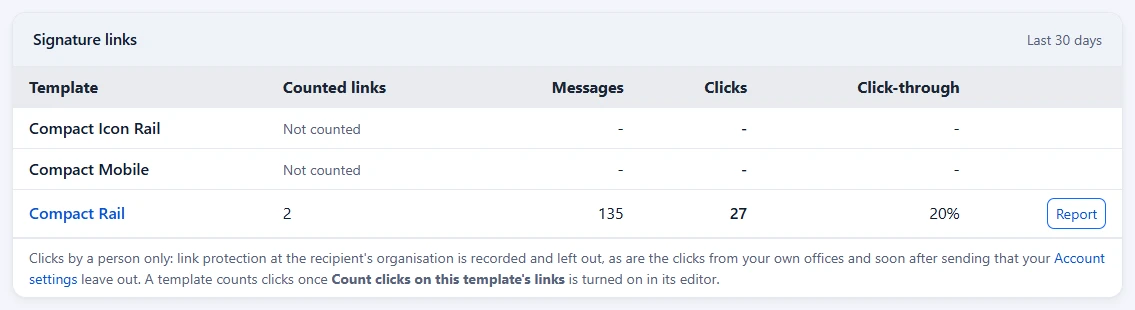
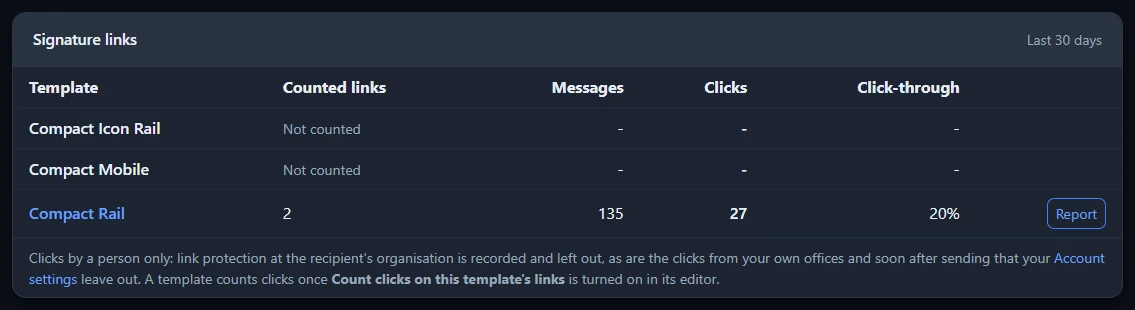
Go to Insights > Analytics (open it). Under Campaign performance, the Signature links card lists each template with its Counted links, the Messages sent with counted links, Clicks by people and the Click-through rate for the last 30 days. A template that counts no links shows Not counted. Select a template's name or Report to open its report.
The template's report
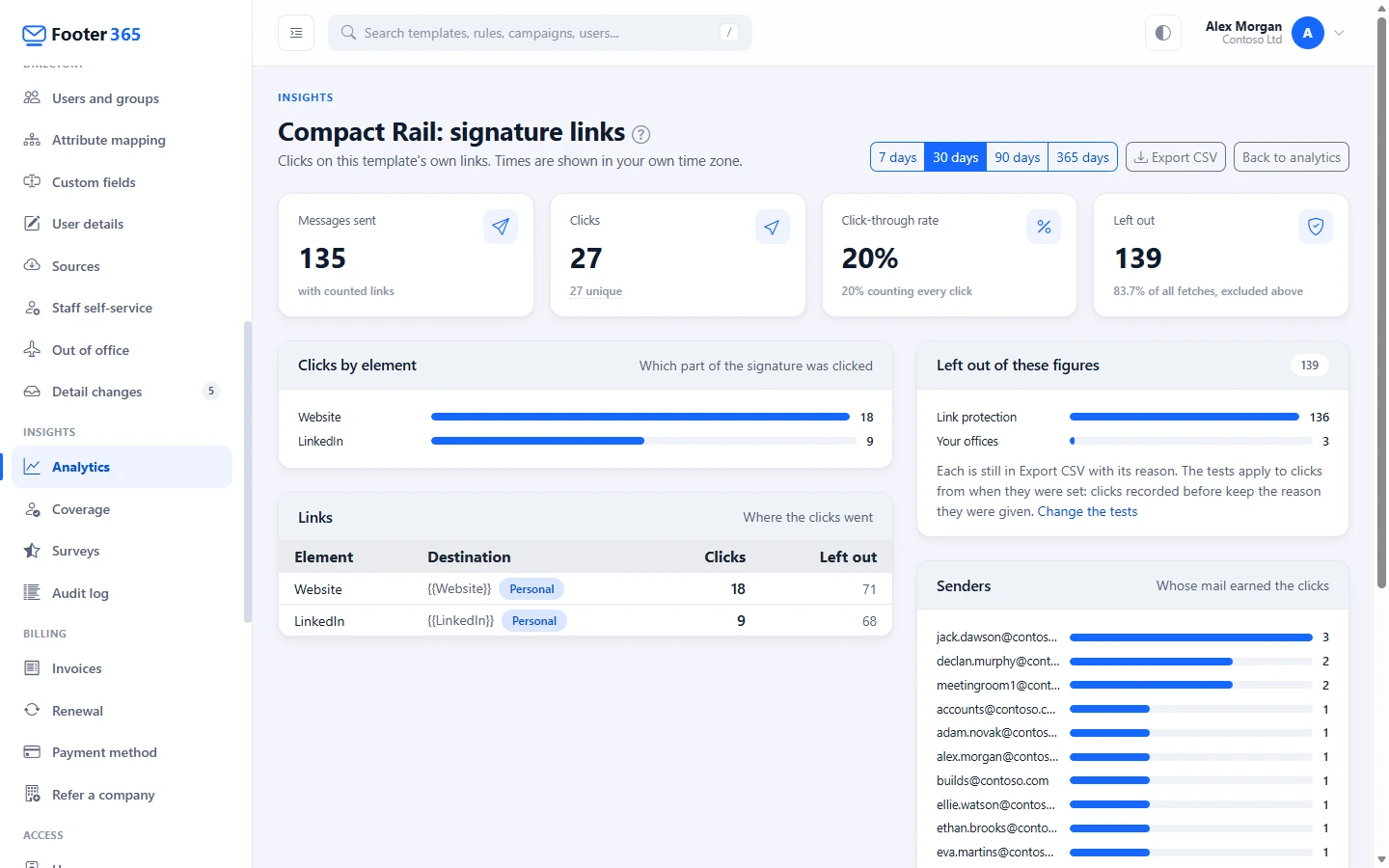
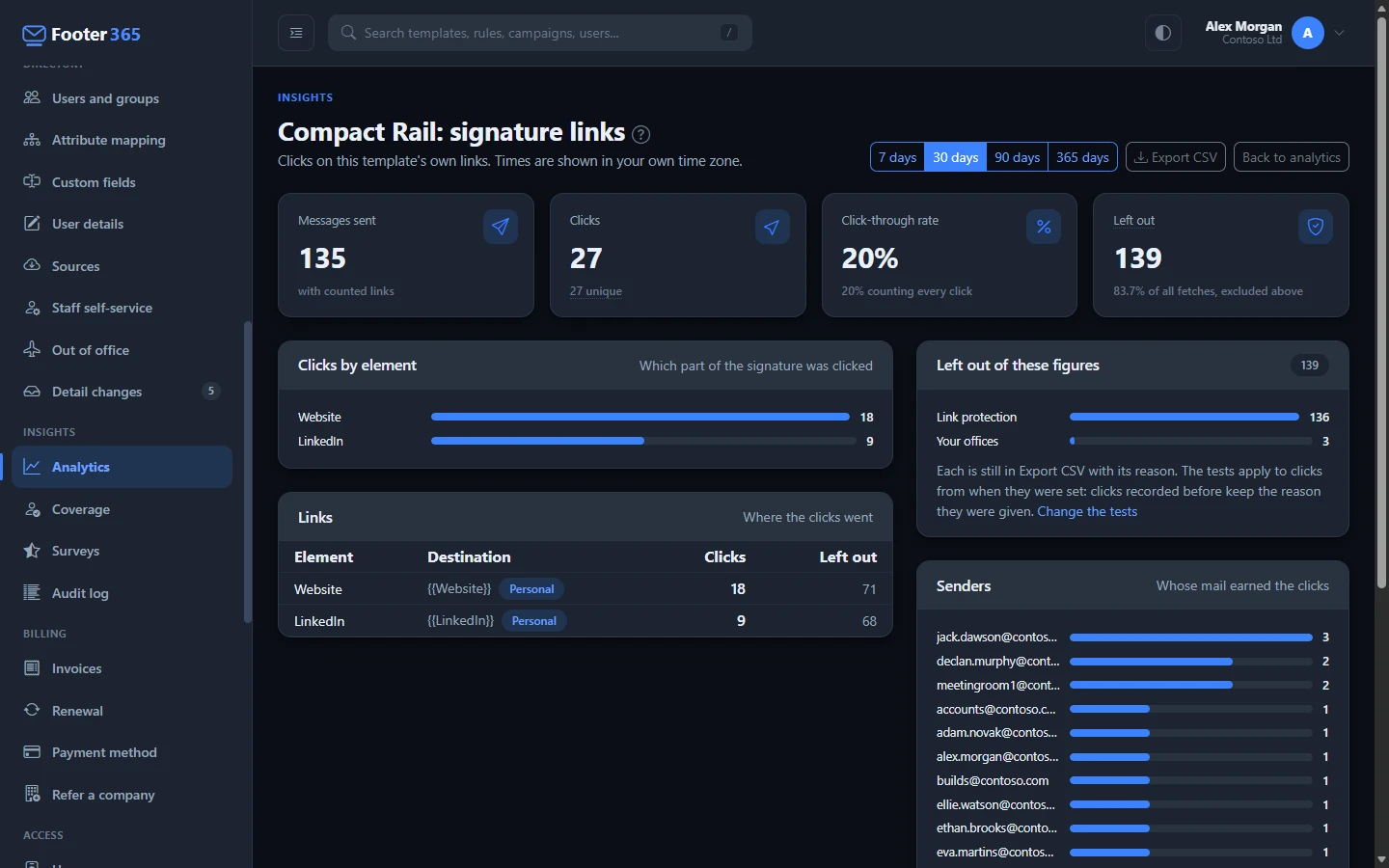
The report is laid out like a campaign's report. Choose 7, 30, 90 or 365 days at the top right. Clicks are kept for at most 12 months, so only the periods the clicks kept still cover are offered. Times are shown in your own time zone.
| Part | What it shows |
|---|---|
| Messages sent | Messages sent with this template's counted links in the period. |
| Clicks | Clicks by a person. Underneath, unique clicks count each message once, however many times it was clicked. |
| Click-through rate | Unique clicks as a share of messages sent. Underneath is the rate counting every click. |
| Left out | Clicks recorded but left out of every other figure: visits by mail security scanners, and the clicks from your own offices or within seconds of sending that your Clicks left out of your figures settings leave out. Hover over it for each reason. |
| Left out of these figures | The clicks left out, by reason: Link protection, Within 10 seconds (with the seconds the test was set to) and Your offices. See Campaign click counts look wrong. |
| Clicks by element | Which part of the signature was clicked, such as the website or the LinkedIn icon. |
| Links | Each link with where it went, its clicks and the clicks left out. A link the template no longer counts, or whose address has changed, is marked Removed, and still counts clicks from the messages already sent. |
| Senders | Whose mail earned the clicks. A click from a message whose record is past its retention shows as "Not recorded". |
Select Export CSV to download the clicks behind the report, including those left out, whose Left out because column gives the reason. Select Back to analytics to return to the Analytics page.
Turning it off
Turn off Count clicks on this template's links and save. Messages sent afterwards carry direct links. Links in messages already sent keep working and keep counting, so nobody who received one meets a dead link.
When your organisation has click tracking off
Your organisation's own click tracking switch, on Account > Settings, wins over the template's. While it is off:
- Every template's links go straight to their address, whatever the template says, and no click on them is counted. A link whose address is listed as unsafe still goes out as text without the link.
- In the template editor, Count clicks on this template's links is shown off with Off for your organisation, and cannot be changed. The template keeps its own choice, which applies again from the next message sent once click tracking is turned back on.
- A counted link in a message sent before click tracking was turned off still opens its address, and the click is not recorded.
- The Signature links card on Analytics says that no template's links are counted while it is off.
Good to know
- Clicks on signature links are kept on the same terms as campaign clicks: the visitor's IP address and browser details are cleared after the period set under Campaign click privacy. See Click data and privacy.
- Footer365 never records who a message went to, so a click can be traced to a message and its sender, never to a named person.
- If the figures look lower than you expect, see Click counts look wrong.
Related articles
Still stuck?
Tell us what you were trying to do and what you saw. Include the sender, a recipient and roughly when a message was sent, and we can trace it.