

Use a different signature for replies
Send your full signature on new emails and a short one on replies, using two rules and the Email type setting.
A full signature with a logo and banner is right for a first email, but it can clutter a long back-and-forth. With the Email type setting you can send a shorter signature on replies. This article shows the two-rule pattern and explains how Footer365 tells a reply from a new email.
The Email type setting
Every rule has an Email type:
| Option | The rule matches |
|---|---|
| All emails | New emails, replies and forwards. |
| New emails only | Emails that start a new conversation. |
| Replies only | Replies. |
| Forwards only | Forwards. |
It is under When in the rule editor. In the All rules table a rule for anything but All emails shows its email type on its When line, such as Replies only.
Set up a short reply signature
First create a short template, for example name, job title and phone number only. See Manage templates.
Then:
- Open Signature rules.
- Select New rule.
- Enter a Rule name, such as "Replies - short".
- Choose your short Signature template.
- Under Who sends it, choose All users, or the audience you want.
- Set Email type to Replies only. Leave Recipient type as All recipients.
- Select Save rule.
- Drag the new rule above your main rule, so it is checked first.
Where your organisation has the rule wizard, New rule opens it instead: choose the short template and who sends it, choose Replies only, and put the rule before your main rule in Its place in the order. See Make a rule with the wizard.
Your rules now look like this:
| Priority | Rule | Email type | Template |
|---|---|---|---|
| 10 | Replies - short | Replies only | Short |
| 20 | Everyone - default | All emails | Full |
A reply matches the first rule and gets the short signature. A new email or a forward does not match it, so it falls through to the second rule and gets the full signature.
If you want forwards to get the short signature too, create a second short rule with Forwards only and place it above the main rule as well.
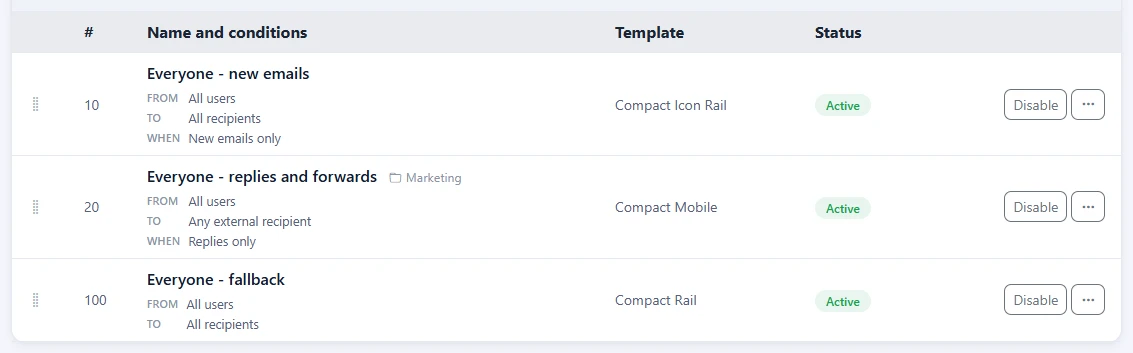
The order is what makes this work. If the All emails rule is above the Replies only rule, it matches replies first and the short rule is never used.
How Footer365 recognises a reply or forward
When Footer365 adds the signature as mail leaves your organisation, it reads the email itself:
- A subject starting FW: or FWD: is treated as a forward.
- Otherwise, the email is treated as a reply if it carries the standard email headers that link it to an earlier message, if its subject starts with a common reply prefix such as RE: or AW:, or if it contains a quoted earlier message.
- Anything else is a new email.
Add your own reply and forward words
Some mail apps start a subject with a word Footer365 does not know, such as TR: for a forward in French or RIF: for a reply in Italian, or quote the earlier message under a line of their own. You can add these on the Replies and forwards card in Account > Settings:
- Reply prefixes: the start of a subject that marks a reply, such as RIF:.
- Forward prefixes: the start of a subject that marks a forward, such as TR:. A forward prefix wins over everything else, as FW: does.
- Quote markers: text that starts the quoted earlier message in the body, such as -----Message d'origine-----. It is looked for in both the HTML and the plain text of the email.
Put one on each line, and select Save. Yours are added to the built-in ones, and the built-in ones are listed under each box. Each box takes up to 20, and each is matched as written, whatever its capitals, and never as a pattern. A prefix must end with the colon or other mark that follows the word, so a subject that merely starts with the same letters is not taken for a reply. A quote marker must be at least 4 characters long. Footer365 refuses one that is built in already or listed twice, and the card says why. These words only decide whether an email is new, a reply or a forward. Nothing in the email is changed by them.
They apply to email sent from the moment you save, and are used by Footer365 as mail leaves your organisation.
When the Outlook add-in adds the signature, Outlook tells it whether you are writing a new email, a reply or a forward, so your own reply and forward words make no difference to it.
Where the signature goes in a reply
On a reply or forward, the signature is placed directly under what you wrote, above the quoted earlier message.
What happens to the signatures and banners already inside the quoted part is decided by the Long conversations setting in Account > Settings. By default your organisation's own earlier campaign banners are taken out and its earlier signatures kept, and each earlier signature can instead be shortened to one line or taken out. Disclaimers and other organisations' signatures are never touched. A short reply signature and this setting work well together: the first keeps each new reply small, the second keeps the quoted conversation from repeating your banners and signatures. See Earlier signatures and banners in long conversations.
Good to know
- You can combine Email type with Recipient type. For example, a rule for Replies only and Every recipient internal gives the short signature to internal replies alone. See Internal and external signatures.
- Campaign banners follow the rule that matched. If a campaign is aimed at your main rule only, replies that match the short rule do not carry the banner. See Schedule and target a campaign.
- If you would rather each person chose, give them both signatures with rules and let them pick a default for new mail and one for replies. Forwards follow the reply default. See Let people choose their default signature.
- Use Test a rule and choose Reply under Email type to check which rule a reply gets. See Test a rule.
Related
Still stuck?
Tell us what you were trying to do and what you saw. Include the sender, a recipient and roughly when a message was sent, and we can trace it.