

Drafts, publishing and approval
Change a template, disclaimer or running campaign without it going out until you publish it, compare the draft with what is live, publish it now or at a set time, and require someone else to approve changes first.
A change to a template, disclaimer or campaign that is already going out on email is saved as a draft beside the live version. Your senders keep getting the live version until the draft is published, so you can work on a change, check it and have it approved without anyone's email changing halfway through.
Saving drafts and publishing are part of every editor. Footer365 makes the Approvals page, and sending changes for approval, available to organisations gradually, so they may not be in your portal yet. See Early access pages and features.
When a change is a draft
What you are editing decides whether Save changes it straight away or keeps a draft:
| Item | Saved as a draft when |
|---|---|
| Template | A signature rule uses it, whether the rule is on or off. |
| Disclaimer | It is on. |
| Campaign | It is running or paused. |
Anything else saves as before: there is nothing live to protect. Once an item has a draft, every change to it goes into the draft until the draft is published or discarded.
The bar above the editor shows where you are. Not in use means Save makes the change at once. Live means the item is going out and Save draft keeps your change beside it. Draft, not live shows who saved the draft and when.
A draft holds the content: a template's design and HTML, with its plain-text version when you have written one yourself, a disclaimer's name and wording, and a campaign's banner. Other settings save straight away as they always have, such as a template's name, who a disclaimer applies to and when it is on, and a campaign's dates, targeting and status.
There is one draft per item. If two people work on the same item, the second save replaces the first, and the bar always says who saved it last.
Compare a draft with what is live
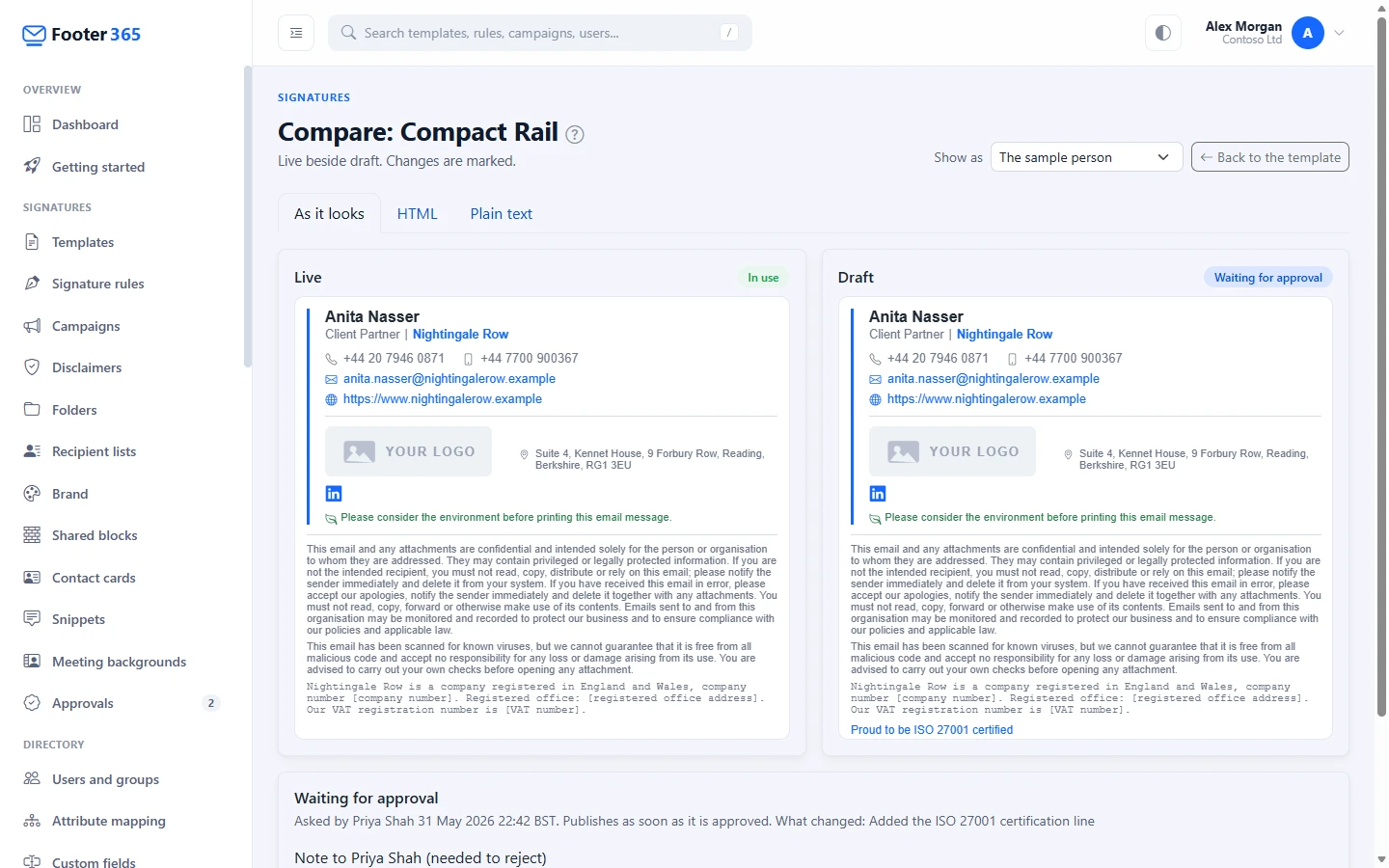
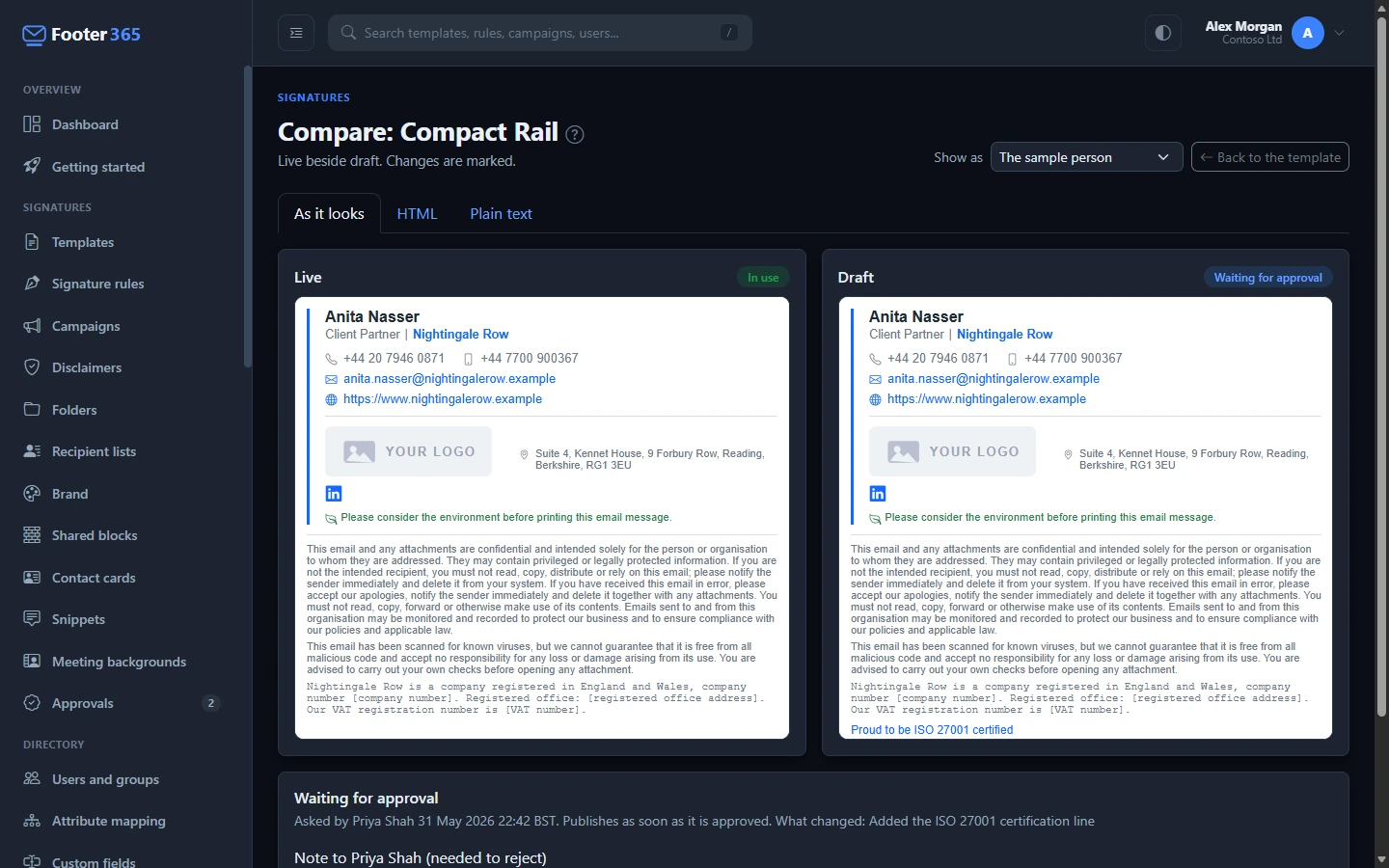
Select Compare with live on the bar. The compare page shows the live version beside the draft, with three tabs:
- As it looks draws both, filled in for a person. Use Show as to choose someone from your directory, so a change that only shows for some people (a condition, a custom field, a regional disclaimer) can be checked. Without a choice, the sample person is used. Someone limited to a scope can choose only the people in it. See Limit an administrator to part of the organisation.
- HTML shows the item's own HTML, merge fields and all, line by line, with removed lines marked with a minus and added lines with a plus.
- Plain text shows what a reader whose email shows only text gets, marked the same way. For a template whose plain-text version was written by hand, it is that text, filled in for the person. Edit the plain-text version of a template
Publish a draft
- Select Publish on the bar.
- Choose Now, or At a set time and enter the date and time, for example the morning a rebrand goes out.
- Optionally fill in What changed (shown in Version history).
- Select Publish.
What is on screen is saved into the draft first, so you do not need to save before publishing. Published now, the draft becomes the next live version straight away. Set for later, the draft is locked until then; select Cancel publish to change it again. A time can be set up to a year ahead.
Discard draft deletes the draft and leaves what is live exactly as it is.
If the live version is changed some other way after the draft was saved, the draft is not published over it. Compare the two, save the draft again and publish it.
Require approval
Approval is off until you turn it on. It is set per folder, so a folder of regulated disclaimers can need sign-off while the marketing folder does not:
- For a folder, open the Folders page, select Edit on the folder, tick Changes need approval before they go live and select Save.
- For items in no folder, turn on the Changes need approval before they go live switch under Items in no folder on the same page.
Both need the Manage portal access permission. See Folders and who can use them.
Until approval is turned on somewhere, the Approvals page says so: a change goes live when the person who made it saves or publishes it, with nobody else's approval. It points to Folders for anyone who can change them.
Where approval is required, the bar offers Send for approval in place of Publish. Choose As soon as it is approved or At a set time, add a note for the approver, and select Send for approval. While it waits, the draft is locked so the approver sees exactly what was asked for. Withdraw unlocks it.
Turning approval on leaves drafts already there as they are, and they need approval from then on. A draft already set to publish at a time without approval is not published at that time: it waits for approval instead, and the person who set it is emailed.
Approve or reject a change
Approving needs the Approve and publish permission, in the Signatures area on Access > Roles. Super Admins hold it; give it to anyone else through a custom role. See Roles and permissions.
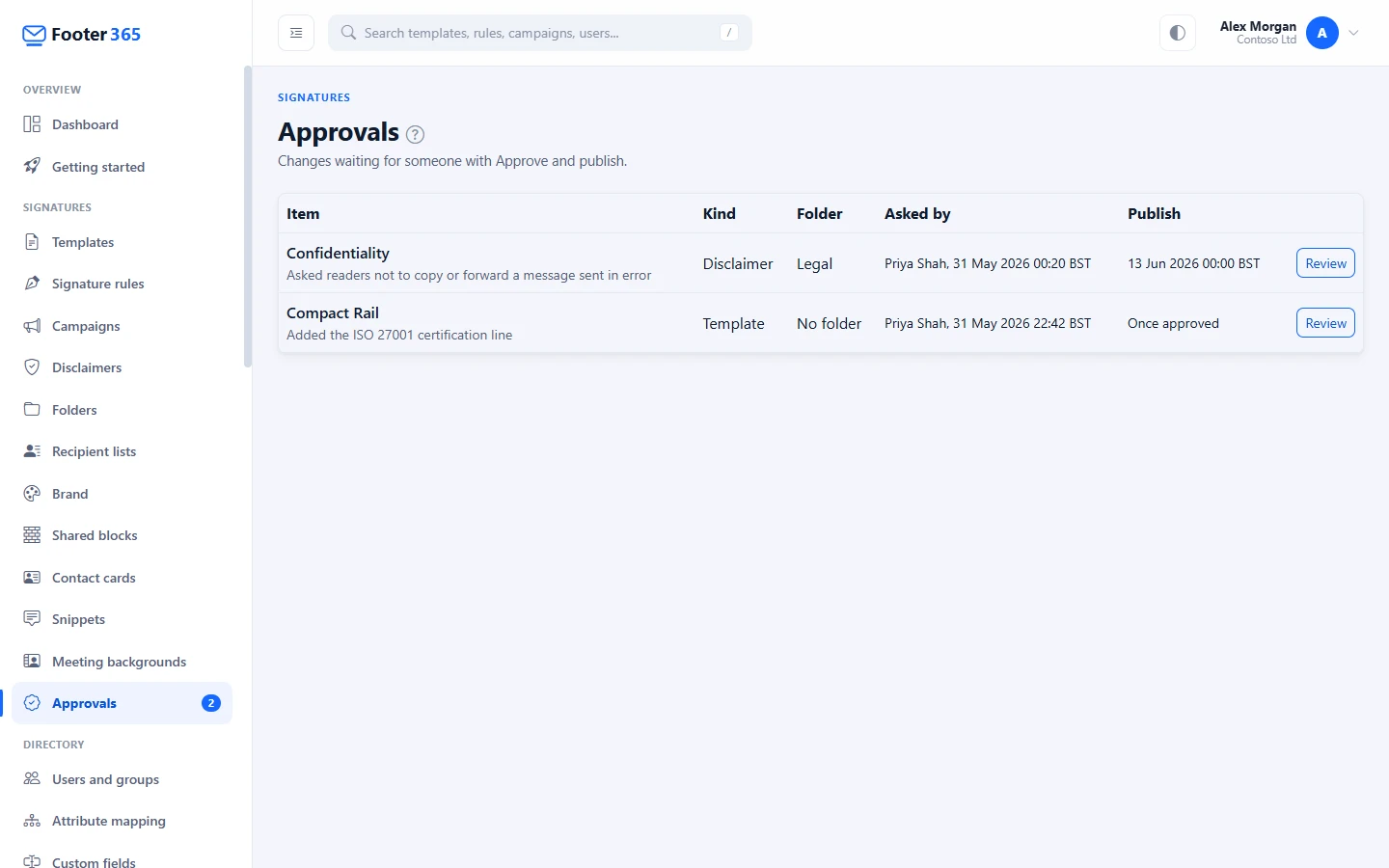
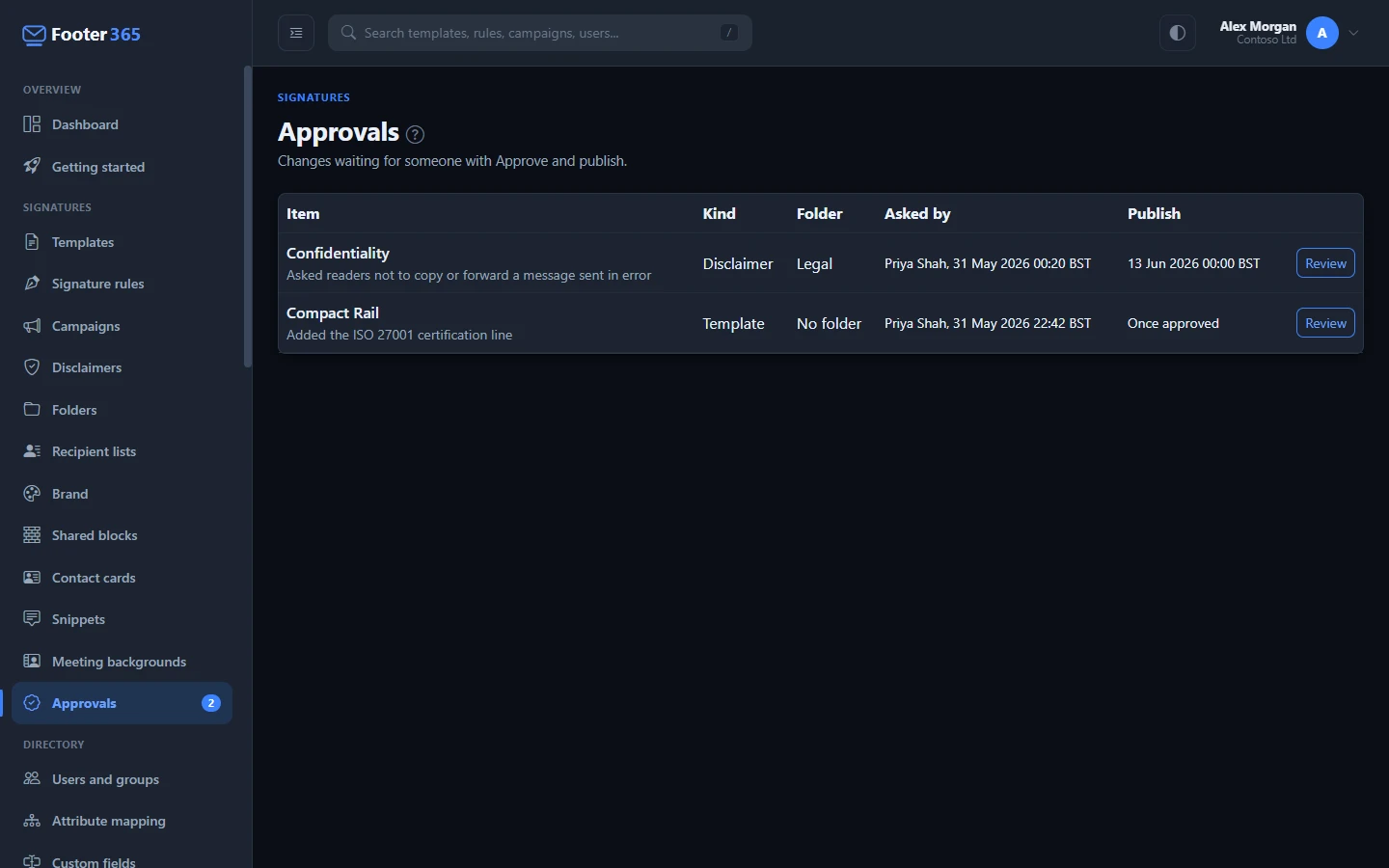
- Open Approvals under Signatures in the menu. It appears once approval is required anywhere, with the number of changes waiting.
- Select Review on a change. The compare page opens with the live version beside the change.
- Select Approve and publish, or write a note and select Reject. A note is needed to reject, so the person who asked knows what to change.
Nobody approves their own change. Anyone who saved the draft at any point, or sent it, sees "You made this change, so you cannot approve it. Someone else with Approve and publish must." Footer365 enforces this itself, whatever the page shows, and records an attempt in the audit log.
An approved change publishes at once, or at the time that was set. A rejected change goes back to being a draft with the note shown on the bar.
An approver limited to part of the organisation by a scope decides a disclaimer or campaign change only when it reaches nobody outside their scope. For any other, Approvals shows a Read only pill beside Review, with a line saying it reaches people outside the scope and that someone who sees the whole organisation decides it, and the compare page puts the same sentence where Reject and Approve and publish would be. The number beside Approvals in the menu counts only the changes they may decide. Footer365 refuses an approval, a rejection, a publish now or a publish time for such a change whatever the page shows, and records the attempt in the audit log. A template change is governed by its folder. A publish time set by a limited administrator is judged again when it comes: if the disclaimer or campaign has been aimed at more people since, it is not published but goes back to being a draft with a note, and the person who set the time is emailed. See Limit an administrator to part of the organisation.
Emails
- The person who sent a change for approval is emailed when it is approved or rejected, with the approver's note.
- People who can approve are emailed once a day, in the morning, while anything waits. An approver who is limited to a scope is left out of this email, because it lists every folder. They see what waits for them, in the folders they can open, when they open Approvals.
- The person who set a publish time is emailed when it publishes, or when it could not.
Version history
Each version published from a draft keeps how it came to be live: who drafted it, who sent it and who approved it, and when it was published. Open Version history from the template editor to see it. For a template in use, Restore becomes Copy to draft, so an earlier version is put back through the same publishing and approval as any other change. Compare with live on an earlier version shows it beside the live one. See Version history.
Good to know
- Email never carries a draft. The relay, the Outlook add-in, the previews on the lists, backups and the Footer365 API all use the live version. The API says a draft exists, and whether it waits for approval or a time, but never returns its content or publishes it. The
template.publishedwebhook is sent when a draft is published, not when it is saved. See Webhooks. - A running A/B test. Where approval is required, banner B of a running campaign cannot be changed: end the test, or change banner A through a draft.
- Changes to a brand kit or a library image. When one reaches a template a rule uses, in a folder that needs approval, the template is saved as a draft and sent for approval, and goes live when it is approved. Save and apply lists it as Draft for approval before you confirm. A template that already has a draft is left as it is until that draft is published or discarded. See Brand kits and the image library.
- Every step is recorded in the audit log: saving and discarding a draft, sending, withdrawing, approving and rejecting it, setting and cancelling a time, and the publish itself with the version before and after.
Related articles
Still stuck?
Tell us what you were trying to do and what you saw. Include the sender, a recipient and roughly when a message was sent, and we can trace it.