

Coverage: who sends with their signature
See everyone who sends mail, whether the Outlook add-in or Footer365's mail flow signed it, which Outlook and add-in version they use, why any of their mail went unsigned, and when your organisation sends mail.
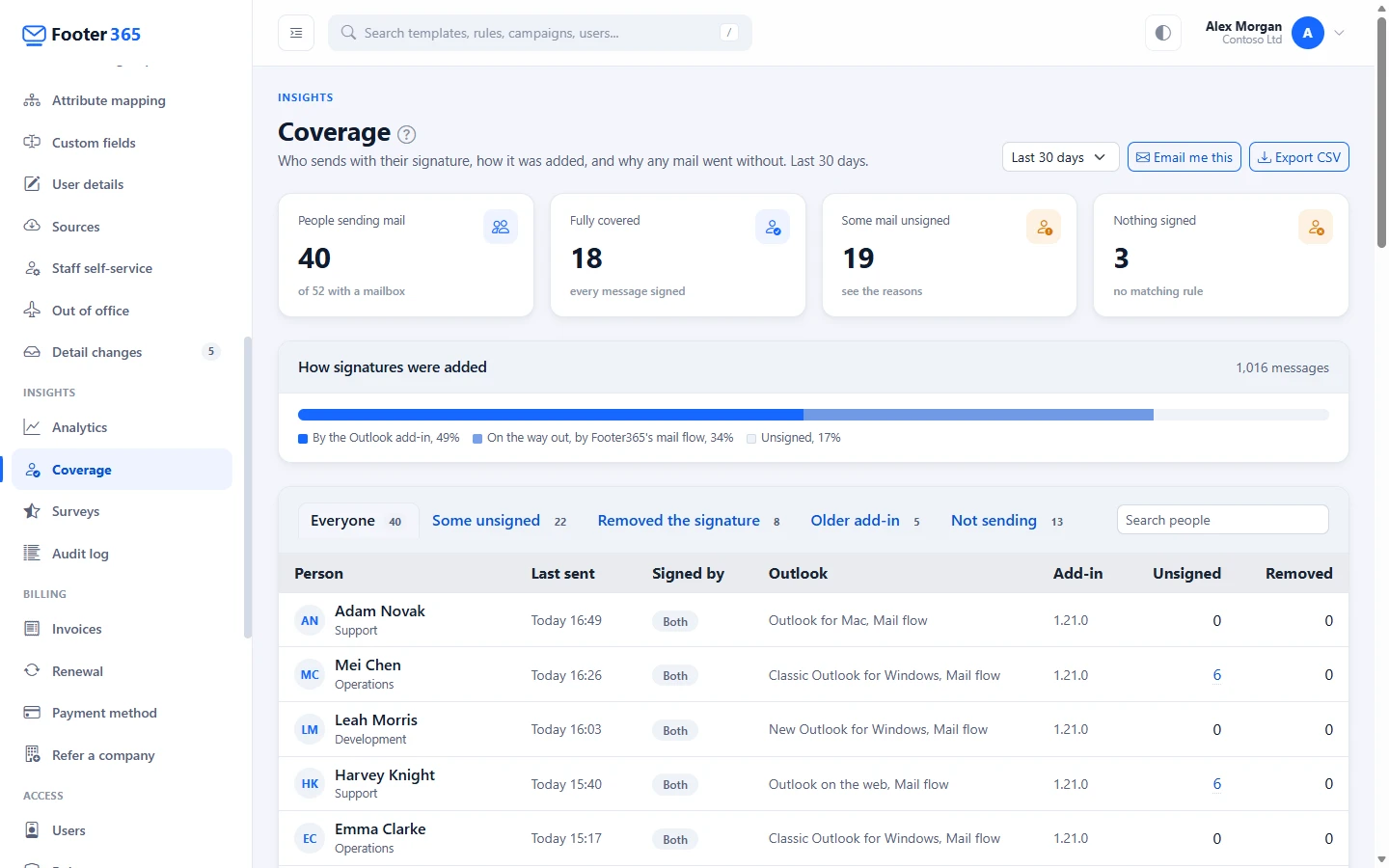
The Coverage page answers "is it working for everyone?". It lists each person who sent mail, when they last sent, how their signature was added, which Outlook and add-in version they use, why any of their mail went without a signature, and how often they deleted the add-in's signature before sending. Below the list, a grid shows when your organisation sends mail.
Footer365 makes the Coverage page available to organisations gradually, so it may not be in your portal yet. See Early access pages and features.
Go to Insights > Coverage (open it). You need the View insights permission. On the Analytics page, See everyone in the Signature coverage section opens it too.
Everything on the page comes from the processing log Footer365 already keeps, one row for each email it handled. Nothing new is recorded about the people your staff write to.
If your organisation uses the Outlook add-in only, the page reads differently, because Footer365 only knows about mail the add-in handled. See "With the Outlook add-in only" below.
Choose the period
The list at the top right shows Last 7 days, Last 30 days or Last 90 days. Every figure on the page covers the period you choose. The page works from the record of each email, which Footer365 keeps for at most 90 days, so if your service keeps it for less, the longer periods are not offered.
The four figures
| Card | What it counts |
|---|---|
| People sending mail | Everyone who sent at least one email in the period, out of the mailboxes in your directory, people's and shared mailboxes alike. |
| Fully covered | People who had every email signed. |
| Some mail unsigned | People who had some email signed and some not. |
| Nothing signed | People who had no email signed at all, with the most common reason under the figure. |
How signatures were added
The How signatures were added bar splits the period's email three ways:
- By the Outlook add-in, while the email was being written.
- On the way out, by Footer365's mail flow, for email sent from anywhere the add-in does not run, such as a phone's own mail app.
- Unsigned, for email that went without a signature.
The list of people
The tabs above the list choose who is shown, with how many people each holds:
| Tab | Who it lists |
|---|---|
| Everyone | Everyone who sent mail in the period, most recent first. |
| Some unsigned | People with at least one email that went without a signature. |
| Removed the signature | People who deleted the add-in's signature before sending at least once. |
| Older add-in | People whose most recent email was signed by an older version of the add-in than the one Footer365 has released. |
| Not sending | Mailboxes in your directory that sent nothing in the period. |
Use Search people to find someone by name, address or department. The columns are:
| Column | What it shows |
|---|---|
| Person | The name and department from your directory, or Shared mailbox. An address your directory does not hold is shown as it is, marked Not in the directory. |
| Last sent | When they last sent email, in your own time zone. |
| Signed by | Add-in, Mail flow, Both, or None when nothing they sent was signed. |
| Outlook | The kinds of Outlook the add-in signed their email in, such as New Outlook for Windows, Classic Outlook for Windows, Outlook for Mac or Outlook on the web, and Mail flow when some was signed on the way out. Footer365 does not guess which app sent mail it signed on the way out. |
| Add-in | The version of the add-in on their most recent email the add-in signed. |
| Unsigned | How many of their emails went without a signature. |
| Removed | How many times they deleted the add-in's signature before sending. |
Why mail went unsigned
Hover over a number in the Unsigned column to see the reasons, or select it to show them under the list, with a link to the help article for each. The reasons are the ones the processing log records for each email, for example no signature rule matching the person (see The fallback rule), a message keyword asking for no signature, or an encrypted or digitally signed email (see Encrypted or signed mail). Two reasons come from Sync settings on Users and groups: Outside the sync scope, for someone who left your sync scope in the last 30 days (after that Footer365 keeps nothing about them, so their mail shows as Not found in the directory), and Waiting for approval, for a new starter not yet approved. See How directory sync works.
Removed signatures
When someone deletes the add-in's signature from an email before sending it, the add-in notices at send and marks the email, so Footer365's mail flow adds the signature on the way out instead. Every recipient still gets the signature, and the email is counted in the Removed column against the person who sent it. With the Outlook add-in only, nothing adds it back, so the email goes without a signature, and it is counted in the Removed column and as unsigned.
Select the number to see it explained under the list. A person who often removes the signature usually wants a shorter one for replies. See Let people choose their default signature and A different signature for replies.
Older and unknown add-in versions
Footer365 serves the add-in itself, and Outlook picks up an update to the version it has by itself the next time it loads the add-in. A new version reaches an add-in deployed from the Microsoft store once Microsoft has approved it and Footer365 has released it. A version shown in amber is older than the one Footer365 has released, which usually means an Outlook that has not been restarted for a while, or one not yet moved to the new version. Unknown means the email was signed by version 1.20.0 or earlier, from before the add-in reported its version, and it is shown in amber only once a later version has been released.
When mail is sent
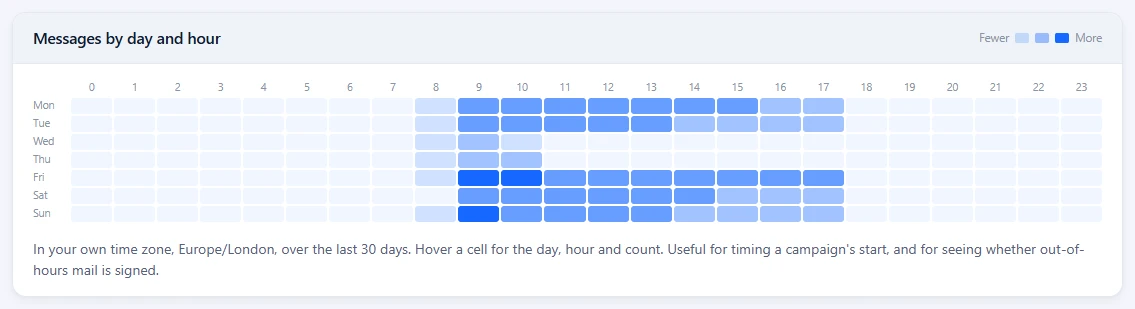
The Messages by day and hour grid has a row for each day of the week and a column for each hour, shaded by how many emails were sent then. The darker the cell, the more email. Hover over a cell to see the day, hour and count. The hours are in your own time zone.
Use it to time the start of a campaign, or to see whether email sent out of hours is signed.
With the Outlook add-in only
Footer365 never sees mail the add-in did not handle, so the page starts with a note beginning Add-in only:, and counts who had something signed rather than how every email left:
- Signed by the add-in: how many people had at least one email signed by the add-in in the period.
- Nothing signed: how many mailboxes in your directory had nothing signed by the add-in, whether they sent nothing the add-in handled or everything it handled went without.
The How signatures were added bar is not shown. Not sending lists mailboxes the add-in handled no mail for in the period: they may still have sent mail from elsewhere, such as a phone, without a signature. The Unsigned column includes the reasons only the add-in gives: a signature too large for Outlook, a rule the add-in cannot decide, a signature deleted before sending, and signatures paused. Using the Outlook add-in only explains each.
Export the list
Select Export CSV to download the people the current tab and search show, with the same columns as the list, how many emails each person sent, and the reasons in words. Times in the file are in UTC. The file names your staff, so each export is recorded in the audit log.
Have it emailed to you
Select Email me this at the top of the page to have the page's figures emailed to you every Monday or on the 1st of each month, at 08:00 in your own time zone, with a link back to this page. The email counts the week or month before it, and names nobody: the list of people stays on this page. See Have reports emailed to you.
Good to know
- An organisation with no email in the period shows No mail in this period in place of the list and the grid.
- The page reads only what Footer365 has recorded. It does not read the content of your email, and it records nothing about recipients.
- People who can see Insights see this page, including the names of everyone who sends mail. See Roles and permissions.
- Someone limited to a scope sees only the people in it and the mail they sent: the figures, the lists, the grid, the export and the emailed report all hold their people alone, and a Limited to pill beside the title says so. Mail from an address your directory does not know is left out of their page, because nothing says which part of the organisation it belongs to. This is the only page under Insights open to them. See Limit an administrator to part of the organisation.
Related articles
Still stuck?
Tell us what you were trying to do and what you saw. Include the sender, a recipient and roughly when a message was sent, and we can trace it.