

Brand kits and the image library
Keep your colours, font and logos in one brand kit, link templates to it and change them all at once, and name your images in a library so one can be replaced everywhere.
A brand kit holds your organisation's colours, font and logos in one place. A template linked to a kit takes its colours, font and size from it, so when the brand changes you change the kit once and every linked template follows. The image library does the same for pictures: name an image once, use it in as many templates and campaigns as you like, and replace it in one step.
Footer365 makes the Brand page available to organisations gradually, so it may not be in your portal yet. See Early access pages and features.
Open it from Signatures and then Brand (open Brand). It has three tabs: Brand kits, Image library, and Fonts for your web fonts from Google Fonts, which Web fonts describes. Anyone who can view signatures can look at it. Changing a kit or an image needs the permission to manage signatures. See Roles and permissions.
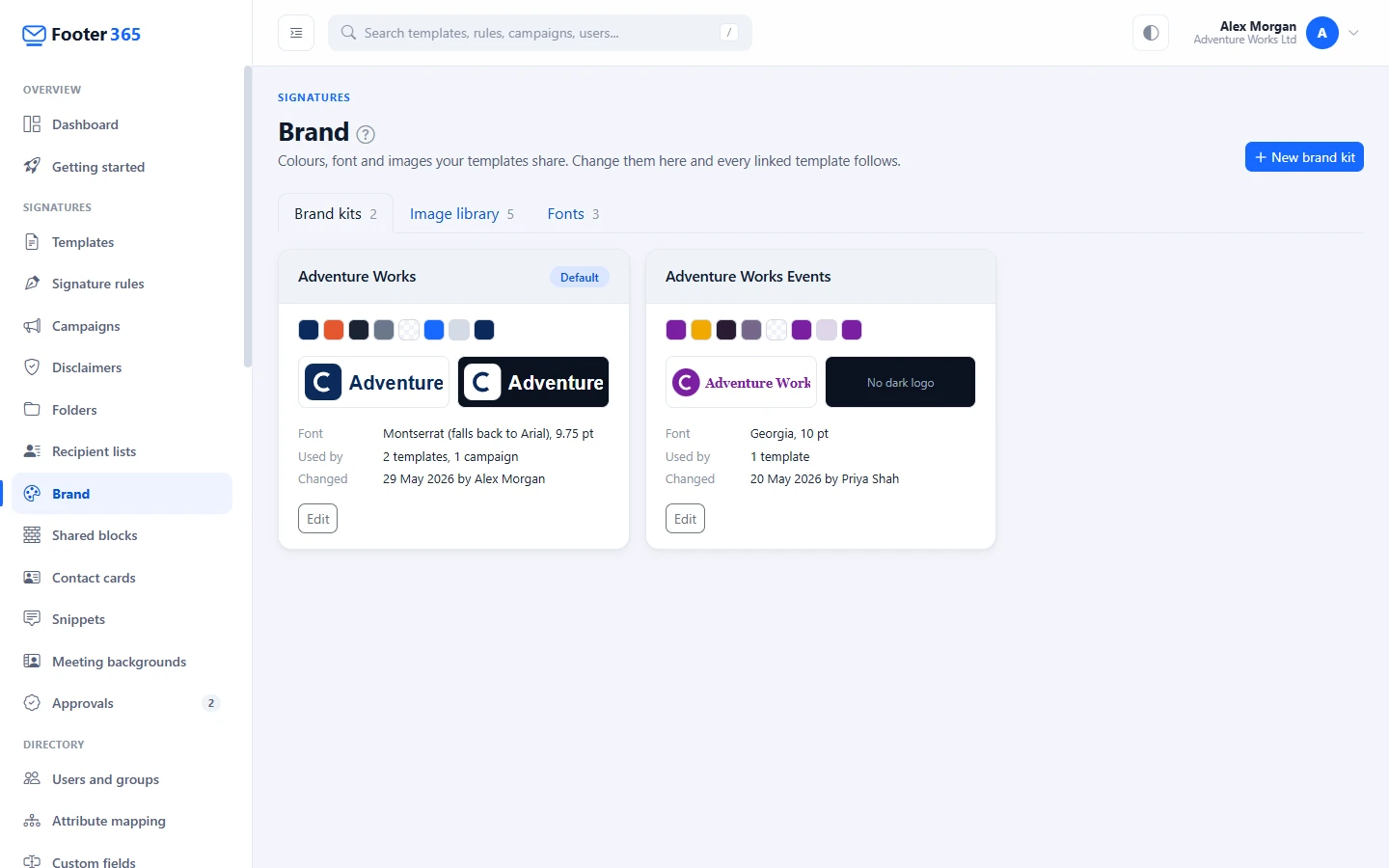
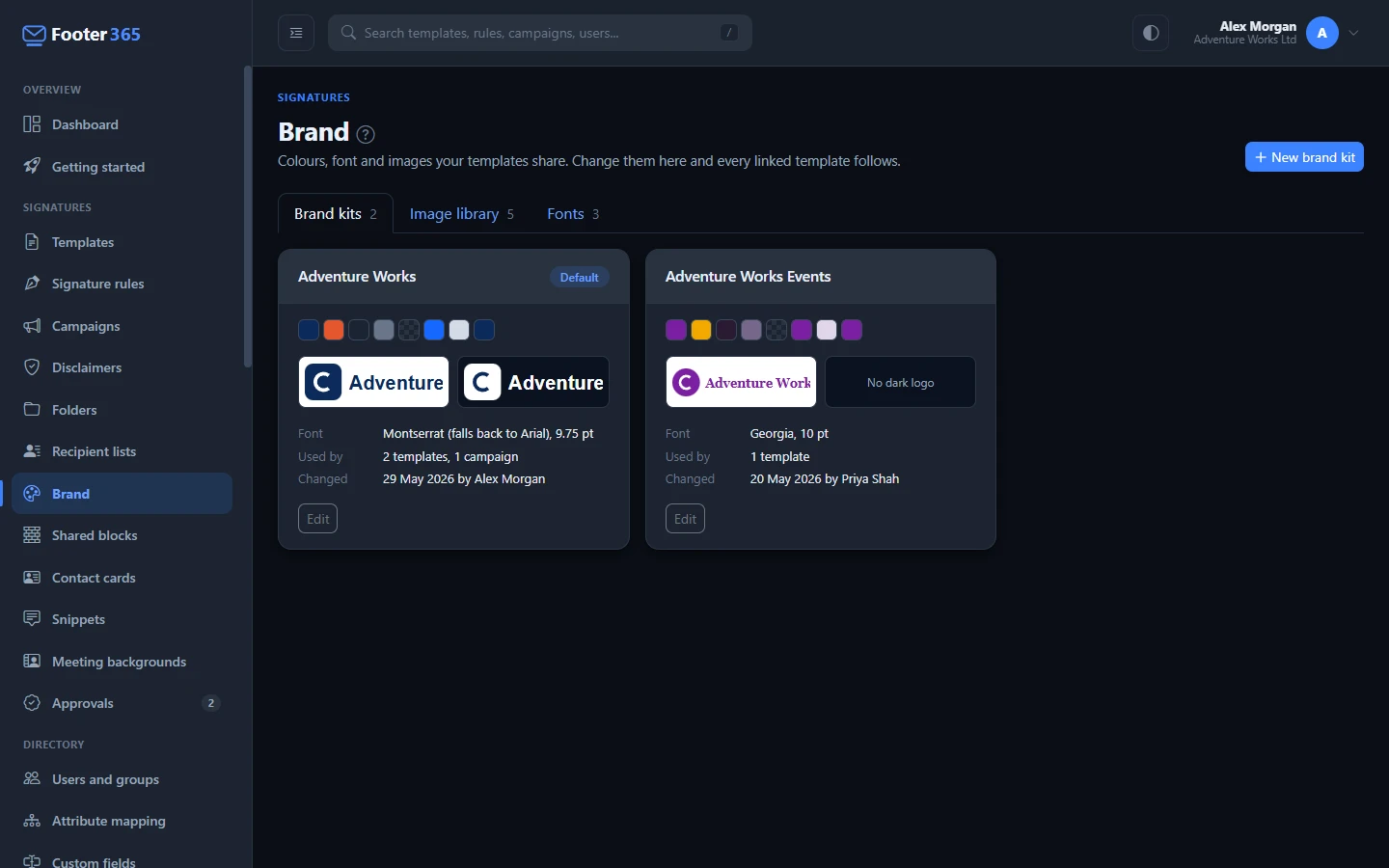
What a brand kit holds
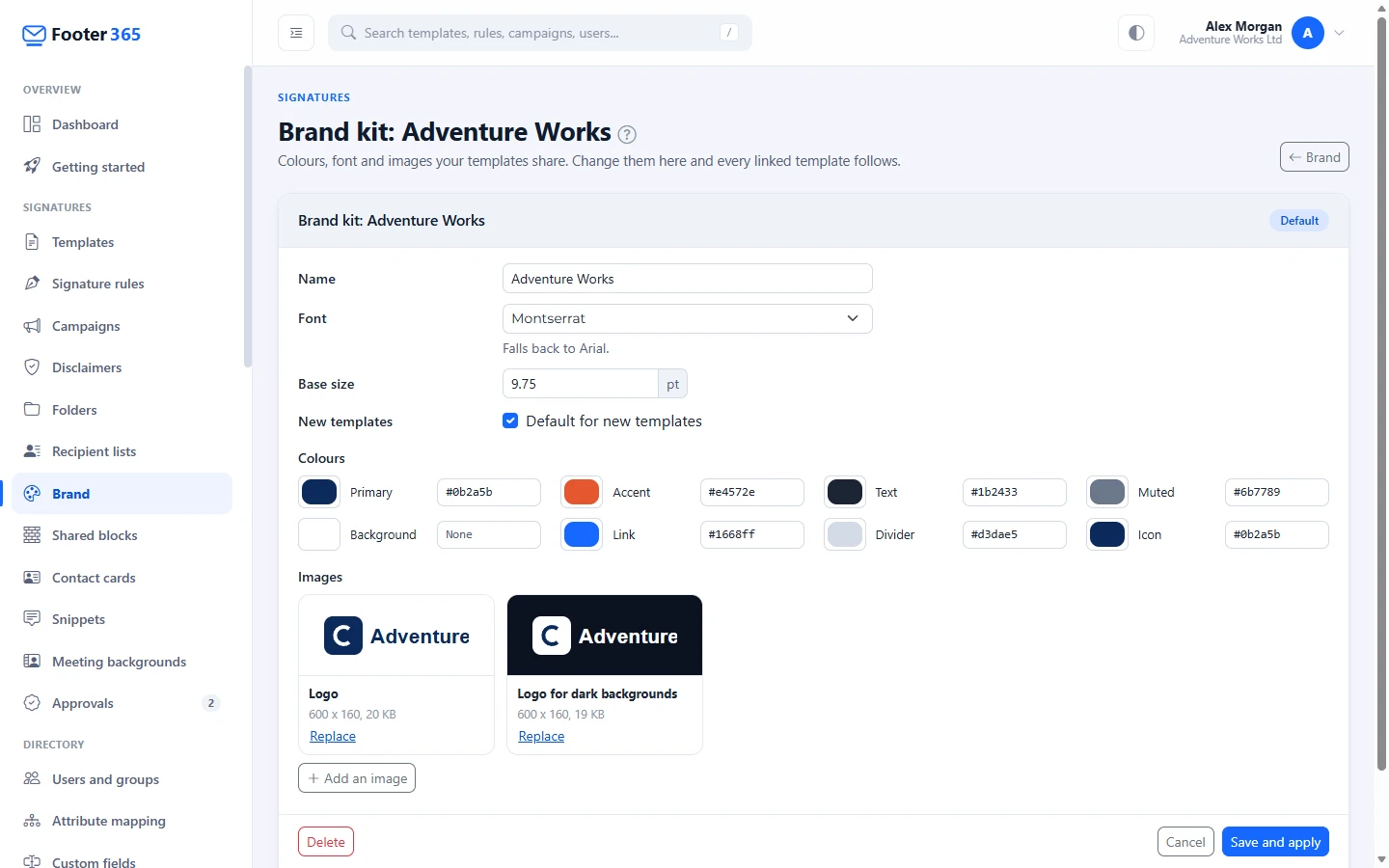
- A Name of up to 60 characters, and whether it is the Default for new templates.
- A Font, one of Arial, Helvetica, Georgia, Times New Roman, Verdana, Tahoma, Trebuchet MS and Courier New, which are the fonts the editor offers, or one of your web fonts from the Fonts tab, listed first under Your web fonts, each drawn in its own font with what it falls back to, and a Base size from 6 to 24 points. A web font is written with the web-safe font it falls back to. See Web fonts.
- Eight Colours: Primary, Accent, Text, Muted, Background, Link, Divider and Icon. Each is a hex code such as #1668ff. Background can be left empty, which means None: the signature has no background colour of its own.
- Two logos, Logo and Logo for dark backgrounds, and any other named images you add to the kit, such as an award badge.
Create a brand kit
- Go to Signatures and then Brand, and select New brand kit.
- Enter a Name, then choose the Font and the Base size.
- Set the eight colours. Type a hex code, or choose a colour with the swatch beside it.
- Under Images, select Add under Logo and Logo for dark backgrounds to choose a picture for each, or leave them empty. Select Add an image to add another named image to the kit.
- Tick Default for new templates if every new template should start on this kit. Only one kit is the default, so ticking it on another kit moves it. The first kit you make starts ticked.
- Select Save and apply.
Make your first kit with the template wizard
Footer365 is making starter content available to organisations gradually, so this may not be in your portal yet. Where it is, and your organisation has the template wizard, the Brand kits tab of an organisation with no kit yet says "The template wizard can save your colours, font and logo as your first brand kit while it makes your first template." Select Make one with the template wizard, and leave Save this as your brand kit ticked in the wizard's third step: creating the template also saves a brand kit called Main, with your logo, colours and font, as your default kit. See Build a template with the wizard. New brand kit beside it makes one by hand as above.
A new kit has nothing linked to it, so it saves straight away. A picture can be JPEG, PNG, GIF or WebP and up to 15 MB, as for any upload. Footer365 keeps a compressed copy to embed in email and a full-quality copy to host, as it does for every image. See Logos, images and photos.
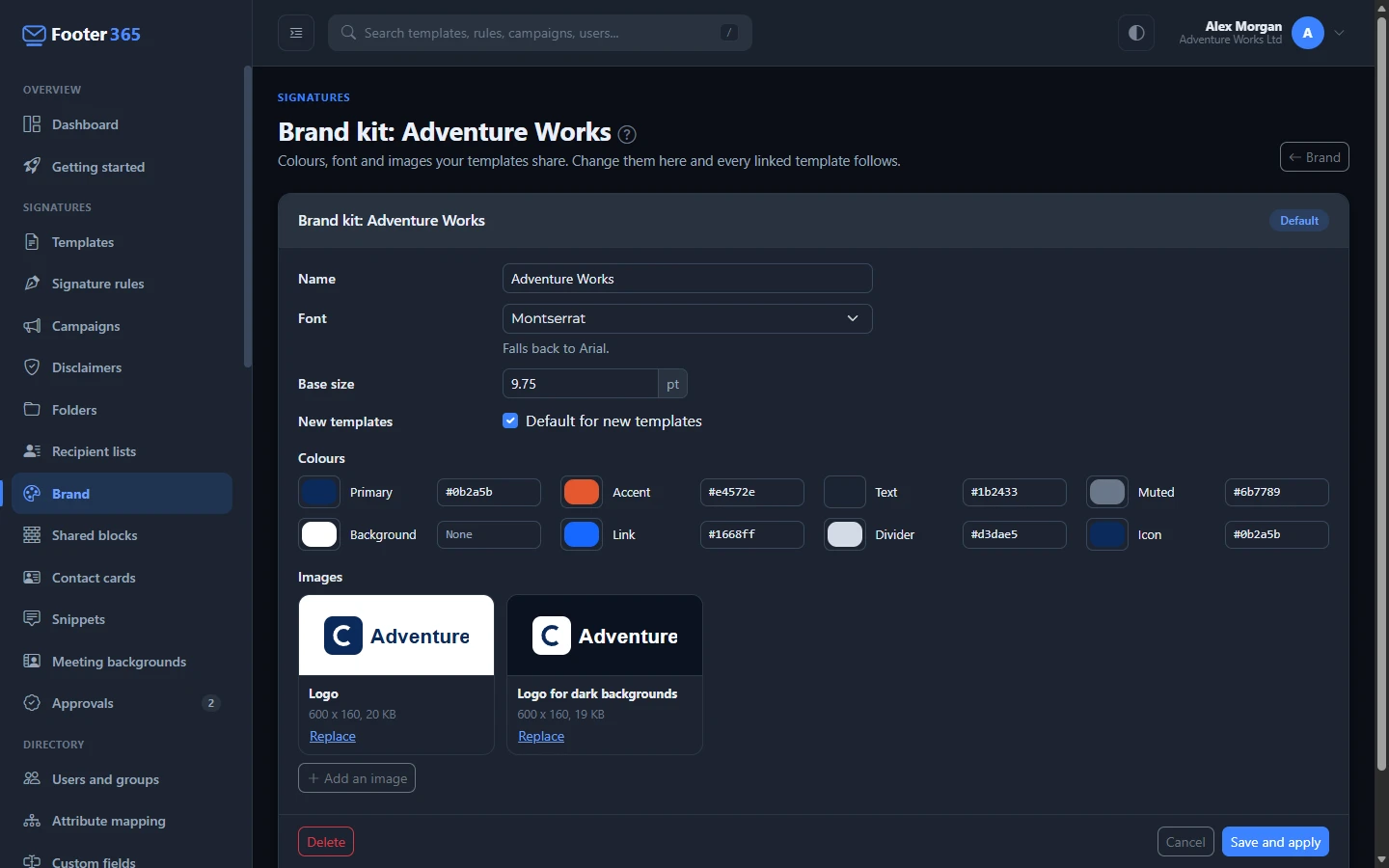
Link a template to a kit
- Open the template in the editor and select Theme on the rail.
- Under Brand kit, choose Use brand kit followed by the kit's name. The first choice in the list is Not using a brand kit.
- Select Save, or Save draft if a rule uses the template.
The template takes the kit's font, size and colours at once. While it follows a kit, the controls for them under Template defaults show a padlock and cannot be changed there: Font family, Font size, Font colour (the kit's Text) and Link colour. The swatches of the palette are greyed out in the same way. Everything else is still yours, such as font style, alignment, the template width and padding, and each element's own settings. An element, row or column you have given its own font keeps it, and so does one you have given a colour of its own. A colour that is exactly one of the template's colours is taken to be that colour, though, and changes to the kit's, both when you link the template and whenever the kit changes: a social icon drawn in the old brand colour is drawn in the kit's. The background colour is never carried this way, so white stays white.
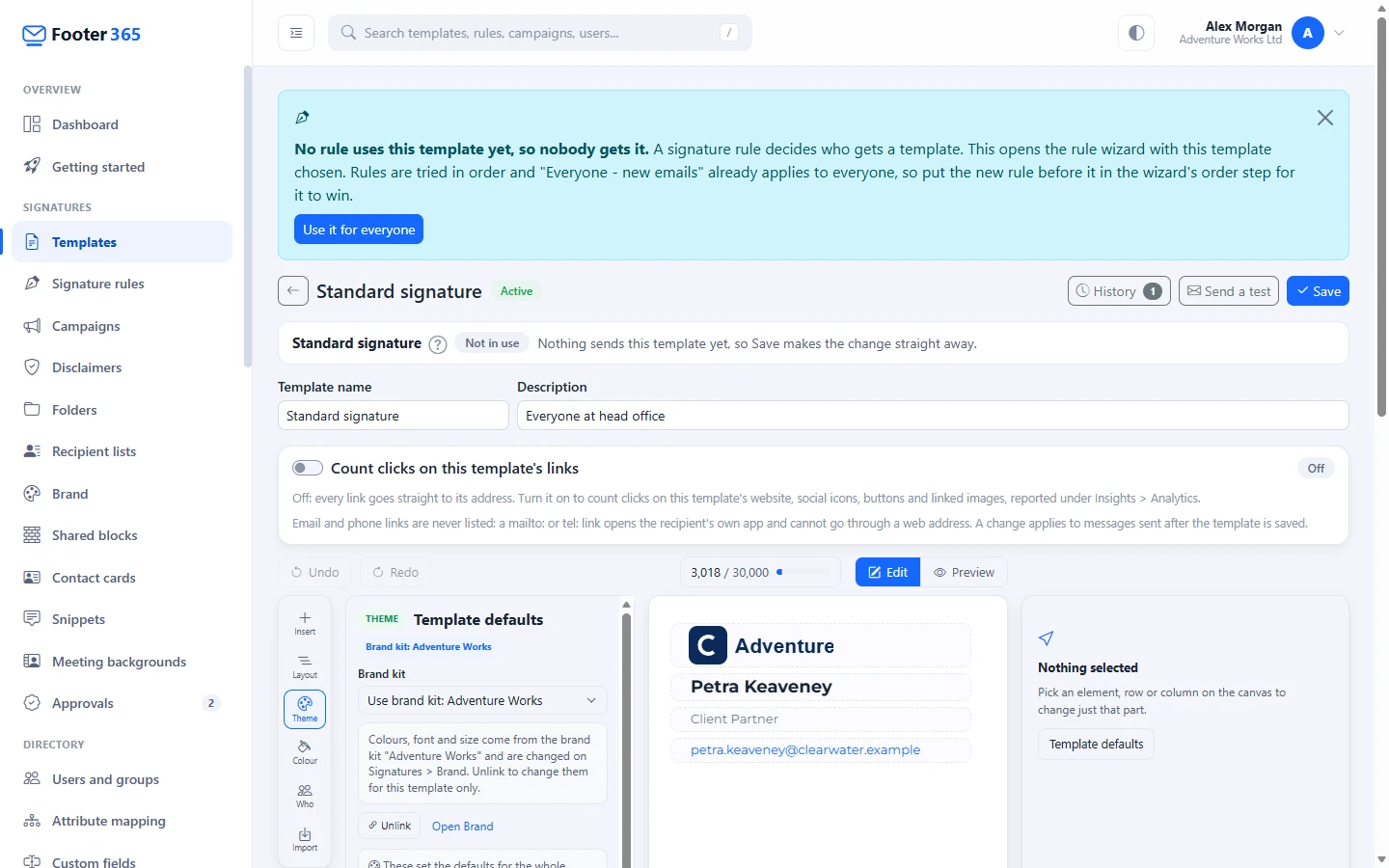
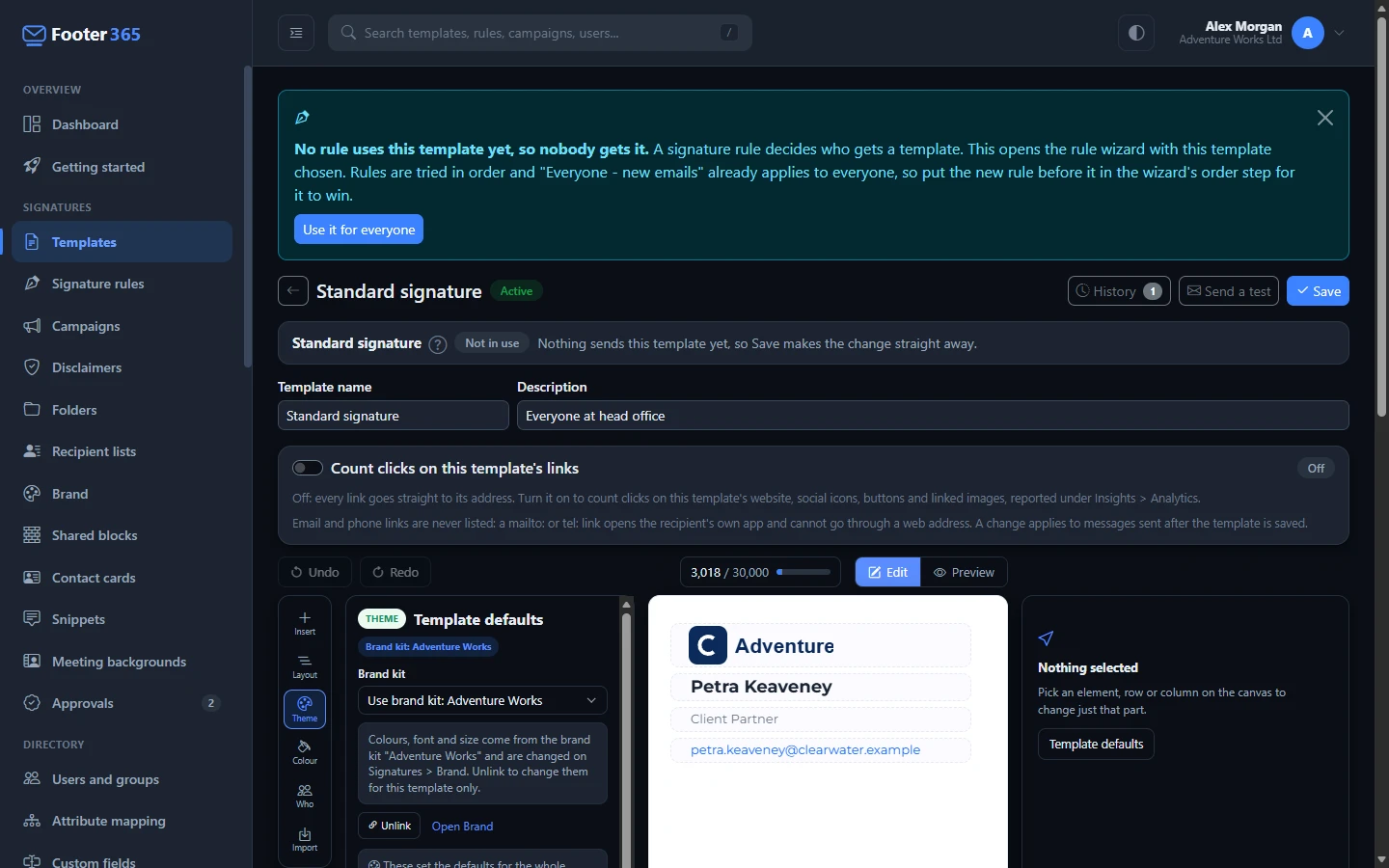
- Unlink keeps the colours, font and size the template holds now, which are the kit's as of that moment, and stops the template following the kit.
- Colour on the rail does not recolour a linked template, because its colours belong to the kit. Its panel says so and offers Unlink from the brand kit.
- Open Brand opens the Brand page.
Only a new blank template, and a new campaign started from one of the banner designs, start on the default kit. A template copied from another keeps whatever the original had, one made from the template library is not linked, and neither is a blank campaign banner. A campaign can follow a kit all the same, from Theme in the campaign editor. See "Use your brand kit in a banner" in Create a banner campaign.
Use a library image in a template
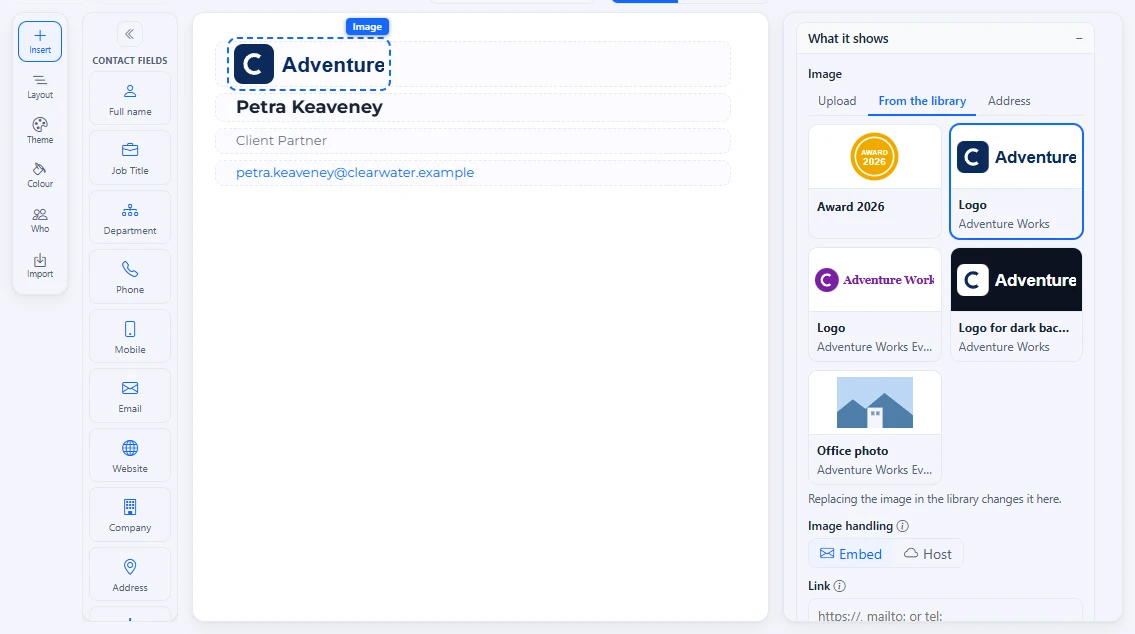
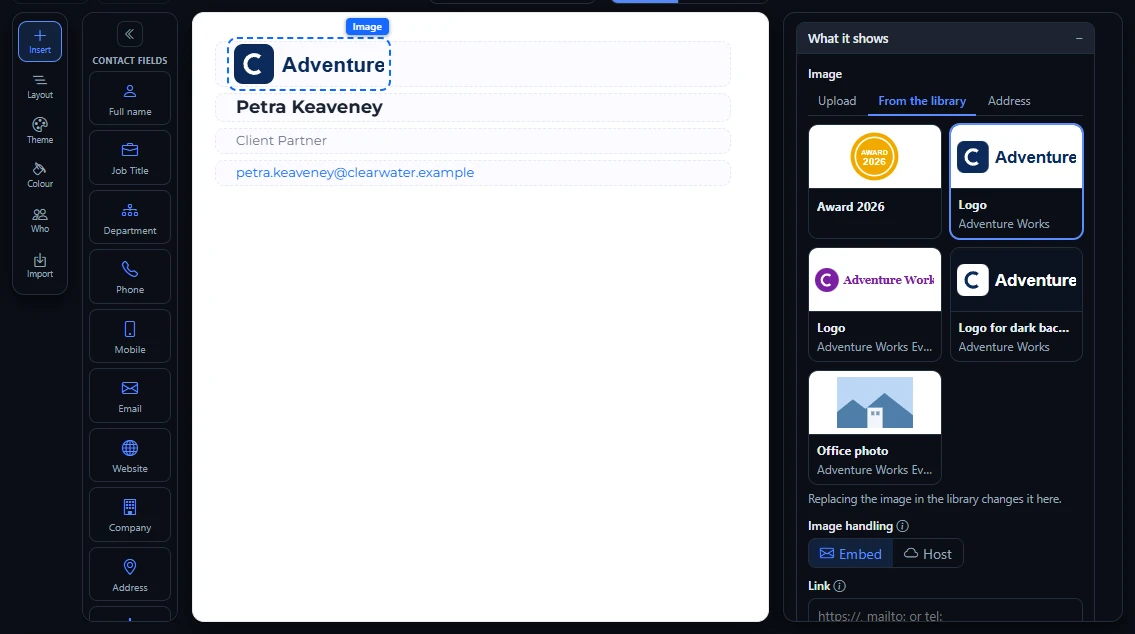
Select an Image element, and under What it shows the Image field has three tabs:
- Upload, to choose a picture from your computer.
- From the library, to pick one of the library's images. Each shows its name and its kit.
- Address, to type the address of a picture that is already online.
A picture taken from the library stays linked to it, so replacing the image in the library changes it in the template as well. Uploading a picture or typing an address makes it the element's own again. A library image follows the element's Embed or Host choice, and the same size limit for embedded images applies. See Logos, images and photos.
Change a kit and apply it
- On the Brand kits tab, select Edit on the kit.
- Change what you need and select Save and apply.
- If any template or campaign follows the kit, a window lists each one with what will happen to it. Select Save and apply to confirm, or Cancel to leave everything as it was.
Nothing is saved until you confirm, so the kit and the templates that follow it never disagree. The list shows one of these against each item:
| Shown | What happens |
|---|---|
| Published again | The template is saved as a new version with the new values, and goes live at once if a rule uses it. |
| Draft for approval | A rule uses the template and its folder needs changes approved first, so the change is saved as a draft and sent for approval. It goes live when it is approved. See Drafts, publishing and approval. |
| Left as it is | The template is not changed, and the reason is shown beside it: you cannot manage its folder, or someone has a draft of it that has not been published. |
| Open and save to redraw | A campaign. A campaign banner is drawn in your browser, so it changes only when someone opens the campaign and saves it. |
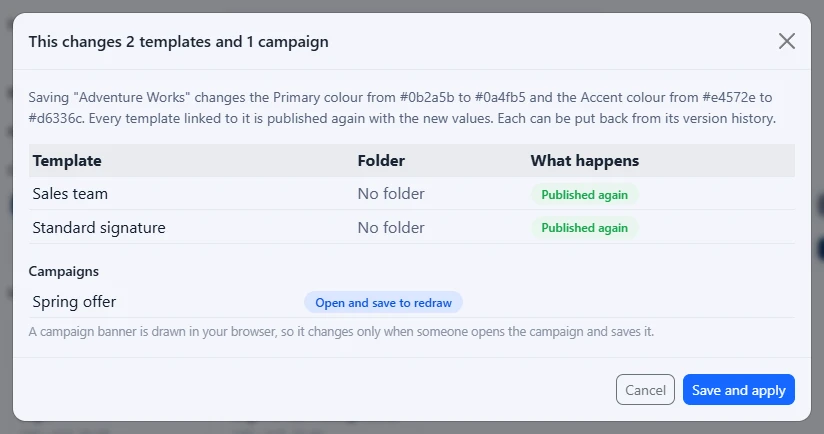
After you confirm, Footer365 brings the templates up to date in the background, twenty at a time. A card on the Brand page shows In progress with how many are done, and you can leave the page while it carries on. When it finishes, the page says how many templates were published again, how many are waiting for approval and how many were left as they are. Only one change runs at a time. While one is being applied, a second Save and apply is refused with a message to wait for it to finish.
Each template that was published again has the change in its version history, with a note naming the kit and who confirmed it. See Version history.
What is still to do
A card headed Still to do stays on the Brand page while anything is left:
- Campaigns to redraw. Select Open beside each, then Save. A campaign drops off the list once it has been saved.
- Templates that could not be published, or that were left as they are because of a draft. Select Try again to apply the change to them again once the draft has been published or discarded. A template drops off the list once it holds the new values.
A template left as it is because you cannot manage its folder is not on the card. Someone who can manage that folder brings it up to date by selecting Save and apply on the kit again, which brings every template still holding old values into line with the kit.
A template a rule uses goes on sending what it last published, so a change reaches email only once its templates have been published again. Nothing is looked up at the moment an email is sent.
The image library
The Image library tab lists every image you have named, in name order: its picture, its name, its kit, its size and where it is used. Select one to see it in the panel beside the list, with Rename, Replace and Delete, and its Size, Brand kit, when it was Replaced and where it is Used in.
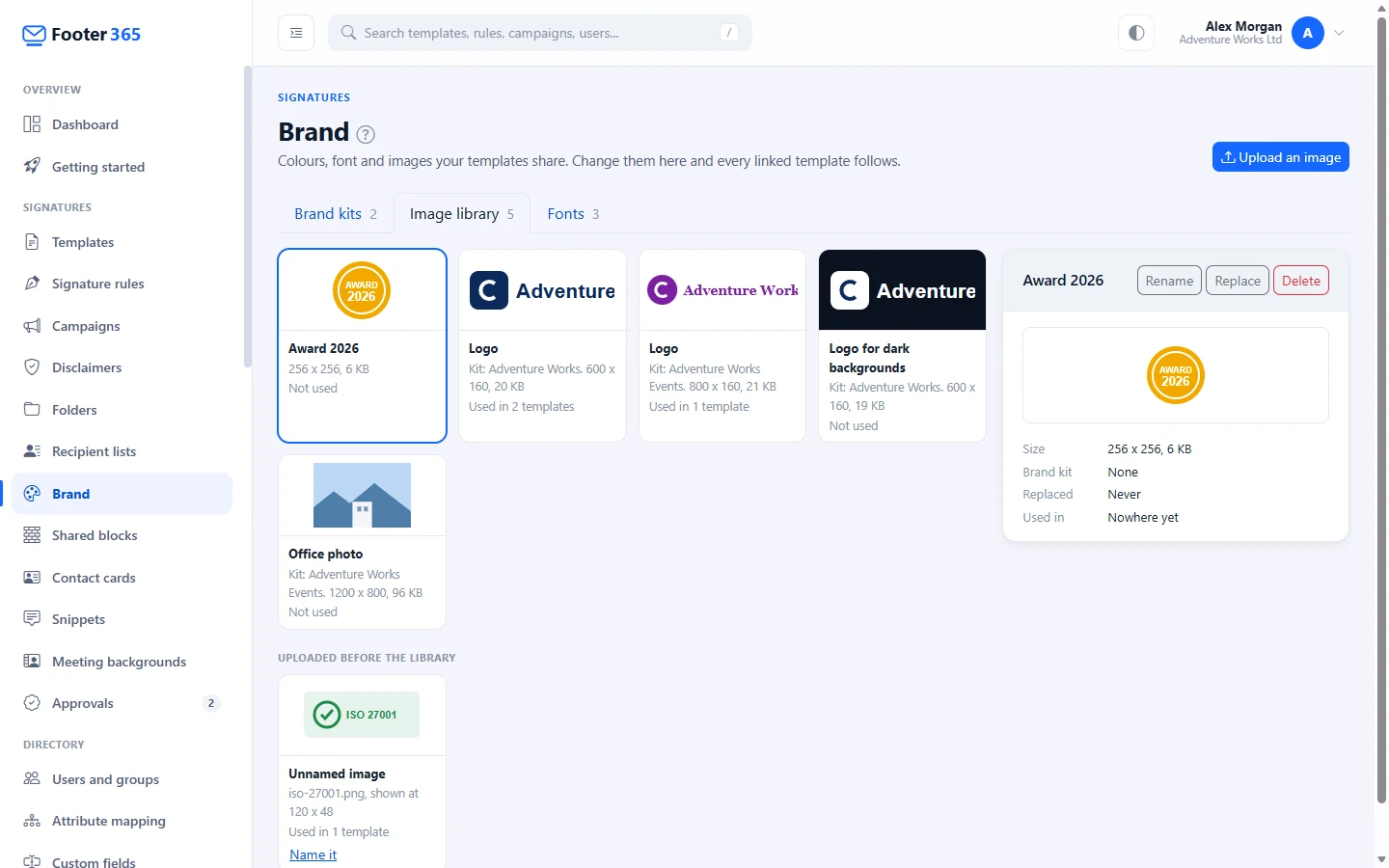
- Upload an image asks for a Name, up to 60 characters, and a picture. Select Add to the library.
- Rename changes only the name. Nothing that uses the image changes.
- Images added to a kit on its own page belong to that kit. Images uploaded here belong to none.
Pictures you uploaded to Footer365 that a template or campaign already uses but that are not in the library are listed under Uploaded before the library as Unnamed image, with the file name and where they are used. Select Name it, give the picture a Name in the Name this image window and select Add to the library. Nothing changes in any template or campaign when you do. A picture that is linked from another website is not listed.
Replace an image everywhere
- Select the image, then Replace, and choose the new picture.
- A window shows the picture now and the new one beside it, and lists the templates and campaigns that use it, with what will happen to each, as for a kit.
- Select Replace and apply. If nothing uses the image, the button reads Replace and nothing else changes.
Both copies of the picture are replaced. Templates are published again with the new picture, or made drafts where approval is on, and campaigns are listed to be opened and saved, exactly as for a change to a kit. The new picture keeps the width the template gives the image and its height follows the new picture's proportions, so a logo of another shape is not squeezed. An image whose Fit is set to Stretch keeps its box as it is.
A shared block that uses the image takes the new picture straight away, in its current version. No new version of the block is made, so the templates that hold it are not marked Behind: they are published again or made drafts with the other templates that use the image. The block's earlier versions keep the picture they had. Replacing an image in a kit's Images does the same. See "Shared blocks" in Managing your templates.
Delete a kit or an image
- Delete on a kit's page asks you to confirm with Delete kit. Templates and campaigns that followed the kit keep its colours, font and images as they are and become unlinked, and nothing they send changes. The kit's images stay in the library.
- Delete on an image works only for one that nothing uses. If a template, a campaign or a shared block uses it, the window names them and says to remove it from them or replace it with another image first. A shared block counts as using the image whenever it holds it, even if no template holds the block. Otherwise select Delete image.
Good to know
- Limits. An organisation can have up to 100 brand kits and 1,000 images. At the limit, the Brand page stops offering New brand kit or Upload an image.
- Putting a template back. Use Restore under History in the editor, as for any change. If an earlier version followed a kit or an image that has changed since, it is put back exactly as it was and taken off the kit or image, and Footer365 says so. See Version history.
- Dark mode. Logo for dark backgrounds is kept with the kit and can be picked from the library like any other image, for a logo on a dark panel you have drawn in a template. Footer365 does not swap it in when a recipient reads in dark mode, because one signature goes to everyone. See Dark mode and email client previews.
- Backups. Kits and library images are part of a backup, and templates and campaigns that follow them follow them again when it is restored. See Back up and restore your signatures.
- Who changed what. Saving a kit, replacing or deleting an image, and each template and shared block a change reaches are recorded in the audit log.
- Administrators limited to a scope. Kits and the library belong to the whole organisation. Someone limited to a scope can look at the Brand page and pick a kit or an image in the editor, but cannot make, change, apply or delete a kit, or upload, replace or delete an image. See Limit an administrator to part of the organisation.
Related articles
Still stuck?
Tell us what you were trying to do and what you saw. Include the sender, a recipient and roughly when a message was sent, and we can trace it.