

Import a signature from another provider
Bring an existing signature across from Exclaimer, CodeTwo, Xink, Symprex or elsewhere as an HTML file or pasted HTML, with its images and merge fields converted.
If you already have a signature with another provider, you do not have to rebuild it. Footer365 can bring it across as it is, keep its layout, copy its images and convert its merge fields.
This page creates new templates. To bring a signature into a template or campaign you already have open in the editor, use Import on the editor's rail instead: see Import HTML into the editor.
Get the HTML from your current provider
Footer365 imports HTML. Most signature products can give you that: open the signature in your current provider's editor and either export it as an HTML file (or a zip of the HTML and its images), or copy the HTML from its source or code view.
If your provider has no way to show or export the HTML, take it from an email it has already signed. Send a message from a mailbox the provider signs to one outside your organisation, open the received copy, and save it as an HTML file; in classic Outlook for Windows that is File, Save As, with HTML as the type. Open the saved file in a text editor, delete everything outside the signature, and import what is left.
Exclaimer .exsig2 files and CodeTwo .c2cf, .c2tf or .c2ex files can only be read by the product that wrote them, so they cannot be imported. Exclaimer's cloud editor exports only .exsig2 files, so take its HTML from a signed email as described above.
Import it
- Go to Signatures and then Templates, select More and then Import and backup (open Import and backup).
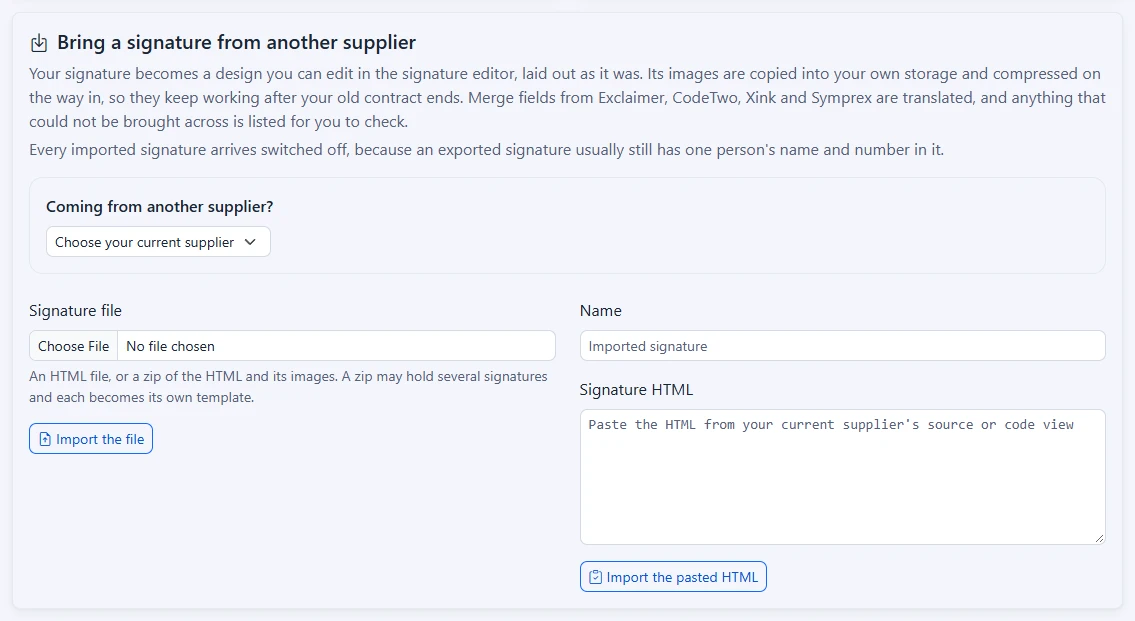
- Find Bring a signature from another supplier. If your portal shows Coming from another supplier?, choose your current supplier there to see the steps for it: Exclaimer, CodeTwo, Xink or Symprex, or Something else. Footer365 makes this choice available to organisations gradually, so it may not be in your portal yet. See Early access pages and features. Then either:
- under Signature file, choose an HTML file or a zip, and select Import the file, or
- give it a Name, paste the code into Signature HTML, and select Import the pasted HTML.
- Read the result at the top of the page. It says how many signatures were imported and how many images were copied, and lists anything under Worth checking before you publish.
A zip may hold several signatures, and each HTML file in it becomes its own template, named after the file, up to 50 per import. Files can be up to 50 MB.
What happens to your signature
- It becomes a design you can edit. The signature is converted into the editor's own rows, columns and elements, as the editor's Import does: tables become rows and columns, merge fields become field elements, links become buttons, and the fonts and colours used most become the template's theme. Import HTML into the editor explains how each part is converted.
- Your own details become fields. When a value typed into the signature is exactly one of your own details as Microsoft 365 holds them, such as your name or mobile number, it becomes that field, so everyone given the template sees their own.
- Images are copied. Images the signature links to, or that are in the zip, are copied into your own Footer365 storage and compressed on the way in, so they keep working after your old contract ends. One import copies up to 30 images from the web; any after that are left at their old address and listed, so import a large set of signatures in smaller batches.
- Merge fields are converted. Fields written the way Exclaimer, CodeTwo, Xink and Symprex write them, such as
{DisplayName},{First name}or((DisplayName)), become Footer365 fields. That covers the name, job title, department, company, email, phone and mobile, office and address details, website, the common social networks, the photo, the year and extension attributes. - Signature 365 fields are converted too. Signature 365 writes its fields in double braces, such as
{{Fullname}}, and these become the matching Footer365 fields. A simple{{if Mobile}}...{{end}}block becomes a section shown only when that field has a value, and an{{else}}part becomes a section shown only when it is empty. Anything more of Signature 365's template language, such as a comparison or a formatting function, is left as it was and listed for you to replace. - It is checked the same way as the editor's import. Things a signature cannot use, such as stylesheets, Outlook-only sections and hidden text, are taken out, and HTML that is encoded, disguises its links or carries scripts, forms or other code is refused with the reason. Repeated attempts to import unsafe content turn importing off for your organisation until Footer365 or your reseller turns it back on. Import HTML into the editor explains each check.
Worth checking before you publish
The result lists what needs a person to look at it. Typical notes:
- Merge fields with no equivalent. They are left exactly as they were, so replace them before the signature is used.
- Images that could not be brought over, for example one that its old address no longer serves, or one attached to the original email rather than linked. They still point at their old address, so replace them before it stops working.
- No merge fields at all. An exported signature often still holds one person's name and number. Everyone given it would send those same details, so replace them with merge fields.
- Your details made into fields, each named, so you can check every one was meant to be.
- Parts the editor lays out differently, such as columns inside a column, with which part to check and how to rebuild it.
An import with nothing in it a signature can show, such as a file with no text or images, is refused and creates nothing.
Each person can import up to 30 times in 10 minutes. After that the page says "That is a lot of imports in a short time. Wait a few minutes and try again."
Imported signatures arrive switched off
Every imported template is saved as Inactive, so nothing is sent until someone has checked it. When it is ready:
- On the Templates page, select Activate on the imported template.
- Pick it in a signature rule. See How signature rules work.
Editing an imported signature
An imported signature opens on the editor's canvas as rows and elements, so you change it as you would any design built here. Its fields hide themselves when a person has no value for them, with any label or separator beside them, as in every design built in the editor. See Using the signature editor.
A signature imported before conversion was added was saved as HTML, and opens with its code in Advanced: edit HTML. To turn it into a design, import its HTML again. See Edit the HTML.
Related articles
Still stuck?
Tell us what you were trying to do and what you saw. Include the sender, a recipient and roughly when a message was sent, and we can trace it.