

The Getting started page
A guide to the setup steps on the portal's Getting started page, what each one means and what its button does, and the card that shows how your organisation adds signatures.
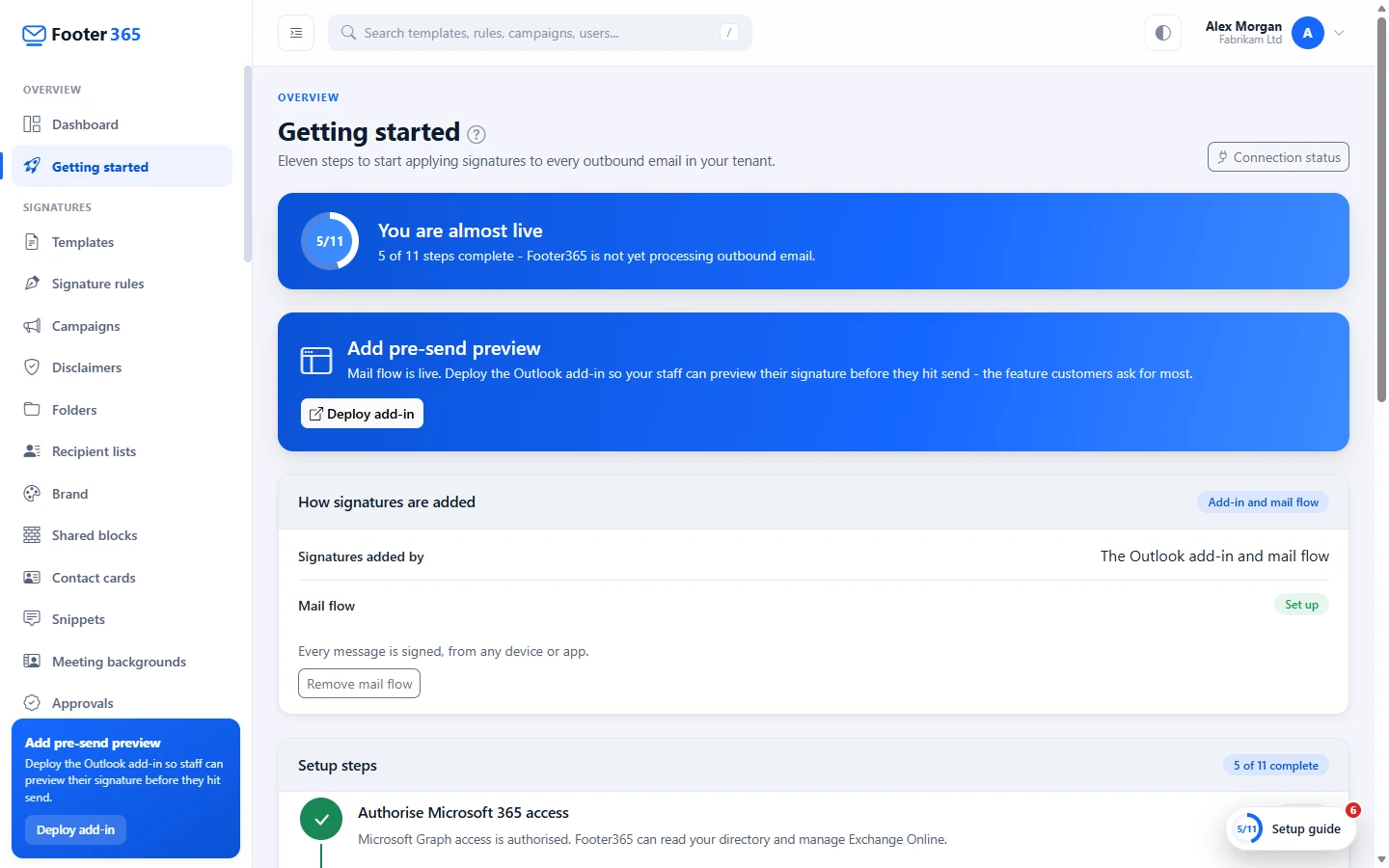
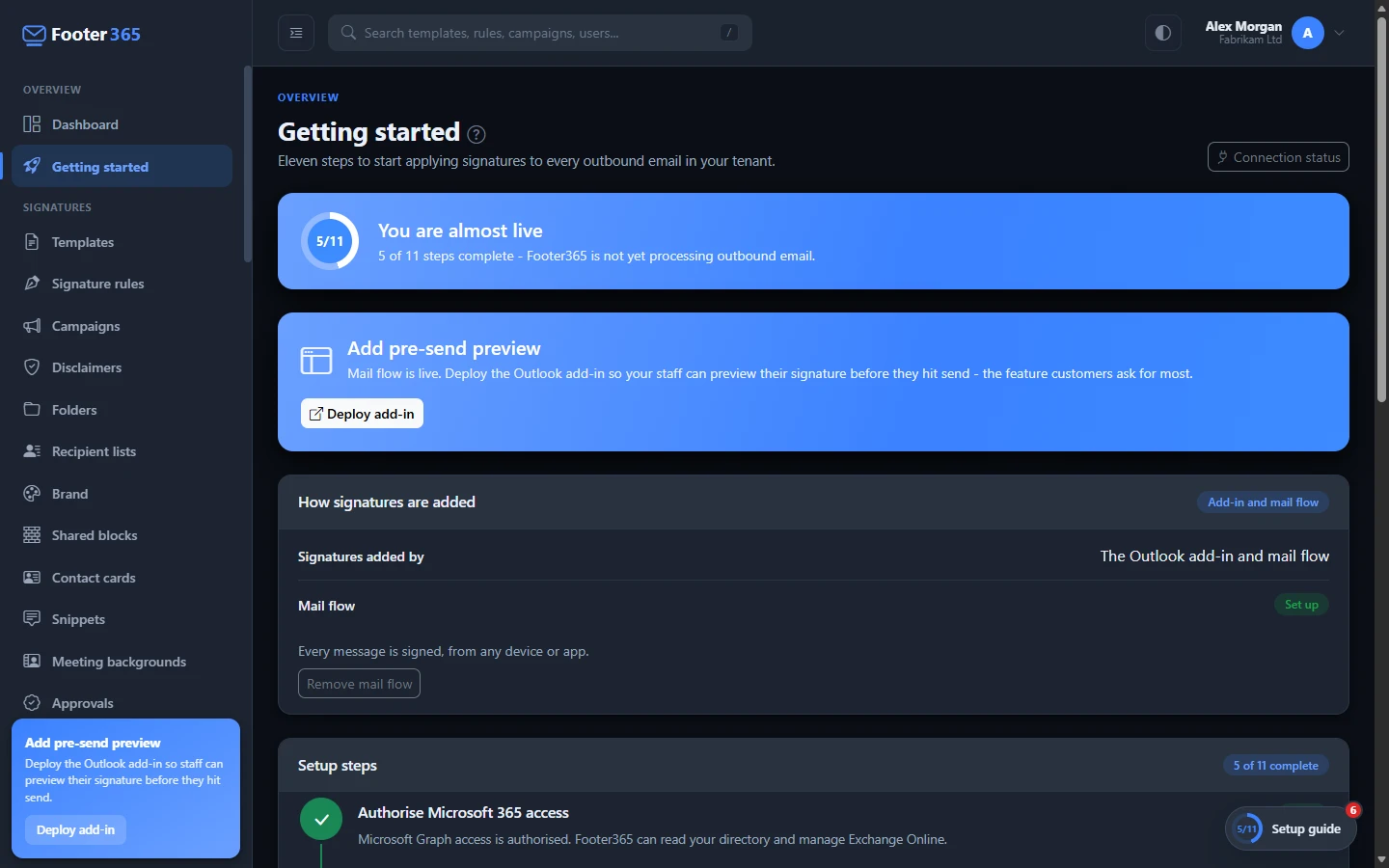
The Getting started page in the portal is your checklist for going live. It shows how your organisation adds signatures, up to eleven setup steps, how many are done, and a button for whatever comes next. Open it from Overview, then Getting started, in the sidebar.
Everyone with access to the portal can open it unless their role switches it off. With it to view but not to manage, its links and buttons cannot be used. See Roles and permissions.
Reading the page
- Until every step is done, a banner shows how many steps are complete and says Footer365 is not yet processing outbound email or, with the Outlook add-in only, not yet adding signatures.
- In the Setup steps card, each step shows Done, Next (the one to do now) or Locked (waiting for an earlier step). With the Outlook add-in only, the steps it does not need show Not needed for add-in only or Optional instead, with their number in a dashed outline. A step you marked Not needed shows that, with its number in a dashed outline too.
- The Connection status button at the top opens the setup wizard, where you can see the state of your Microsoft 365 connection at any time.
The same steps are in the Setup guide button at the bottom right of every page, for anyone who can set your organisation up, with a walk-through of each on the page where it is done. A step you marked Not needed is ticked there. See The Welcome step, the tour and the setup guide.
Help on every page
Every page in the portal has a question mark in a circle beside its title. Point at it to see which guide it opens, and select it to open that guide in this help centre, in a new tab. In the signature and campaign editors it sits beside the name of what you are editing.
How signatures are added
Once Microsoft 365 is connected, the How signatures are added card above the steps shows which of the two ways your organisation uses: Add-in and mail flow or Add-in only. It shows Not chosen yet until someone chooses in the setup wizard. Its Mail flow line says whether mail flow is set up.
- Before the choice is made, a Super Admin sees Open the connection wizard, and anyone else sees "A Super Admin chooses this in the connection wizard."
- With mail flow, a Super Admin sees Remove mail flow, which moves your organisation to the Outlook add-in only.
- With the Outlook add-in only, a Super Admin sees Add mail flow.
Each asks you to confirm first. Using the Outlook add-in only explains what each change does, and what the Mail flow line shows while mail flow is being taken out.
The steps
The numbers below are those your organisation sees when every step is shown. Footer365 makes some pages available to organisations gradually (see Early access pages and features), and a step done on a page your organisation does not have is left out, here and in the Setup guide, with the steps after it numbered on without a gap. Today that is step 7, Plain-text email: without the Plain-text email page there are ten steps, and Create a signature template is step 7.
| Step | What it means | Button |
|---|---|---|
| 1. Authorise Microsoft 365 access | A Global Administrator approves Footer365 in Microsoft, so it can read your directory and, with mail flow, manage Exchange Online. | Authorise Microsoft 365 opens the setup wizard. |
| 2. Configure Exchange Online | With mail flow, Footer365 creates its Exchange connectors and transport rules. This needs the Exchange Administrator role, granted in the wizard. With the Outlook add-in only, the step shows Not needed for add-in only. | View connection status opens the wizard to show progress. |
| 3. Sync your directory | Your users and groups are imported from Entra ID so signatures carry each person's details. After the first sync, it runs automatically every 4 hours. | Sync directory opens the setup wizard. |
| 4. Choose who is synced | Everyone in Microsoft 365, or only the members of the groups you choose. | Open Sync settings opens Users and groups with Sync settings open. |
| 5. Deploy the Outlook add-in | With mail flow, an optional add-in that shows people their signature while they write. With the Outlook add-in only, it is what adds every signature, so nobody gets one until it is deployed. | Deploy the add-in opens the setup wizard, which walks you through it. |
| 6. Everyone's own Outlook signatures | Decide whether people keep the signatures they made in Outlook. With the Outlook add-in only, the step is Optional. | Let my people keep their own signatures or Turn their own signatures off, or with the Outlook add-in only, Show the PowerShell steps. |
| 7. Plain-text email | Decide what happens to email written in plain text, such as a new message from iPhone Mail. With the Outlook add-in only, the step shows Not needed for add-in only. | Convert plain text to HTML or Choose other options. |
| 8. Create a signature template | Design the signature. | Browse the template library or Build from scratch. |
| 9. Create a signature rule | Choose who gets which template. | Create signature rule. |
| 10. Add a colleague | Give someone else the portal, so it never depends on one person. | Open Users. |
| 11. Check your company contacts | Fill in the Account owner and the Technical contact Footer365 writes to. | Open Settings. |
Steps 1, 2, 3 and 5: the setup wizard
Steps 1, 2, 3 and 5 are carried out in the setup wizard rather than on this page. Step 3 happens by itself: the first directory sync starts once Footer365 is connected, so there is normally nothing to do but wait. See Connecting Microsoft 365 and How directory sync works.
Until someone has chosen how Footer365 adds signatures, step 2 asks for that choice, which is made in the setup wizard.
Steps 2 and 3 are locked until step 1 is done. With mail flow, steps 5 and 6 are locked until step 2 is done, because they only matter once mail flow is live. With the Outlook add-in only, step 5 opens as soon as that choice is made.
Step 4: who is synced
Step 4 is locked until the first directory sync, which brings in the groups to choose from. It is done once Sync settings on Users and groups has been saved, even if you keep Everyone in Microsoft 365: saving it is the choice. Choose who is synced
Step 6: people's own Outlook signatures
You can answer this here as well as in the wizard, and come back to it later. Turning people's own signatures off asks you to confirm first, because it clears the signatures they have already saved. Once they are off, the "i" beside Their own signatures are off names who to ask to turn them back on, and how to reach them. Keeping or turning off Outlook signatures
With the Outlook add-in only, Footer365 does not turn them off for you. The step is marked Optional, and Show the PowerShell steps opens the setup wizard where the steps to do it yourself are shown. Using the Outlook add-in only
Step 7: plain-text email
iPhone Mail and most phone mail apps send a new message as plain text, which cannot show a logo, a link or a banner. Convert plain text to HTML confirms the recommended setting: every plain-text email is converted so it gets your full signature. This is already what happens before you choose; the step records that you have decided. Choose other options opens the Plain-text email page, where you can convert only mail from phones and tablets, keep plain text as it is, or pick the font and size. The phone's own "Sent from my iPhone" line is a separate setting, on the Mail app sign-offs page. This step is never locked. Plain-text email and iPhone Mail
With the Outlook add-in only, there is no mail flow to convert anything, so the step shows Not needed for add-in only, and mail from phones' own mail apps is sent without a Footer365 signature.
Steps 8 and 9: your signature
Step 8 opens the template library or a blank template. Step 9 is locked until you have at least one template. A rule links a template to everyone, a group or a single person. Choosing from the template library and How rules work
Steps 10 and 11: people and contacts
Step 10 is done once anyone besides one person has the portal, added as a person or through a group on Users. While the Exchange Administrators switch there is on, your Exchange Administrators can also sign in on their own. Give colleagues access to the portal
Step 11 is done once the Account owner and the Technical contact under Contacts on Settings both have an email address. Company settings
Marking a step not needed
Steps 4, 10 and 11 each have a Not needed button, for an organisation where the step does not apply, such as one with a single administrator. It counts the step as done for everyone in your organisation, and the step then shows Not needed, with Put it back on the list to undo it. Marking a step, and putting it back, needs permission to manage settings, and each is recorded in the audit log.
Other things you may see
- Add a payment card. During the trial, people who can manage billing see a reminder with the date the trial ends and an Add a card button. Adding or changing your payment card
- Action required: update your SPF record. Your domain's SPF record needs a small change. It never appears with the Outlook add-in only, because no mail passes through Footer365. Updating your SPF record
- Add pre-send preview. Once mail flow is live and the add-in is not yet deployed, a banner with a Deploy add-in button reminds you about it. With the Outlook add-in only, the banner is headed Deploy the Outlook add-in, because nobody gets a signature until the add-in is deployed.
When you are finished
When every step shown is done or marked not needed, the page shows Setup complete. and a What happens next card pointing you to analytics and campaigns. With the Outlook add-in only, steps 2, 6 and 7 count as done once that choice is made.
Who can do what
Everyone who can sign in to the portal can see this page, but each button only appears for people allowed to use it:
- Steps 1, 2, 5, 6 and 11, the Not needed buttons and the Connection status button need permission to manage settings.
- The buttons for steps 3 and 4 need permission to manage the directory.
- Step 7 needs permission to manage plain-text email.
- Steps 8 and 9 need permission to manage signatures.
- Step 10 needs permission to manage portal access.
- Choosing how Footer365 adds signatures, Add mail flow and Remove mail flow need a Super Admin.
If you cannot see a button you expect, ask a Super Admin in your organisation. Roles and permissions
Related
Still stuck?
Tell us what you were trying to do and what you saw. Include the sender, a recipient and roughly when a message was sent, and we can trace it.