

How the campaign banner is sent
Why a banner carries one link, what the character measurement means, how to write the image description, and how the Outlook add-in sends it.
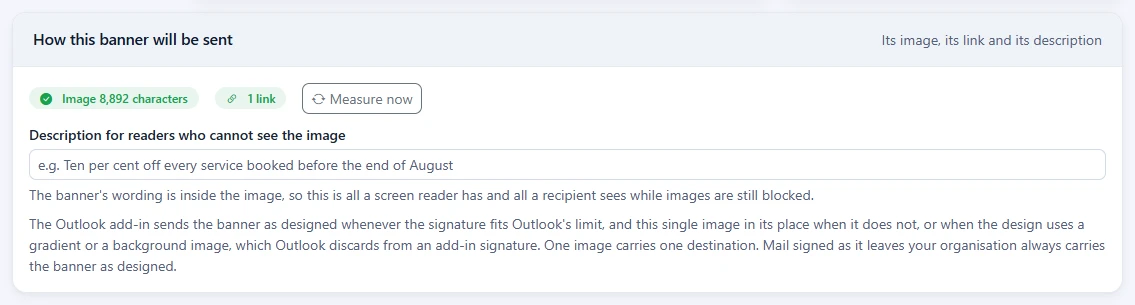
The How this banner will be sent card on the campaign page tells you how large the banner's image is, how many links it has, and what readers see if images are blocked. This article explains what it measures and why.
Why one image and one link
Outlook rebuilds a signature that the Outlook add-in writes, and throws away gradients, background images and anything layered over them. So that a banner can still reach those readers, Footer365 draws it as a single flat image every time you save, which the add-in sends in place of the design when the design would not survive or would not fit.
A single image can only carry one link, wrapped around the whole of it. That is why a banner may have only one link. If you add a second, a red warning appears and the campaign cannot be saved until you take it off. Email and phone links count too.
Measure the banner
The card measures the banner as you design it, a moment after each change. To measure straight away, select Measure now.
It shows:
- The image pill, for example "Image 4,200 characters": the size of the banner's single image once it is carried inside a message. This is not the banner's size as designed, which is what the Outlook Add-In size meter above the canvas shows. The image is what the Outlook add-in falls back to when the banner cannot go out as designed (see below), and Footer365 draws it to fit within 10,000 characters, so it leaves room for the signature around it. Green means it does. Amber means it is larger, and a warning explains what usually helps: fewer colours, less artwork or a shorter banner. A photograph or a full-width gradient usually costs the most. A banner whose image is larger still goes out: as designed whenever the signature fits, and as the image when that fits.
- The links pill, showing "No link", "1 link" or more.
Before you see a figure the pill reads Not measured yet, and Measuring... while it works. Saving always waits for a fresh measurement, so the stored image always matches the saved design.
Describe the banner for people who cannot see it
The banner's wording is inside the image. Fill in Description for readers who cannot see the image with what the banner says, for example "Ten per cent off every service booked before the end of August".
This is all a screen reader can read out, and all a recipient sees while their email program is blocking images. It can be up to 500 characters.
How it is sent
Mail signed as it leaves your organisation always carries the banner exactly as you designed it, unless its image loads are counted (see below).
Mail signed by the Outlook add-in has to fit inside a 30,000 character limit that Outlook sets for the whole signature. The add-in picks the best way that fits. Just above the canvas, beside the Edit and Preview switch, a coloured symbol tells you which way to expect, and the size meter beside it shows how many of the 30,000 characters the signature takes with this banner in it. Hover over the symbol to read why. The possible outcomes are:
| Message | What happens |
|---|---|
| This banner will be sent exactly as designed. | The banner fits as it is. |
| This banner will be sent as a single image, because of its background. | It uses a gradient or background image, which Outlook would remove. |
| This banner will be sent as a single image, because it is too large to send as designed. | The image is used in place of the design. |
| This banner is too large to include, so it will be linked to instead. | The image is fetched from the web when the email is opened, so some recipients see a placeholder until they choose to show images. |
| This banner will be left out of signatures the Outlook add-in writes. | No form of the banner fits beside the signature, so the signature is sent without it, rather than failing to appear. |
| This banner is too large to send as designed, and no image has been drawn yet. | Save the campaign to draw the image. Until then the banner is left out of add-in signatures. |
| The signature itself is too long to carry a campaign. | The signature is over the limit before any banner is added, so it is added when the message is sent rather than while it is written. Simplifying the template makes room. |
None of this is an estimate. Footer365 builds the largest signature the campaign appears in with the add-in's own code, for a sender made of the longest name, job title, address and every other field in your directory, each with 10% added for a new starter, and makes the same choice the add-in makes. Hover over the size meter to see the figure broken down into the template, its embedded images, this banner and the add-in's own marker. See Using the signature editor.
Only signatures whose template has a Campaign element carry a banner, so those are the ones the banner is measured in. When the campaign is aimed at no rule, or none of the templates it reaches has a Campaign element, the banner is measured on its own instead: a signature holding nothing but the banner and the add-in's marker. The meter still shows a figure, so you know how large the banner is before any signature carries it, and its flyover says it was measured on its own. Every template the banner is later placed in adds its own length to that figure. No email carries the campaign until a rule it is aimed at uses a template with a Campaign element. See "Where the banner appears in the signature" in Create a banner campaign.
In Preview, a second size meter sits at the left of the preview's own controls. It measures the banner inside the signature you picked under Preview inside, the one the preview draws around it, so you can see how much room that particular signature leaves. It measures again when you pick another signature. With The banner on its own picked, it measures the largest signature the campaign appears in, like the meter above the canvas.
When the campaign has other banners that can go out in its place, Preview also has a Banner list: This banner, the one on the canvas, then the other banner of a running A/B test (Banner A or Banner B) and the other banners in each rotation the campaign is in. Pick one to see it in the preview, inside the signature picked under Preview inside, and the meter measures again with it. The canvas, and what you save, stay as they are. With no other banner, the list is not shown.
A banner in a rotation is judged the same way, on its own, because each email carries one banner of the rotation. The rotation's Size column shows what each banner adds to the signature, the same figure as the banner part of this meter, and its page has a How these banners will be sent card naming any banner that cannot be sent as designed. It measures every banner exactly as the campaign editor's meter does, in every published template the rotation reaches that has a Campaign element, and names the banner whose signature comes out longest. When no such template is reached, each banner is measured on its own, and the column says "on its own". See Rotate several banners.
Several banners on one email. When Banners per message on the Campaigns page is 2 or 3, an email can carry a stack of banners, one under the other where the Campaign element is. The add-in tries the whole stack as designed, then with every banner as its image, then with every image linked, and keeps the first that fits. It never drops some of the banners to make room for the rest, because the email would then carry banners the running order did not choose: when no form of the stack fits, the add-in leaves the email to the mail relay, which adds the signature and every banner as the email is sent, and an entry in the audit log names the template and the banners. The size meter above the template editor's canvas allows for the stack by measuring the largest banners that could go out together. See Run several campaigns on one email.
If the signature is still too large with no banner at all, the add-in tries once more with every image linked rather than included. If even that does not fit, it inserts no signature while the message is being written, the signature and banner are added when the message is sent instead, and an entry in the audit log names the template. See I cannot see my signature while writing.
With the Outlook add-in only there is no mail relay to fall back on. A stack of banners that fits in no form, or a signature too large even without a banner, means the message goes without a signature, and the Coverage page gives the reason as Too large for the add-in. The audit log entry is written as before. Using the Outlook add-in only
Use a flat background colour instead of a gradient and the banner can usually go out exactly as designed.
While image loads are counted
When your organisation allows counting image loads and the campaign has it turned on, on its report, the banner is sent as its image, linked from the web with an address made for each message, by the mail flow and by the Outlook add-in alike, above the message or under the signature. In some mail programs it shows as a placeholder until the reader chooses to show images. The How this banner will be sent card and the size meters do not allow for this, and describe how the banner is sent while it is not counted. A banner needs its image to be counted, so save the campaign to draw one first. While the campaign's own Count clicks is off, or your organisation has turned click tracking off, the banner is sent as it is designed instead, and no image load is counted, even from a message sent while it was on: see Click data and privacy. See "Image loads" in Read the campaign report.
A campaign above the message
A campaign placed Above the message (see Create a banner campaign) is not part of the signature, so it does not count towards the 30,000 characters, and the size meters leave it out.
Mail signed as it leaves your organisation gets it at the top of the email, straight after the start of the body and before the first thing the sender wrote. In mail from Outlook on Windows it goes inside the section Outlook wraps the message in, so the message's own layout is untouched. In a reply or a forward it goes above the reply, never inside the quoted message underneath. It is sent as designed, in a table that keeps its own colours, with its link tracked like a banner's. A plain-text email gets a line of text at the top instead: the banner's description, then its link, then a blank line. An email that carries both a formatted and a plain-text version gets it in both.
Mail signed by the Outlook add-in gets it when the message is sent, not while it is written, so the sender cannot type above it or delete it by accident. The add-in hands it to Outlook to add at the top as the message goes, using the banner's image, linked rather than included, with its tracked link. That needs a recent Outlook: Outlook on the web, the new Outlook on Windows, classic Outlook on Windows from version 2304, and Outlook on Mac with the new design. Where Outlook cannot add it, for example on an older version, or when the banner has no image yet, the add-in leaves the email to the mail relay, which adds the signature and the campaign together as the email is sent. The status line in the email says so while it is written. With the Outlook add-in only, there is no relay: the email keeps its signature and goes without the campaign above it, and is not counted as sent for that campaign.
A message the relay leaves unsigned, such as one with a keyword for no signature in the subject or a protected message, gets no campaign above it either. See Which messages get a signature.
In a later reply
Footer365 marks every banner it sends, under the signature or above the message, with invisible marks that only your organisation's Footer365 can make, and marks each banner of a stack on its own. When one of your people replies to a message that carried a banner, or forwards it, the banner in the quoted earlier message is taken out by default, so a long conversation does not repeat it. To keep earlier banners in replies, choose Keep them under Earlier campaign banners in a reply in the Long conversations card in Account > Settings. With the Outlook add-in only, nothing is taken out. Earlier signatures and banners in long conversations
The marks take up no space in the email, but they are characters, so they count towards the 30,000 characters an add-in signature may use. The size meters include them, as part of the signature and of each banner they mark.
The No image icon
On the Campaigns list, a grey picture icon beside a campaign's status, named No image when you hover over it, means no image has been drawn for that banner yet, usually because it was created before banners were drawn as images. It is sent as its own design, and left out of an add-in signature if that does not fit. Open the campaign and select Save to draw one.
Good to know
- The size of your signature template matters as well as the banner. If signatures are already long, keep the banner simple.
- Images in the signature and the banner share the room available in an add-in signature. When there is not enough for all of them, some are linked to rather than included.
Related
Still stuck?
Tell us what you were trying to do and what you saw. Include the sender, a recipient and roughly when a message was sent, and we can trace it.