

Automatic access for Exchange Administrators
Let anyone with the Exchange Administrator role in Microsoft 365 sign in to Footer365 without being added by hand.
The people who look after Exchange Online in your organisation are usually the same people who look after email signatures. Instead of adding each of them to Footer365 by hand, you can let anyone who holds the Exchange Administrator role in Microsoft 365 sign in automatically.
Global Administrators always have access
Microsoft 365 Global Administrators in your organisation can always sign in to the Footer365 portal. The first time one signs in, Footer365 checks their role with Microsoft and gives them access as a Super Admin. You do not need to switch anything on for this.
Switch on automatic access for Exchange Administrators
You must be a Super Admin to change this setting.
- Go to Access > Users (open it).
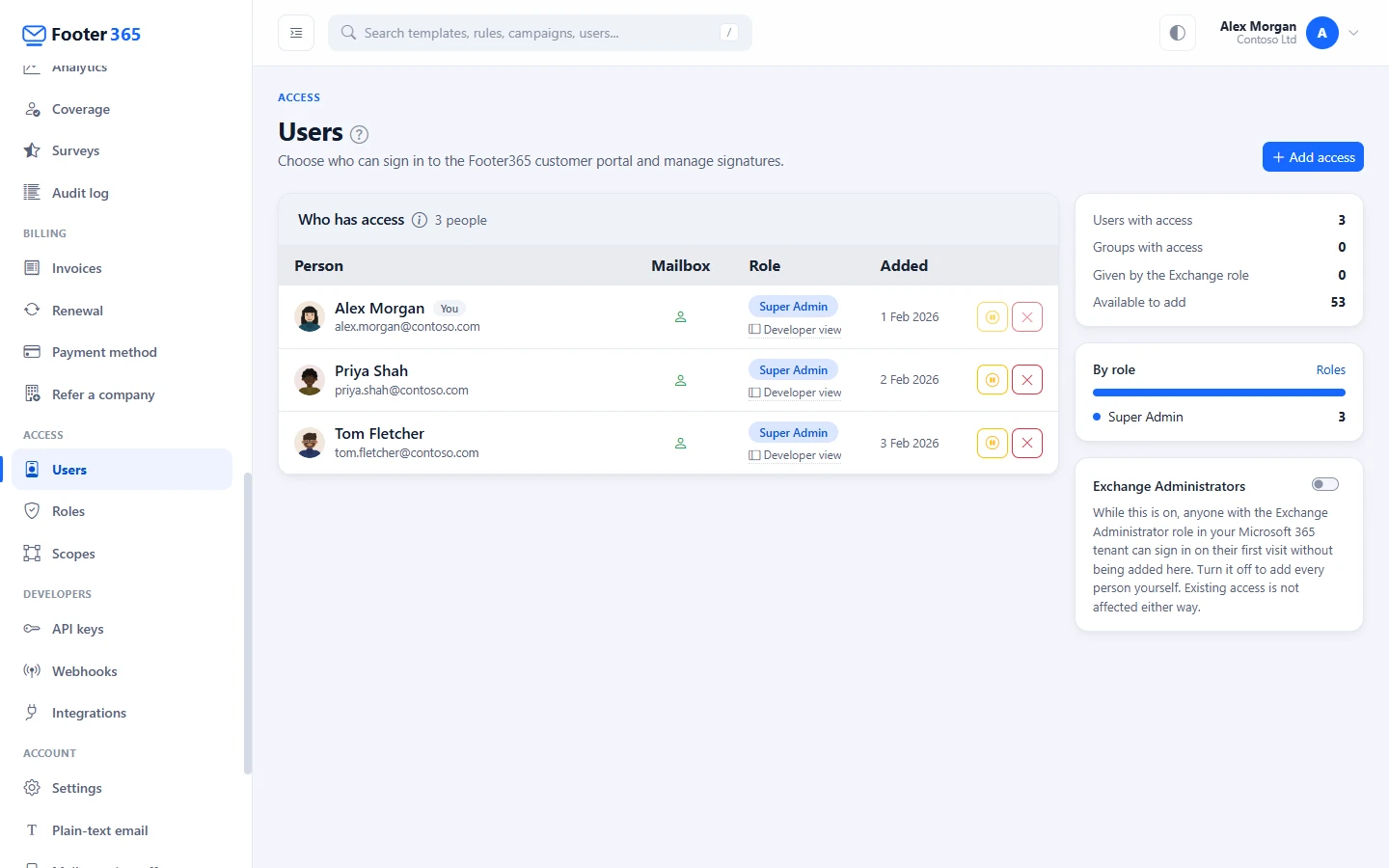
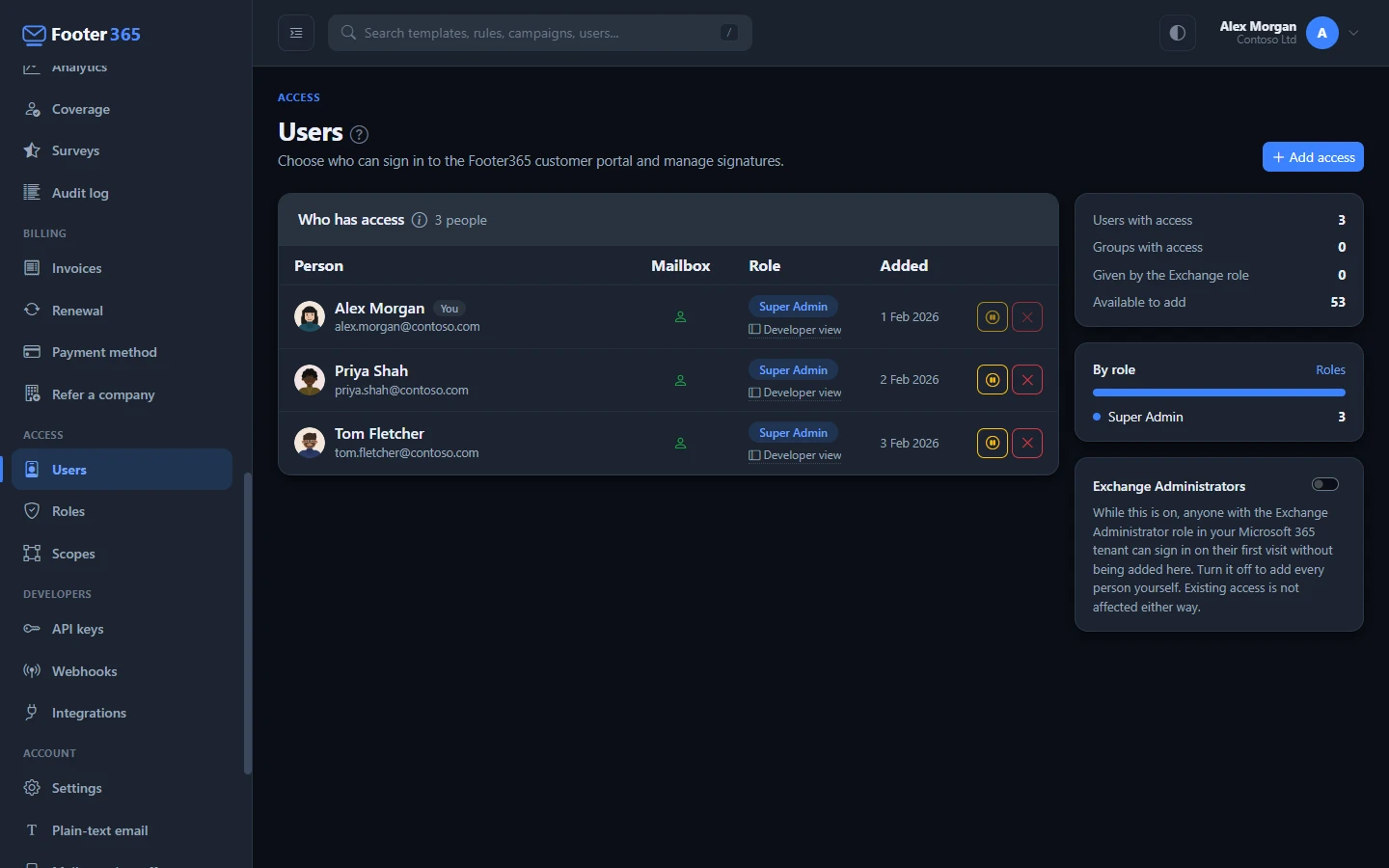
- Find the Exchange Administrators switch in the panel to the right of the Who has access list. On a phone or a narrow window the panel is below the list.
- Turn the switch on. The page saves the change straight away and shows "Exchange Administrators in your organisation can now sign in to the portal."
To switch it off again, turn the same switch off. You will see "Exchange Administrator role access disabled."
What happens when an Exchange Administrator signs in
When a person with no portal access of their own signs in, Footer365 asks Microsoft 365 whether they hold the Exchange Administrator role. If they do and the switch is on:
- they are given portal access straight away, as a Super Admin
- they appear in the Who has access list with an Auto label
- the Given by the Exchange role figure in the panel beside the list counts them
Exchange Administrators let in this way get full control of the portal, including who else has access. Only switch this on if you are happy for everyone with that role to have it. If you would rather choose each person and their role yourself, leave it off and use Add access instead. See Give colleagues access.
Turning it off does not remove anyone
Switching automatic access off only stops new Exchange Administrators being let in. Anyone already let in keeps their access. To take access away from someone:
- Find them in the Who has access list.
- Select the Disable (pause) or Remove (cross) button at the end of their row, and confirm.
Disable is the safer choice for an administrator. A disabled person cannot sign in, even if they hold an administrator role in Microsoft 365. If you only remove them, a Global Administrator, or an Exchange Administrator while the switch is on, is simply let in again the next time they sign in.
You can also change an automatically added person's role to something smaller. Click them, choose a role under Role and select Save.
Good to know
- Only people with no access of their own are checked. Someone already added by hand, or through a group, keeps the role you gave them.
- If your reseller is working in your portal on your behalf, they cannot switch this on. Only your own Super Admins can.
- Changes to this setting are recorded in the audit log, if your account has one.
- This setting is about people. It is separate from the Exchange Administrator role that Footer365 itself is given during setup, when your organisation uses mail flow, so it can create its connectors and rules. It works the same with the Outlook add-in only.
Related articles
Still stuck?
Tell us what you were trying to do and what you saw. Include the sender, a recipient and roughly when a message was sent, and we can trace it.