

Have reports emailed to you
Get Analytics, Coverage, a campaign's report or a survey's results by email every Monday or on the 1st of each month, and a survey's low scores the morning after they come in.
Any report under Insights that you check regularly can come to you by email instead: Analytics, Coverage, a campaign's report or a survey's results, every week or every month. A survey can also tell you about its low scores the morning after they come in. Each email carries the headline figures and a link to the page, so you can see at a glance whether anything needs you.
Footer365 makes report emails available to organisations gradually, so the Email me buttons may not be in your portal yet. See Early access pages and features.
Report emails are included on every plan. You need the View insights permission. Each person chooses their own, and nobody can sign anyone else up.
Start a report email
- Open the report: Insights > Analytics, Insights > Coverage, a campaign's report, or a survey's results.
- Select Email me this at the top of the page.
- Under How often, choose weekly, on Monday at 08:00, or monthly, on the 1st at 08:00.
- Check the address under Sent to. It is your own email address, and cannot be changed here.
- Select Start emails.
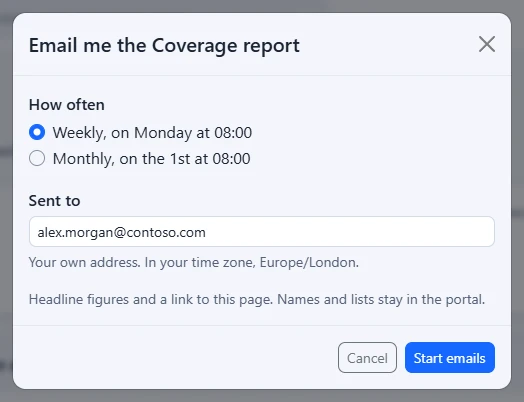
The emails go at 08:00 in your own time zone: the one your browser reports when you start them. Starting an email never sends one straight away. The first comes at 08:00 on the next Monday, or on the next 1st of the month.
Once started, the button reads Emailed weekly or Emailed monthly. Select it to change how often and Save, or to stop the emails.
Someone limited to a scope can have only the Coverage report emailed, built for the people in their scope each time it is sent. Starting any other report says "Your access is limited to" the scope's name, "so only the Coverage report can be emailed to you. The others cover the whole organisation." See Limit an administrator to part of the organisation.
What each email covers
A weekly email covers the seven days before it, Monday to Sunday, and a monthly email covers the month before. Days begin at midnight in your time zone. The figures are counted the way the page counts them, over that week or month rather than the period chosen on the page.
| Report | Headline figures | Lines under them |
|---|---|---|
| Analytics | Total emails, with the change on the week or month before; signatures applied, with your coverage; errors | Emails skipped with no matching rule, mailboxes sending without a signature, and clicks on signature links |
| Coverage | People sending, with the change on the week or month before; people fully covered; people with some mail unsigned | People with nothing signed, the most common reason mail went unsigned, and people on an older version of the add-in |
| A campaign | Messages sent, with the recipients reached; clicks, with unique clicks; the click-through rate | Organisations reached, and the clicks left out of the figures, such as link protection visits |
| A survey | Answers; the average, the share answering yes or the NPS, with its change; low scores. A poll shows its leading option instead | How many comments were left |
With the Outlook add-in only, the Coverage email counts the way the page does then: how many people had something signed by the add-in, how many mailboxes had nothing signed, and how many people are on an older version of the add-in.
Names, comments and lists of people are never in an email: they stay in the portal, behind your sign-in. No report is attached.
Low scores on a survey
On a survey's results, select Email me low scores under Low scores, then Start emails. Footer365 then emails you at 08:00 on the morning after a day with low scores: how many there were, how many came from the emails of each department, and how many came with a comment. After a day with none, nothing is sent.
A low score is what the results page counts as one: one or two stars, the unhappy face, a thumbs down, or an NPS answer from 0 to 6. A poll has no low scores, so it does not offer this. Once started, the link reads Low scores are emailed to you.
See and stop your report emails
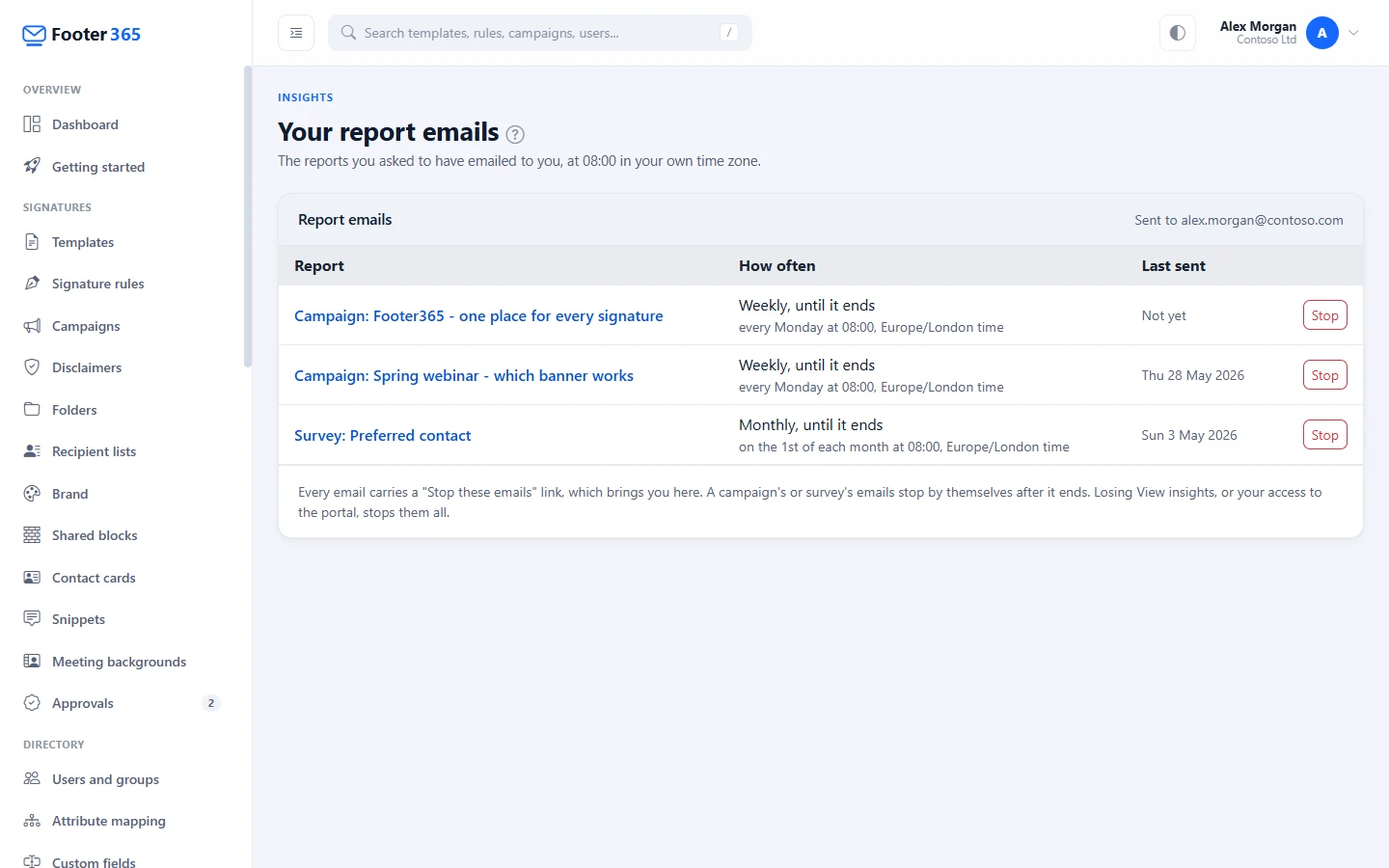
Select your name at the top right to open the account menu, then Your report emails (open it). The list shows each report, how often it is sent and when, and the day it was Last sent, or Not yet before the first.
To stop one, select Stop beside it, then Stop emails. Every email also carries a Stop these emails link, which opens this list with that email ready to stop. Sign in first if you are asked to.
When emails stop by themselves
- A campaign or survey ends. Its last email covers the week, month or day it ended in, and then the emails stop. A campaign or survey that has already ended is not offered by email.
- A campaign or survey is deleted. Its emails stop.
- You lose access. Before each email is sent, Footer365 checks that you could still open the report: that you still have access to the portal and still hold View insights. If not, the email is not sent, and it stops. Removing someone's portal access stops all their report emails at once.
- You are limited to a scope. The Coverage email carries on, for the people in your scope. Any other report you held stops at its next email, because it covers the whole organisation.
While your organisation's portal is closed to its people, for example while it is disabled, nothing is sent. The emails carry on once it opens again.
Good to know
- Starting, changing and stopping a report email, and an email stopping by itself, are recorded in your organisation's audit log.
- A session your reseller opens on your organisation's behalf has no report emails of its own, and cannot start one.
Related articles
Still stuck?
Tell us what you were trying to do and what you saw. Include the sender, a recipient and roughly when a message was sent, and we can trace it.