

Dark mode and email client previews
Check a signature before it goes out, with your own details, in recreations of Outlook and Apple Mail, on a phone-sized screen and in dark mode, and make your logo work on dark backgrounds.
The editor's Preview mode shows the finished signature as your recipients will see it, and lets you try it with your own details, in different email programs, at phone size and in dark mode. Checking these before you save saves surprises later.
Open the preview
- Open a template in the editor.
- Select Preview in the toolbar, next to Edit.
The canvas is replaced by the finished signature, filled in with sample details. The preview updates as soon as you change something, and Edit takes you back to the canvas.
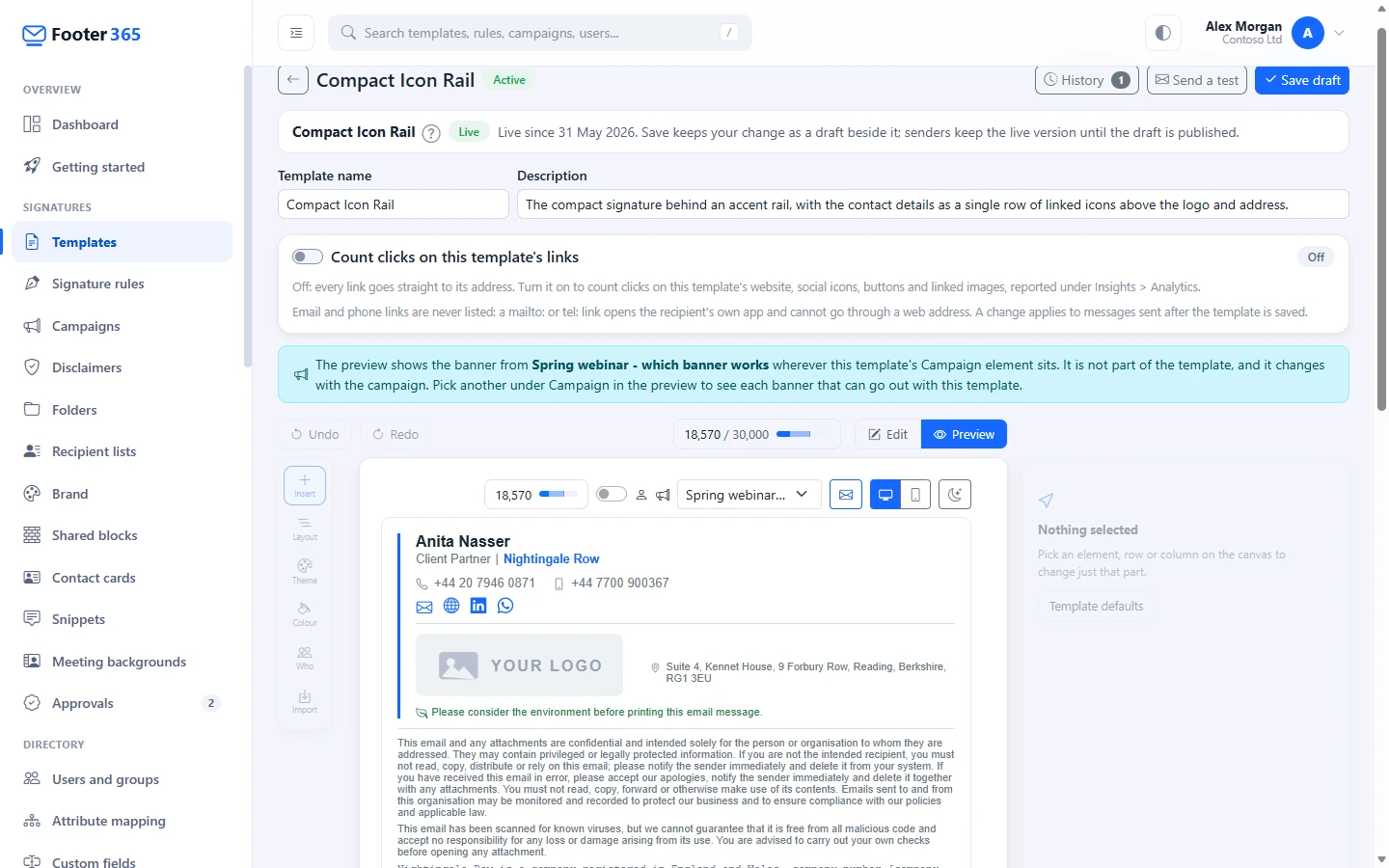
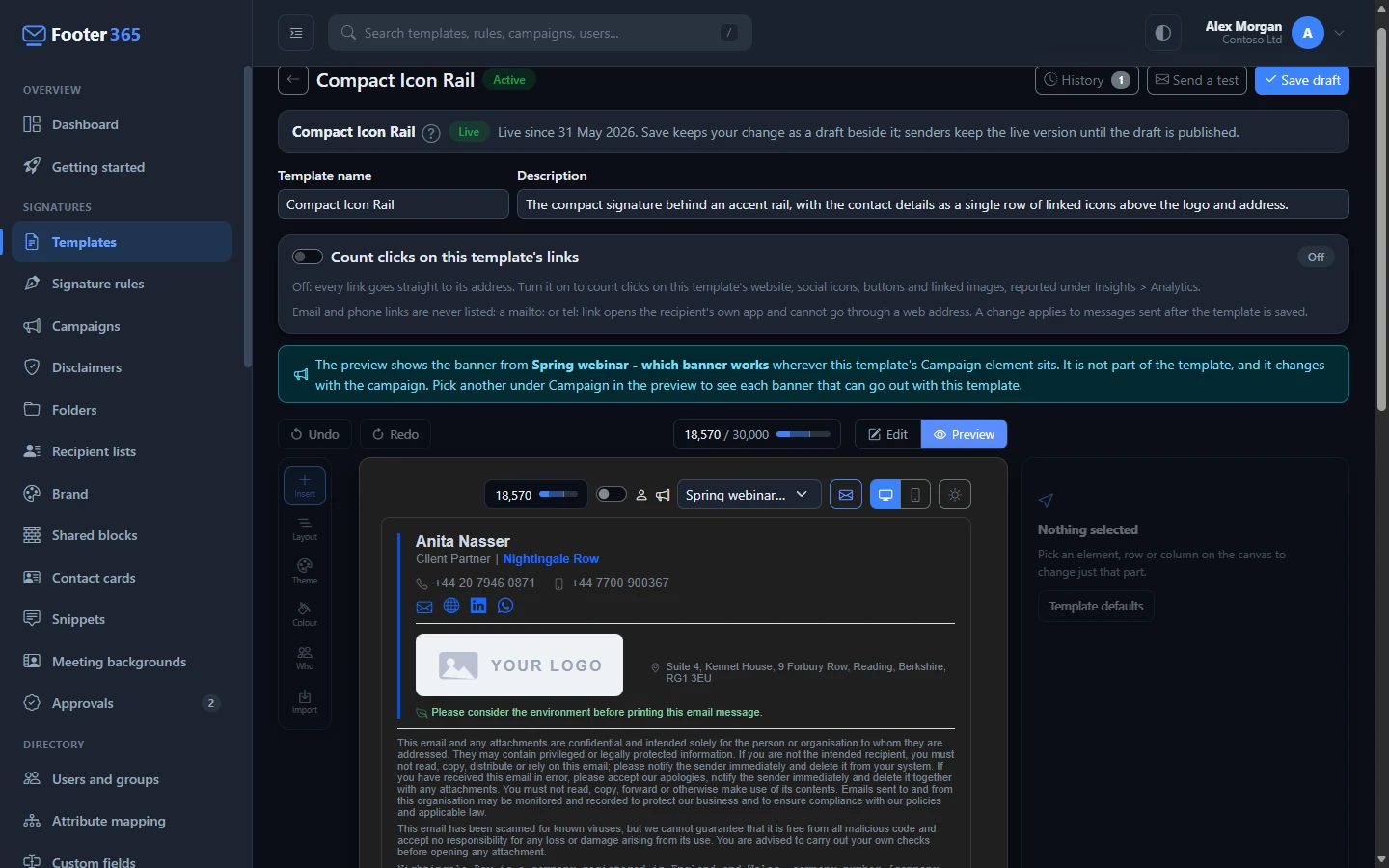
The preview options
- My details fills the signature with your own details from the directory, instead of the sample person. Empty fields are hidden exactly as they would be in a sent email, which makes it a quick way to check the automatic hiding. The switch only appears if you are in your organisation's directory.
- Email clients opens a full-screen window that recreates the new-email window of New Outlook, Classic Outlook, Outlook on the web and Apple Mail, with your signature under a short sample message. Select a tab to switch program. A note under the tabs says what that program is known to change: for example, Classic Outlook drops rounded corners and background images. The window has its own Sample data and My details buttons, and its own dark mode button.
- Desktop and Mobile (the screen and phone buttons) switch between a full-width view and a phone-sized one. The phone view shrinks the whole signature to fit, the way a phone shows an email, rather than rearranging it.
- Dark mode shows the signature on a dark background. The button then reads Light mode to switch back. The preview starts in whichever mode the portal itself is using.
Web fonts in the email client preview
When the signature uses one of your web fonts from Signatures and then Brand, each tab of the Email clients window says under it which font that program's readers see, as Shows followed by the font's name, and draws the signature that way:
| Program | What its readers see |
|---|---|
| Apple Mail | The web font. Apple Mail loads web fonts on a Mac, an iPhone and an iPad. |
| Classic Outlook | The fallback. Classic Outlook for Windows ignores web fonts, and Footer365 hides the font from it so that it shows the fallback rather than Times New Roman. |
| Outlook on the web | The fallback. Outlook on the web and Outlook.com do not load web fonts. |
| New Outlook | The fallback. It has not been tested by the independent email client tests Footer365 relies on, so the preview shows what a reader is sure to see. |
Elsewhere, Thunderbird and Samsung Email show the web font (Samsung Email not with a Microsoft email address), while Gmail, Outlook for Mac and Outlook for iPhone and Android show the fallback. The text is real text everywhere. See Web fonts.
The previews are labelled Approximate preview for a reason: every email program draws HTML a little differently, and these are close recreations rather than the programs themselves. For the final check, select Send a test in the editor's top bar to send yourself a real email of the template, and open it in your own mail apps. See Using the editor.
What dark mode does to a signature
Many email programs change colours when the reader uses dark mode. The editor's dark preview imitates the common approach: light backgrounds are darkened and dark text is lightened, while dark backgrounds and light text are left as they are.
Pictures are not changed. That includes your logo, social icons drawn as pictures, and any image. So the usual problem is not the text, which adapts, but a logo that was only ever designed for a white page.
Making your logo work in dark mode
These are general good practice for email signatures:
- Beware dark artwork on a transparent background. A logo saved as a transparent PNG with dark lettering looks fine on white and can all but vanish on a dark background, because the transparent areas show the dark background through.
- Give a dark logo its own light background. A version of the logo on a solid white or light panel, with a little space around it, stays readable in both modes.
- Or use a logo that works on both. Mid-tone colours, or a light outline around dark shapes, stay visible on light and dark backgrounds.
- Keep a second logo in your brand kit. A brand kit holds a Logo for dark backgrounds beside its Logo. Footer365 does not swap one for the other when a recipient reads in dark mode, because one signature goes to everyone, but you can pick it from the image library for a logo that sits on a dark panel you have drawn in the template. See Brand kits and the image library.
- Check both modes. Look at the preview with Dark mode and Light mode, and in the Email clients window, before you save.
If your logo already disappears in people's inboxes, see Dark mode makes my logo disappear.
Related articles
Still stuck?
Tell us what you were trying to do and what you saw. Include the sender, a recipient and roughly when a message was sent, and we can trace it.