

Start from the template library
Browse ready-made signature designs by what they are for, narrow them by industry, shape and style, see them with your own details, and copy one into your own templates to customise.
The template library is a collection of ready-made signature designs. You pick one, Footer365 copies it into your own templates, and you change the copy to suit your brand. Nothing in the library is sent to anyone: only your own templates are, and only once a signature rule uses them.
Open the library
- In the portal, go to Signatures and then Templates (open Templates).
- Select New from library. If you have no templates yet, the empty page also offers Browse Library. If your organisation has the template wizard, select the arrow beside New template and choose Start from the library, or Browse the library on the empty page. The wizard itself starts from a library design too.
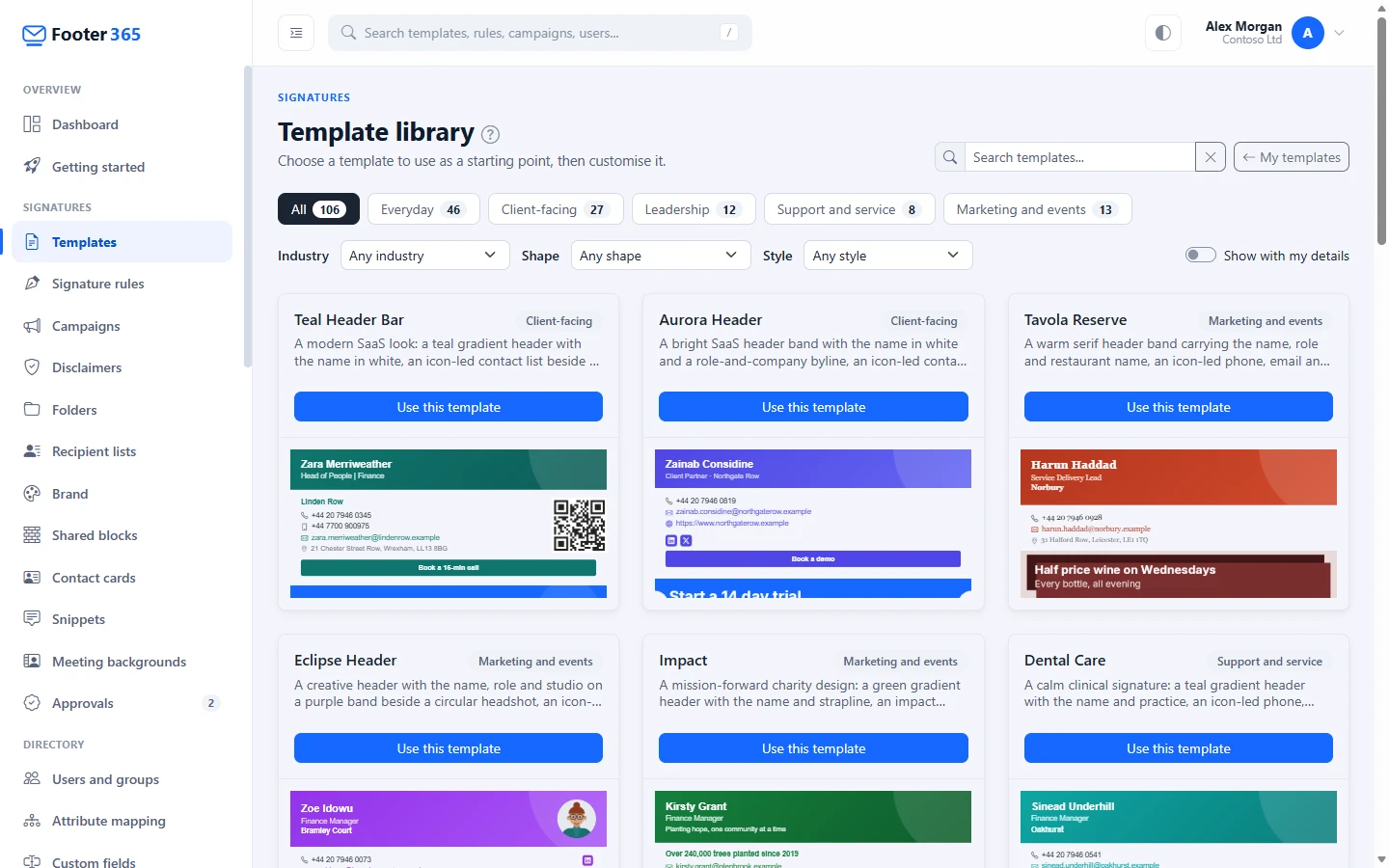
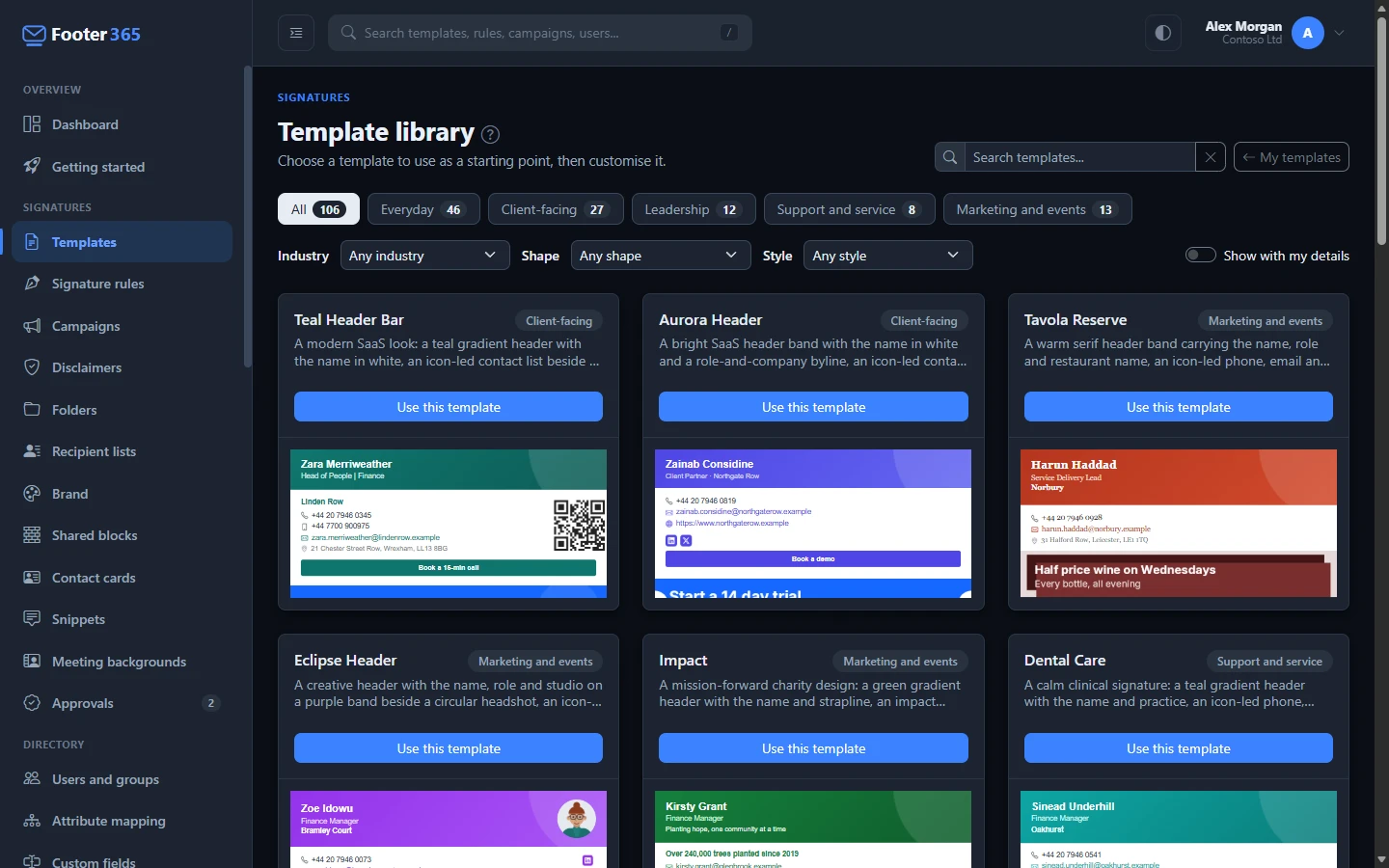
The Template library page opens, showing each design as a card with a preview.
Find a design
- Start with what it is for. The buttons above the cards group the designs by purpose: Everyday for the signature the whole organisation uses, Client-facing for sales, account and project people, Leadership for directors and partners, Support and service for service teams and short signatures for replies, and Marketing and events for designs with room for a campaign banner. All shows every design. Each button shows how many designs it holds under your other choices.
- Narrow it down. Under the buttons:
- Industry shows the designs suited to an industry, such as legal, healthcare or technology. Many designs suit more than one.
- Shape shows designs laid out one way: Colour band at the top, With a photo, Centred, With a logo, Compact (six details or fewer, for replies and phones) or Lines of text. The shape is worked out from each design, so it is always accurate.
- Style is the look a design is grouped under, such as Gradient Header or Minimalist.
- Search. Type into Search templates... at the top of the page. The search looks at each design's name, description and style, and the results update as you type. The cross beside the box clears the search.
- Everything works together. The purpose buttons, the filters and the search all apply at once. When nothing matches, Show all templates clears them.
- Pages. The library shows 24 designs at a time. Use the page numbers under the cards to see more.
The previews are drawn with your own details from Microsoft 365, so every card shows what your signature would look like, with a plain placeholder where your logo goes. Turn off Show with my details to see them with sample people and sample logos instead. If you are not in your organisation's directory, for example when a reseller is working on your behalf, the previews always use the sample people.
Use a design
- Select the preview picture on a card to see the design larger, with its purpose and style. Select Use this template, either there or on the card.
- Footer365 adds a copy to your templates, with the same name and description as the library design, and opens it in the editor. A message confirms it has been added.
- Change the copy: add your logo, set your brand colours, or link it to a brand kit under Theme, and adjust the layout. See Using the signature editor and Brand kits and the image library.
- Select Save.
- To start sending it, pick the template in a signature rule. See How signature rules work.
A copy taken from the library starts as Active, which means a rule can use it straight away. It is still not sent to anyone until a rule does.
You can change the name at the top of the editor, under Template name, before you save. A clear name makes the right template easy to pick when you set up rules.
Good to know
- Your copy is your own. Later changes to the library design do not change your copy, and changes you make never affect the library.
- You can take the same design more than once. Each Use this template creates a new, separate copy. This is useful when you want two variations of one design, for example one for sales and one for support.
- Disclaimer wording is copied in. If a design includes a disclaimer, its current wording is copied into your template at that moment. See Disclaimers.
- Recolour rather than hunt for a colour variant. Any design can be recoloured to your brand in one step from the editor's Colour panel, so choose a design for its layout, not its colours. Or choose your kit under Brand kit in Theme, and the copy follows its colours, font and size from then on.
- Viewing without changing. If your role lets you view signatures but not manage them, you can browse the library and look at each design larger, but Use this template is not shown. See Roles and permissions.
- To go back to your own templates, select My templates at the top of the library page.
Related articles
Still stuck?
Tell us what you were trying to do and what you saw. Include the sender, a recipient and roughly when a message was sent, and we can trace it.