

Contact cards
Give everyone a contact card page with their details and a Save contact button, opened from a QR code or a link in their signature, and export each person's QR code for business cards.
A contact card is a small web page for each person in your directory: their photo, name, job title and the details you choose, with a Save contact button that adds them to the visitor's phone or address book. It is opened by scanning the QR code in their signature or on their printed business card, or by a Contact card button or link in their signature.
Footer365 makes the Contact cards page available to organisations gradually, so it may not be in your portal yet. See Early access pages and features.
The card is built from your directory each time it is opened, so it always shows today's details. When someone leaves, their card closes.
Turn contact cards on
Contact cards are off until one of your organisation's own Super Admins turns them on, because each card is a public page that anyone with its address can open.
- Go to Signatures > Contact cards in the portal, or open Contact cards.
- Turn on Give everyone a contact card.
Everyone in your directory whose account can sign in has a card from then on. Shared mailboxes, groups and accounts with sign-in turned off have none. Open my card at the top of the page shows you your own.
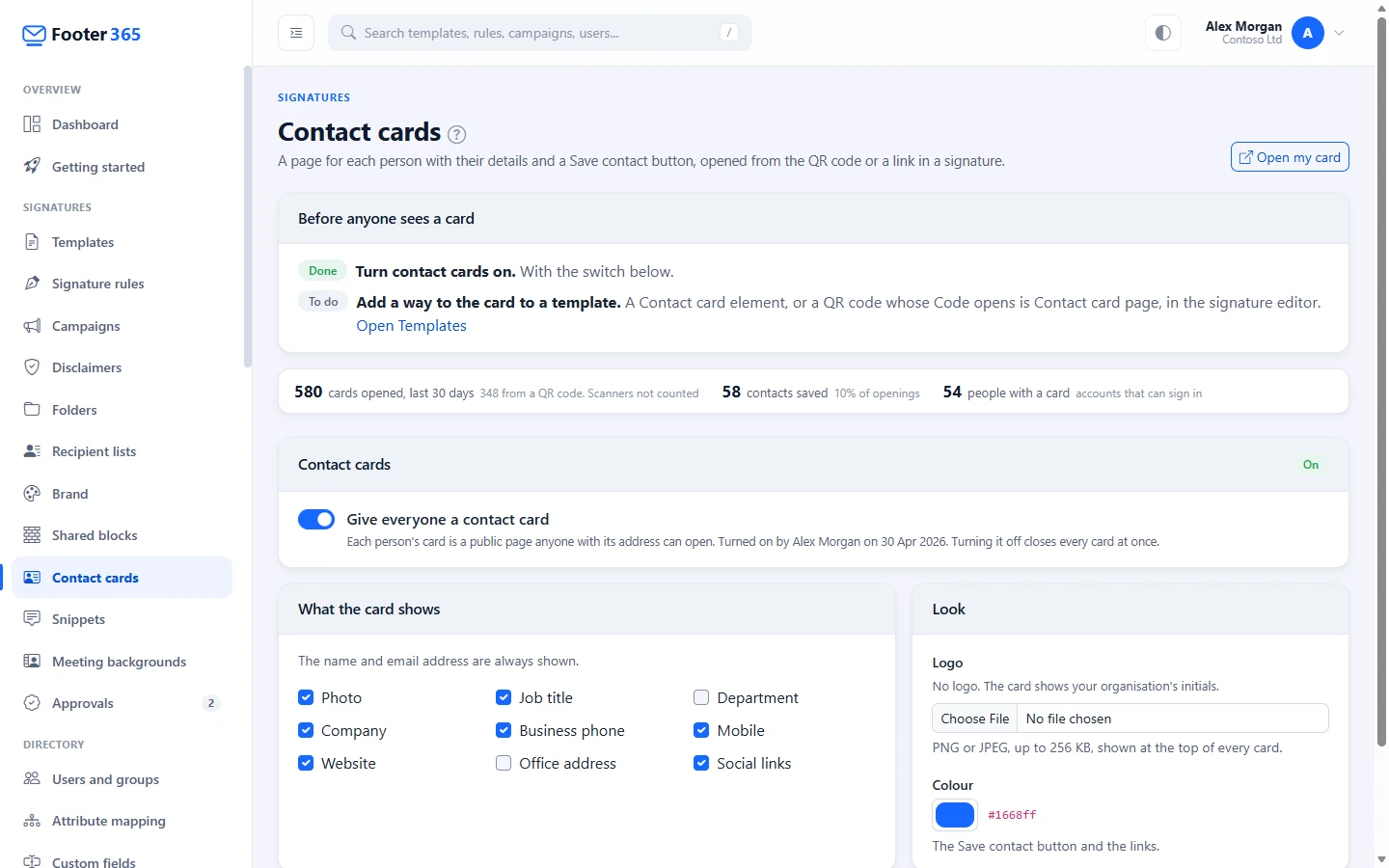
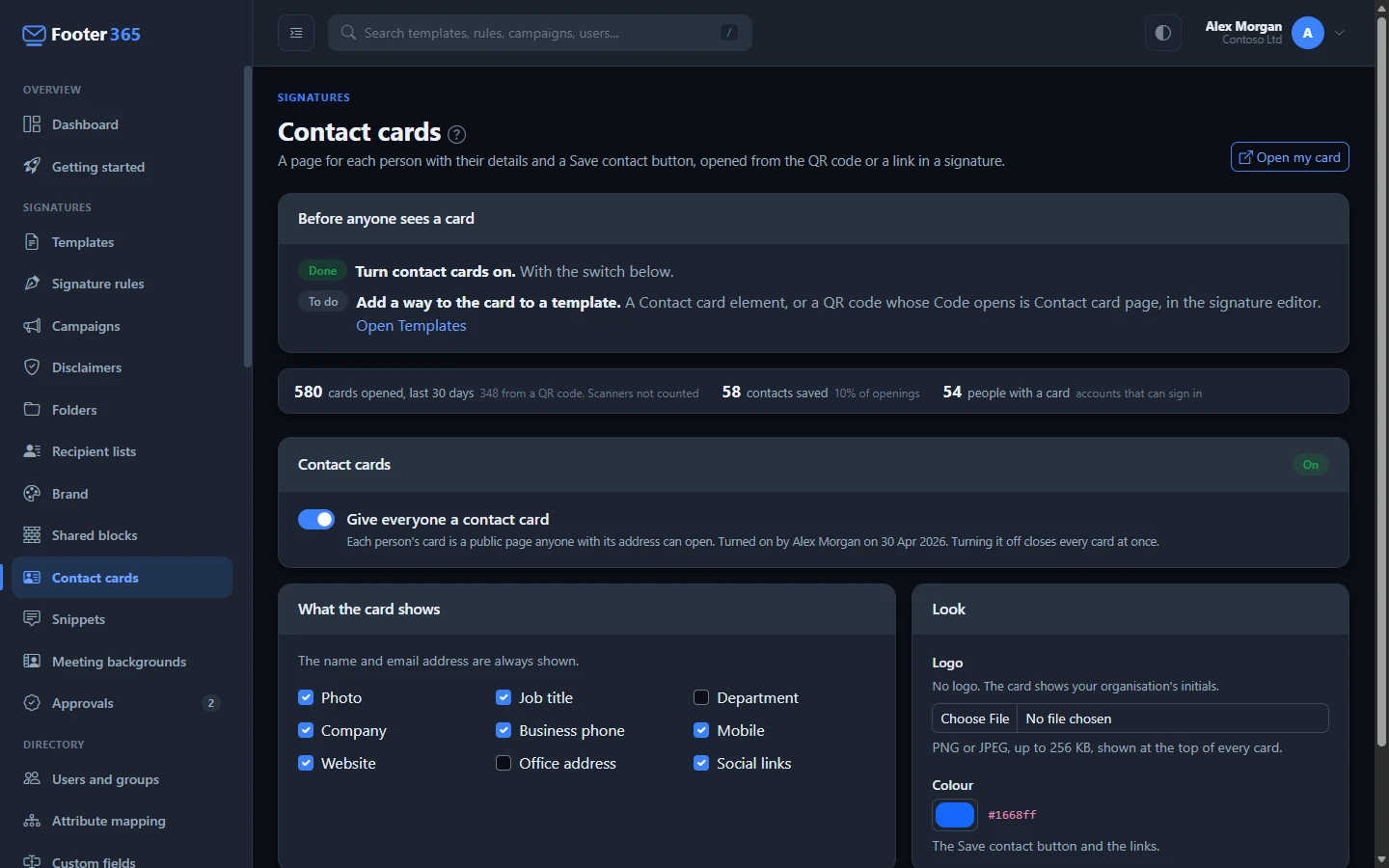
Until contact cards are on and a template in use holds a way to reach the card, a Before anyone sees a card list at the top of the page shows both, each marked Done or To do. The second is done once an active template holds a QR code whose Code opens is Contact card page, or a Contact card element. See "Put the card in a signature", below.
To turn them off again, turn the switch off and confirm with Turn contact cards off. Every card closes at once, including the ones on QR codes already printed or sent: they show that the card is no longer available.
Choose what the card shows
Under What the card shows, tick the details the card should carry: photo, job title, department, company, business phone, mobile, website, office address and social links. The name and email address are always shown. Until you save a choice of your own, the card starts with the details your signatures show.
Under Look:
- Logo is shown at the top of every card. Upload a PNG or JPEG of up to 256 KB. Without one, the card shows your organisation's initials. Tick Remove the logo and save to take it away.
- Colour is used for the Save contact button and the links.
Select Save. Every card shows the change the next time it is opened.
What a visitor sees
The card is laid out for a phone and follows the phone's light or dark setting. It shows the person's photo (or their initials), their name, job title and company, then buttons to Save contact, call and email them, followed by the details you chose and their social links. Save contact downloads a contact file (.vcf) holding the same details and the photo.
A card is closed, and shows that it is no longer available, when:
- contact cards are turned off;
- the person's Microsoft 365 account is turned off, or they are no longer in your directory;
- the person's card has been given a new link (see below).
The card's address is a random code rather than the person's name, so nobody can find your staff by guessing addresses. Search engines are asked not to list cards.
Put the card in a signature
There are two ways to bring a signature's recipients to the card. Both are in the editor's Insert panel.
- QR code with Code opens set to Contact card page. A new QR code starts with this choice. The code holds only the card's short address, so it stays simple enough to scan when printed small. See Social icons, WhatsApp, Teams, booking and QR codes.
- Contact card, in Media and social, which adds a button, a text link or an icon. Under Show as, choose Button, Link or Icon, and under Opens, choose Card page, which opens the sender's contact card, or Contact file (.vcf), which downloads their contact file straight away. There is nothing to fill in: each sender's own card is linked.
While contact cards are off, a QR code set to open the card page holds the sender's details instead, and a Contact card element is left out of every signature.
Each person's card on Users and groups
Select a person on Directory > Users and groups to see their Contact card in the panel beside the list: the card's address with a Copy button, how often it was opened and saved in the last 30 days, and the buttons:
- Open card opens it in a new tab.
- Download QR code downloads a PNG of their QR code, for a business card or a name badge.
- New link gives the card a new address and closes the old one at once, including on QR codes already printed or sent. Use it when a card's address has been misused. It asks you to confirm first, and needs the right to manage the directory. Signatures carry the new address from the next message.
Export QR codes for business cards
Select More at the top of Users and groups, then Export QR codes, to download many people's codes at once.
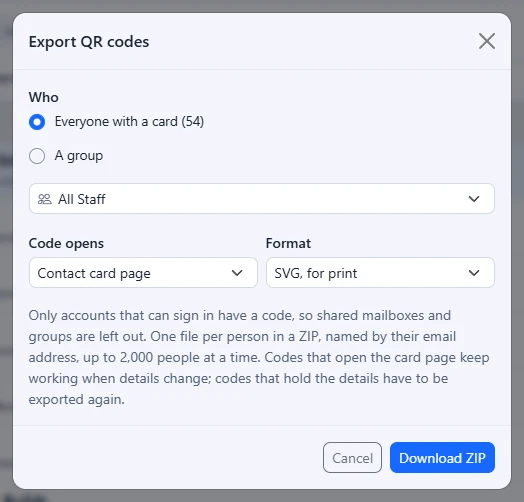
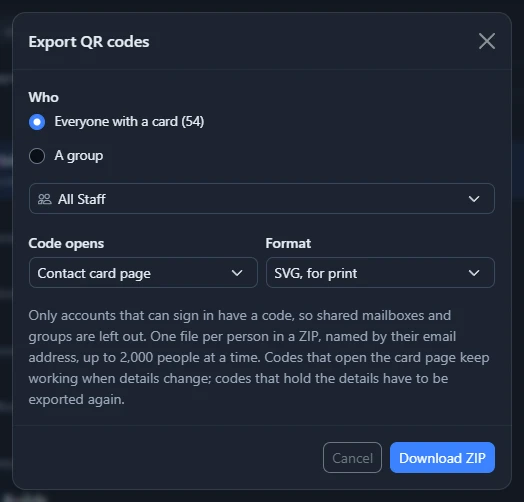
- Under Who, choose everyone with a card, the people the list shows (after a search or a filter), or the members of a group. Only people with a card are exported, so shared mailboxes and groups are left out.
- Under Code opens, choose Contact card page or Contact details in the code. A code that opens the card page keeps working when a person's details change. A code holding the details has to be exported again when they change. While contact cards are off, codes can hold the details only.
- Under Format, choose SVG, for print, which a printer can scale to any size, or PNG.
- Select Download ZIP.
The ZIP holds one file per person, named by their email address, for up to 2,000 people at a time. Each export is recorded in the audit log.
Openings, scans and saves
The figures at the top of the Contact cards page show how many times cards were opened in the last 30 days, how many of those came from a QR code, how many contacts were saved, and how many people have a card (accounts that can sign in). Each visitor is counted once a day per card. Link checkers and mail security scanners are not counted.
Scans of QR codes that open a web address rather than a card are on the Analytics page. See Count clicks on your signature's links.
Your data
A card shows only the details you ticked, read from your directory when it is opened. Footer365 records no visitor's details: the openings are counted per card and day only. Turning the cards off, a person leaving, or a new link closes a card immediately. See Data and privacy.
Related articles
Still stuck?
Tell us what you were trying to do and what you saw. Include the sender, a recipient and roughly when a message was sent, and we can trace it.