

Add a fallback rule so nobody goes without
Put an All users rule at the bottom of your list so anyone not caught by a more specific rule still gets a signature.
A fallback rule is a rule for everyone, placed at the bottom of your list. It catches anyone that your more specific rules miss, so every email still leaves with a signature. This article shows you how to add one.
Why you need one
Footer365 checks your rules from the top down and uses the first one that matches. If none of them match, the email goes out with no signature at all. See How signature rules work.
This is easy to miss. For example, you might have rules for Department "Sales" and "Support". Someone whose department is blank in Microsoft 365, or a new starter in Finance, matches neither rule and gets nothing.
A fallback rule at the bottom fixes this. Because it is checked last, it only applies when nothing above it matched.
It matters most for new starters. Someone new in Microsoft 365 is signed from their first message by the first rule they fit, unless your organisation has turned on Approve new starters before they are signed. Without a fallback, a new starter who fits no other rule goes out without a signature, and Coverage shows "No matching rule". The New starters tab of Sync settings on Users and groups shows your fallback rule, or recommends adding one when there is none. See How directory sync works.
Add the fallback rule
- Open Signature rules.
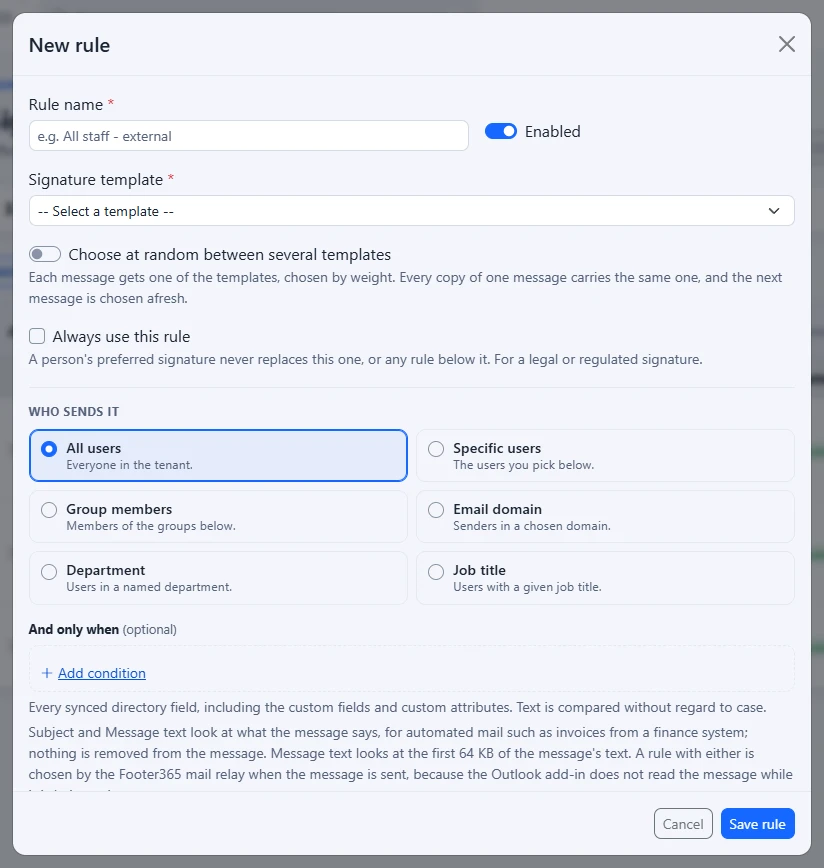
- Select New rule. Where your organisation has the rule wizard, New rule opens the wizard: either answer its questions with Everyone, Everyone they email and Every message, which places the rule last for you (see Make a rule with the wizard), or select the arrow beside New rule and then Start blank in the editor to follow the steps below.
- Give it a clear Rule name, such as "Everyone - default".
- Choose your standard company Signature template.
- Under Who sends it, choose All users, and leave And only when and Except these senders empty.
- Set Recipient type to All recipients and leave both recipient boxes empty.
- Set Email type to All emails and leave Runs on Always.
- Select Save rule.
New rules are added at the bottom of the list, which is exactly where a fallback rule belongs. If you add more rules later, they also go to the bottom, below the fallback. Drag each new rule above the fallback, or it will never be reached.
Keep it at the bottom
A rule for All users with All emails and All recipients, and no conditions, exceptions, recipient lists or schedule, matches every email from everyone. Anything placed below it is never used. A fallback with any of those added is no longer a fallback: mail it leaves out goes without a signature.
After you reorder your rules, check that the fallback is still the last row in the All rules table.
If the fallback rule is not at the bottom, the rules under it stop working. They are not switched off, and nothing warns you: they are simply never reached.
A fallback for each email type
If you use a narrow rule for replies or for internal mail, you still need something that covers everything else. For example:
| Priority | Rule | Audience | Email type | Recipient type |
|---|---|---|---|---|
| 10 | Short reply | All users | Replies only | All recipients |
| 20 | Everyone - default | All users | All emails | All recipients |
Here replies get the short signature, and new emails and forwards fall through to the full one.
Check it works
Select Test a rule, pick someone who is not covered by any of your specific rules, and select Test. You should see Rule matched: followed by the name of your fallback rule.
If you see "No rule matched for" followed by "No signature will be applied.", that person would send mail with no signature. See Test a rule.
When you might not want one
During a pilot you may deliberately leave the fallback out, so only a small group gets signatures while you check them. Once you are happy, add the fallback to roll out to everyone. See Pilot with a small group first.
Related
Still stuck?
Tell us what you were trying to do and what you saw. Include the sender, a recipient and roughly when a message was sent, and we can trace it.