

The audit log
See who changed what in your Footer365 account, and when, and who in your organisation can see the audit log.
The audit log is a record of the actions taken in your Footer365 account: who signed in, who changed a template or rule, when the directory synced, and anything that went wrong. Use it to answer "who changed this, and when?"
Who can see it
Audit log is under Insights in the sidebar for everyone whose role includes it. It needs the View insights permission, and a custom role can leave the page out while keeping the rest of Insights: see Roles and permissions. The menu shows it in the Advanced and Developer views. See Choose how much of the portal you see.
Footer365 records everything that happens in your account, whoever can see the page, so the log always shows everything from the start.
After your subscription ends, the audit log stays open to you until the export date on the Cancel subscription page, so you can export it with the rest of your data. The page says until when. See Cancel your subscription.
Open and search the log
- Go to Insights > Audit log (open it).
- The newest entries are at the top, 25 to a page. Use Previous and Next at the bottom to move between pages.
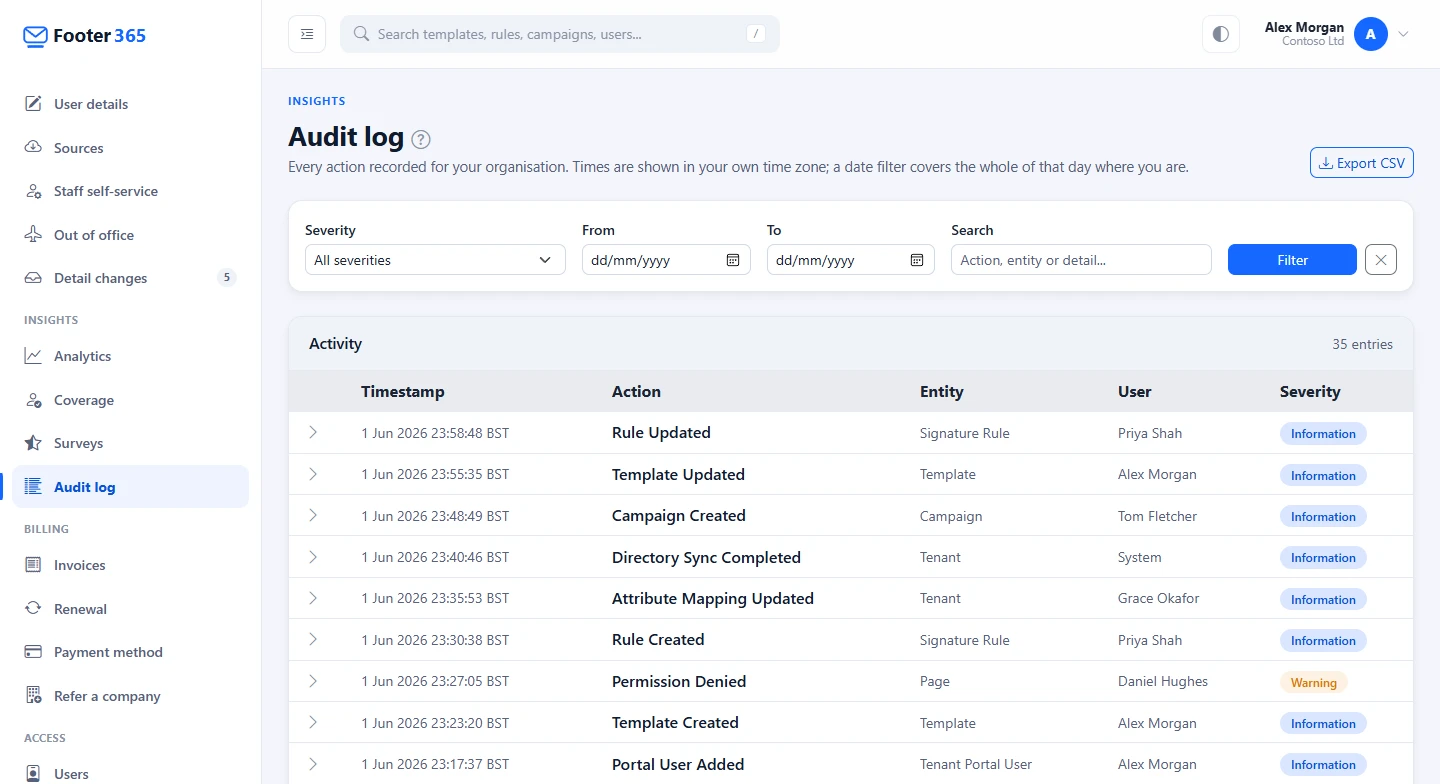
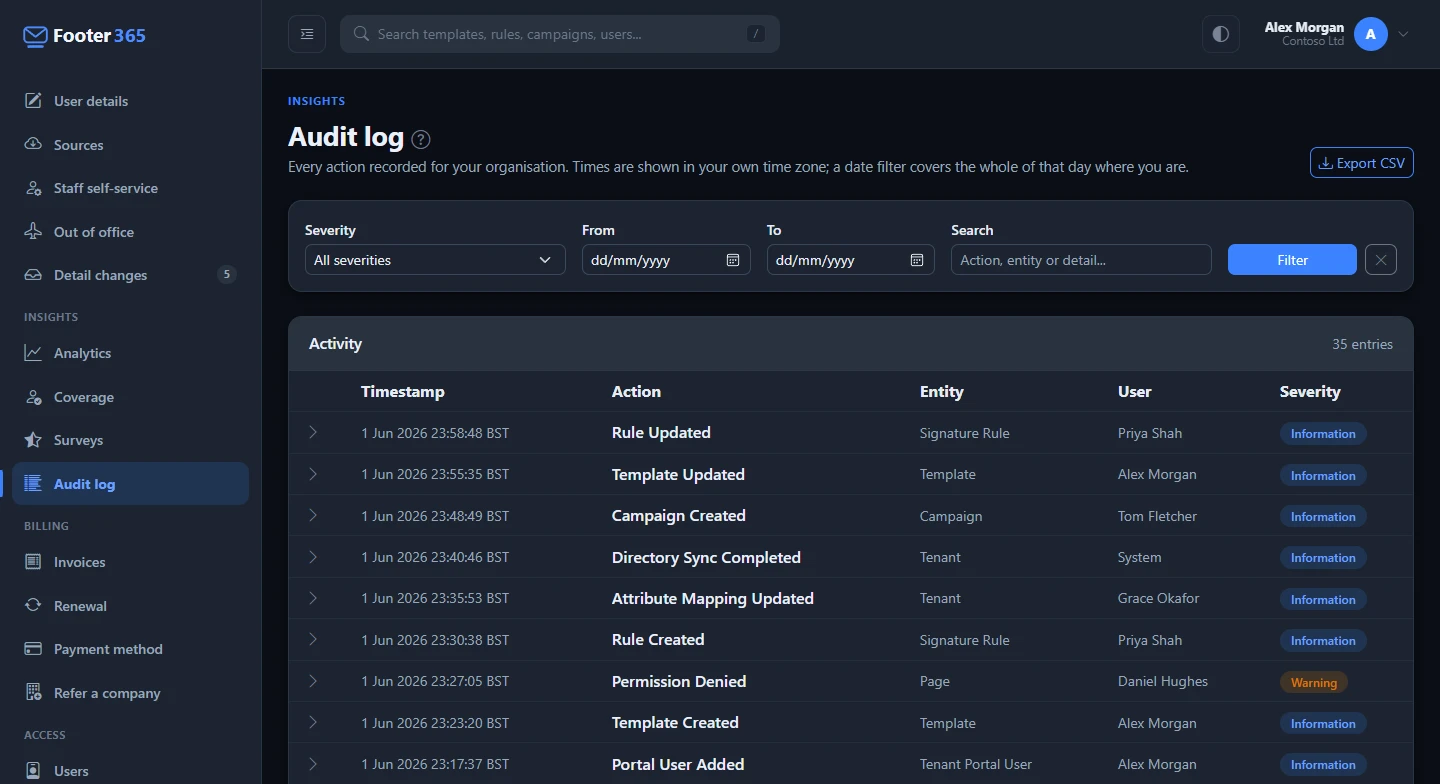
- To narrow the list, use the boxes at the top:
- Severity: choose Information, Warning or Error, or leave it on All severities.
- From and To: pick a date range.
- Search: type a word from the action, the kind of item or the details, such as a template name or a person's email address.
- Select Filter. To remove all the filters, select the cross next to it (Clear filters).
Reading an entry
Each row shows:
| Column | What it means |
|---|---|
| Timestamp | When it happened, in your own time zone. Hover over it to see the time in UTC. |
| Action | What happened, such as a template being updated or a directory sync finishing. |
| Entity | The kind of thing it happened to, such as a template, a rule or your organisation. |
| User | The person who did it. System means Footer365 did it automatically, for example a scheduled sync. For an email Footer365 signed as it left Microsoft 365, it is the mailbox or group the email was sent from, such as a shared mailbox or a program sending through Microsoft 365, so you can find every email sent from one address. |
| Severity | Information for normal activity, Warning for something worth a look, Error for something that failed. |
Click a row to open it and see the full details. For a change, the details usually show each field that changed with its old and new value. For a task with several steps, such as a directory sync, they list each step.
Export the log
Select Export CSV at the top of the page to download every entry the filters select, not only the page you are looking at, as a CSV file you can open in a spreadsheet. Each row has the time in UTC, the action, the entity, the severity, the user, and the summary, changes and steps shown when you open the entry. The export itself is recorded in the log.
Dates and time zones
Times are shown in your own time zone. A date filter covers the whole of that day where you are, so choosing today in both From and To shows everything from your midnight to your midnight.
What you will find in it
Among other things, the log records:
- sign-ins to the portal
- changes to templates, signature rules and campaigns
- directory syncs, including how many users were added, updated or removed
- changes to attribute mapping and imports of user details
- sources that read a file for people's details: one added, changed, turned on or off, run or deleted, and each run that changes details, stops or fails
- changes to portal access, users and roles
- scopes that limit an administrator to part of the organisation: one made, changed or deleted, with what it covered before and after, and who was given or lost one
- attempts to open a page without the right permission, and attempts by an administrator limited to a scope to reach beyond it, with the scope they hold
- actions taken in your portal by your reseller on your behalf, recorded under their name
Routine background token refreshes are left out so they do not bury everything else.
Good to know
- Only entries for your own organisation are ever shown.
- An administrator who is limited to part of the organisation does not see the audit log, because it covers all of it. See Limit an administrator to part of the organisation.
- An email's entry names who it was from and never who it was sent to. Recipient addresses are not recorded.
- When someone sends from a shared mailbox, as a group, or as or on behalf of a colleague, the entry's details also name the other side: the mailbox it was sent from for an email signed in Outlook, or the person who sent it on the mailbox's behalf where the email says so. Searching for either address finds the entry. For an email sent "as" a mailbox without the Outlook add-in, only the mailbox is shown, because the email names nobody else.
- The log is read-only. Nobody, including your own administrators, can edit or delete entries from the portal.
Related articles
Still stuck?
Tell us what you were trying to do and what you saw. Include the sender, a recipient and roughly when a message was sent, and we can trace it.