

Company settings
Keep your company name, contacts, address, VAT details and accounting export up to date, and see who held each contact role over time.
Account > Settings holds the details Footer365 uses to invoice you and the people it writes to about your account. This article explains each field and what it affects.
Footer365 makes some of these settings available to organisations gradually, so these cards may not be in your portal yet: Click tracking, Clicks left out of your figures, Your own link domain, Count image loads, banner opt-outs, Long conversations, Sending alarm, Replies and forwards and Signature time zone. See Early access pages and features.
To open this page you need the Manage settings permission. Super Admins have it.
Change your company details
- Go to Account > Settings (open it).
- Change the fields you need in the Company details card.
- Select Save at the foot of the card. It stays in view as you scroll, and says Unsaved changes beside it once you have changed something. You will see "Your company details were saved."
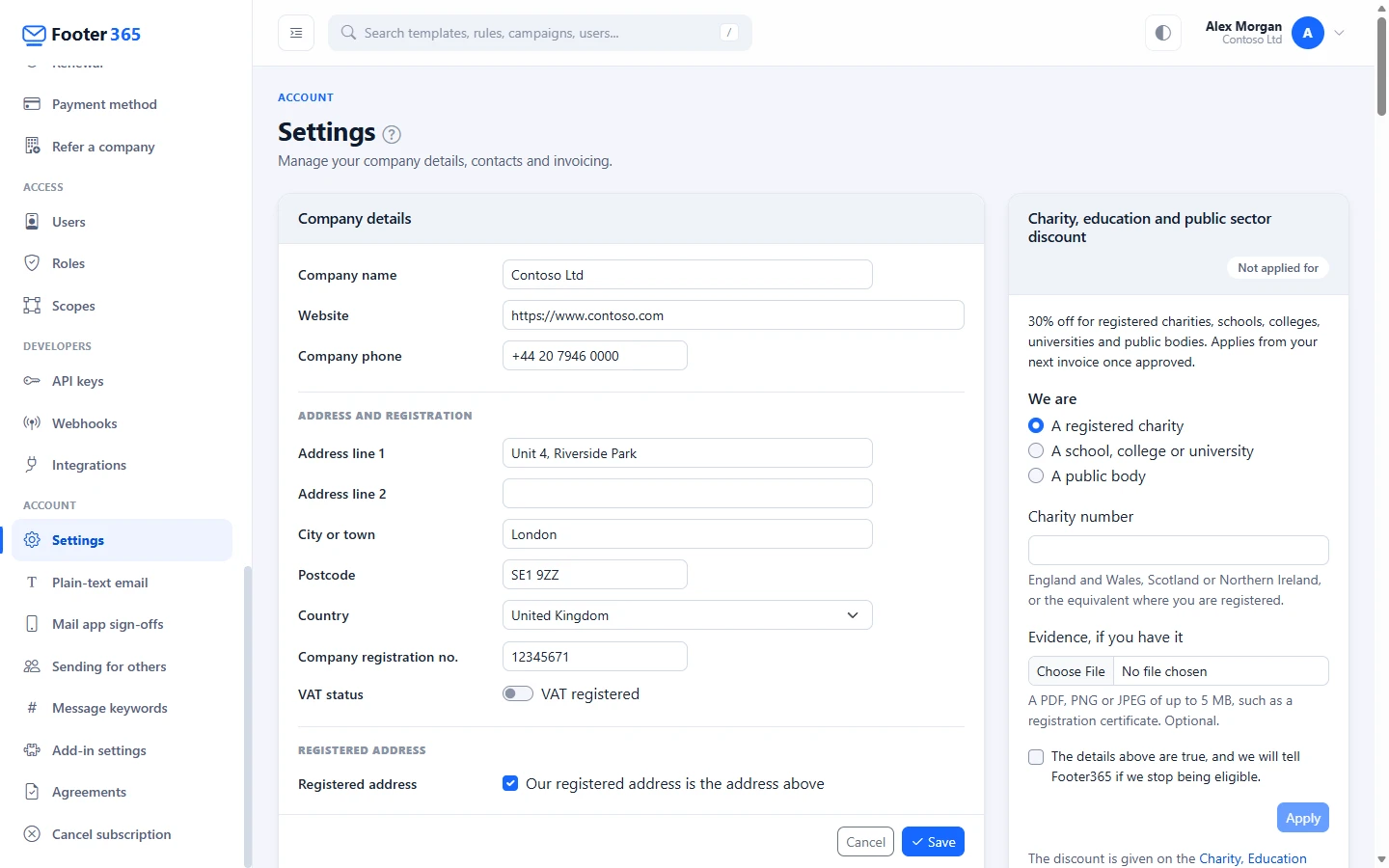
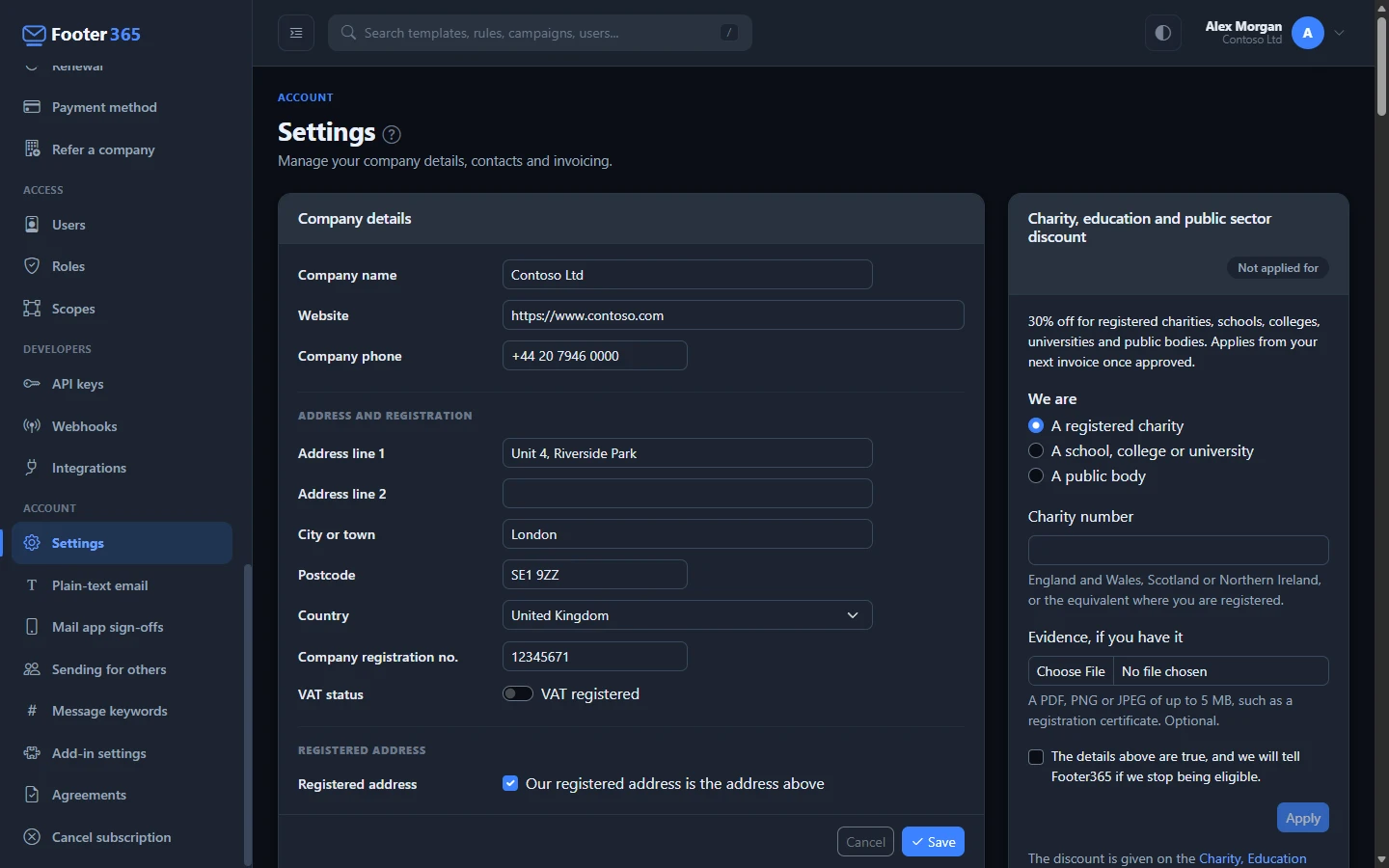
The fields
Company
- Company name: the name on your invoices and shown across the portal. It is required.
- Website and Company phone: your organisation's main website and phone number.
Address and registration
- Address line 1, Address line 2, City or town and Postcode: your billing address, shown on your invoices.
- Country: required. Type to search the list. Your country decides the VAT on your invoices. See Invoices and VAT. Your address cannot be moved to a country Footer365 is not offered in: one under comprehensive UK sanctions, or one where Microsoft 365 is not sold. The same applies to your registered address.
- Company registration no.: your company number, if you have one.
- VAT registered: switch this on if your company is registered for VAT, then enter your VAT number. Switching it off removes the number.
If Footer365 invoices you directly and your company is in the EU, Footer365 checks the VAT number with the EU VIES service when you save, and shows the result under the number with the date of the check.
Registered address
- Our registered address is the address above: leave this ticked if your registered office is your billing address.
- Untick it to enter your registered address: Registered address line 1, City or town and Postcode are then required, and Address line 2 and Country are optional.
Your company registration number and registered address are recorded with each acceptance of the agreements and whenever they change, as the Customer Agreement says. If your reseller or Footer365 set up your account, you were not asked for them at signup, so add them here.
Accounting export
- Accounting export: choose Xero to download your Footer365 invoices in a file Xero can import. Choose None if you do not use it.
- Xero account code: the code from your Xero chart of accounts that these invoices should post to, for example an expense account such as 300. Enter the number, not an account name. It is required when Xero is chosen.
Change your contacts
The Contacts card, under the company details, holds the three people Footer365 writes to about your account. When someone leaves or hands the role over, change them here.
- Change the Name, Email or Phone of the contact you need.
- Select Save contacts at the foot of the card. You will see "Your contacts were saved."
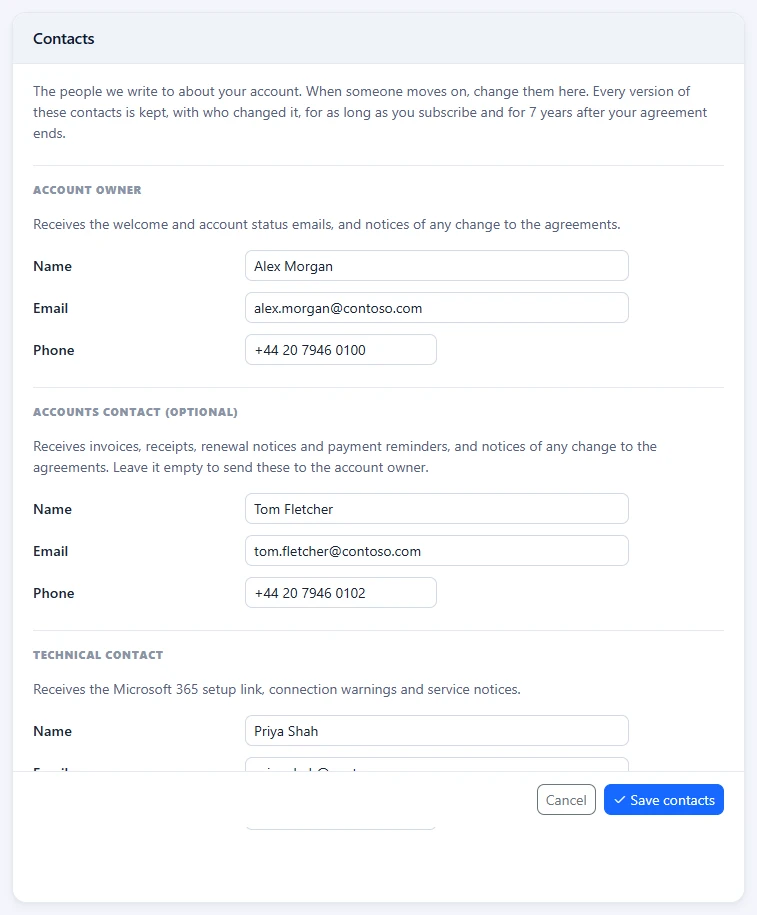
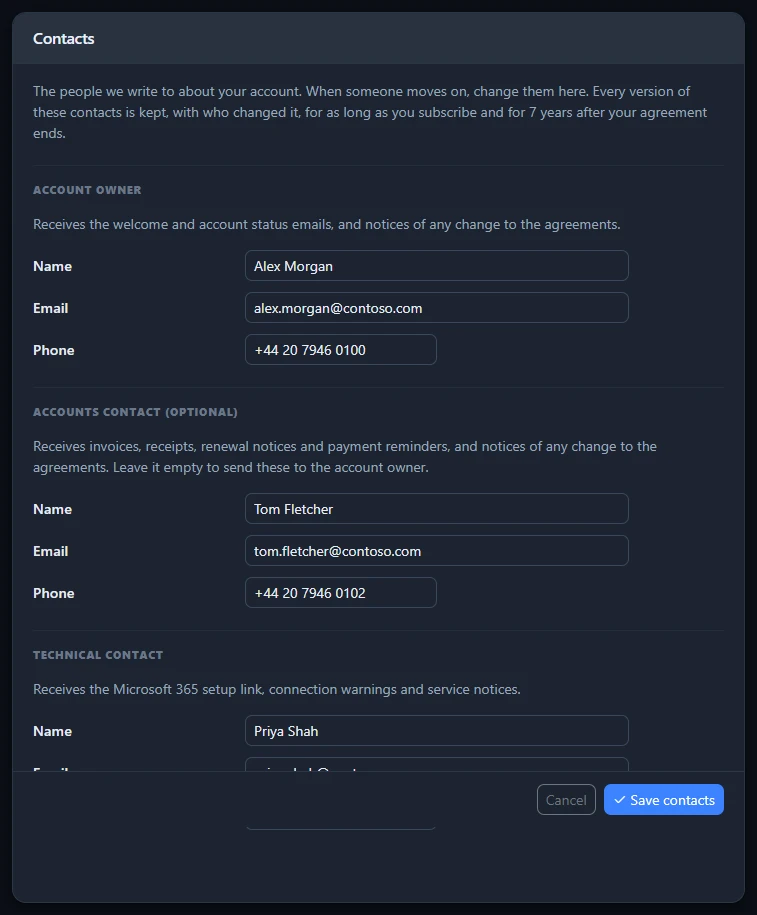
- Account owner: required. Receives the welcome and account status emails, and notices of any change to the agreements. Only a Super Admin of your own organisation can change the account owner, and not while somebody, such as your reseller, is working in the portal on your behalf.
- Accounts contact: optional. Receives invoices, receipts, renewal notices, payment reminders, card expiry warnings and trial reminders, and notices of any change to the agreements. Leave it empty to send all of these to the account owner. Use an address someone reads, such as a shared accounts mailbox.
- Technical contact: required. Receives the Microsoft 365 setup link, connection warnings and service notices.
The account owner and the technical contact both receive the sending alarm.
Once both have an email address, Check your company contacts is ticked on the Getting started page. The Getting started page
If one of your contacts signed up for Footer365 or accepted the agreements for your organisation, the top of the card says so. You can still change them: the acceptance stays on record in their name.
The account owner and the accounts contact can be the same person.
Contact history
The Contact history card lists, newest first, every change to your contacts and every acceptance of the agreements:
- First on record: the earliest contacts Footer365 holds for your organisation.
- Contacts changed: the contacts from that point, with each one that changed marked Changed, when, and who changed them.
- Agreements accepted: who signed up or accepted the agreements, and the reference of the acceptance. Where nobody objected to a change by the date it took effect, or a free trial ended with a change nobody had accepted, the agreements were treated as accepted, and the entry says so.
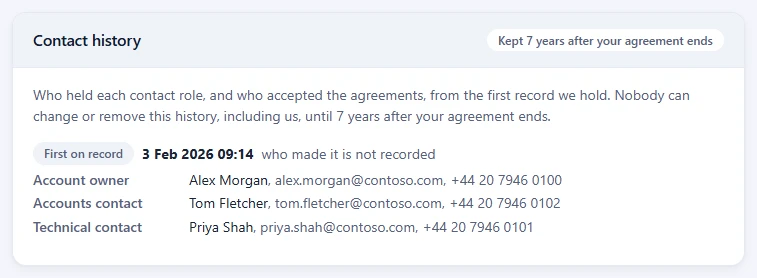
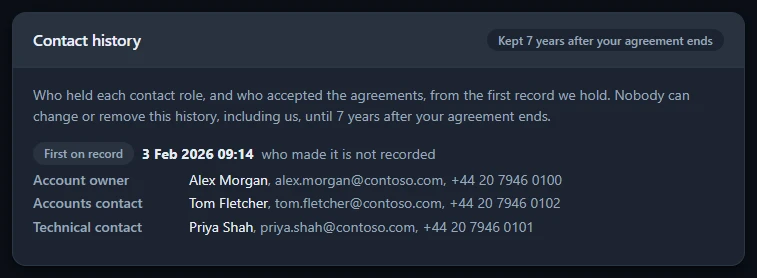
Nobody can change or remove this history, Footer365 included. It is kept for as long as you subscribe and for 7 years after your agreement ends, even if your account is deleted, so either side can rely on it if a question ever comes up about who was responsible for the account at a given time. See Your agreements.
The cards on the right
Reseller access
If you buy Footer365 through a reseller, a Reseller access card lets you decide whether they can work in your portal for you. See Reseller access.
Charity, education and public sector discount
If Footer365 invoices you directly, and the Customer Agreement in force includes section 2.3, which brings the discount's terms into it, this card lets a registered charity, a school, college or university, or a public body apply for the published discount. The percentage for each is on the pricing page, and it applies at any size. If a reseller looks after your account, your reseller sets your price, so the card is not there. The discount is given on the Charity, Education and Public Sector Discount Terms, which form part of your Customer Agreement from the day you apply.
To apply:
- Under We are, choose what your organisation is.
- Enter your registration number: your charity number, your school's URN, your college's or university's UKPRN, or the number your public body is registered under, or the equivalent where you are.
- Under Evidence, if you have it, you can add a PDF, PNG or JPEG of up to 5 MB, such as a registration certificate. It is optional.
- Tick the box to confirm the details are true and that you will tell Footer365 if you stop being eligible.
- Select Apply.
Only a Super Admin of your own organisation can apply, signed in as themselves. The card then shows Waiting for review. Footer365 checks the number on the public register, usually within two working days, and emails your account owner and accounts contact the result:
- Approved: the card shows the percentage off, and the discount applies from your next invoice. If your organisation already has its own price that is as low or lower, you keep it instead, and the card says so.
- Not approved: the card shows the reason, and you can apply again with the right details.
If Footer365 later finds the details given were not true, it ends the discount from your next invoice, and that invoice also charges the difference for every invoice since the discount applied. Your account owner and accounts contact are emailed the reason. See Invoices and VAT.
Any document you add is kept with the request, is never published at a public address, and is deleted with your account.
Confirming it each year
The discount is confirmed again each year. On a 12, 24 or 36-month term the confirmation is due a little over a month before the term renews; on a monthly subscription, a year after it was approved. The card shows the date. From two months before it, the card shows a box to tick and a Confirm button, and Footer365 emails a reminder a month and a week before. A Super Admin ticks the box and selects Confirm, and the discount carries on for another year.
If it is not confirmed by the date, the discount ends, the card shows Ended with the reason, and your price goes back to what it was before. That is a price rise, so it takes effect with the notice a rise is given: at least 31 days, and on a committed term not before it renews. If you had already saved your choice to renew, the renewed term keeps the price you accepted, discount included, and your price goes back only when that term ends. If you are still eligible, you can apply again.
Click tracking
Whether Footer365 counts clicks for your organisation at all. On, the default, each link in a campaign banner, and each link of a template that counts its clicks, goes through Footer365's click tracking address so the click can be counted. Turn off Count clicks on links in signatures and confirm, and every link in your signatures goes straight to where it points, with nothing counted from a link or an image. The card then says who turned it off and when. See "Turning click tracking off" in Click data and privacy.
Campaign click privacy
When somebody clicks a campaign banner in one of your signatures, Footer365 records their IP address and the browser they used alongside the click. These are cleared after a set time. The click itself is kept for at most 12 months, as the card says, so your campaign figures do not change when they are cleared.
To set your own period:
- Enter a number of days in Keep for.
- Select Save in that card.
Leave the box empty to follow the Footer365 period, which the card shows. The card also shows the most you can choose. See Campaign click data and privacy.
Clicks left out of your figures
Two tests that leave more clicks out of your campaign and signature link figures, beside the link scanners Footer365 always leaves out. A click left out is still recorded with its reason, still takes the reader to its link's destination, and is in the reports' Export CSV. The pill says how many of the two tests are on.
- Your offices: your offices' public addresses, one per row with an optional name. Enter an address or a range in Address or range, such as 203.0.113.0/24, and select Add. Your address as Footer365 sees it now fills the box with the address your browser reaches Footer365 from. Select the cross beside an address and confirm Remove this office? to take it off. The list starts empty and holds up to 100 entries.
- Clicks soon after sending: Leave out clicks within 10 seconds of sending is on unless you turn it off. Choose from 1 to 60 seconds and select Save.
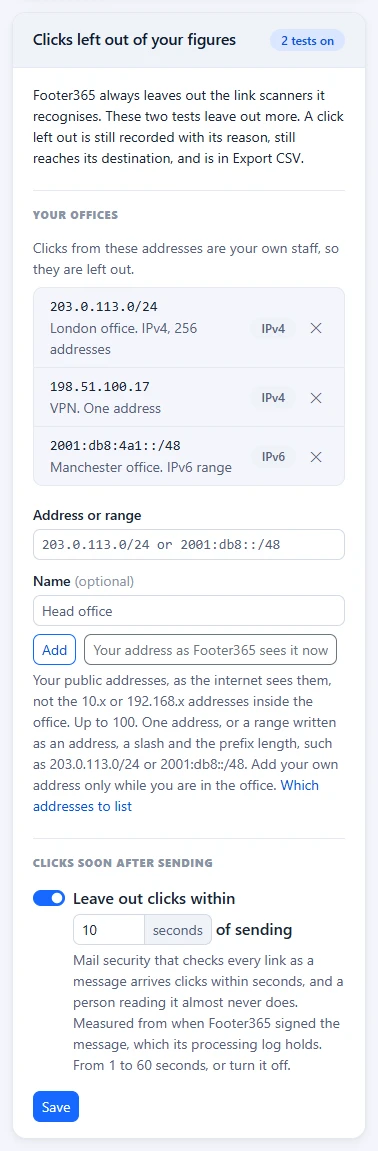
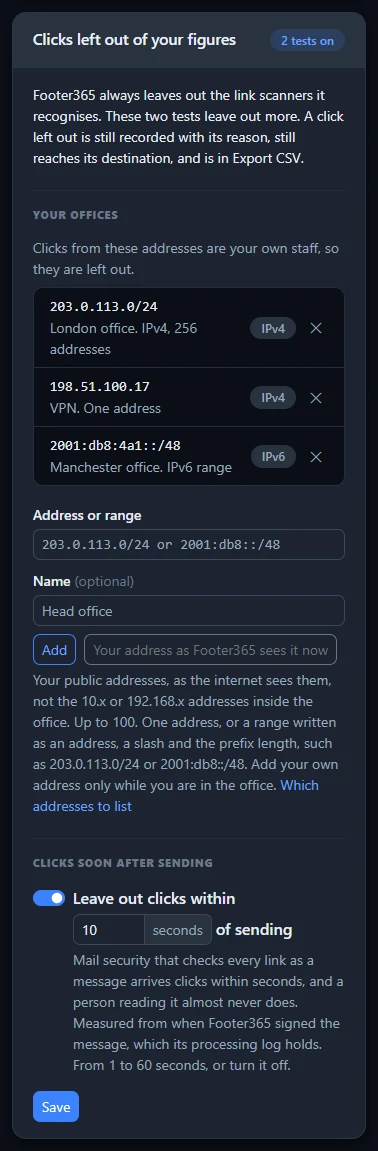
Changes apply to clicks from about a minute later, never to clicks already recorded. You need the Manage settings permission. See Campaign click counts look wrong for which addresses to list and why.
Your own link domain
Puts your tracked banner, signature and survey links on an address of your own, such as links.contoso.com, through your own forwarder or set up by Footer365 for a monthly charge. New links use it only once Footer365 has checked it works. See Use your own domain for tracked links.
Long conversations
When one of your people replies to a message, the earlier messages quoted beneath the reply each carry the signature and any campaign banner Footer365 added to them. This card decides what happens to your organisation's own: Earlier campaign banners in a reply are removed by default, and Earlier signatures in a reply are kept by default, or can be shortened to one line or removed. Disclaimers are always kept, and another organisation's signatures are never touched. Choose and select Save in that card. With the Outlook add-in only, the card says that nothing is tidied. See Earlier signatures and banners in long conversations.
Sending alarm
Tells your Technical contact and Account owner when one person sends an unusual amount of mail in a short time, such as a mail merge sent to the wrong list, so it is noticed in minutes rather than from the replies. Footer365 never holds, delays or changes the mail, and never pauses a signature: the alarm only tells you.
It is on from the start, at 100 messages or 1,000 recipients in 10 minutes, so you do not need to do anything to be covered. To change it:
- Under Alert when one person sends more than, enter a number of messages, from 10 to 5,000, and a number of recipients, from 50 to 50,000. Either one passing its limit sets off the alarm.
- Under Do not count these senders, you can add shared and notification mailboxes that send a lot of mail by design. Type an address in the box, where it says "Add an address", and press Enter or type a comma to add it. Each address is shown on its own with a cross to remove it, and Backspace in the empty box removes the last one. Each must be on one of your own domains, because mail is counted by the sender's address.
- Select Save in that card. You will see "Sending alarm saved."
If a number is out of range or an address is not on one of your domains, nothing is saved, the pill shows Not saved, and the reason is shown under the box it is about, with what you typed kept. An address that was refused is shown in red among the others, so you can remove it. The Sending alarm switch turns it off or on straight away, and the limits you set are kept for when it is turned on again. Every change is recorded in your audit log as Sending Alarm Changed.
When one person passes a limit, your two contacts get an email naming the person and the two counts, and a Sending Burst Detected entry is written in your audit log. You are told about the same person at most once an hour. Last alert at the bottom of the card shows when the last one was, who it was about, by name where your directory holds it, and how many messages, or None yet. If the email could not be sent, the audit log has a Sending Burst Email Failed entry, and the next alert about that person tries again.
The alarm counts the mail Footer365's mail flow sees, over the last 10 minutes only, and keeps no recipient address. With the Outlook add-in only, the pill shows Waits for mail flow and the card says the alarm takes effect only once mail flow is added. See "The sending alarm" in How mail flows through Footer365.
Replies and forwards
Your organisation's own words for telling a reply or a forward from a new email, for mail apps that use words Footer365 does not know, such as TR: for a forward in French. Put one on each line in Reply prefixes, Forward prefixes or Quote markers, and select Save in that card. You will see "Replies and forwards setting saved. It applies to email sent from now on." They are added to the built-in ones, which are listed under each box, and nothing in an email is changed by them. The pill shows Built in only until you add any, then how many you have added. If an entry cannot be saved, such as one that is built in already or listed twice, nothing is saved and the card lists why. With the Outlook add-in only, the card says that they are used only once mail flow is added, because Outlook tells the add-in whether a message is a reply. See "Add your own reply and forward words" in Use a different signature for replies.
Signature time zone
The time zone that Time sent is written in, for everyone in your organisation, when a template or disclaimer shows when an email was sent. Choose it from the list under Time zone, the same list a rule's schedule uses, and select Save in that card. You will see "Signature time zone saved. It applies to email sent from now on." The clocks changing are allowed for, and the card shows how a signature reads now, for example: Sent 21 October 2026, 14:32 (UTC+1).
Until you choose one, the card shows UTC and the time is written in UTC. If any of your templates or disclaimers already shows the time sent, the card says how many. If the time zone you chose is ever no longer offered, the card shows Not recognised, the time is written in UTC meanwhile, and the list asks you to Choose a time zone. See "Fields from the message" in Merge fields and empty fields.
Portal view for new people
Shown to your organisation's own Super Admins only. Choose the Starting view a person is given when they first sign in, Simple, Advanced or Developer, and select Save in that card. Everyone starts in Simple until you change it. It changes nobody who has signed in already: each person changes their own view from the menu under their name. See Choose how much of the portal you see.
About these details
A short reminder of how your details are used: they appear on your invoices, your country sets the VAT, and the accounting export only applies if Footer365 invoices you directly. It is shown only when Footer365 invoices you directly. If you buy through a reseller or distributor, your invoices and their VAT come from them, so the card is not there.
Good to know
- The accounting export only applies if Footer365 invoices you directly. If you buy through a reseller, your invoices come from them.
- Changes to your company details and contacts are recorded in the audit log, if your account has one.
Related articles
Still stuck?
Tell us what you were trying to do and what you saw. Include the sender, a recipient and roughly when a message was sent, and we can trace it.