

Test which rule someone will get
Use Test a rule to see which rule and template a person would get for an email to particular recipients at a particular time, and why each rule above it was passed over.
Test a rule shows which of your rules, and so which template, a particular person would get for a particular email, and why. It changes nothing, so it is safe to use as often as you like. This article explains how to run a test and what the results mean.
Run a test
- Open Signature rules.
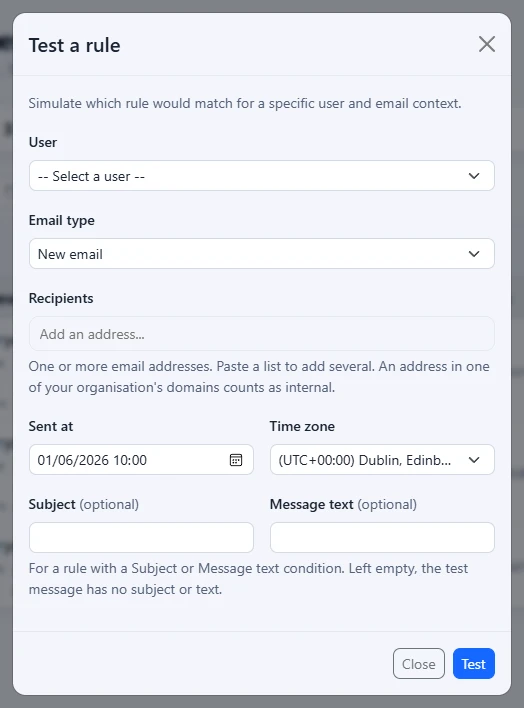
- Select Test a rule at the top right.
- Under User, choose the person to test.
- Under Email type, choose New email, Reply or Forward.
- Under Recipients, type one or more email addresses, pressing Enter, a comma or a space after each. You can paste a list too.
- Under Sent at and Time zone, choose when the email is sent. Both start at the current time in your own time zone.
- If a rule has a Subject or Message text condition, type the message's Subject and Message text. Both are optional; left empty, the test message has no subject or text, so such a condition is not met.
- Select Test.
The result appears in the same window. You can change the choices and select Test again as many times as you need, then select Close.
Reading the result
Rule matched: in green means that person would get a signature. The result names the rule that matched and the template it applies, followed by what you tested: the email type, how many recipients and how many of them are external, and the send time.
A rule that chooses between several templates at random gives each real email one of them by weight, so the test draws one for itself: the result names it with a One of several pill, then lists every template the rule chooses between with its share. Test again and you may see a different one. When the person's own default signature is one of them, it is the one shown, because they always get it. See "Choose between several templates at random" in How signature rules work.
If your organisation lets people choose their default signature and the person has one for this kind of email, a Preferred signature line comes next. It is marked Used when their default chose the signature, or Not used with why: a rule above it is marked Always use this rule, none of the rules matching this email gives it, or no rule gives it to them any more. See Let people choose their default signature.
Under it, Rules above it lists every rule checked before the one that matched, with why each was passed over:
- Disabled: the rule is switched off.
- Passed over: the rule matched too, but the person's default signature comes from a rule below it.
- Not met: something the rule asks for does not fit, such as the email type, the recipient type, the audience, an And only when condition, the recipient list or the schedule. The reason names it, for example "Outside its schedule". A rule saved by an administrator limited to part of the organisation is also Not met for a person outside that part: the reason says the rule is limited to "the part of the organisation it was saved for" and that the person is outside it, "so the rule is skipped for them". A rule like that, for a person inside, adds a line starting "Limited to" to Why ... matched.
- Excluded: the rule would have matched, but the person is named in its Except these senders, or a recipient is on its Except when recipients include list. The reason starts "Excluded by:" and says which.
The assembled message shows the email as it would go out for that person: any campaign placed above the message, then the message text, the signature, the campaign banners stacked in the running order, and the disclaimers, each filled in with the person's own details. Beside it is a numbered list:
- Each campaign placed above the message that is aimed at that rule, marked Above for the one at the top of the email, or Left out with why: it does not apply to this email, for example because it goes on new messages only and you are testing a reply, or an earlier campaign is already above the message. See "Where it goes" in Create a banner campaign.
- The template, marked Used, from the rule that matched.
- Each campaign and rotation aimed at that rule, in the running order, marked Shown with its place in the stack, or Left out with why: it does not apply to this email (for example because it goes on new messages only), an earlier campaign shows alone, the campaign above the message shows alone, it shows alone and an earlier banner is already there, the banners allowed per message are already taken, or it has not started yet. A rotation names the banner it picked, and adds "chosen by" and the person's name when it is the banner the tested person chose as their own. See "Let people choose their own banner" in Rotate several banners. If the template has no Campaign element, every banner is left out and the reason says so. See Run several campaigns on one email.
- Each disclaimer that applies, marked Added.
The banners and disclaimers are chosen by the same code that chooses them for real mail. For a template in a folder you cannot see, the list is shown without the message itself.
Why ... matched then lists each part of the matched rule with what it was compared against: the person's directory details, which recipient matched which entry, and the send time in the schedule's own time zone. An entry that is one of your recipient lists is named as "the list" and its name, such as "is on the list Key accounts". See Keep lists of recipients to reuse.
A yellow result starting "No rule matched for" and ending "No signature will be applied." means none of your rules fit that person and that email. Mail like that would go out without a signature. Rules checked lists every rule with why it was passed over. The usual fixes are:
- Add a fallback rule for All users at the bottom of the list. See Add a fallback rule.
- Check the person's department, job title or group membership in the directory, if the rule you expected depends on one of them.
- Check the rule you expected is enabled.
A red message means the test could not run. "User not found." means the person is no longer in the synced directory. "Add at least one recipient address." means Recipients is empty. If you see that testing needs permission to view the directory, ask a portal administrator for that permission. See Roles and permissions.
Send yourself a test message
Once a test has found a rule, you can have the whole message sent to you, so you can open it in your own Outlook, on your phone or in webmail and see exactly what recipients will see.
- Run a test as above, so that the result starts Rule matched:.
- Select Send me this as a test at the foot of the window.
- Check Send a test message: it shows the address it goes To, which is always your own, who it is Signed as, and the Subject.
- Select Send. "Test sent to" and your address appear when it has gone. It usually arrives within a minute.
The test message is built by the same code that signs real mail, for the person, email type, recipients, send time, subject and message text you chose. It carries the rule's template filled in with that person's details and photo (for a rule that chooses at random, one drawn for the test, which Why this signature: says), any campaign above the message, the campaign banners in the running order and the disclaimers, with the images attached as they are in real mail. A message keyword in the Subject is acted on, as it would be when the email is sent. See Message keywords.
It is marked as a test so it cannot be mistaken for real mail:
- The subject starts "[Footer365 test] Signature for" and the person's name.
- A line at the top says it is a test message and describes the email it shows: the person, the email type, the recipients and the send time.
- A line under the signature, starting Why this signature:, names the rule and what made it match, the template, the banners and the disclaimers, and what became of the person's default signature, if they chose one. It travels with the message, so it still says what it shows if you forward it to a colleague.
Good to know about test messages:
- A test message only ever goes to the address you are signed in with. The recipients you typed are used to choose the signature and are never sent anything.
- It comes from Footer365's own address, not from the person it is signed as. It shows how the signature, banners and disclaimers look, but not that your Microsoft 365 mail flow passes the person's mail through Footer365. Getting started shows that.
- Its links go straight to their addresses. A click on one is not counted, and a test message never appears in Insights or the campaign figures. A survey in the template is left out, because its answers are only accepted from real mail.
- Each person can send 10 test messages an hour, and your organisation 50 a day. When a limit is reached the window says when you can send the next one.
- Every test message sent is recorded in the audit log.
What the test uses
- Your saved rules, in their current order. Changes still open in the rule editor are not included until you select Save rule.
- The person's details and group memberships as they were at the last directory sync.
- Your organisation's synced domains, to decide which recipients are internal.
- The person's main address as the address the email is sent from.
- The person's default signature, if your organisation allows defaults and they chose one.
- The subject and message text you typed, for a rule's Subject and Message text conditions. A message keyword in the subject is not acted on in the result on screen, but it is in a test message you send yourself. See Message keywords.
The test uses the same rule-matching logic that Footer365 uses when it signs real mail.
Good to know
- The User list shows people whose accounts are enabled, up to the first 500 in alphabetical order. Someone limited to a scope is offered only the people in it, and anyone else is not found. See Limit an administrator to part of the organisation.
- You can run a test even if you can only view signatures, not manage them, as long as you can view the directory.
- The assembled message shows the banners as designed. Their links are not tracked in the test, so clicking around in it counts nothing. To work on how a template looks, open it in the template editor. See Using the editor.
- Every rule is tested, including rules in folders you cannot see, because they still sign mail. Such a rule is shown as A rule in a folder you cannot see, with Not shown in place of its reasons, and a template in such a folder as "a template in a folder you cannot see". See Folders and who can use them.
Related
Still stuck?
Tell us what you were trying to do and what you saw. Include the sender, a recipient and roughly when a message was sent, and we can trace it.