

Click data and privacy
What Footer365 records when someone clicks a campaign banner or a counted signature link, or answers a survey, how to turn click tracking off for your whole organisation, how to choose how long the personal details are kept, what allowing image loads to be counted means, and how recipients can stop banners.
When someone clicks a banner in one of your signatures, or one of a signature's own links in a template that counts its clicks, Footer365 records the click so it can count it. This article explains what is recorded, what is cleared and when, and how to set your own retention period. Clicks on signature links are recorded, cleared and kept on exactly the same terms as banner clicks, under the same setting; see Count clicks on your signature's links.
Footer365 makes banner opt-outs and the switch to stop counting clicks available to organisations gradually, so they may not be in your portal yet. See Early access pages and features.
What is recorded
For each click, Footer365 records:
- When it happened and which link was clicked.
- Which message it came from, and so which sender and what kind of email, when the link carried that information.
- The kind of email program, browser and device used, and whether it was a mail security scanner rather than a person.
- Whether it was left out of your figures, and why: as link protection, because it came from one of your offices, or because it came within seconds of sending. See Campaign click counts look wrong.
- The IP address and the browser details (the user agent) of whoever clicked.
- On a campaign banner's click, the country the IP address was placed in, such as United Kingdom. Footer365 works it out as the click is made, using a file of address ranges that it holds itself (DB-IP's IP to Country Lite, which it downloads once a month), so the address is looked up inside Footer365 and sent to no one. Only the country is kept.
Footer365 does not record the recipients' email addresses. A click can be traced to a message and its sender, never to a named person.
What is cleared, and when
The IP address and the browser details are personal data about someone who may have no relationship with you. They are cleared after a set time. Everything else about the click stays.
The click itself is kept for at most 12 months, so your campaign and signature link figures do not change when the details are cleared, and is then deleted. Campaign click privacy in Account settings says how long. A report offers only the periods the clicks kept still cover. The reason a click was left out of your figures stays with it for good, so a click from one of your offices is still left out after its address is cleared. The program, browser and device breakdowns on the report are worked out when the click happens, so they are kept too, and so is the country. A country is shared by a great many people and does not identify one of them, so it is not cleared with the address.
Your office list, under Clicks left out of your figures on the same page, is compared with each click's address as the click is made. The list holds only your offices' own public addresses, and no address of anyone who clicks. Your address as Footer365 sees it now asks Footer365's click tracking service which address your browser reaches it from and shows it to you; it records nothing.
A click made before countries were recorded has a country only if it still held its address when Footer365 began to record them. Once the address is cleared a country can no longer be worked out, and that click shows as "Not recorded" for ever.
Turning click tracking off
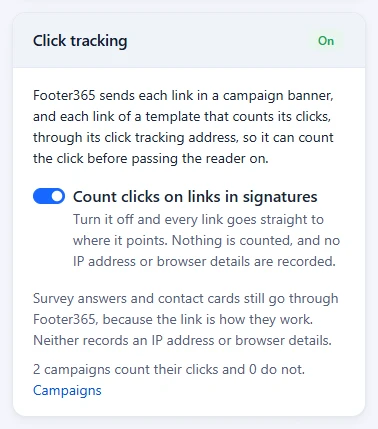
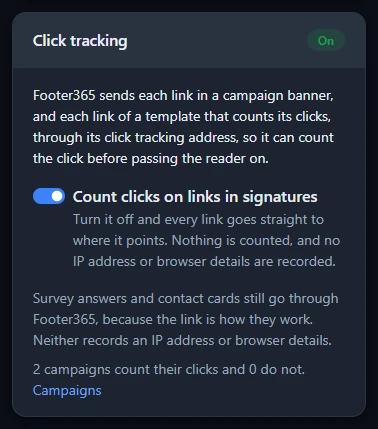
Your organisation can choose not to have its links go through Footer365 at all. Turn click tracking off and every link in your signatures goes straight to where it points, and nothing is counted from a link or an image: no campaign clicks, no clicks on your templates' links and no banner image loads. No IP address or browser details are recorded from then on.
- Go to Account > Settings, or open Settings.
- Find the Click tracking card, near the top of the right-hand column. Its pill says On.
- Turn off Count clicks on links in signatures.
- Read Turn off click tracking? and select Turn off click tracking.
You need permission to manage settings to see this page and change the switch. A reseller working in your portal on your behalf can change it too, and the audit log records who did, with the setting before and after. The card then says who turned it off and when, and its pill says Off. Turning it on again asks no question: clicks are counted again from the next message sent.
What changes while it is off:
- Campaign banners. Each link goes straight to its destination. A campaign that tags its links for your own website analytics has its UTM tags written into the link itself as the signature is made, so your analytics still sees the visits. Every campaign's own Count clicks switch is shown off and cannot be changed until click tracking is on again.
- Your templates' own links. A template with Count clicks on this template's links keeps its choice, but its links go out direct while click tracking is off. See Count clicks on your signature's links.
- Banner image loads. Nothing is counted, and a banner that was counted by its image is sent inside the message instead.
- Reports. Campaign reports say Not counted for the time click tracking was off, rather than showing no clicks. See Read the campaign report.
- HubSpot and webhooks. No click is recorded, so none is sent to HubSpot or to a
campaign.clickedwebhook. - Survey answers and contact cards still go through Footer365, because the link is how they work. Neither records an IP address or browser details.
Links in messages sent before you turned it off keep working. While their campaign runs, a tracked link still opens its destination, and the click is no longer recorded. Once the campaign ends, those older links show "Link not available", as any ended campaign's links do. Links sent while click tracking was off go straight to their destination, so they keep working after the campaign ends, and they stay direct when click tracking is turned on again.
Clicks already recorded stay in your reports, and Keep for below still clears their IP address and browser details as before.
One thing is lost while click tracking is off: a link later found to be unsafe cannot be stopped in a message already sent, because it no longer passes through Footer365. Footer365 still checks every campaign link when the campaign is saved and every day after, and stops adding a campaign with an unsafe link to new messages. See Tracked links and safety checks.
The click tracking service reads the switch every minute or so, so a click made in the first minute after you turn it off may still be recorded.
While click tracking is on, each campaign can also be left uncounted on its own, with the Count clicks switch on its links card: see Tracked links and safety checks.
Set your own retention period
- Go to Account > Settings, or open Settings.
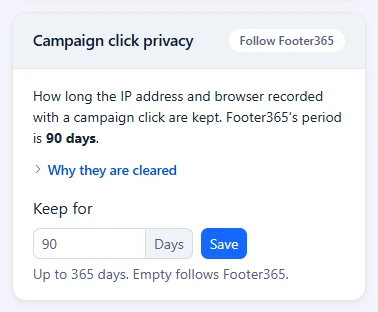
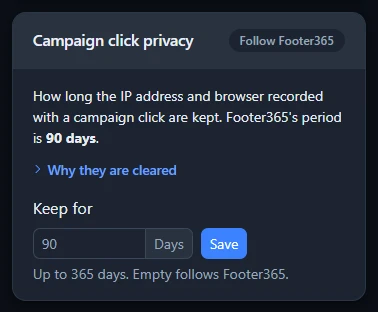
- Find the Campaign click privacy card.
- In Keep for, enter a number of days, from 1 to 365.
- Select Save in that card.
You need permission to manage settings to see this page. Leave the box empty to follow the Footer365 period, which the card names in its wording. The pill in the card's heading tells you which applies: Follow Footer365 while the box is empty, or the number of days you set yourself, such as 30 days.
Clearing happens once a day, so details are removed on the first daily run after the period ends.
Choosing a period
- Choose a shorter period if your own data retention policy asks for one. One day is the shortest.
- Choose a longer period, up to a year, if you need the details for longer, for example to look into unusual click patterns.
- If you leave the box empty and the Footer365 period later changes, you move with it. A number you enter stays as you set it.
Changes to this setting are recorded in your audit log. A reseller working in your portal on your behalf can also change it, and the audit entry records who did.
Survey answers
An answer to one of your surveys, polls or ratings is recorded differently from a click. For each answer, Footer365 records:
- The answer, and when it was given or last changed.
- Which email it came from, and the sender's address, name and department as they were when the answer was given, and the template the email was signed with.
- Whether the scanner filter held it as a scanner's vote.
- The recipient's comment, if the survey asks for one and they left one.
It records no IP address, no browser details and no recipient address, so there is nothing for Campaign click privacy to clear, and the setting does not apply to answers. A comment is whatever the recipient chose to type, so read comments as you would any message from a customer. Answers and comments are kept for as long as your account, and are deleted when you delete the survey, when someone who can manage signatures deletes a comment, or with the rest of your account's data.
Counting image loads
Footer365 can count when a campaign banner's image loads, as an estimate of how often the banner was seen. It is off unless your organisation turns it on, because counting when an image in an email loads works in the same way as a tracking pixel.
Check before you allow it. Counting when an image in an email loads is treated much like a cookie under the UK's PECR and the EU's ePrivacy rules, and your recipients' consent may be needed. Whether it is needed for your mail is your organisation's decision, as the controller of the data. Footer365 cannot make that decision for you.
To allow it:
- Go to Account > Settings, or open Settings.
- Find the Count image loads card. Its pill says Not allowed.
- Tick the confirmation: "We have checked whether our recipients' consent is needed for counting image loads, and we accept responsibility for that decision".
- Select Allow counting.
Only one of your organisation's own Super Admins can allow it. A reseller working in your portal on your behalf cannot. The card then shows who allowed it and when, and the change is recorded in your audit log with who confirmed it.
Allowing it counts nothing by itself. Each campaign is then turned on separately, on its report. See Read the campaign report.
For each message whose counted banner image loads, Footer365 records which campaign and which message it was, and when it first loaded. It does not record the IP address, the browser details or anything else about whoever loaded it, and a load by a mail security scanner is not counted. The image is served from the same tracking address as your banner's links, and the address made for each message names the message without naming its sender or its recipients.
Image loads are kept for the same period as the click details above, under Campaign click privacy, and are then deleted.
To stop, select Stop counting on the same card and confirm. Counting stops on every campaign at once, and their banners are sent inside the message again. Anyone who can manage settings can stop it. Loads already counted stay in the reports until the retention period ends.
While click tracking is off for your organisation, no image load is counted, whatever this card says, and the card says so.
Letting recipients stop banners
A campaign can offer the people you email a way to stop its banners. When it does, one small line goes under the banner, and the whole line is a link. A recipient who follows it lands on a short Footer365 page in your organisation's name and asks for banners to be left off. From then on, every banner of yours that offers the link is left off emails sent to their address. Their emails still reach them, and so does the sender's signature and any disclaimer.
To offer it:
- Open the campaign in Signatures > Campaigns.
- On the Opt-out link card, turn on Offer recipients a way to stop banners.
- In Link wording, keep the wording offered or write your own, up to 120 characters on one line. Say what it stops.
- Save the campaign.
It is off for every campaign until you turn it on, and it belongs to the campaign, so both banners of an A/B test offer it. Turn it on for a banner that promotes something. A banner that is not marketing, such as an office closure notice, can go without it.
What the recipient sees:
- Opening the link records nothing. Only pressing Stop these banners on the page does, so a mail security product that follows every link in a message opts nobody out.
- When the email went to one person, the page has one button and nothing to type. When it went to several, the person types the address the email was sent to, and it is accepted only if it was one of them. When it went to more than 25 people, any address typed is accepted.
- The page asks for no account and sets no cookie but a security check for its form. Straight after pressing the button, the page offers one chance to undo it. After that, only your organisation can show banners again.
How it is decided:
- The opt-out is checked for each copy of a message as it is sent, so it needs mail flow, as a campaign that names a recipient's address does. With the Outlook add-in only, a banner that offers the link goes out on no message. The Outlook add-in hands a message whose banner offers the link to mail flow to sign.
- Exchange sends one copy of a message to its To and Cc recipients and another to each Bcc recipient. If anyone on a copy has opted out, that copy goes without the banner for everyone on it, and everyone keeps the signature. A Bcc recipient is judged on their own.
- The message's entry in the processing log export says "Banner left off: a recipient has opted out", and the send is not counted for that campaign.
What is kept: for each address that opts out, a one-way code made from the address with a key held for your organisation, when it was made, and the campaign whose banner carried the link. Nobody at your organisation or at Footer365 can read an address back from it. It is kept until the person asks for banners again, until your organisation shows banners again at their request, or until your account is deleted, when it is deleted with the rest of your data.
Banner opt-outs on the Settings page
The Banner opt-outs card on Settings shows how many addresses have opted out, how many in the last 30 days, and how many running campaigns offer the link. It cannot list the addresses.
- Check an address: type an address and select Check to see whether banners are off for it, and when and from which campaign it opted out. Anyone who can view settings can check.
- Show banners again for an address: when someone asks to see your banners again, enter their address, tick This person asked me to show them banners again. and select Show banners again. Banners go back on emails sent to them from the next message. They are not told. You need permission to manage settings, and the audit log records who did it and when, without the address.
The campaign's report shows how many people opted out from its banner. See Read the campaign report.
What the law and the ICO say
This is information, not legal advice. In the UK the Information Commissioner's Office says, in its guidance on how to comply with the electronic mail marketing rules, that "You must provide a valid contact address for recipients to opt out or unsubscribe", and that "Opt-outs usually apply to the specific communication method used. For example, if someone clicks the unsubscribe link in an email, that opt-out only applies to email marketing, as long as this is made clear in your wording." (ico.org.uk/for-organisations/direct-marketing-and-privacy-and-electronic-communications/guidance-on-direct-marketing-using-electronic-mail/how-do-we-comply-with-the-pecr-electronic-mail-marketing-rules/). None of the guidance mentions a banner in an employee's business email, so whether a banner is direct marketing is for your organisation to decide. That is why the link is a choice for each campaign, and why its wording should say that it stops banners.
Clicks sent to HubSpot or your own systems
If one of your Super Admins has connected HubSpot on Developers > Integrations, each human click is also written to HubSpot as a note on the company the message went to. The note carries the campaign, the link, the sender and the time, and the company is found by the domain of the organisation the message went to. A recipient's email address, the IP address and the browser details are never sent. The same facts go to any of your own webhook endpoints that take the campaign.clicked event.
For each click sent to HubSpot, Footer365 keeps the organisation's domain and whether the note was written, so the same click is never written twice. That record is deleted with the click's details, after the period set under Campaign click privacy. See Send campaign clicks to HubSpot.
When click records are removed completely
Deleting a campaign removes all its click records and image loads, not only the personal details. This cannot be undone. See Create a banner campaign.
Clicks on a template's signature links are kept when the template is deleted, because its links in messages already sent go on working. They are deleted at most 12 months after they were made, like every click, or with the rest of your account's data if the account is deleted first.
Related
Still stuck?
Tell us what you were trying to do and what you saw. Include the sender, a recipient and roughly when a message was sent, and we can trace it.