

Choose how much of the portal you see
Switch between the Simple, Advanced and Developer views of the portal, and set the view each person and each new person starts in.
The portal has three views. Each shows more of the menu than the one before it.
- Simple shows the pages most organisations need: templates, signature rules, campaigns, disclaimers, brand, users and groups, out of office, analytics, billing, access and your account settings. Everyone starts here.
- Advanced shows every page for running your signatures, such as folders, recipient lists, shared blocks, attribute mapping, coverage, the audit log, roles and scopes. It also shows the HTML tools in the editors: Import on the editor's rail and Advanced: edit HTML under the editor.
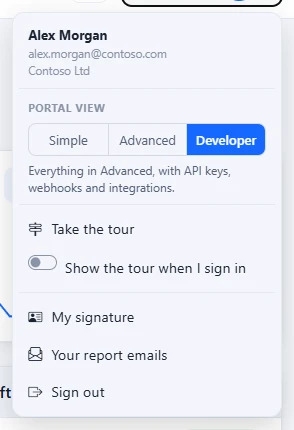
- Developer shows everything in Advanced, with API keys, Webhooks and Integrations.
Your view only changes what the menu, the search and the editors show you. It never changes what you are allowed to do: that is your role. See Roles and permissions.
Change your own view
- Select your name at the top right of the portal.
- Under Portal view, choose Simple, Advanced or Developer.
- The page reloads with the menu for that view. Your choice is kept for the next time you sign in.
The same menu has Take the tour, which shows you round the portal again, and Show the tour when I sign in. See The Welcome step, the portal tour and the setup guide.
If you cannot find a page
A page you cannot find in the menu may be in a fuller view. Switch to Advanced, or to Developer for API keys, webhooks and integrations.
A page outside your view still opens from a link someone sends you, and its item shows in the menu while you are on it.
Approvals and Detail changes are in the Advanced view, but they also show in Simple whenever something is waiting for you, with the number waiting.
If a page is still missing in Developer, your role does not include it, or Footer365 has not made it available to your organisation yet. Ask a Super Admin in your organisation, and see Early access pages and features.
Set someone else's view
Super Admins can see and set each person's view.
- Go to Access > Users (open it). Each person's view is shown under their role, such as Simple view. Not signed in yet beside it means the person has not signed in since views began, and will start in the view shown.
- Click the person's row. Manage access opens.
- Under Portal view, choose a view, and select Save.
The person can change it again themselves at any time. Manage access also sets whether they see the portal tour at their next sign-in, under Tour. When you add a person with Add access, you can choose their view there too. A group's row reads Each member's own view, because each member chooses their own.
Set the view new people start in
- Go to Account > Settings (open it).
- Under Portal view for new people, choose the Starting view, and select Save.
It changes nobody who has signed in already. Only your organisation's own Super Admins can set it, and your reseller cannot see or change anyone's view.
Related articles
Still stuck?
Tell us what you were trying to do and what you saw. Include the sender, a recipient and roughly when a message was sent, and we can trace it.