

Run several campaigns on one email
Set the running order that decides which campaign banners an email carries, allow up to three banners on one email, and keep a notice that must not compete on its own.
An email carries one signature, then any campaign banners, then any disclaimers. When several campaigns apply to the same email, the running order on the Campaigns page decides which banners it carries, and Banners per message decides how many. Both are yours to set.
The signature itself is never doubled up: the first signature rule that matches picks it, as always. Only the banners under it are affected by this page.
The running order
Go to Signatures > Campaigns (open it). The Running order card, above the lists, shows every active and scheduled campaign, and every active and scheduled rotation, in the order their banners are chosen. A rotation takes one place in the order, and its banners share that place as the rotation decides. A campaign in a rotation is not listed on its own.
To change the order, drag a row by its grip on the left and drop it where you want it. The order is saved straight away, and the change is recorded in the audit log with the order before and after.
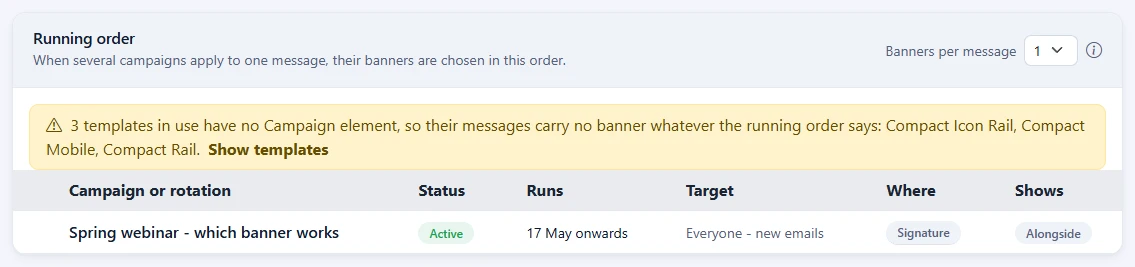
For each email, Footer365 goes down the order and takes every campaign that applies to it: aimed at the email's signature rule, running at that moment, set to go on that kind of message (new, a reply or a forward), and with recipients, exceptions and schedule that allow it. It stops when it has as many banners as Banners per message allows. A campaign that does not apply is passed over, and the next one is taken.
A new campaign or rotation joins the top of the order, so it goes out as soon as it starts. Drag it down if something else should come first. Drafts, paused and ended campaigns are not listed, and keep their place for when they run again.
With only one campaign running, the card shows it without a grip. With none, it says Nothing running: campaigns and rotations join the order when they start or are scheduled.
The card covers every folder you can see, because an email does not care which folder a campaign is in. You can drag only the campaigns you are allowed to change: the others keep their places, and yours move between the places they held. A rotation is in no folder, so moving one needs the Manage signatures permission.
A campaign above the message
A campaign placed Above the message goes at the top of the email rather than in the signature, and has a place of its own there. It is listed in the same running order, and the Where column marks it Above, and every other campaign Signature. Hover over the pill to see which messages of a conversation each campaign goes on.
At most one campaign goes above an email: the first in the order placed above the message that applies to it. Any others placed above the message wait, as a banner over the limit does. It does not count towards Banners per message, so a notice above the message never pushes a banner out from under the signature. If it is set to Show alone, the email carries no banner under the signature while it applies; a banner under the signature that shows alone leaves the campaign above the message where it is. See "Where it goes" in Create a banner campaign.
Banners per message
Banners per message, at the top of the card, is how many banners one email can carry: 1, 2 or 3. It starts at 1, which is one banner per email, the first in the order that applies.
With 2 or 3, the banners are stacked in the running order where the template's Campaign element is, one under the other with a small gap between them. Nothing changes in your templates: every template with a Campaign element takes the stack as it is.
Each banner keeps everything it has on its own: its tracked links and click counts, its A/B test, its rotation, its recipients, exceptions and schedule, and its report. An email carrying two banners counts as a send for each of the two campaigns, and a click is counted for the banner that was clicked.
Changing Banners per message needs the Manage signatures permission, and is recorded in the audit log.
Show alone
Some campaigns must not share an email, such as a product recall or a service notice. On the campaign's page, open Recipients, exceptions and schedule and find When other campaigns also apply:
- Show alongside them is the default. The banner takes its place in the running order, up to the banners allowed per message.
- Show alone means no other banner is added while this one applies. Put such a campaign near the top of the order: when it applies, it goes out on its own. When it does not apply, for example because it is for outside recipients only and the email is to a colleague, the other campaigns go out as usual.
A campaign that shows alone but comes after a banner already chosen for the email is left out of that email, because it cannot go out on its own there.
A rotation has the same choice on its own page, and its banners take the rotation's setting rather than their own. In the running order, Alone marks a campaign or rotation that shows alone, and Alongside one that does not. Hover over Alone to read what it means.
Templates without a Campaign element
A template with no Campaign element never carries a banner, whatever the running order says. When any template in use by a signature rule has none, the card names them in a warning. Select Show templates to open your templates and add the element to any that should carry banners. See "Where the banner appears in the signature" in Create a banner campaign.
See the whole email for one person
Test a rule on the Signature rules page shows the email as it would be put together for the person, recipients and time you choose: the signature, the banners in the order they are stacked, and the disclaimers. Beside it, each campaign and rotation aimed at the rule is listed with whether it is shown and why, for example that an earlier campaign shows alone, that it has not started yet, or that the banners allowed are already taken. See Test which rule applies.
The Outlook add-in
The Outlook add-in chooses the banners in the same order, with the same limit, while the email is being written. A signature it writes has to fit inside the 30,000 characters Outlook allows, and several banners make it longer. The add-in tries every banner as designed, then every banner as its image, then every image linked, and never drops some of the banners to make the rest fit. If even the smallest form is too long, the add-in leaves the email to the mail relay, which adds the signature and every banner as the email is sent, and an entry in the audit log names the template and the banners. With the Outlook add-in only there is no relay, so that email goes without a signature: keep the banners small, or Banners per message at 1. See How the campaign banner is sent.
The template editor's size meter allows for this: with more than one banner per message, it measures the largest banners that could be stacked together as well as each banner on its own.
Good to know
- With Banners per message at 1, emails are exactly as they were before there was a running order, apart from which campaign comes first.
- The template editor's preview shows the stack when more than one banner would go out with that template, and says which campaigns it shows.
- The order and the limit apply to mail signed as it leaves your organisation and to mail signed by the Outlook add-in alike.
Related
Still stuck?
Tell us what you were trying to do and what you saw. Include the sender, a recipient and roughly when a message was sent, and we can trace it.