

How signature rules work
Rules decide which signature template each person gets. They are checked in priority order and the first rule that matches wins.
A signature rule connects people to a signature template. This article explains how Footer365 picks one rule for each email, so you can set up your rules in the right order.
What a rule is made of
Every rule has a Signature template, the design it applies, or several templates it chooses between at random (see "Choose between several templates at random" below), and three sections that decide which emails it matches:
- Who sends it: everyone, or a chosen set of people, optionally narrowed by conditions on their directory details and with senders it never applies to. See Target by department, group or domain.
- Who it goes to: the Recipient type, and optionally recipient addresses, domains, wildcards and saved recipient lists that the rule needs or must not see. See Internal and external signatures and Rules for particular recipients.
- When: the Email type (new emails, replies, forwards or all of them), and whether the rule Runs Always or On a schedule. See A different signature for replies and Run a rule on a schedule.
A rule matches an email only when everything it asks for fits. The optional parts ask nothing until you fill them in, so a rule with none of them matches on its audience, email type and recipient type alone.
First match wins
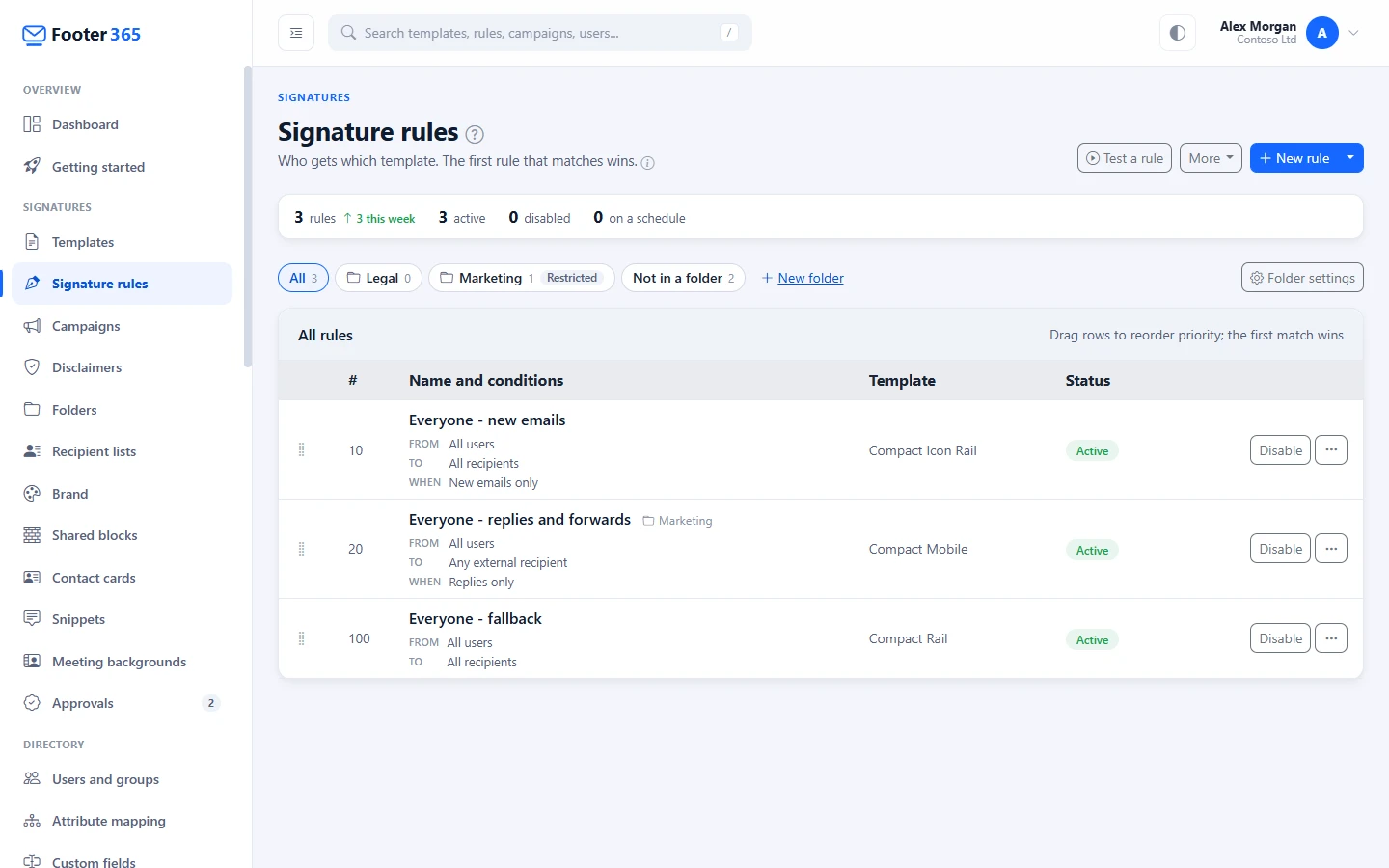
Footer365 checks your rules from the top of the list downwards. The number in the # column is the priority: lower numbers are checked first, so priority 10 is checked before priority 20.
As soon as one rule matches, that rule's template, or one of its templates for a rule that chooses at random, is used and Footer365 stops looking. The rules below it are ignored for that email. This means the order matters: put your most specific rules at the top and your broadest rule at the bottom.
If no rule matches, the email is sent without a signature. A catch-all rule at the bottom prevents that. See Add a fallback rule.
The one exception is a person's own default signature, if you let people choose one. When a lower rule that also matches the email gives the template the person chose, that rule is used instead, unless a matching rule above it is marked Always use this rule. See Let people choose their default signature.
Create a rule
- Go to Signatures > Signature rules in the portal, or open Signature rules.
- Select New rule.
- Enter a Rule name. Each rule needs a different name.
- Choose a Signature template. Only active templates are listed. If none is active yet, the editor says so above the list, with Make one with the template wizard, or Go to Templates where the template wizard is not in your portal: make a template and switch it on before saving the rule. To give each email one of several templates instead, switch on Choose at random between several templates as described below.
- Under Who sends it, choose the audience, and add any conditions or excepted senders.
- Under Who it goes to, choose the Recipient type, and add any recipients the rule needs or must not see.
- Under When, choose the Email type, and whether the rule runs Always or On a schedule.
- Leave Enabled switched on if the rule should start working now.
- Select Save rule.
A new rule is added at the bottom of the list. Drag it up if it needs to be checked earlier.
Where Footer365 has given your organisation the rule wizard, New rule opens the wizard instead, which asks five short questions and puts the rule in its place in the order for you, and Start blank in the editor, in the list under the arrow beside it, opens the rule editor. See Make a rule with the wizard.
Choose between several templates at random
A rule can give each email one of several templates rather than always the same one, for instance to try two designs side by side or to vary a signature across a team. The templates share the rule's emails by weight, in the same way a campaign rotation shares its banners.
- In the rule editor, choose the first template as the Signature template.
- Switch on Choose at random between several templates.
- Select Add a template for each further template, up to 10 in all, and choose it in the new row.
- Give each template a Weight, a whole number from 1 to 10. The Share column shows the part of the rule's emails each one gets: a weight of 2 beside two of 1 takes half. Leave every weight at 1 to share evenly.
- Select Save rule.
What decides the pick:
- Each email is chosen on its own. The template is worked out from the email itself, by weight, so one person's emails do not all carry the same template: their next email may get a different one.
- One email keeps its template. Every copy of an email carries the same template, Bcc copies and the copies Exchange sends to different recipients included. In the Outlook add-in, the template stays the same however often Outlook asks for the signature while the email is being written, for example when recipients are added.
- The add-in and the mail relay choose the same way. Whichever of them signs the email gives it one of the rule's templates by weight, and the email's record names the one it carried.
- A person's own default signature comes first. If you let people choose a default and theirs is one of the rule's templates, they always get it. See Let people choose their default signature.
In the list, such a rule shows its first template with a pill such as "and 2 more at random"; hover over it to see every template and its share, under Chosen at random. Test a rule shows the template drawn for that test and a One of several pill, so another test can show a different one. A test message sent from the tester is signed with one drawn the same way, and says so.
A template a rule chooses between cannot be deleted or switched off while the rule uses it, as for a rule's only template. Take it out of the rule first. In the Outlook add-in's task pane, each of the rule's templates is offered for people to pick.
Change the order
Drag any row up or down the list. When you drop it, the priority numbers are renumbered automatically as 10, 20, 30 and so on, the new order is saved straight away, and the page reloads to show it.
Rules can be grouped in folders, and the list can show one folder at a time. There is still one running order across every folder: a folder never changes which rule wins. When the list shows only some of your rules, the rules you drag swap places among themselves, and every other rule keeps its place. You can only drag rules you can change. See Folders and who can use them.
To edit a rule, select Edit on its row, or click anywhere else on the row.
Rules for an administrator limited to part of the organisation
Someone given a scope sees every rule they can see by folder, in its place in the one running order, but changes only the rules whose senders are wholly inside their scope. See Limit an administrator to part of the organisation.
- The other rules are listed read only, so a rule from head office that wins for their people is in sight. They move only their own rules, which take the places those rules held between them.
- All users is not available for a rule they make, and the tile reads "Not available: your access is limited to" their scope's name.
- A user, group, department, job title or domain that reaches anyone outside their scope is refused, with a message such as "Sales includes 41 people outside Contoso Engineering Ltd. Choose a target wholly inside your scope." A user or group outside the scope is not found.
- Test a rule answers only for the people in their scope.
- A rule they save carries their scope. It applies only to senders inside it, checked each time a message is sent, so someone outside the scope who later joins a department or group the rule names is never given it. The editor says "What you save here applies only to senders inside" their scope. A Limited to pill with the scope's name shows beside the rule in the list.
- Someone who sees the whole organisation who opens such a rule reads "This rule is limited to" the scope, and "Saving it here, as someone who sees the whole organisation, removes the limit." Switching the rule on or off and dragging it in the order leave the limit as it is. For a person outside the scope, Test a rule lists the rule as Not met, saying it is "the part of the organisation it was saved for" and "so the rule is skipped for them".
Switch a rule off
Select Disable on a rule's row to switch it off without deleting it. A disabled rule is skipped completely while Footer365 looks for a match, so the next rule down gets its turn. Select Enable to switch it back on.
The Active and Disabled counts at the top of the page show how many rules are in each state. On a schedule counts the rules that have a schedule, and says how many are still waiting for their dates.
Reading the list
The Name and conditions column writes each rule out under its name:
- From: who sends it, with any conditions and excepted senders.
- To: the recipient type, with any recipients and recipient lists.
- When: the email type and the schedule. This line is left out for a rule that applies to all emails at any time.
The Status column shows Active, or Disabled for a rule that is switched off. A rule whose schedule has not reached its dates yet shows a blue Starts pill with the date it next starts, and one whose dates are over shows Schedule ended. Either way the rule is skipped for mail sent now.
To remove a rule for good, select ... on its row, then Delete, and confirm in the Delete rule window. This cannot be undone.
The How rules work pop-over
Hover over or tab to the line under the page title, "Who gets which template", to open the How rules work pop-over. It is a short reminder of priority numbers, reordering, the fallback rule, conditions and schedules, and disabled rules.
Disclaimers are a layer of their own
A rule chooses the signature. Your disclaimers, on the Disclaimers page, are chosen separately: once a rule has given an email its signature, every disclaimer whose own senders, recipients and schedule fit that email is added under it, in the order of the disclaimer list. A disclaimer's targeting uses the same Who sends it, Who it goes to and When sections as a rule, but the first-match-wins order does not apply to disclaimers: every one that fits is added. An email that no rule matches gets no signature and no disclaimers. A message keyword can also change the outcome for one message: it can remove the signature, choose another template or leave out the campaign banner. See Message keywords and Disclaimers.
Messages sent for someone else
When a delegate sends from a mailbox, as Send As or Send on Behalf, the rules are matched for the mailbox, not for the person sending. Under Sending for someone else, a rule can choose whose signature such a message gets, for each kind of sending: the mailbox's, the mailbox's naming who sent it, or the person sending. Left on Follow the organisation setting, it uses the choice on the Sending for others page. When the choice is the person sending, Footer365 matches the rules again as though they had sent the message from their own mailbox. See Delegates, Send As and Send on Behalf.
Conditions on the message
Under Who sends it, And only when can also look at the message itself: choose Subject or Message text as the field, such as Subject contains "Invoice". This suits automated mail, such as invoices from a finance system, that needs a signature of its own. Nothing is removed from the message. Message text looks at the first 64 KB of the message's text.
A rule with either condition is chosen by the Footer365 mail relay as the message is sent, because the Outlook add-in does not use the subject or the text of a message to choose a signature. Where such a rule could apply, the add-in leaves the message for the relay to sign. With the Outlook add-in only there is no relay, so such a message goes without a signature, and the Coverage page gives the reason as Needs mail flow to choose. See Using the Outlook add-in only.
For a person choosing a different signature on one message, use a message keyword such as #nosig instead. See Message keywords.
Good to know
- There is no limit on the number of rules.
- For rules aimed at specific users, groups or domains, hover over the audience on the From line to see the full list. A person or group that is no longer in your directory is shown in red.
- The same rules are used whether the signature is added by Footer365 as mail leaves your organisation or by the Outlook add-in.
- Not sure which rule someone will get? Use Test a rule. See Test a rule.
- Colleagues who can view signatures but not manage them see View instead of Edit, and cannot change the rules.
Related
Still stuck?
Tell us what you were trying to do and what you saw. Include the sender, a recipient and roughly when a message was sent, and we can trace it.