

Web fonts
Use your brand's own font from Google Fonts in your signatures, with a web-safe font behind it for the mail programs that do not load web fonts.
A signature can use your brand's own font from Google Fonts. You add the font once, on the Fonts tab of Signatures and then Brand, and it is offered in every font list in the editor and in your brand kits. Footer365 keeps its own copy of the font and serves it with your signature images, so no reader's mail program contacts Google.
Footer365 makes the Brand page available to organisations gradually, so it may not be in your portal yet. See Early access pages and features.
Each signature names the web font followed by a web-safe font, such as Arial. Mail programs that load web fonts show your font; the others show the web-safe font, so a signature always shows readable text and never a font the reader's computer has to guess.
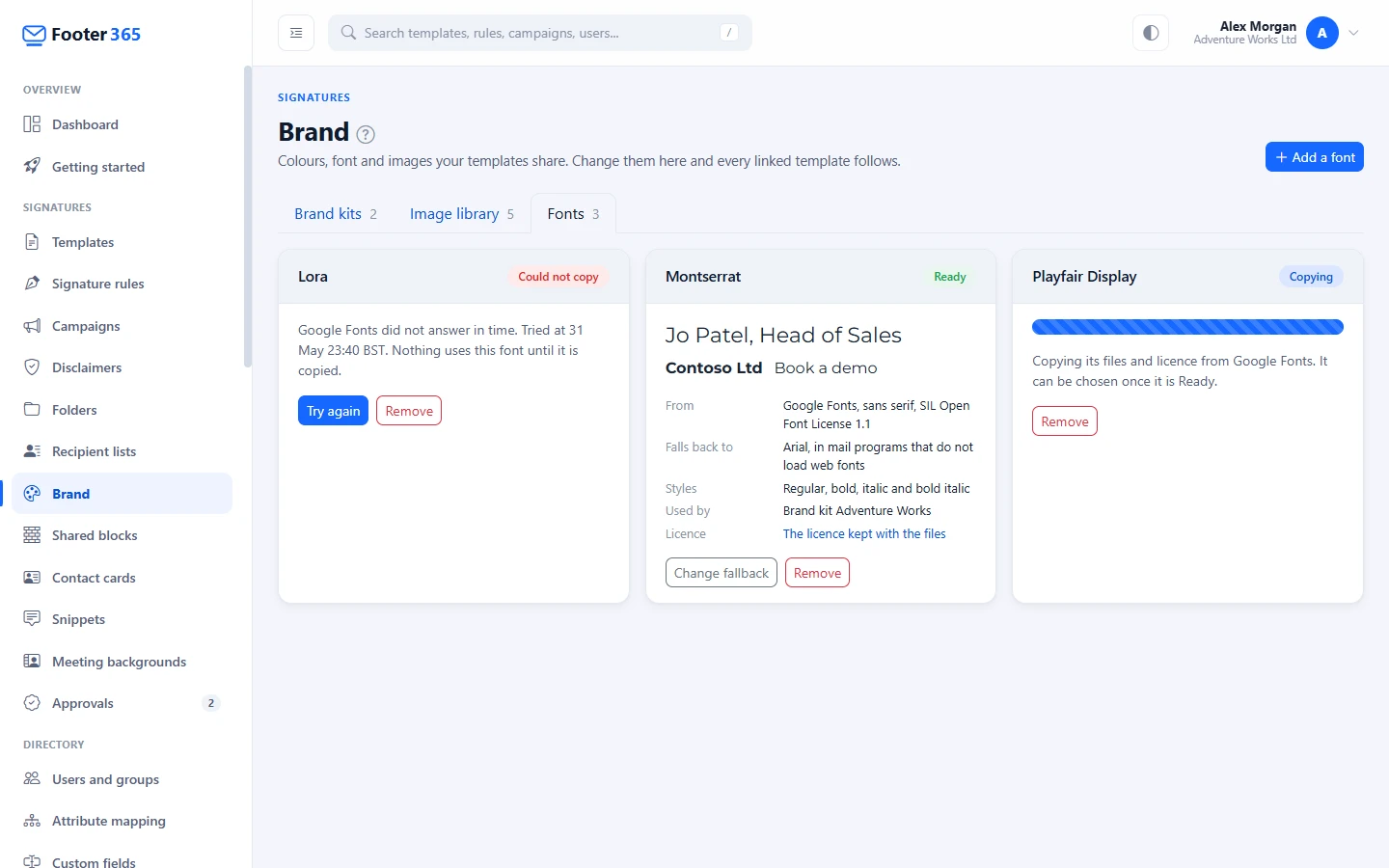
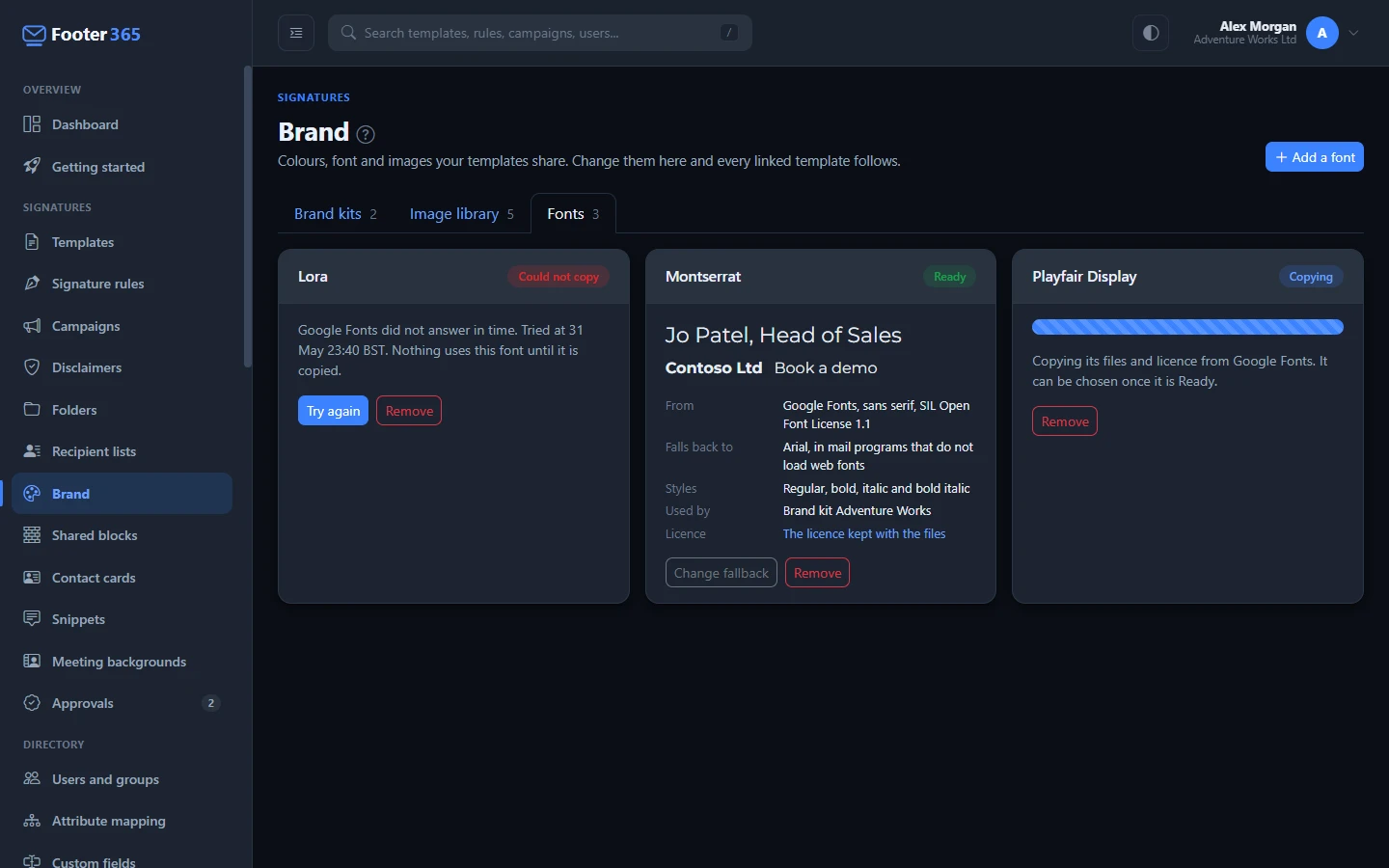
Add a font
- Go to Signatures, then Brand (open Brand), and open the Fonts tab.
- Select Add a font. The Add a font from Google Fonts window opens.
- Start typing the font's name in Font name. Up to ten fonts from Google Fonts whose names match are listed as you type, each with its category. Select the one you want.
- Check Falls back to. Footer365 suggests Arial for a sans serif, display or handwriting font, Georgia for a serif font and Courier New for a monospace font. You can choose any of the eight web-safe fonts the editor offers.
- Select Add font.
Only fonts from Google Fonts can be added, chosen by name. Your own font files cannot be uploaded.
Footer365 then copies the font's files and its licence from Google Fonts. As the window says under Styles copied, it copies regular, bold, italic and bold italic, the four the editor can use, where the font has them. A font that Google publishes only as a variable font is copied as that, and covers every weight. While the copy runs, the font shows Copying. When it shows Ready it can be chosen in the editor and in a brand kit. The tab checks for you and updates by itself.
If Google Fonts cannot be reached, or the copy fails for another reason, the font shows Could not copy with the reason and the time. Nothing uses it until it is copied. Select Try again, or Remove it. A copy that is still running after ten minutes offers Try again as well.
What the Fonts tab shows
Each ready font is drawn in its own font, with:
- From: Google Fonts, the font's category and its licence.
- Falls back to: the web-safe font shown wherever a mail program does not load web fonts.
- Styles: the styles that were copied.
- Used by: the brand kits, templates and campaigns that use it.
- Licence: The licence kept with the files, the copy of the font's licence Footer365 keeps beside them. Most Google Fonts are published under the SIL Open Font License 1.1, which allows them to be used and passed on, and every font Google Fonts publishes allows it to be redistributed.
Use a web font
- In the editor. Every Font family list, for the whole template and for a row, column or element, lists your fonts first under Your web fonts, each drawn in its own font with the web-safe font it falls back to, then the Web-safe fonts. The canvas and the live preview draw the web font. Under the template's font and size, a note says which mail programs show it. See Using the signature editor.
- In a brand kit. A kit's Font list offers your web fonts in the same way, and every template that follows the kit takes the font. See Brand kits and the image library.
- In a campaign banner. A banner is drawn in your browser and sent as one picture, so every reader sees the web font in it, whatever their mail program.
Which mail programs show it
The editor's Email clients window shows each program as its readers see it, and says under each tab which font it shows, as Shows followed by the font's name. See Dark mode and email client previews. From independent tests of email programs:
| Shows your web font | Shows the fallback |
|---|---|
| Apple Mail on a Mac, iPhone and iPad | Classic Outlook for Windows |
| Thunderbird | Outlook on the web and Outlook.com |
| Samsung Email, except with a Microsoft email address | Outlook for Mac |
| Outlook for iPhone and Android | |
| Gmail |
The new Outlook for Windows has not been tested, so the preview shows the fallback for it. Classic Outlook for Windows would draw text in Times New Roman if it saw the font, so Footer365 hides the font from it and it shows the fallback instead.
A signature added by the Outlook add-in is the same signature. Whether Outlook keeps the font in a signature the add-in adds has not yet been checked by Footer365; where it does not, readers see the fallback.
Change the fallback
- On the Fonts tab, select Change fallback on the font.
- Choose the web-safe font in Falls back to and select Change fallback.
Every brand kit that holds the font changes to the new fallback, the templates that use it are published again with it, or made drafts where approval is on, and the campaigns are listed to be opened and saved, as for a change to a brand kit. The Brand page shows the change while it is applied. See Brand kits and the image library.
Remove a font
- On the Fonts tab, select Remove on the font.
- The window says what uses it and what it changes to. Select Remove font.
Every brand kit and template that used the font changes to its fallback. The templates are published again, or made drafts where approval is on, and the campaigns are listed to be opened and saved. Footer365 deletes its copy of the font's files and licence.
Good to know
- Who can do what. Anyone who can view signatures sees the Fonts tab. Adding, changing and removing a font needs the permission to manage signatures. Fonts belong to the whole organisation, so someone limited to a scope can use them but not change them. See Roles and permissions.
- Limits. An organisation can add up to 30 web fonts. A font file can be up to 3 MB, and a font's files up to 8 MB together, because every reader whose mail program loads web fonts fetches them.
- Privacy. A reader's mail program fetches the font from Footer365, as it fetches the signature's images, so Google does not learn who read your message. Footer365 itself contacts Google Fonts to list fonts while you type a name, and to copy a font when you add it.
- Backups. A backup carries a brand kit's font. Restored into an organisation that has not added that web font, the kit takes the font's fallback.
- Who changed what. Adding, copying, changing and removing a font are recorded in the audit log.
Related articles
Still stuck?
Tell us what you were trying to do and what you saw. Include the sender, a recipient and roughly when a message was sent, and we can trace it.