

Add your signature to other mail apps
Copy your Footer365 signature from your own My signature page and add it to Apple Mail on a Mac, Outlook 2016 or 2019, Mail on an iPhone or iPad, the Gmail app on Android, Outlook on a phone or Gmail in a browser.
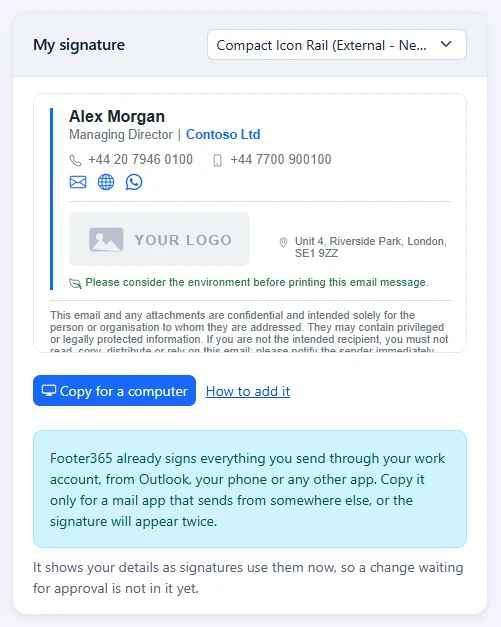
Everyone in your organisation has their own page at https://app.footer365.net/Me, whether or not they have any access to the portal. They sign in with their Microsoft 365 account, and the My signature card shows their signature with their details as signatures use them now. From there they can copy it into a mail app Footer365 does not sign.
Footer365 makes people's own My signature page available to organisations gradually, with staff self-service, so it may not be in your portal yet. See Early access pages and features.
When you need a copy
- With mail flow, Footer365 signs everything sent through your Microsoft 365 mailboxes, from Outlook, a phone's own mail app or any other app. A copy is needed only for a mail app that sends from somewhere else, such as a personal Gmail account. Pasting the signature into an app that sends through your work account makes the signature appear twice.
- With the Outlook add-in only, Footer365 signs mail written in Outlook with the add-in. Mail sent from a phone's own mail app, from Outlook on a phone, from Apple Mail on a Mac or from Outlook 2016 or 2019, none of which can run the add-in, goes without a signature unless the signature is added there. Using the Outlook add-in only
The card says which applies to your organisation.
The copies
- Copy for a computer copies the signature as it looks: its layout, colours, images and links. The images are linked from the address Footer365 serves them from, so they still show after pasting. Use it for Apple Mail on a Mac, Gmail in a browser or another mail app on a computer.
- Copy for a phone copies the signature's text, line breaks and links only, which is what the mail apps on iPhone and Android keep. A social media icon becomes a link named after it, such as LinkedIn. It is offered only with the Outlook add-in only, because with mail flow mail from a phone is signed already.
Both copies also carry the signature as plain text, the same text Footer365 adds to plain-text email, for an app that takes text only.
If someone has more than one signature, they choose the one to copy from the list at the top of the card first. How to add it opens this article.
A copy is a snapshot. It does not change when the template or the person's details change, so copy it again after a change. A detail change waiting for approval is not in it until it is approved. Campaign banners and disclaimers are not in the copy, because they belong to a message rather than to the person and change from one message to the next.
Your meeting background
When your organisation offers a meeting background to someone, their My signature page also has a My meeting background card, with the background drawn with their own name and job title. Download saves it as a picture of 1920 x 1080 pixels. In Teams, they select More video effects > Add new before a meeting and choose the file. A person offered more than one chooses from the list at the top of the card, and someone offered none sees no card. See Meeting backgrounds for Teams and video calls.
The page in another language
The My signature page is shown in French, German, Spanish or Dutch as well as English. It is shown in the language the person chooses under Language on the page, then in their Microsoft 365 preferred language, then in their browser's, and in English when none of those is a language that is on. The rest of the page is in that language too, so a button this article names in English has its own name there. The signature itself is never translated.
Apple Mail on a Mac
- On the My signature page, select Copy for a computer.
- In Mail, choose Mail > Settings (Preferences on older versions of macOS), then Signatures.
- Select the account on the left, then select the + button.
- Name the signature, and untick Always match my default message font under the signature.
- Click in the signature and paste. Close the window.
Choose the signature for the account in Choose Signature at the bottom of the same window.
Outlook 2016 or 2019
Outlook 2016 and Outlook 2019 bought outright cannot run the Outlook add-in, so with the Outlook add-in only this is where their signature comes from. Outlook client support and the add-in
- On the My signature page, select Copy for a computer.
- In Outlook on Windows, choose File, then Options, then Mail, then Signatures. In Outlook for Mac, open the settings from the Outlook menu, then choose Signatures.
- Add a new signature, name it, and paste into the box for its text.
- Choose it as the default for new messages and for replies and forwards, then save.
Mail on an iPhone or iPad
- Open the My signature page on the phone, signing in with your Microsoft 365 account, and select Copy for a phone.
- Open Settings, then Apps (on older versions of iOS, skip this step), then Mail, then Signature.
- Choose All Accounts or Per Account, delete what is there, such as "Sent from my iPhone", and paste.
- Go back. The signature is saved as you leave.
The Gmail app on Android
- Open the My signature page on the phone and select Copy for a phone.
- In the Gmail app, open the menu, then Settings, and select your account.
- Select Mobile Signature, paste, and select OK.
The Gmail app keeps text only, so the links show as their words.
Outlook on a phone
The Outlook add-in is not offered in Outlook for iOS and Android, so with the Outlook add-in only this is where a phone's signature comes from.
- Open the My signature page on the phone and select Copy for a phone.
- In Outlook, select your profile picture, then the settings button.
- Select Signature, delete what is there, such as "Get Outlook for iOS", and paste.
Gmail in a browser
- On the My signature page, select Copy for a computer.
- In Gmail, select the settings button, then See all settings.
- On the General tab, find Signature and select Create new. Name it, then paste into the box beside it.
- Under Signature defaults, choose it for new email and for replies and forwards.
- Select Save Changes at the bottom of the page.
The menu names in these apps can differ slightly between versions.
Related articles
Still stuck?
Tell us what you were trying to do and what you saw. Include the sender, a recipient and roughly when a message was sent, and we can trace it.