

Meeting backgrounds for Teams and video calls
Design a branded background for Teams and other video calls, offer it to chosen people between dates, and let each person download their own copy with their name and job title from My signature. Upload a copy without names in the Teams admin center for everyone with Teams Premium.
A meeting background puts your brand behind everyone on a Teams call, or a call in any other app that lets people add their own background. You design it once in the portal, on the same canvas as your campaign banners, and choose who it is offered to. Each person then downloads their own copy from their My signature page, with their own name and job title on it.
Footer365 makes the Meeting backgrounds page available to organisations gradually, so it may not be in your portal yet. See Early access pages and features.
Meeting backgrounds are included on every account.
How it works
- You design it under Signatures > Meeting backgrounds. The design is the only thing Footer365 keeps.
- Each person's copy is drawn in their own browser when they open My signature, from the design and their details as signatures use them now. Footer365 never stores a picture of anybody.
- They download it and add it in Teams themselves. Microsoft offers no way for another program to add a background to someone's Teams.
- For everyone with Teams Premium, you can also download an organisation copy, the design without anybody's details, and upload it in the Teams admin center yourself, as the last part of this article describes.
Design a background
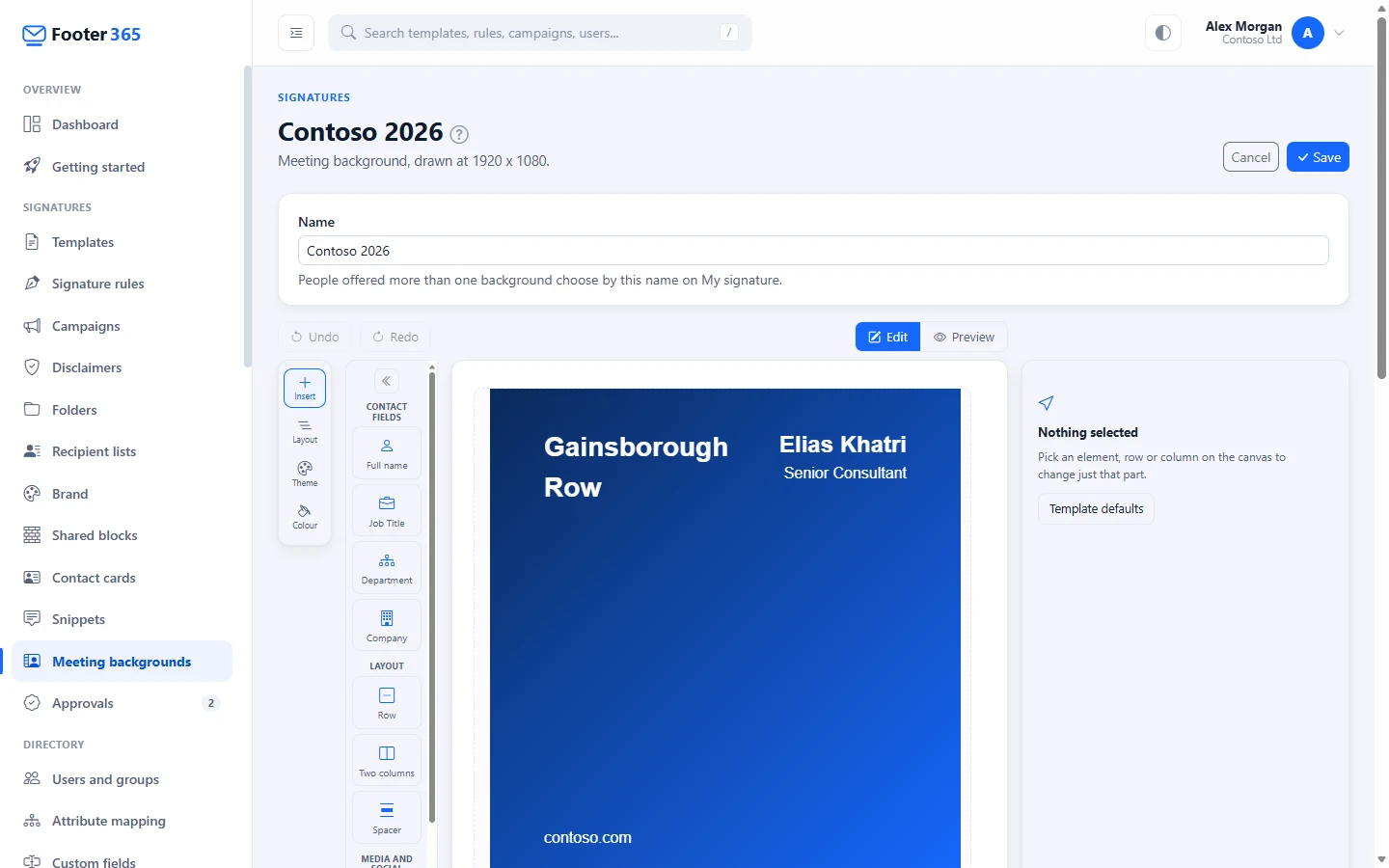
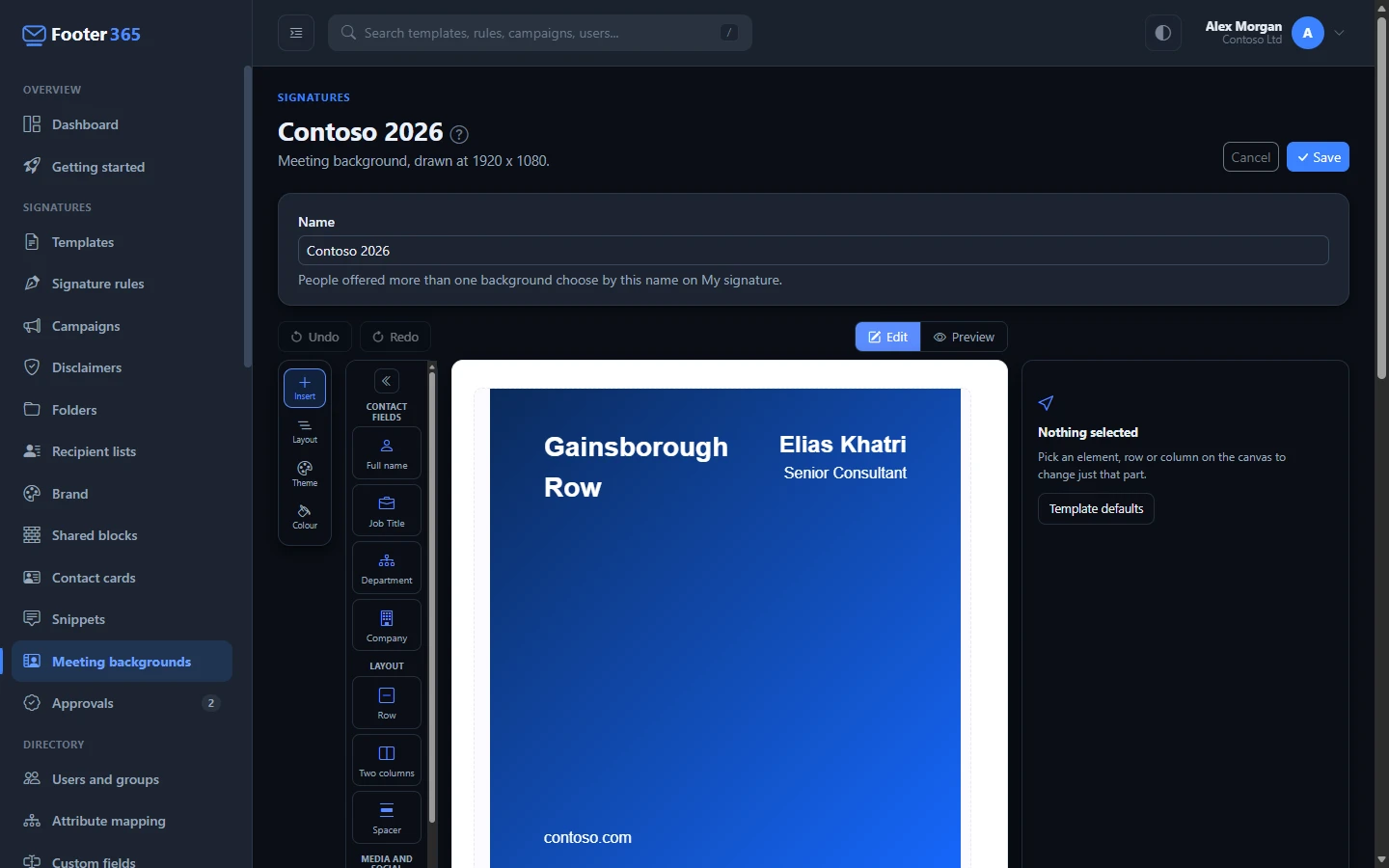
- Go to Signatures > Meeting backgrounds in the portal, or open Meeting backgrounds, and select New background.
- Give it a Name. People offered more than one background choose between them by this name.
- Change the design on the canvas. A new background starts with a band of colour, the company at the top left, the person's name and job title at the top right and a line of wording at the bottom left.
- Set Who it is offered to (see below), and select Save.
The canvas works as it does for a signature or a campaign banner. See Using the signature editor. The Insert panel offers:
- Contact fields: Name, Job Title, Department and Company, and nothing else. A background never shows a phone number, email address, address or QR code, because everyone in a call sees it, including guests from outside your organisation, and it has no photo, because the person sits in front of it.
- Layout: Row, Two columns and Spacer.
- Media and text: Image, Icon and Text.
A background is drawn at 1920 x 1080 pixels, the 16:9 shape of a video call. Its rows are stretched to fill the picture's height, so a colour, gradient or background image on a design's only row fills the whole picture, as it does in the design a new background starts with. Images from your brand kit and image library can be used as in a signature.
See it as a call will
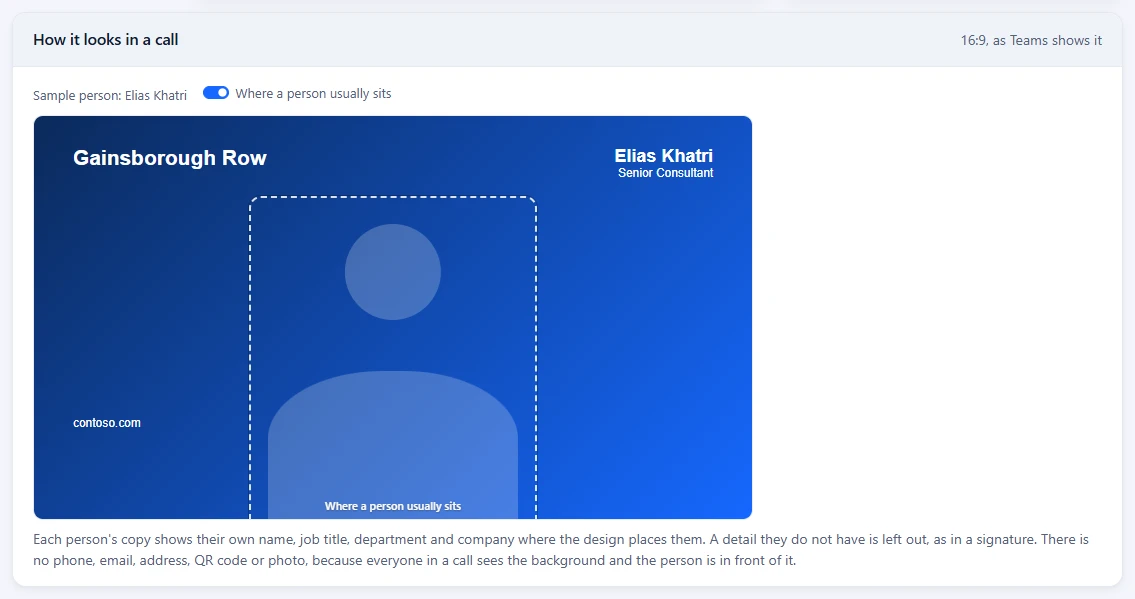
Under the canvas, How it looks in a call shows the background at 16:9, drawn for a sample person, with a dashed outline of Where a person usually sits: the middle of the picture, from a fifth of the way down. Turn the outline off with its switch to see the background on its own.
When wording sits mostly inside the outline, a warning names it: the person's head and shoulders will hide most of it in a call, so move it to a side or above the outline. A warning also says when the design is taller than the picture and its lower part is cut off.
Choose who it is offered to
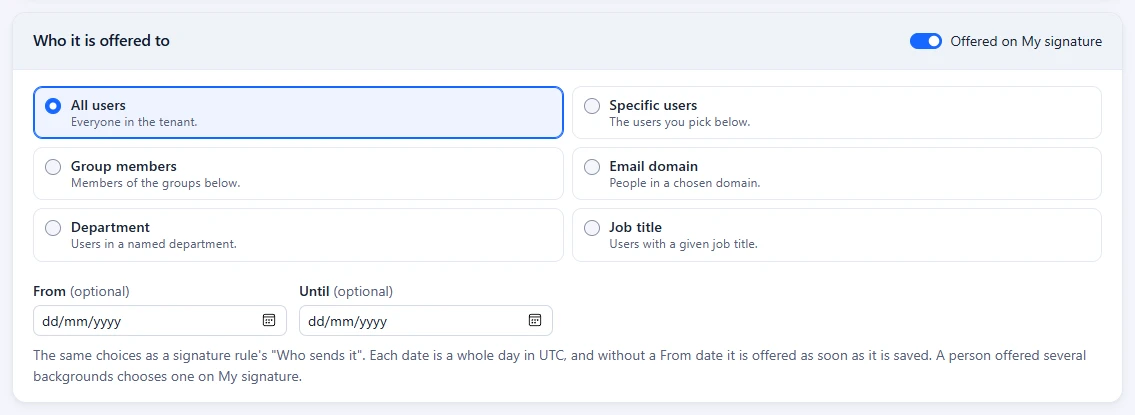
Under Who it is offered to, choose the people with the same choices as a signature rule's "Who sends it": All users, Specific users, Group members, Email domain, Department or Job title. A person is offered a background when their own directory record matches, decided by Footer365 each time they open My signature.
- Offered on My signature turns the background on and off.
- From and Until are optional dates. Without a From date it is offered as soon as it is saved, and without an Until date it has no end. Each date is a whole day in UTC.
Only accounts that can sign in are offered a background: shared mailboxes, groups and accounts with sign-in turned off are not.
The Meeting backgrounds page
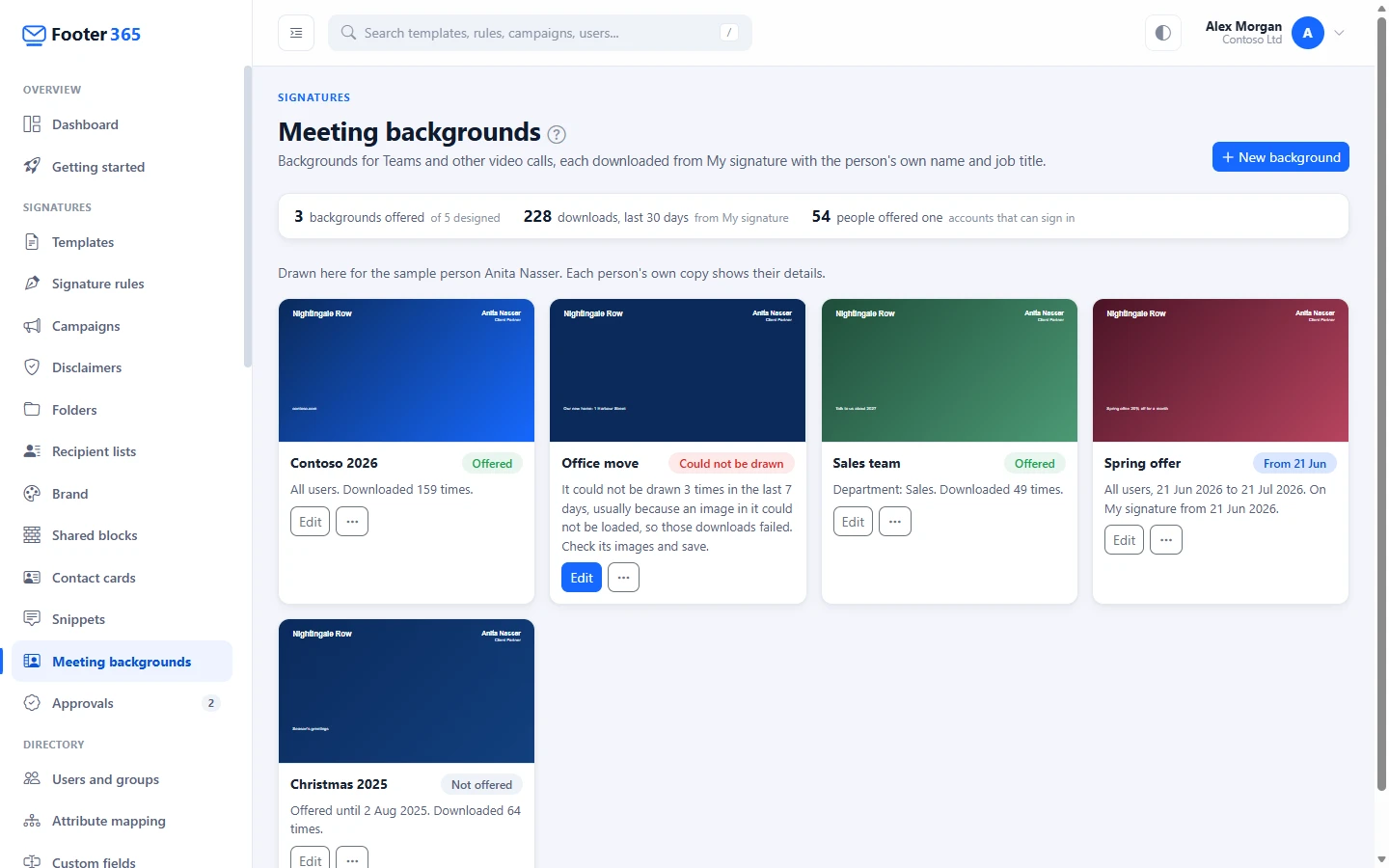
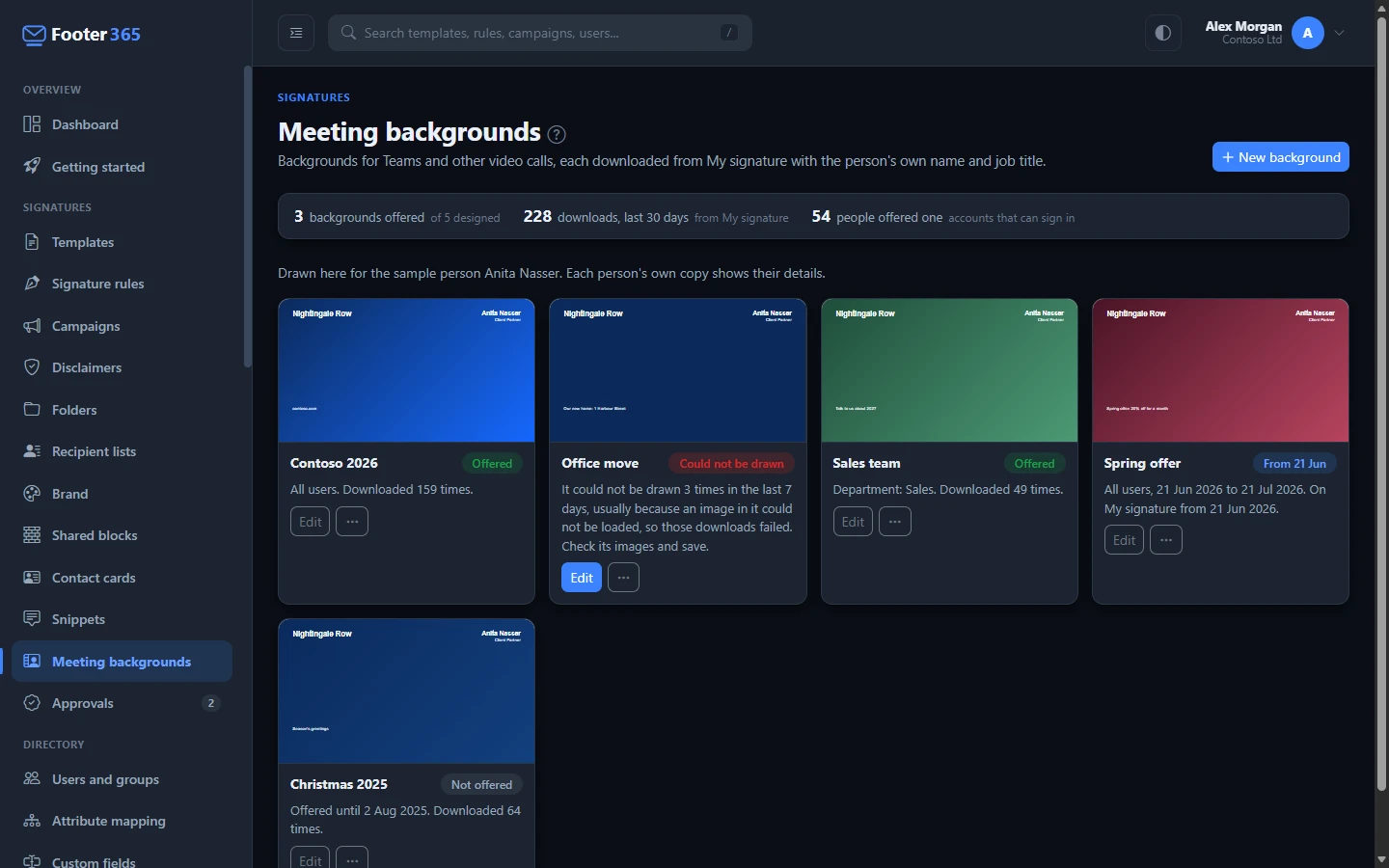
Each background has a card, drawn for a sample person, with a pill saying where it stands:
- Offered: on My signature for the people it is offered to.
- From and a date: offered from that day.
- Not offered: switched off, or its Until date has passed.
- Could not be drawn: people's browsers reported in the last seven days that they could not draw it, so their downloads failed. This is usually an image in the design that cannot be loaded. Check its images and select Save; the card goes back to normal once it has been saved.
The figures at the top are the backgrounds offered today, how many times backgrounds were downloaded from My signature in the last 30 days, and how many people are offered at least one (accounts that can sign in). Downloads are counted per background and day only, at most once a day for each person, and Footer365 keeps no record of who downloaded what.
On each card, Edit opens the designer, and the ... menu beside it holds the rest:
- Organisation copy opens the steps for putting it in Teams for everyone.
- Stop offering takes it off My signature at once, after you confirm. Copies people have already downloaded, and any copy uploaded to the Teams admin center, stay where they are: Footer365 cannot remove them.
- Offer again puts a background that is not offered back on My signature. One whose Until date has passed is offered again from today with no end date.
To delete a background, open it and select Delete background. Its design and its counts are deleted; downloaded copies stay where they are. An organisation can keep up to 50 backgrounds.
Seeing the page needs the View signatures permission; designing, offering, stopping and deleting need Manage signatures. An administrator limited to part of the organisation does not see the page, because a background belongs to the whole organisation. Every change is recorded in the audit log.
What each person sees on My signature
When at least one background is offered to someone, their My signature page has a My meeting background card. With more than one, they choose which from the list at the top of the card. Without any, the page looks exactly as before.
The card draws the background in their browser as soon as the page opens, usually in a second or two, with their name, job title, department and company where the design places them, as signatures use them now. A detail they do not have is left out, as an empty detail is in a signature, and the card says which. A change to their details waiting for approval is not in it until it is approved.
Download saves a PNG of 1920 x 1080 pixels. How to add it opens this article.
If the background cannot be drawn, the card says so and offers Try again, and the background's card on the Meeting backgrounds page shows it as Could not be drawn.
The background is a snapshot, so after a change to the design or to their details they download it again.
Add it in Teams
In Teams, a person adds their own background before or during a meeting:
- Before joining, open Effects and avatars on the joining screen; during a meeting, open More actions > Video effects and settings > Video effects.
- Select More video effects > Add new before a meeting, or Add new during one, and choose the file downloaded from My signature.
Microsoft's own steps are in Change your background in Microsoft Teams meetings. Microsoft lists .JPG, .PNG and .BMP files for this, and says background effects are not available on Linux or through an optimised virtual desktop (VDI).
Adding your own image needs the person's Teams meeting policy to allow it. In the Teams admin center, Meetings > Meeting policies > Audio & video, "Participants can use video effects" must be All video effects (AllFilters in PowerShell). With Off, Only background blur or Only background blur and default backgrounds, Teams does not let them upload a background. Footer365 does not read your Teams policies, so it cannot tell whether yours allow it.
Other video call apps that let people upload a background image take the same file.
Put a background in Teams for everyone
A background added in the Teams admin center appears in the background gallery of everyone given the policy, so they do not have to download anything. It is the same picture for everyone given it, so it carries nobody's name: that is the organisation copy.
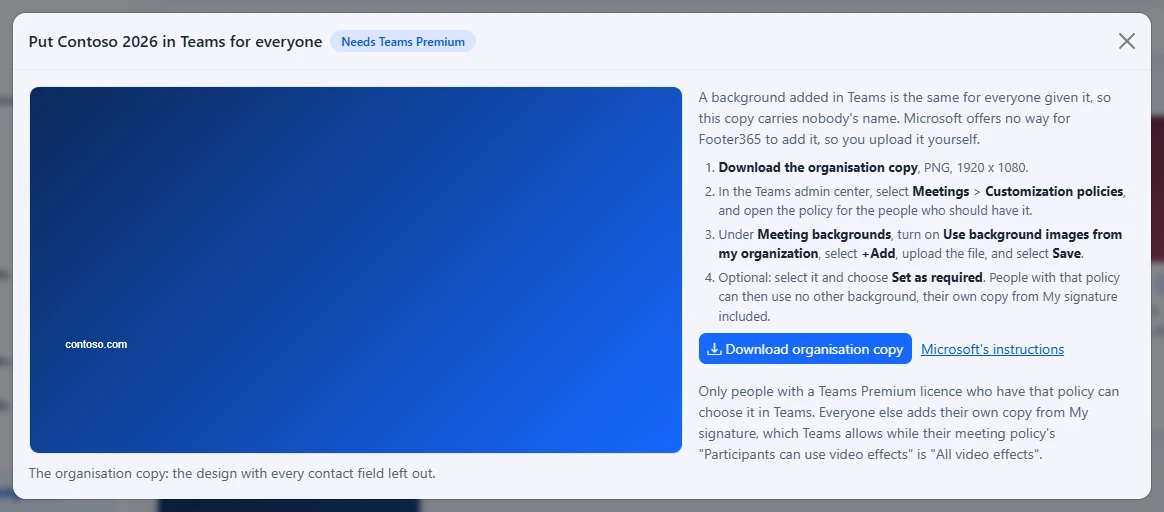
- On the background's card, select ..., then Organisation copy, then Download organisation copy. It is drawn in your browser without any contact field, as a PNG of 1920 x 1080 pixels.
- In the Teams admin center, select Meetings > Customization policies, and open the policy for the people who should have it.
- Under Meeting backgrounds, turn on Use background images from my organization, select +Add, upload the file, and select Save.
- Optional: select it and choose Set as required. People with that policy can then use no other background, their own copy from My signature included.
Microsoft's instructions opens Manage and create custom meeting backgrounds for Teams meetings. Footer365 changes nothing in Teams: Microsoft offers no way for another program to upload these images, only the Teams admin center.
What Microsoft requires
As Microsoft's page says:
- Teams Premium: "Only you and Teams Premium licensed users that you assign this custom background policy to can use custom meeting backgrounds during meetings. Your users can still upload their own backgrounds for meetings, regardless of whether they have a Teams Premium license or not." So people without Teams Premium use their own copy from My signature instead.
- Images: PNG or JPEG, at least 360 x 360 and at most 3840 x 2160 pixels, and at most 50 custom background images. The organisation copy, at 1920 x 1080, is within these.
- Who can use it: external or anonymous people cannot use your organisation's backgrounds, though everyone in a meeting sees a background that is in use.
- Set as required cannot be used in the same policy as "Apply background blur when no effect is selected".
Your data
A meeting background stores its design, who it is offered to and its dates, and a count of downloads and failed drawings per background and day. No picture is stored, for a person or for the organisation, and a person's details reach only their own browser. Only the name, job title, department and company can appear on a background. See Data and privacy.
Related articles
Still stuck?
Tell us what you were trying to do and what you saw. Include the sender, a recipient and roughly when a message was sent, and we can trace it.