

Folders and who can use them
Group templates, signature rules, campaigns and disclaimers into folders, and give a team its own folder with its own View or Manage access.
Folders keep your Templates, Signature rules, Campaigns and Disclaimers in order, and let you decide who can see or change what is in each one. A marketing team can look after its own campaigns and templates without being able to touch the legal disclaimers, and the legal team can do the opposite.
Footer365 makes folders available to organisations gradually, so they may not be in your portal yet. See Early access pages and features.
There is one set of folders for all four lists. A folder called Marketing appears on each of them, so a team's access is set once and covers its templates, its rules, its campaigns and its disclaimers together.
Folders never change which signature, campaign or disclaimer a message gets. Signature rules keep one running order across every folder, and disclaimers keep the order they are added in.
The folder bar
Each of the four lists has a row of folder chips above it. Select a chip to show only what is in that folder, All to show everything you can see, or Not in a folder for the items that are in none. The number on each chip counts what is in it on that list. The portal remembers the folder you chose on each list, in this browser, until you choose another.
- Restricted on a chip means the folder has its own access list.
- View only on a chip means you can open what is in the folder but not change it. Its items open read only, and their Edit button reads View.
- A folder you cannot see is left out of the bar, the counts, the list and the search box at the top of the portal.
Anything you create from a list while a folder is chosen is created in that folder, as long as you can manage it. That includes New template, New from library, New rule, New campaign, New disclaimer and Add from the Footer365 library.
Until your organisation makes its first folder, the bar shows All and, if you can manage portal access, New folder.
Move something into a folder
- On the list, select ... on the item's row or card, then Move to folder. On the Disclaimers list, select the folder button on the row instead, labelled Move to folder when you hover over it.
- Choose the folder, or No folder to take it out of every folder.
- Select Move.
Moving needs Manage on the folder the item leaves and on the folder it goes to. Taking an item out of every folder needs the Manage signatures permission, because items in no folder follow it. Only the folders you can manage are offered.
Create and set up folders
Making folders and deciding who can use them needs the Manage portal access permission, because it decides who sees what, as roles do. Select Folders under Signatures in the menu, or select Folder settings or New folder on any of the four lists, to open the Folders page (open Folders). Folders is in the menu in the Advanced view. A role can switch it off on the Roles page, which takes it out of the menu and takes Folder settings and New folder off the four lists for the people with that role.
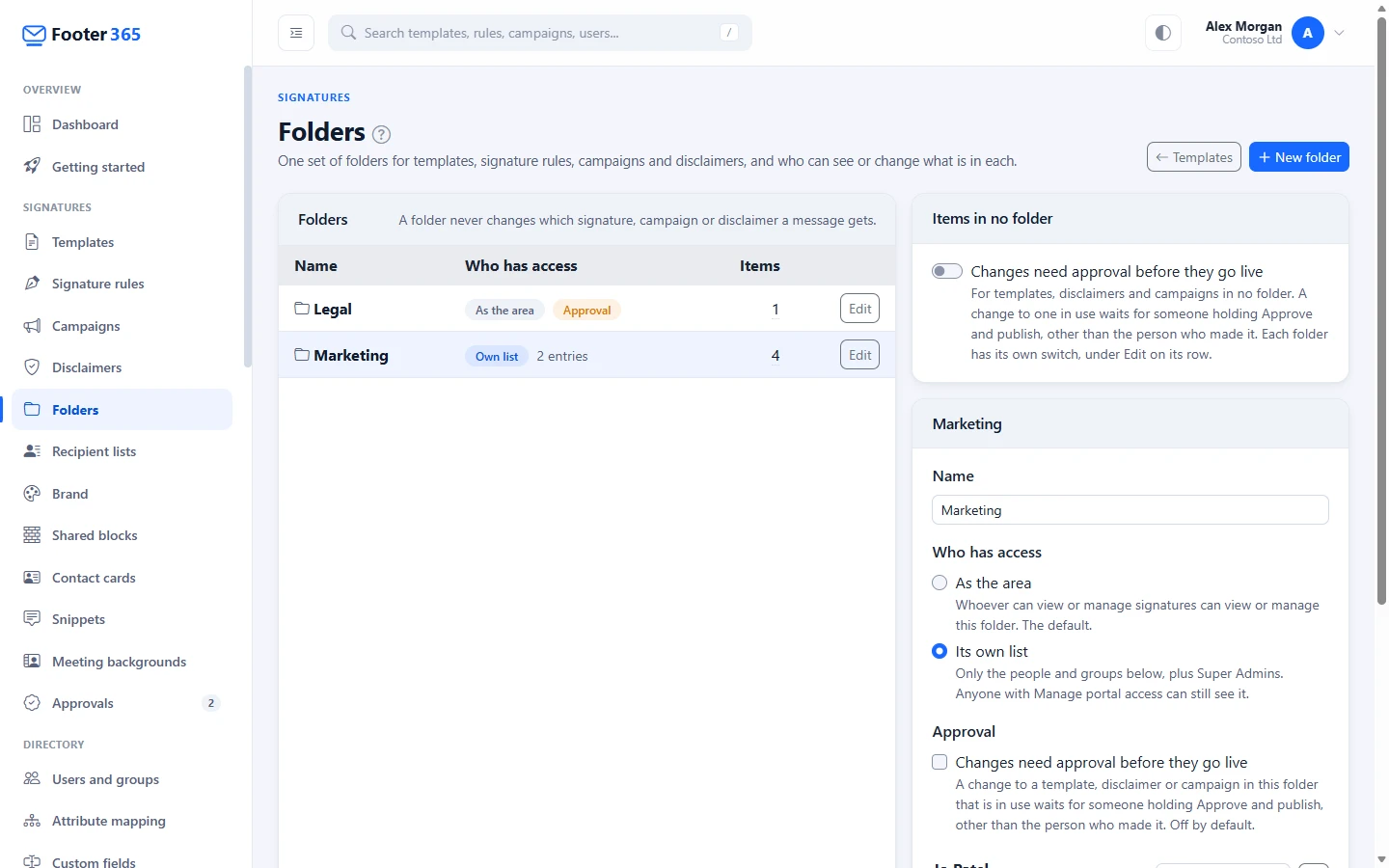
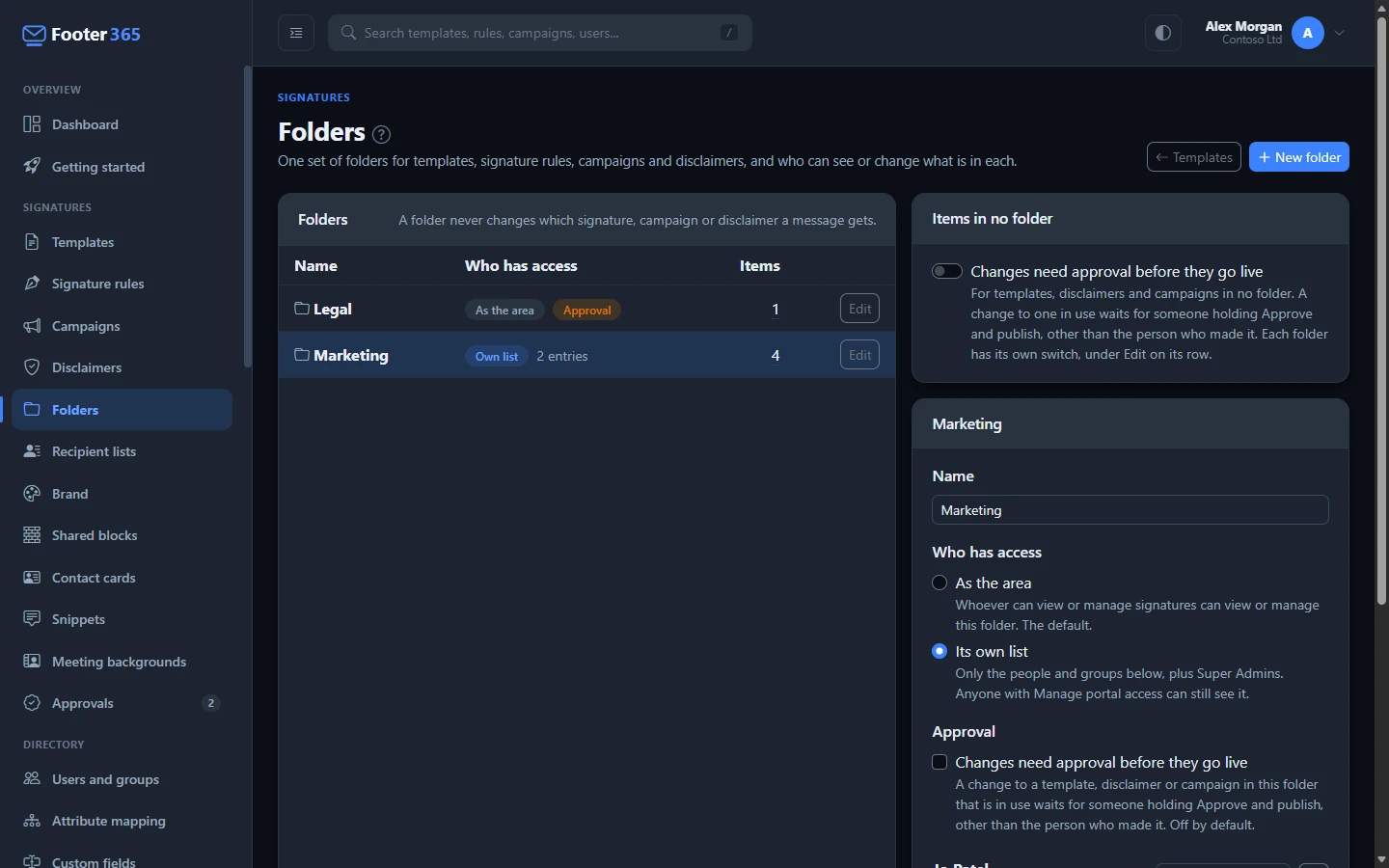
To make a folder, select New folder, enter its Name and select Create folder. A new folder starts as As the area, so nobody gains or loses access by it being made.
To set who has access, select Edit on the folder's row and choose under Who has access:
- As the area: whoever can view or manage signatures through their role can view or manage this folder. This is the default.
- Its own list: only the people and groups on the folder's list can open it, each with View or Manage, plus Super Admins.
Under Add a person or group, choose a portal user, a portal group, or Everyone with View signatures, select Add, set View or Manage beside it, and select Save. The people and groups offered are the ones who can sign in to the portal; add others under Access first. See Give colleagues access.
The folders table shows Own list or As the area for each folder, Approval when changes in it need approval, and how many items it holds.
Require approval for a folder
Tick Changes need approval before they go live on a folder and select Save, and a change to a template, disclaimer or campaign in it that is in use waits for someone holding Approve and publish, other than the person who made it, before it goes live. It is off by default.
Items in no folder follow their own switch, Changes need approval before they go live under Items in no folder on the same page, which saves as soon as you change it. See Drafts, publishing and approval.
How a folder's list works with roles
A folder's own list can give access the role does not, as well as hold back access the role gives:
- It can widen access. Give your marketing team's group Manage on the Marketing folder and nothing in Signatures in its role. Its members see Templates, Signature rules, Campaigns and Disclaimers in the menu wherever the folder holds something, with the Marketing folder alone in them, and can create, change and delete what is in it. The settings page tells you when someone on the list has no Signatures permission of their own.
- It can narrow access. Someone whose role holds Manage signatures cannot open a folder with its own list unless they are on it.
- Super Admins always see and manage every folder, and anyone with Manage portal access can always see every folder, so nothing can be hidden from the people who run access.
Items in no folder, and items in a folder that follows the area, work exactly as they did before folders existed.
This is enforced by Footer365 on every page and every change, not only by hiding things on screen. Typing the address of an item in a folder you cannot see is refused.
Folders and scopes
A scope limits an administrator to part of the organisation's people, such as one subsidiary. It does not change what a folder lets them do with templates, campaigns and disclaimers, so folders and approval are how head office keeps its master design while a subsidiary looks after its own signatures. Put the master templates and disclaimers in a folder where the subsidiary's administrator has View only, give the subsidiary a folder of its own with Manage, and tick Changes need approval before they go live on that folder. Keep nothing head office must protect in no folder, because items in no folder follow the Manage signatures permission.
Someone limited to a scope can use the folders they have been given, but cannot open the Folders page, which decides who sees what across the whole organisation. See Limit an administrator to part of the organisation for a worked example with two subsidiaries.
Delete a folder
Open the folder and select Delete folder, then confirm. Everything in it moves to Not in a folder, where it follows the Signatures permissions, so people who could only reach it through the folder's list lose access. Nothing in the folder is deleted.
Good to know
- Signature rules still run, wherever they are. The rule tester names a rule in a folder you cannot see as A rule in a folder you cannot see, without its details. See Test a rule.
- Backups follow folders. A backup holds only what you can see, and keeps each item's folder name. Restoring puts items back in folders of the same name. See Back up and restore your signatures.
- Every change is recorded. Creating, renaming and deleting a folder, changing who has access with the list before and after, turning approval on or off, and moving an item are all in the audit log.
- Campaign rotations are not in folders. Working with them needs the Manage signatures permission.
- Brand kits and library images are not in folders. When a change to one reaches a template, Save and apply publishes it again only if you can manage the folder the template is in, or templates in no folder, and lists any other as Left as it is with the folder's name. Someone who can manage that folder brings it up to date by applying the kit again. See Brand kits and the image library.
Related articles
Still stuck?
Tell us what you were trying to do and what you saw. Include the sender, a recipient and roughly when a message was sent, and we can trace it.