

Attribute mapping
Use the Exchange custom attributes to give each person their own LinkedIn, X, pronouns or other link in their signature.
Microsoft 365 has no fields for a person's LinkedIn profile, X handle or pronouns. Exchange Online does give every mailbox fifteen spare custom attributes, and Footer365 can read those. Attribute mapping tells Footer365 which attribute holds which value, so each person's signature shows their own link.
The mapping is set once for your whole organisation and applies to every template.
Before you start
Decide which custom attribute will hold each value, and fill those attributes in for your people. Custom attributes are Exchange mailbox attributes (extensionAttribute1 to 15). You fill them in the Exchange admin centre or with PowerShell. You cannot fill them in the Footer365 portal.
In the Exchange admin centre, open the person's mailbox and find its custom attributes, then enter the value in the numbered attribute you have chosen. The exact screens are Microsoft's and change from time to time, so check Microsoft's own help if you cannot find them.
For a link, you can store either:
- the full address, such as https://www.linkedin.com/in/jane-smith, or
- just the handle, such as jane-smith, and let Footer365 add the start of the address for you (the Base URL).
A value that already starts with http:// or https:// is always used as it is.
Set up the mapping
- Go to Directory > Attribute mapping (open it).
- You will see a starting set of rows. Click a row to edit it, or select Add field to create a new one.
- In the window that opens, fill in:
- Field: the name of the value, such as LinkedIn or Pronouns.
- Show in signatures: switch this on to use the value. When it is off, the field is left out of signatures, whether they are added by mail flow or by the Outlook add-in, and out of every preview in the portal, so a social icon for it is not shown even for a sample person.
- Icon: select the button and choose an icon. This is the icon you see in the editor and the icon sent in signatures. For a podcast, reviews or an online shop, see Podcasts, reviews and online shops.
- Custom attribute: the numbered attribute that holds the value. Each attribute can be used once only, so attributes already in use are not offered.
- Base URL: the start of the address to put in front of a handle, such as https://x.com/. Leave it blank for plain text, such as pronouns, or if you store the full address.
- Select Save mapping. You will see "Attribute mapping saved." If you chose a different icon for a field, your templates and campaign banners that use the field are sent with the new icon from now on.
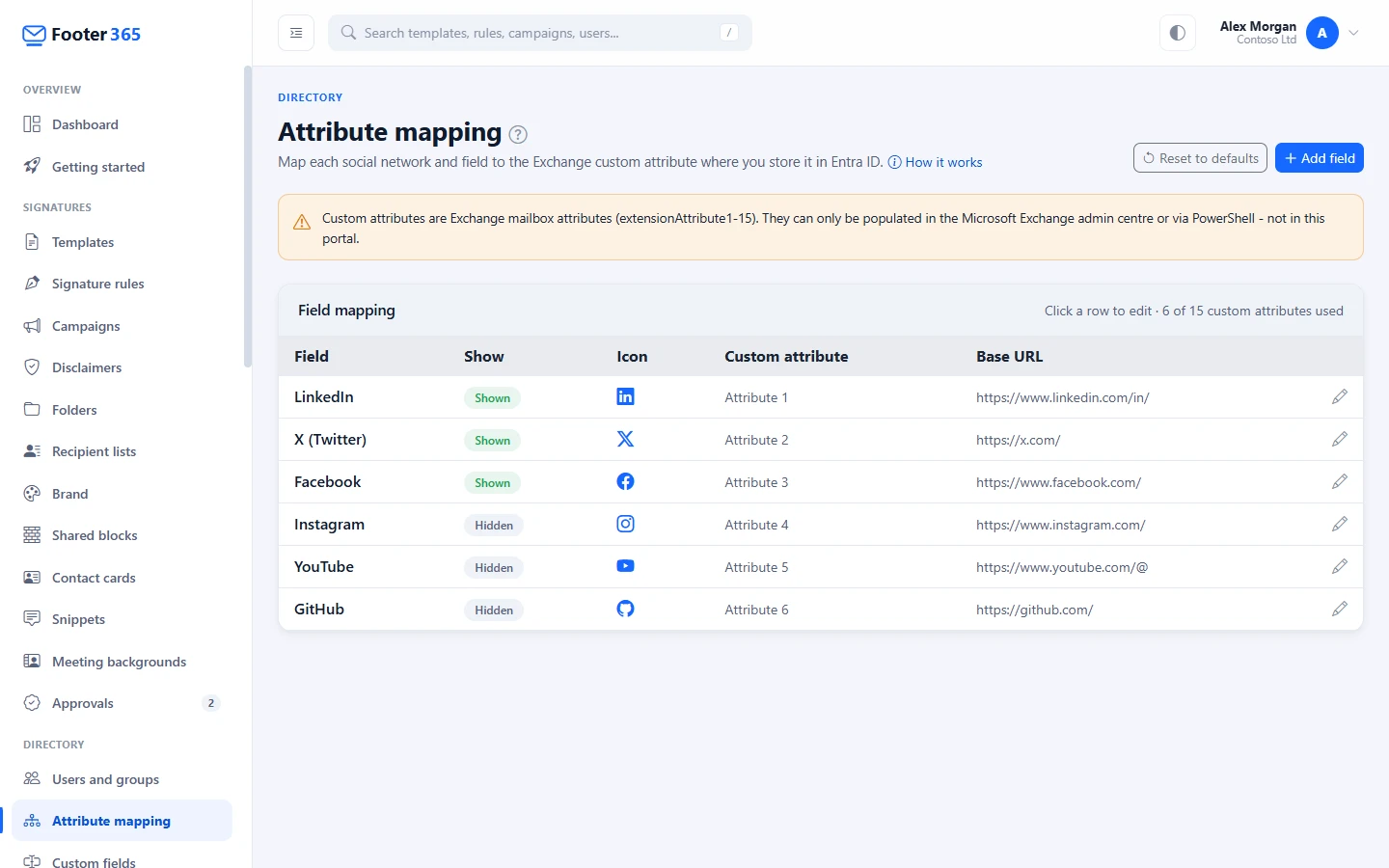
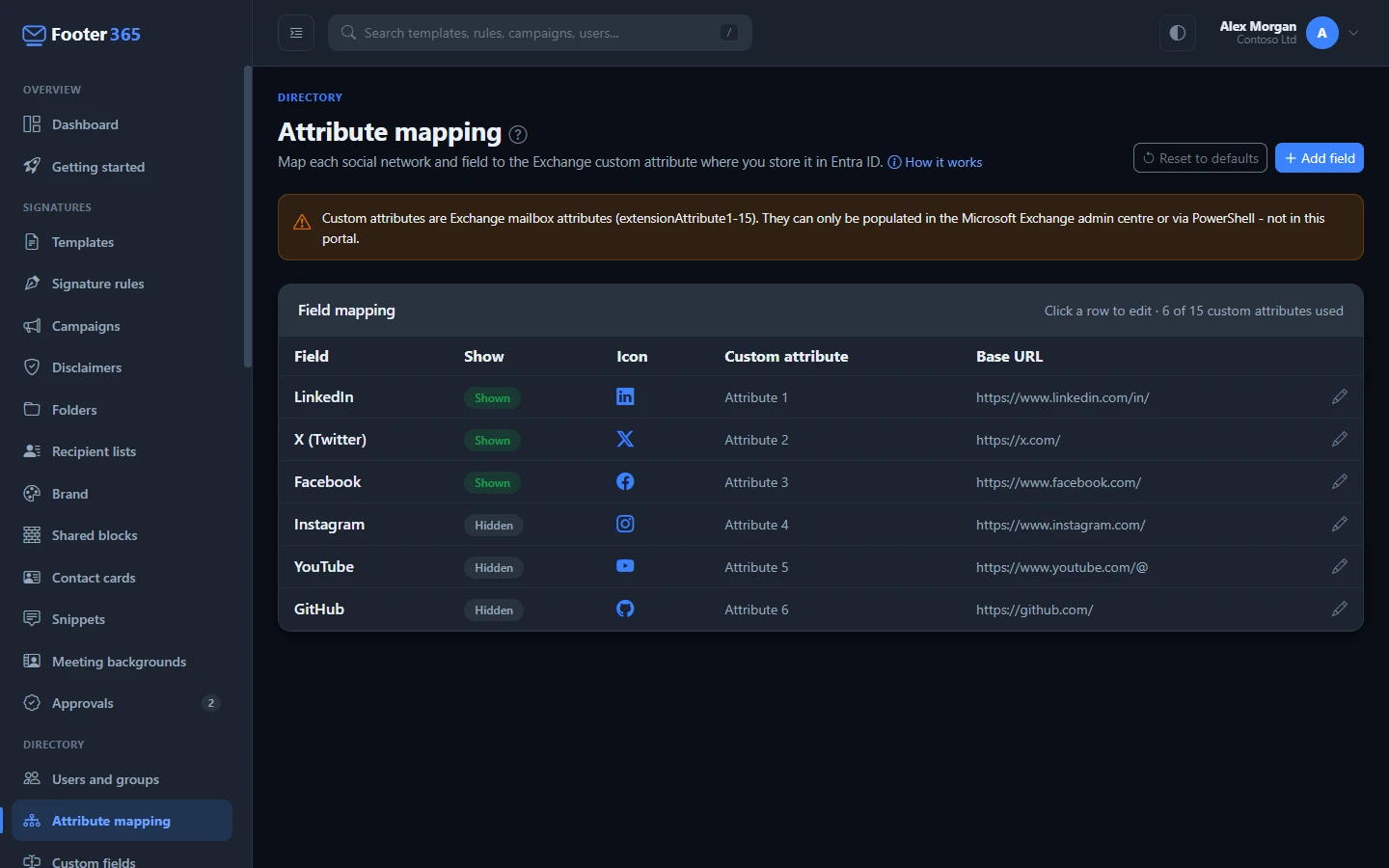
The page shows how many of the fifteen attributes are in use. When all fifteen are used, Add field is switched off.
To remove a field, click its row and select Delete. The change is saved straight away.
The starting rows
Until you change it, the page normally offers these rows:
| Field | Custom attribute | Base URL | Shown |
|---|---|---|---|
| 1 | https://www.linkedin.com/in/ | Yes | |
| X (Twitter) | 2 | https://x.com/ | Yes |
| 3 | https://www.facebook.com/ | Yes | |
| 4 | https://www.instagram.com/ | No | |
| YouTube | 5 | https://www.youtube.com/@ | No |
| GitHub | 6 | https://github.com/ | No |
Change any of them to suit where your organisation already keeps these values.
Select Save mapping at least once, even if the starting rows already suit you. Footer365 reads the custom attributes into signatures only once a mapping has been saved for your organisation. Reset to defaults removes your saved mapping.
Attributes used by a template
A template can also show a custom attribute directly as text. If one of your templates already does, that attribute is not offered on this page, so the same attribute is never used for two different things.
The same goes for a field on Custom fields that reads its values from an Exchange custom attribute: that attribute is not offered here. A field here cannot have the same name as one of your custom fields either. For a value that is not a social link, such as working hours or pronouns, a custom field is usually the better choice, because it can have a type, a default and values entered in Footer365. See Add your own signature fields.
This page reads the fifteen Exchange custom attributes only. If your organisation keeps a value in a property it added to Entra ID itself through an app registration (a directory extension), such as a cost centre written by an HR system, read it with a custom field instead: choose An Entra ID directory extension under Values come from. It does not use up one of the fifteen attributes.
When a change appears
Footer365 copies the custom attributes during each directory sync. After you fill in or change an attribute in Exchange, go to Directory > Users and groups and select Sync now, or wait for the next scheduled sync. See How directory sync works.
If a person's attribute is empty, the field is simply left out of their signature, so nobody gets a broken link or an empty icon.
Who can change it
Anyone who can see the directory can view this page. Adding, editing, deleting and resetting fields needs the Manage directory permission.
Related articles
Still stuck?
Tell us what you were trying to do and what you saw. Include the sender, a recipient and roughly when a message was sent, and we can trace it.