

The dashboard
What each card on the Footer365 dashboard tells you, and where to go from it.
The dashboard is the first page you see when you sign in to the Footer365 portal. It gives you a quick check that signatures are being added, that your Microsoft 365 connection is healthy, and what has changed recently.
Open it at any time from Overview > Dashboard in the sidebar (open it).
What you see depends on your role. Each part of the dashboard is shown only when your role gives the page it comes from:
- Signature templates needs Templates, and Active signature rules, both the card and the list, need Signature rules.
- Synced users needs Users and groups.
- Emails processed today, Campaign clicks, Email volume and View analytics need Analytics.
- Top campaigns needs Campaigns and Analytics.
- You are almost live, the SPF warning and Microsoft 365 connection need Getting started.
- Recent activity shows only the kinds of change whose page your role gives.
If your role does not give the Dashboard at all, the page shows its title and nothing else. If it gives the Dashboard to view but not to manage, its links and buttons cannot be used. See Roles and permissions.
An administrator limited to part of the organisation sees a shorter dashboard, with Limited to and the scope's name beside the title. It has Signature templates, Active signature rules, Synced users, which counts only the people in the scope, and Recent activity. The setup progress, the email figures, Email volume, Microsoft 365 connection and Top campaigns are for people who see the whole organisation. See Limit an administrator to part of the organisation.
Setup progress
Until everything is set up, a banner at the top shows You are almost live with a count of the setup steps done. Select Finish setup to go to the Getting started page and pick up where you left off. The steps it counts are:
- directory access approved
- Exchange connectors created, or the Outlook add-in only chosen
- first directory sync finished
- Outlook add-in deployed
- your choice made about people's own Outlook signatures
- your choice made about plain-text email
- at least one template
- at least one active signature rule
With the Outlook add-in only, the two choices count as made once that way of adding signatures is chosen, and the banner says Footer365 is not yet adding signatures rather than not yet processing outbound email.
The summary cards
| Card | What it shows |
|---|---|
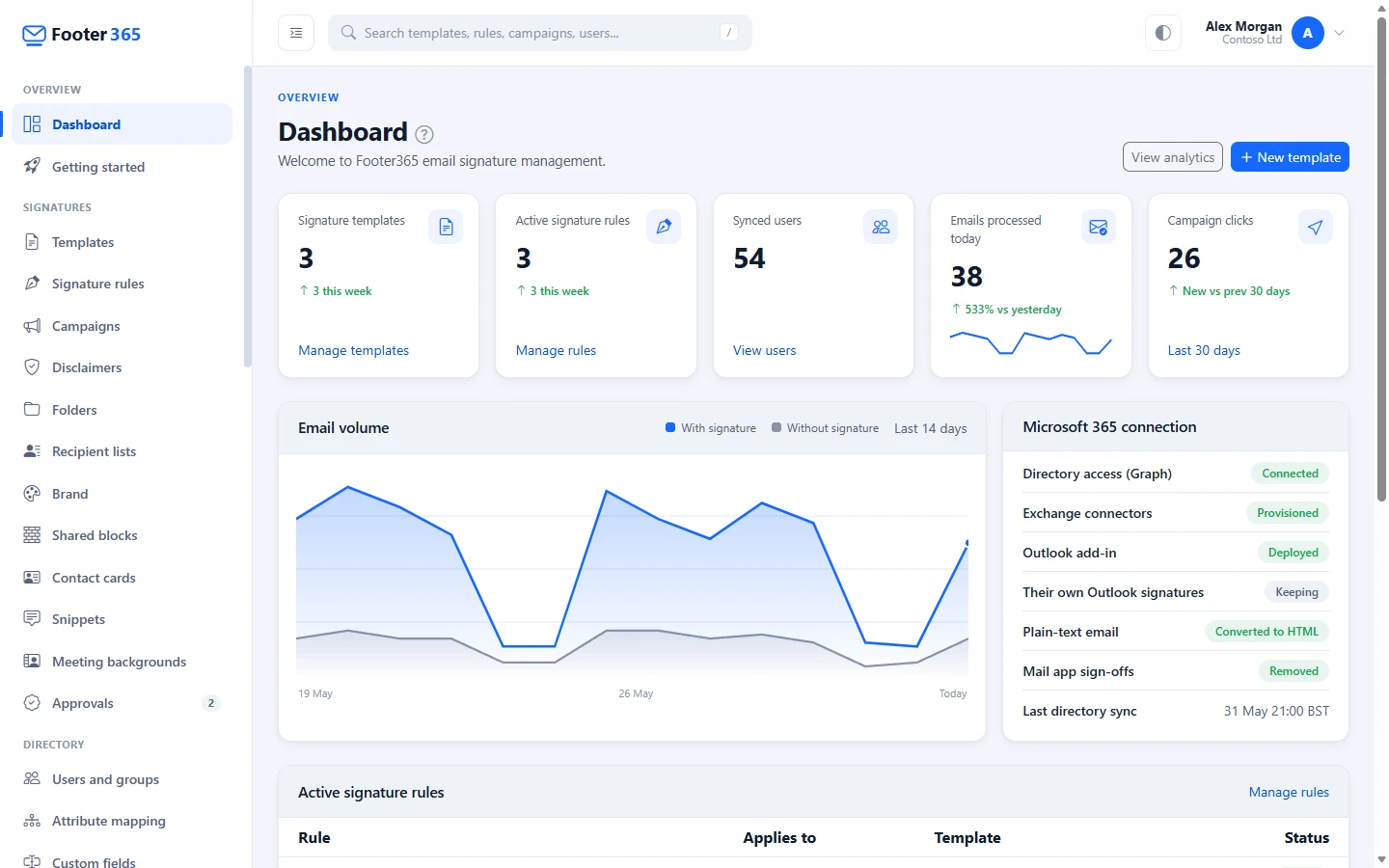
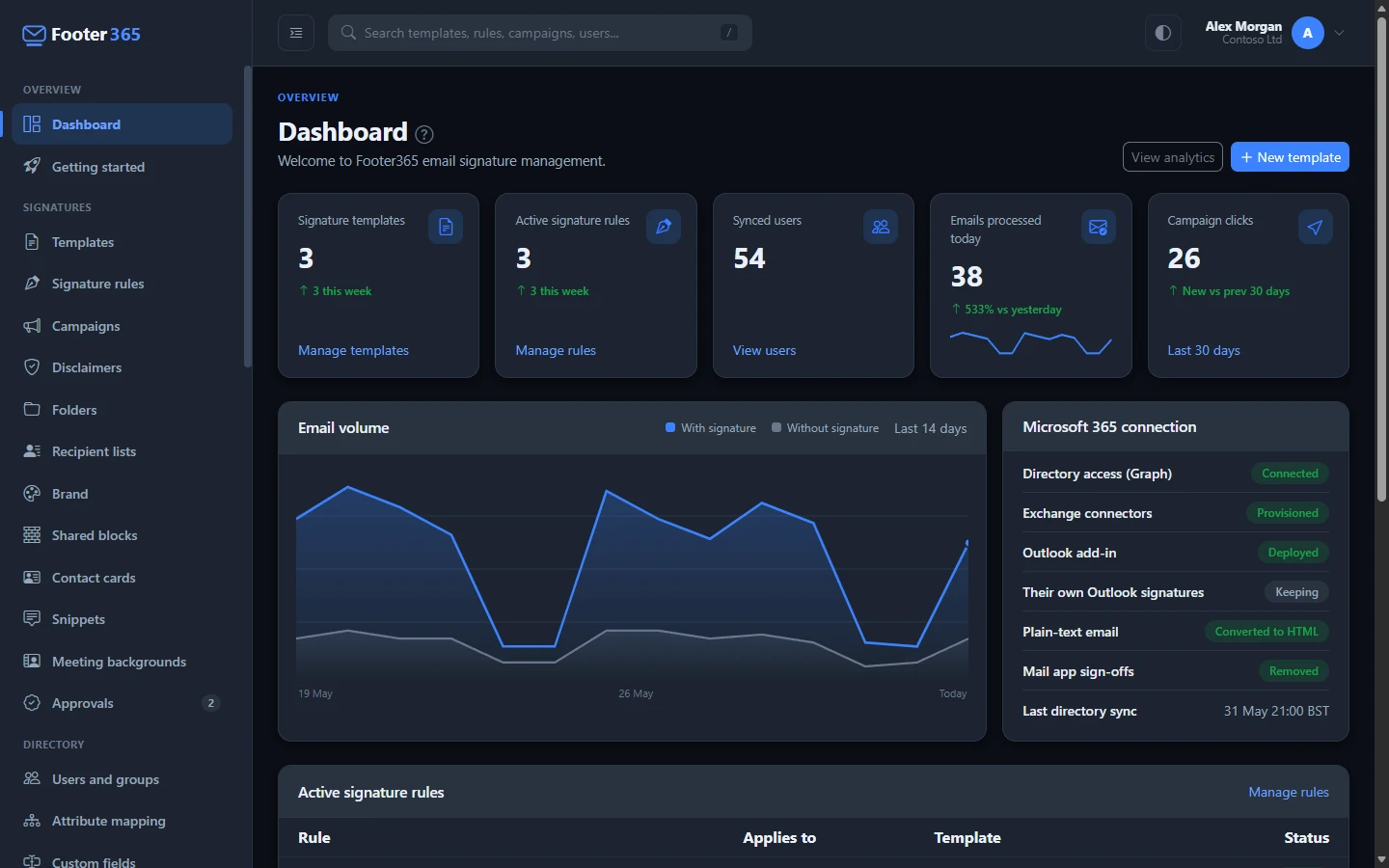
| Signature templates | How many templates you have, and how many were added this week. |
| Active signature rules | How many rules are switched on, and how many were added this week. |
| Synced users | How many accounts have been copied from Microsoft 365, and how many are new this week. |
| Emails processed today | How many emails Footer365 has handled today, compared with yesterday, with a small trend line for the last 14 days. |
| Campaign clicks | Clicks on campaign banners in the last 30 days, compared with the 30 days before. It leaves out the same clicks the campaign reports do: link protection, and the clicks from your offices or within seconds of sending that your settings leave out. |
Each card has a link to the page where you can see more.
Email volume
The Email volume chart shows the last 14 days. The blue line is email that had a signature added (With signature). The grey line is email Footer365 handled without adding one (Without signature). Select either name above the chart to hide or show that line, and hover over the chart to see the figures for a day.
If the grey line is high, open Analytics to find out which mailboxes are sending without a signature, or Coverage to see everyone who sends mail and why any of it went unsigned. See Analytics and signature coverage and Coverage: who sends with their signature.
Days are counted in UTC, so each day starts at midnight UTC. During British Summer Time that is 1am in the UK.
Microsoft 365 connection
This card shows the health of your connection at a glance:
| Row | What a good state looks like |
|---|---|
| Directory access (Graph) | Connected |
| Exchange connectors | Provisioned. With the Outlook add-in only, Not needed for add-in only. |
| Outlook add-in | Deployed. If it shows Not deployed, select Deploy to open the setup wizard at Deploy the Outlook add-in. |
| Their own Outlook signatures | Turned off means only the Footer365 signature is sent. Kept means people's own Outlook signatures are sent as well. Both are valid choices. With the Outlook add-in only, the line shows Optional, with a Steps link to the commands for turning them off yourself. |
| Plain-text email | Converted to HTML means plain-text email, such as a new message from iPhone Mail, gets the full signature. Phones converted converts only mail from phones and tablets, and Kept as plain text leaves it as it is. Review appears, for people with permission to manage plain-text email, until someone has confirmed the setting. With the Outlook add-in only, the line shows Needs mail flow. Plain-text email and iPhone Mail |
| Mail app sign-offs | Removed means a phone's "Sent from my iPhone" line is taken out so your signature takes its place. Kept leaves it in. With the Outlook add-in only, the line shows Needs mail flow. Removing "Sent from my iPhone" lines |
| Last directory sync | A recent date and time, in your own time zone. |
With the Outlook add-in only, the Emails processed today card and the Email volume chart count only email the add-in handled. Using the Outlook add-in only
A small spinner next to the Outlook signatures row means Footer365 is checking the current setting in Microsoft 365. The row updates by itself when the check finishes.
Active signature rules and recent activity
- Active signature rules lists up to six switched-on rules in priority order, with who each applies to and which template it uses; a rule that chooses between several templates at random shows its first, followed by how many more. Select Manage rules to change them.
- Recent activity shows the latest template changes, new rules, new campaigns and the last directory sync.
- Top campaigns ranks your campaigns by clicks over the last 30 days, counted as the campaign reports count them.
Warnings you may see here
- Action required: update your SPF record appears if one of your sending domains does not yet allow the Footer365 servers to send for it. It never appears with the Outlook add-in only. See Update your SPF record.
- A banner about your free trial or a payment problem may also appear at the top of every page. See Free trial and Missed payments.
Related articles
Still stuck?
Tell us what you were trying to do and what you saw. Include the sender, a recipient and roughly when a message was sent, and we can trace it.