

Set automatic replies for your people
Turn on Out of office to see every mailbox's automatic reply in one list, and set, schedule and turn off replies for people and shared mailboxes from templates with their own details filled in.
Out of office puts every mailbox's automatic reply in one list, so you can see who is away and set, schedule or turn off replies for your people and shared mailboxes yourself. A reply starts from a template, with each person's own details filled in, and you can change the wording before you set it. HR or a team leader can be given this without any other part of the portal.
Footer365 makes the Out of office page available to organisations gradually, so it may not be in your portal yet. See Early access pages and features.
Footer365 reads and sets the replies through Exchange Online, with the Exchange Administrator role your organisation granted when it set up mail flow, so there is nothing new to approve in Microsoft 365. It is included in the price.
Turn it on
Out of office is off until one of your organisation's Super Admins turns it on, because it uses the Exchange Administrator role for something other than mail flow.
- Go to Directory > Out of office (open it).
- Select Turn on Out of office.
Footer365 then reads every mailbox's automatic reply straight away, which takes a few minutes for a large organisation, and again every night. Turning it on is recorded in your audit log.
Only a Super Admin signed in to your own organisation can turn it on or off. Your reseller cannot, even while working in your portal.
With the Outlook add-in only, the page says Out of office needs mail flow: Footer365 holds no Exchange role for an organisation that uses the add-in alone, so it cannot reach anyone's automatic reply. A Super Admin can add mail flow from Getting started. See Using the Outlook add-in only.
See who is away
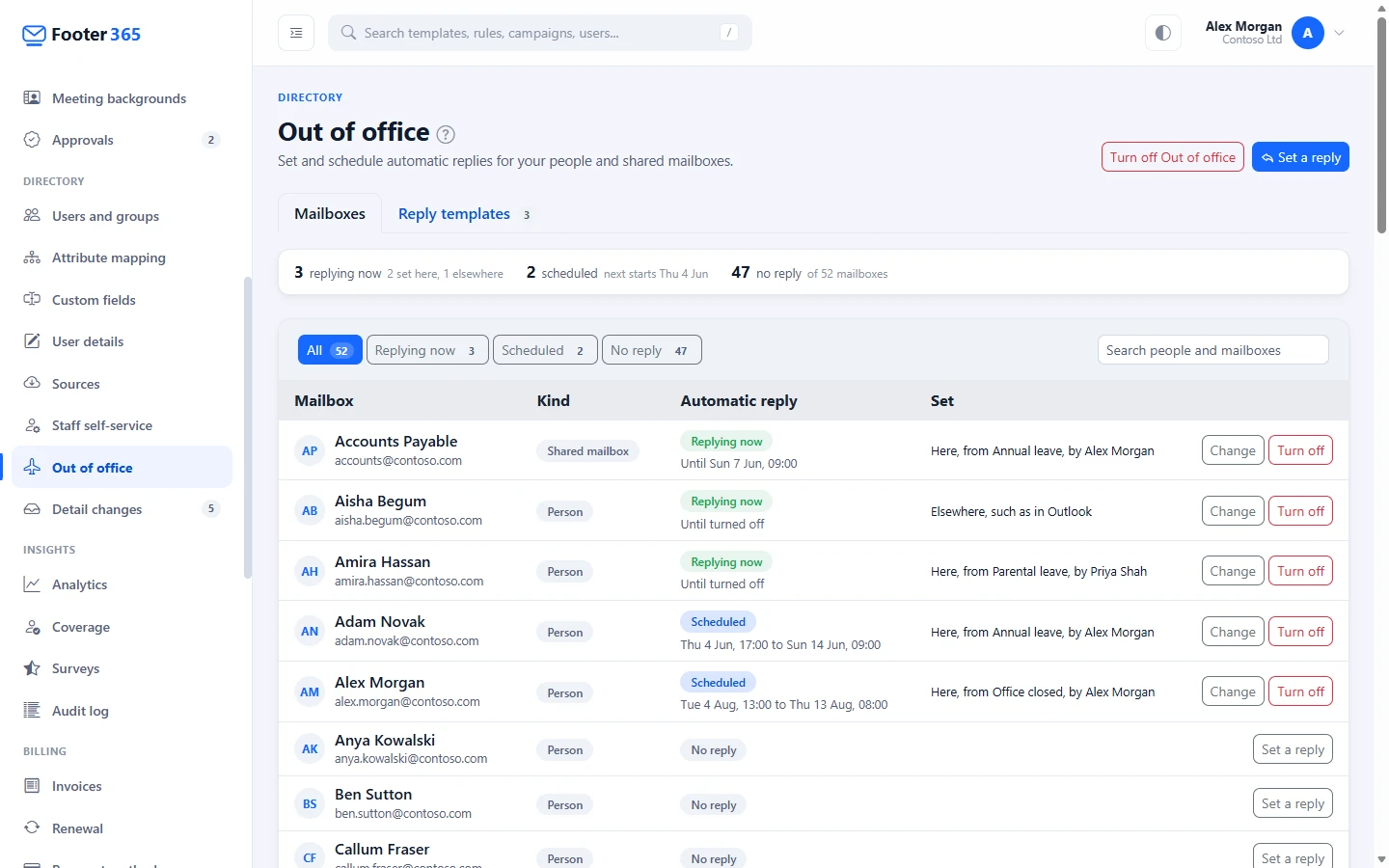
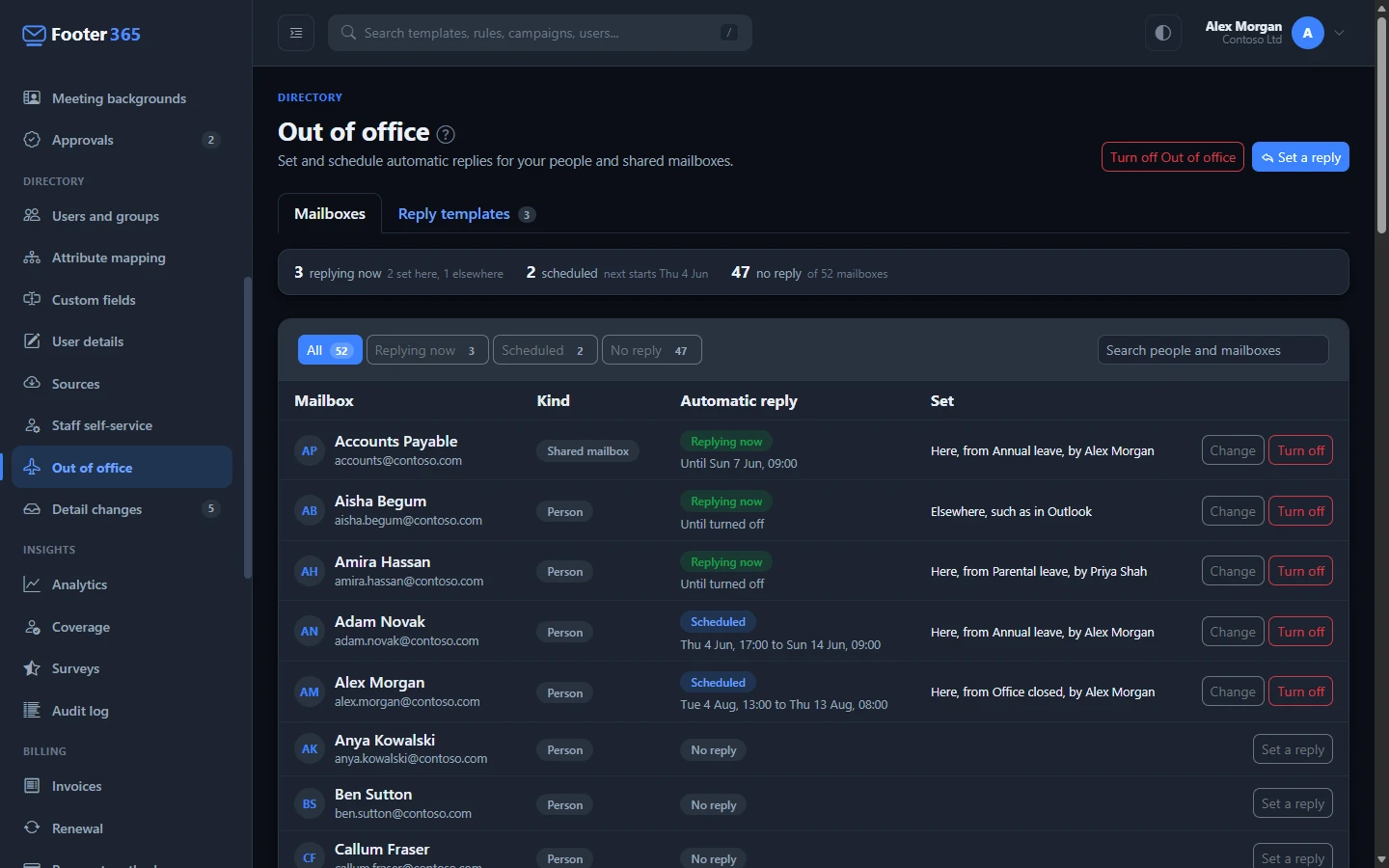
The Mailboxes tab lists every person and shared mailbox in your directory with its automatic reply. The figures at the top count the mailboxes Replying now, those Scheduled to start later, and those with No reply. Select one to show only those mailboxes, or search by name or address.
For each mailbox you see:
- Replying now, with the time it ends, or "Until turned off";
- Scheduled, with when it starts and ends;
- No reply;
- Not read yet, for a mailbox Footer365 has not read since Out of office was turned on.
The Set column says whether the reply was set here, with the template it started from and who set it, or Elsewhere, such as in Outlook. Exchange does not record who sets a reply, so a reply set in Outlook, or changed there after it was set here, shows as set elsewhere.
Each mailbox's reply is read from Exchange every night, and again when you select Change for it, so the list catches up with replies people set themselves. The time of the last read is under the list.
Set a reply
- Select Set a reply at the top of the page, or beside a mailbox.
- Under For, add the people or shared mailboxes from Add people or mailboxes. You can set the same reply for up to 50 at a time.
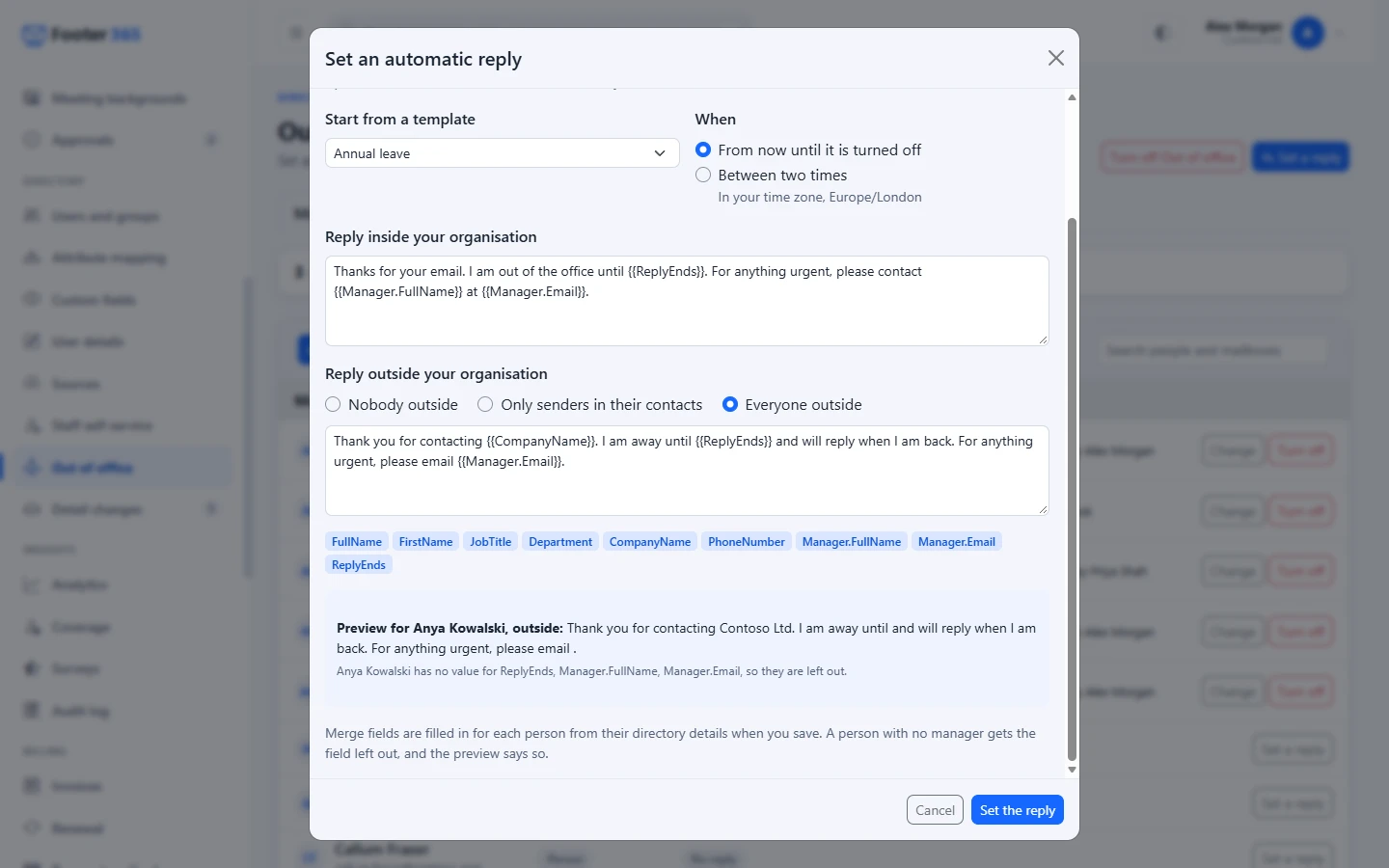
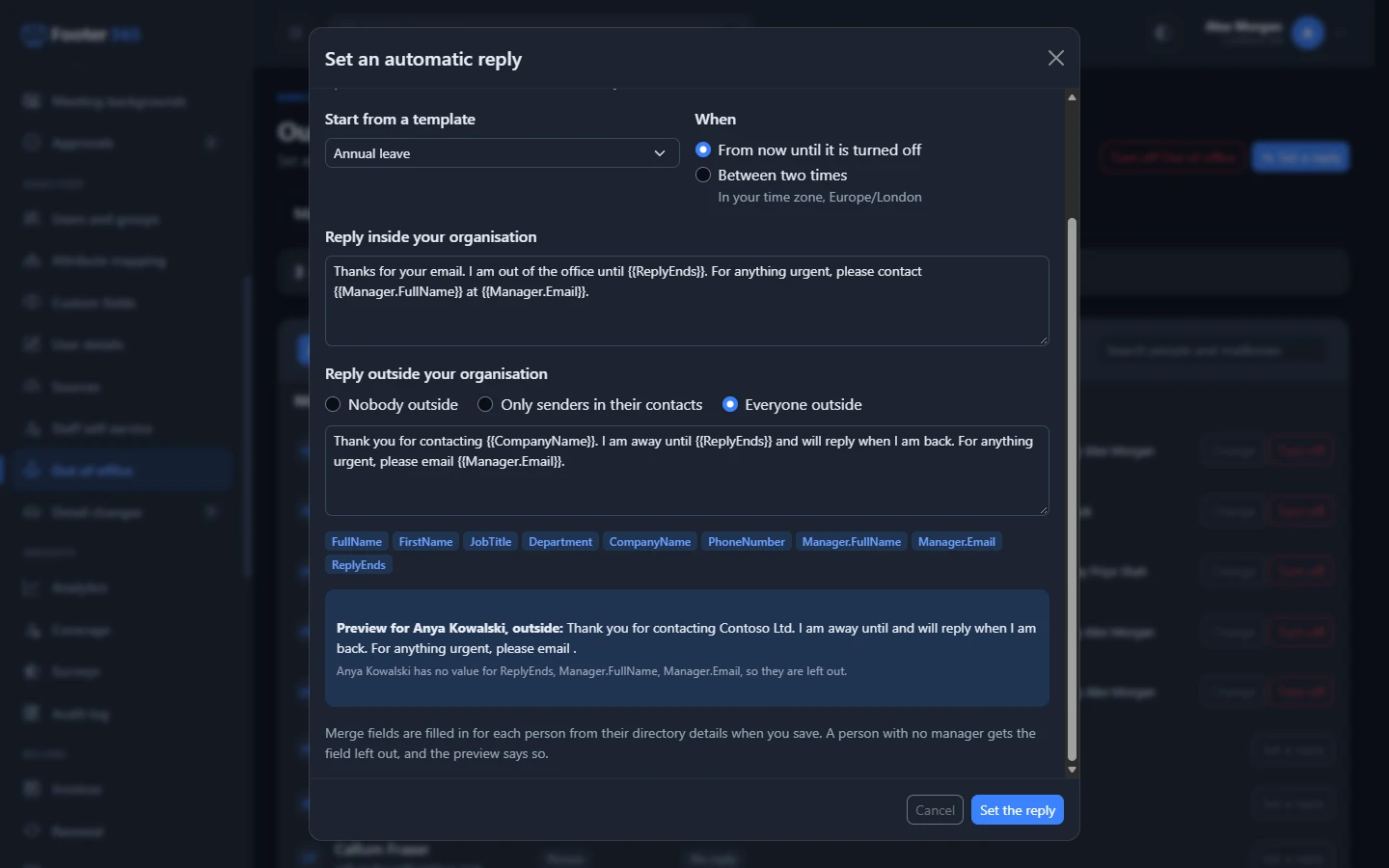
- Under Start from a template, choose a template. Its wording fills the boxes below, and you can change it for this reply.
- Under When, choose From now until it is turned off, or Between two times and give the Starts and Ends. The times are in your own time zone, as your browser reports it, which the window names.
- Write or check the Reply inside your organisation.
- Under Reply outside your organisation, choose Nobody outside, Only senders in their contacts or Everyone outside, and write or check the reply.
- Check the preview, which shows what the first mailbox chosen will receive.
- Select Set the reply.
Each mailbox is set on its own. If Exchange cannot set one, for example because the mailbox has gone, the others are still set and the page names the one that failed and why. Every reply set is recorded in your audit log, with the reply before and after.
Meetings while away
A reply Between two times can also look after the calendar. Under While away:
- Decline new meetings while away declines meeting requests that arrive for the period, and sends the organiser the message you write under it.
- Block the calendar while away adds an event called "Out of office" covering the period, so others see the time as taken.
Both start ticked; untick either to leave it out. They apply only to a reply between two times, and are not offered for one that runs until it is turned off. Meetings already in the calendar are left alone: Footer365 never declines or removes them.
Merge fields
A reply can use the same merge fields as your signatures, written in double braces, such as {{FirstName}}. They are filled in for each person from their directory details when you set the reply. Select one under the reply boxes to put it where you are typing:
| Field | What it is filled with |
|---|---|
{{FullName}}, {{FirstName}} |
The person's name. |
{{JobTitle}}, {{Department}}, {{CompanyName}}, {{PhoneNumber}} |
Their directory details. |
{{Manager.FullName}}, {{Manager.Email}} |
Their manager's name and address, as your directory names their manager. |
{{ReplyEnds}} |
When a reply between two times ends, such as "Monday 3 November at 09:00", in your time zone. |
Any other signature field works too, including your own custom fields. A field the person has no value for is left out, so a person with no manager gets no manager's name; the preview says when that happens. A reply is plain text: anything typed that looks like HTML is sent as the characters you typed.
Change or turn off a reply
- To change a reply, select Change beside the mailbox. Footer365 reads the reply from Exchange again first and fills the window with it. Formatting set in Outlook, such as bold text or a link, is not kept when you set it from here.
- To stop a reply now, select Turn off beside the mailbox, then Turn off in the window that opens. The reply's wording is kept in Exchange, as Outlook keeps it, so the person can turn it back on in Outlook.
Reply templates
The Reply templates tab holds the wording replies start from, such as Annual leave, Office closed or Parental leave.
- Select New template, or Edit beside a template.
- Give it a Name, the reply Inside your organisation, who Outside your organisation hears it and the reply they get.
- Select Save template.
For a new template, the form may also offer Start from, with two templates to start from, Away from the office and On leave without email, or Blank. Choosing one fills the form in with its wording and merge fields, which you can change before you save. While there are no templates, Add a reply template opens the form on Away from the office. Nothing is saved until you select Save template. In Away from the office, a person with no manager in Microsoft 365 gets the manager's name and email left out of their reply, so read the preview when you set a reply from it. Footer365 makes starter content available to organisations gradually, so Start from may not be offered in your portal yet.
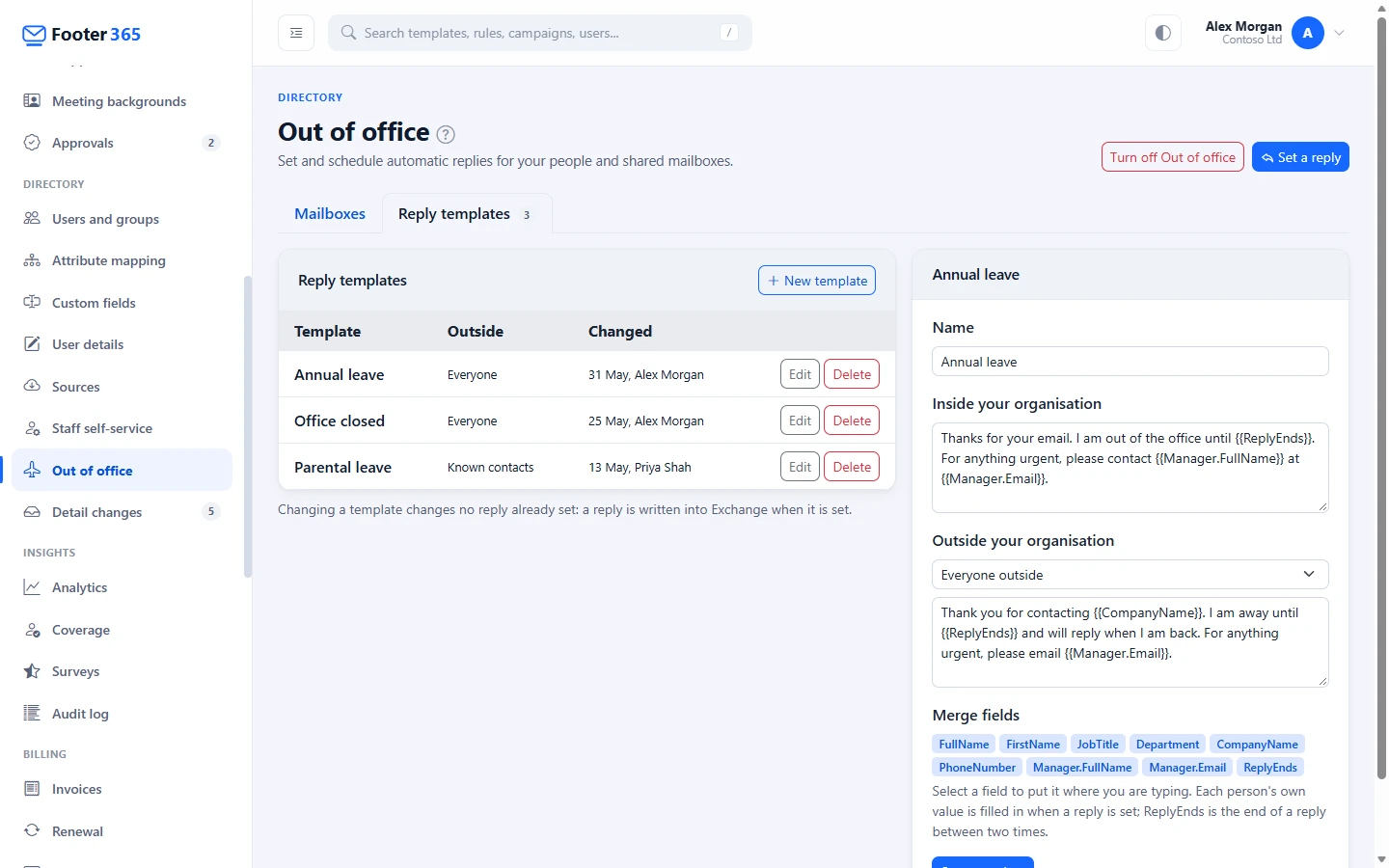
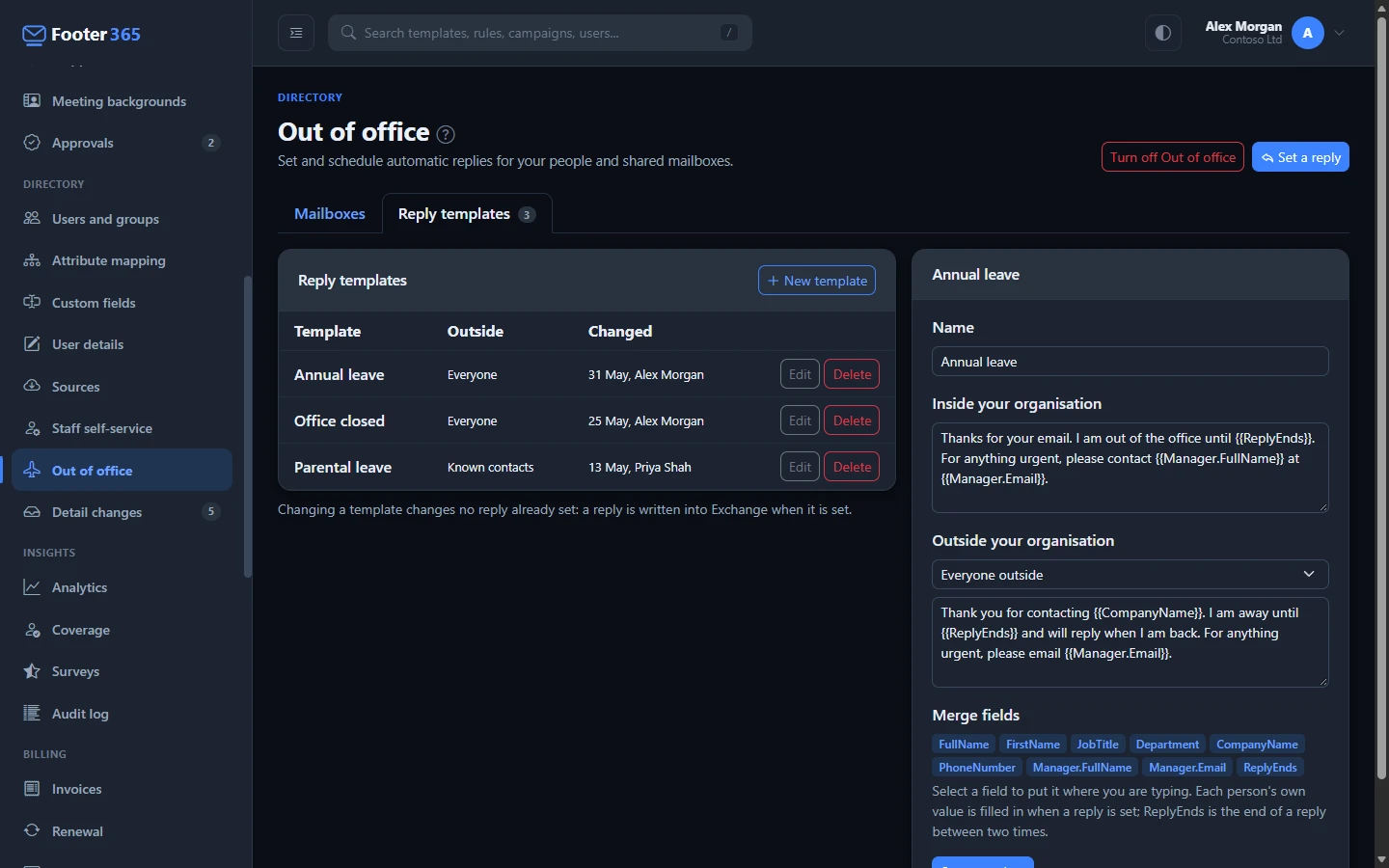
Changing or deleting a template changes no reply already set: a reply is written into Exchange when it is set. Adding, changing and deleting templates is recorded in your audit log.
Who can use it
Out of office has its own permissions, so you can give HR or team leaders this page and nothing else:
- View out of office: see the list of mailboxes and the templates.
- Manage out of office: set, change and turn off replies, and add, change and delete templates.
Super Admins hold both. To give them to someone else, add them to a role on Access > Roles. See Roles and permissions.
Someone limited to a scope sees and sets the replies of the mailboxes of the people in it, and a Limited to pill beside the title says so. The reply templates and the switch that turns Out of office on belong to the whole organisation, so they are listed to that person and cannot be changed. See Limit an administrator to part of the organisation.
Turn it off
A Super Admin can select Turn off Out of office at the top of the page. Footer365 then stops reading and setting replies. Replies already set stay in Exchange until they end or someone turns them off, and your templates are kept for when it is turned on again.
Good to know
- Automatic replies are sent by Exchange, not through Footer365, so they do not carry a signature. Put any contact details you want in the reply itself. See Automatic replies, meeting invites and notifications are signed differently.
- A mailbox that leaves your directory leaves this list at the next directory sync, and Footer365 deletes its copy of the reply.
- If every read is refused by Exchange, the Exchange Administrator role may have been removed. The list keeps showing the replies last read, and the failure is recorded in your audit log. See Grant the Exchange Administrator role.
Related articles
Still stuck?
Tell us what you were trying to do and what you saw. Include the sender, a recipient and roughly when a message was sent, and we can trace it.