

Message keywords
Let your people type a short code such as #nosig in a subject to leave the signature off one message, sign it with a different template or leave out the campaign banner. The code is removed before the message is delivered.
Signature rules decide the signature for everyone, every time. Now and then a person needs something different on one message: a reply to a mailing list that strips formatting, a quick note to a colleague's personal address, or a message where a campaign banner would be out of place. Message keywords let them choose for that one message, without asking an administrator to change a rule.
Footer365 makes the Message keywords page available to organisations gradually, so it may not be in your portal yet. See Early access pages and features.
A keyword is a short code that starts with #, such as #nosig. The sender types it anywhere in the subject. Footer365 acts on it and removes it, so the recipient never sees it.
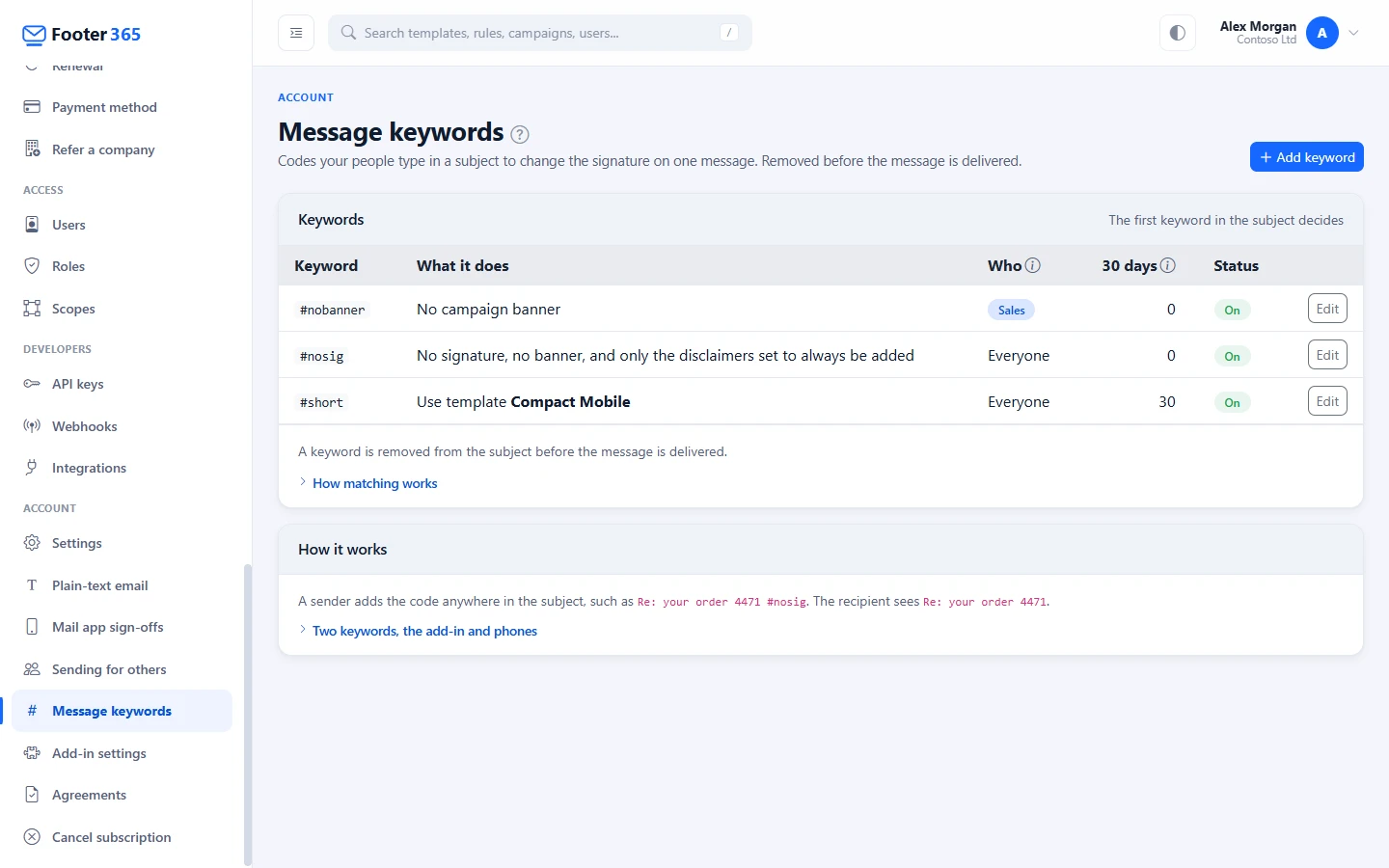
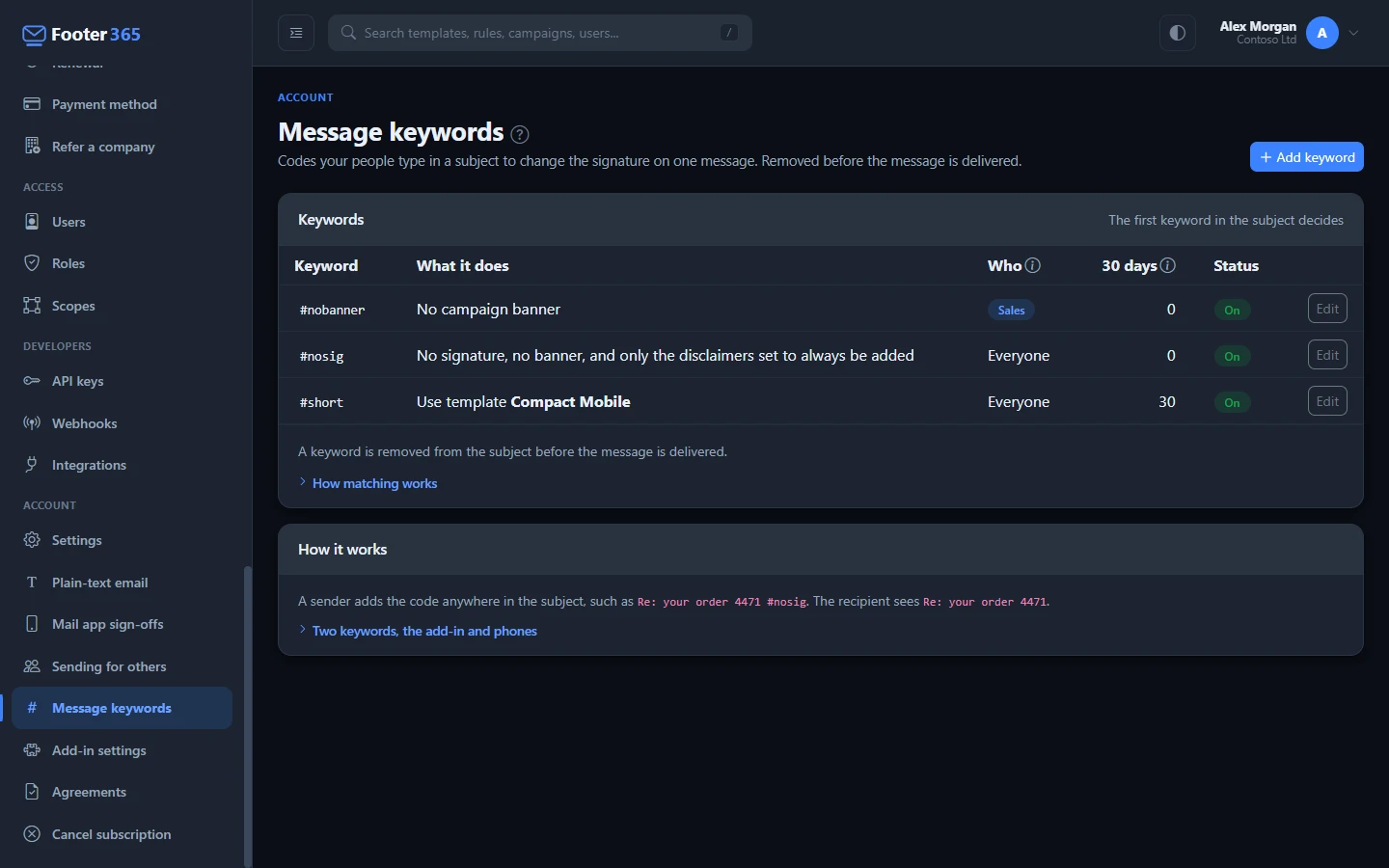
Add a keyword
- In the customer portal, open Message keywords in the Account group of the menu.
- Select Add keyword.
- Under Keyword, type the code:
#then 2 to 20 letters, digits or hyphens. - Under What it does, choose one of:
- No signature: the message goes without a signature, without a campaign banner, and with only the disclaimers set to always be added (see below).
- Use a template: the message is signed with the template you choose instead of the one the rules would pick. It is signed even when no rule would have signed it.
- No campaign banner: the signature is added as usual, but no campaign banner.
- Under Who can use it, keep Everyone, or choose Only the senders chosen and add people, groups or departments.
- Select Add.
While there are no keywords, the page may offer Add #nosig instead, which opens the same window with #nosig, No signature and Everyone already filled in. Nothing is added until you select Add. Footer365 makes starter content available to organisations gradually, so the button may not be offered in your portal yet.
To change or delete a keyword, select Edit on its row. You can have up to 50 keywords.
Changing keywords needs the Manage settings permission. Anyone with View signatures can see the list, so it can be shared in a staff guide.
How a keyword is matched
- Case does not matter:
#NoSigmatches#nosig. - The code must be a whole word, so
#nosignaldoes not match#nosig. - Only the subject is looked at. A code in the body of the message is left alone.
- If a subject holds two keywords, the first one decides, and both are removed.
- Replies and forwards are checked like any other message, so
RE: Order 4471 #nosigworks. - Every keyword on your list is removed from the subject, even when it cannot apply. A keyword that someone outside its chosen senders types, or whose template has been deleted or made inactive, is still removed, and the message is signed by the rules as if no keyword had been typed. The list shows Template deleted or Template inactive for such a keyword, so you can choose another template.
Nothing else in the message is changed. The 30 days column counts the messages each keyword was used on in the last 30 days, and Who shows who can use it. How matching works, under the list, holds the detail of how a code is matched and removed.
Disclaimers and a keyword
Use a template and No campaign banner keep your disclaimers as usual. No signature leaves them off too, except any disclaimer set to Always add, even when a keyword removes the signature. Use that setting for wording you must include on every message, such as a legal notice.
To set it, open the disclaimer under Disclaimers and tick the box under "With a message keyword". The setting is off for every disclaimer until you turn it on. The Disclaimers list shows an Always added label on any disclaimer that has it. See Add disclaimers.
Outlook, the add-in and phones
- Mail signed by the Footer365 mail relay: the relay removes the keyword from every message it handles, including subjects written in other languages and character sets.
- Mail signed by the Outlook add-in while it is written: the add-in acts on the keyword when the message is sent, removing it from the subject and changing the signature to match. Where Outlook does not let the add-in change the subject in time, the add-in hands the message to the relay, which removes the keyword instead. It does the same with a message holding a marker that places the signature, which only the relay can place. The add-in sends Footer365 only the words in the subject that start with
#, never the rest of the subject, and at most the first five of them, so in the rare subject holding more than five such words, a keyword after the fifth is delivered as typed. - With the Outlook add-in only, there is no relay to hand a message to, so the add-in deals with every keyword itself, including on a message it had not signed. If Outlook does not let it change the subject in time, or Footer365 does not answer in time, the keyword is delivered as typed. If the keyword leads to a signature the add-in cannot add, such as one too large for Outlook, the message goes without a signature. Using the Outlook add-in only
- Outlook on iPhone and Android: the add-in cannot act when a message is sent, so a keyword works there only when the relay signs the message. With the Outlook add-in only, nothing signs mail sent from a phone, so a keyword typed on one is delivered as typed.
Matching text without removing it
A keyword is for a person choosing on one message. To choose a signature from what automated mail says, such as invoices sent by a finance system, use a Subject or Message text condition on a signature rule instead. Those conditions look at the message and change nothing in it. See How signature rules work.
What is recorded
The processing log records the keyword and what it did, never the subject itself. Every keyword you add, change or delete is recorded in your audit log.
Still stuck?
Tell us what you were trying to do and what you saw. Include the sender, a recipient and roughly when a message was sent, and we can trace it.