Marketing
How to A/B test an email signature banner
A/B test an email signature banner properly: one change at a time, the right way to split senders, and when the results are strong enough to act on.


What makes an email signature accessible? Real text rather than pictures of text, a short description on every image, enough contrast between text and background, a readable size, and links that say where they go. None of it costs anything or makes the design worse, and it helps everyone who reads your email on a small screen or with images turned off, not only people using a screen reader.
The most common accessibility fault in signatures is a whole signature, or a phone number, saved as one image. A screen reader cannot read it, a recipient whose mail app blocks images sees nothing, and nobody can copy the number. Keep names, job titles, phone numbers and addresses as text, and use images only for the logo, photo and icons.
Each image needs a short text alternative, read out to people who cannot see it and shown when a mail app blocks images.
In Footer365's editor, every image has an Alt text box, and it matters most when the image is a link. A campaign banner is drawn as a single image, so its wording lives in Description for readers who cannot see the image, which can be up to 500 characters. Our guides to logos, images and photos and to how the banner is sent show where each one is.
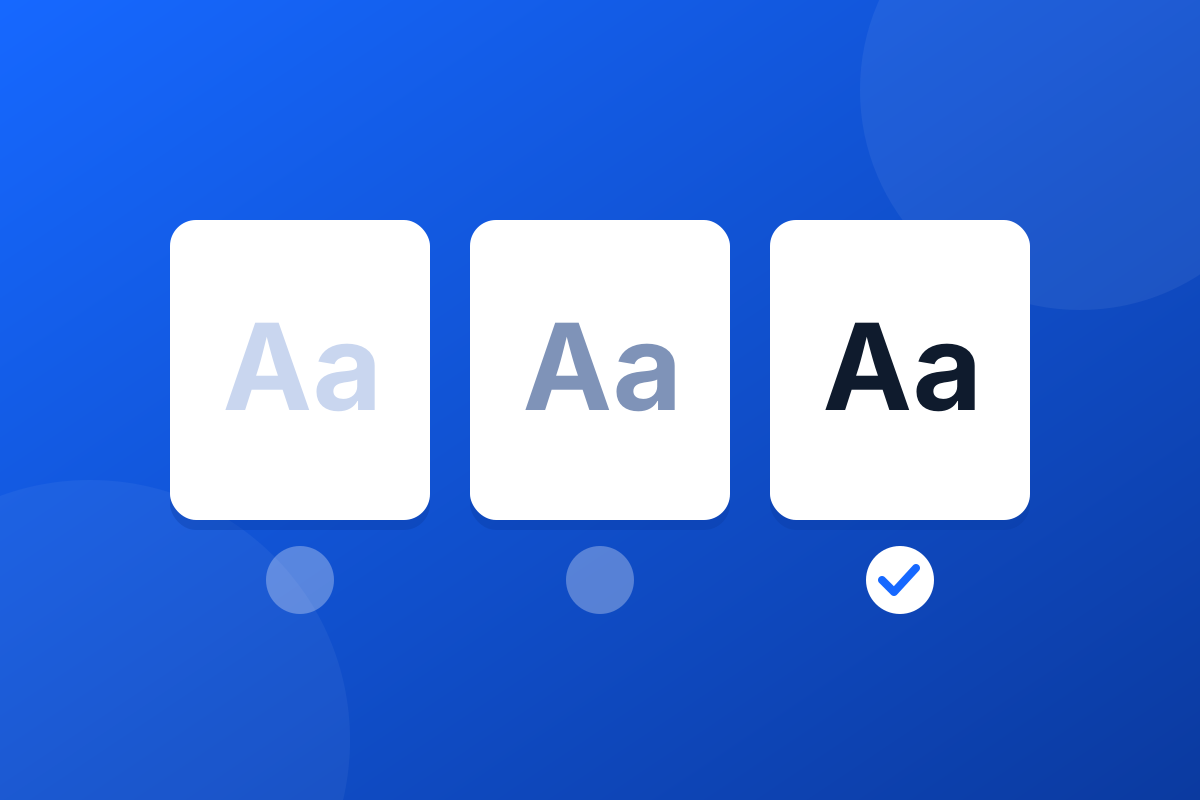
The Web Content Accessibility Guidelines set a minimum contrast between text and its background. Success criterion 1.4.3 asks for a ratio of at least 4.5 to 1 for normal text, and at least 3 to 1 for large text, which it defines as at least 18 point, or 14 point bold. Text that is part of a logo has no contrast requirement.
Where signatures fail it:
Screen reader users often move from link to link. "Click here" says nothing out of context; "Book a meeting" or "Read our accessibility statement" does. Write the link text as the place it goes.
If the only difference between a link and plain text is its colour, some readers will not see it. Underlined links, or icons with labels, solve that.
When Footer365 converts a plain-text email to HTML, for example one sent from the iPhone's Mail app, it also sends a plain-text copy signed with the text version of your signature, for the few recipients whose mail app prefers plain text.
Fix what fails once, in the template, and every email your organisation sends is fixed with it. That is the advantage of one central signature over hundreds of personal ones.
Start a 30-day trial - no card required.
A/B test an email signature banner properly: one change at a time, the right way to split senders, and when the results are strong enough to act on.

Your emails are read on phones as well as desktops. How to design a mobile friendly email signature that stays readable when the screen shrinks.