
Guides
Email signatures after a merger or tenant migration
Two companies, two brands and often two Microsoft 365 tenants. How to handle email signatures after a merger, from day one to the tenant move.


Why is my email signature not showing on iPhone or Android? Usually because the signature lives in Outlook on the computer, and the phone has a signature setting of its own that nobody filled in. There are a few other causes too, and each has a fix, but the fix that covers every phone at once is to add the signature on the server rather than on the device.
A signature written in Outlook on a computer is a setting of that app. The Outlook app on a phone has a separate Signature setting under its mail settings, and the iPhone's built-in Mail app has another. None of them reads the others.
Out of the box, the Outlook phone app signs mail with a line such as "Get Outlook for iOS". Administrators can turn that default off with app configuration through their device management, as Microsoft describes in its Outlook for iOS and Android app configuration post, but that only removes the default. It does not give anyone your company signature.
Fix on one phone: open the mail app's settings, find Signature, and type the details in. That is fine for one person, and it is how most organisations end up with fifty slightly different phone signatures.
The Mail app on an iPhone or iPad sends a new message as plain text unless something in it is formatted, and there is no setting on the phone to change that. A plain-text email cannot show a logo, a photo, coloured text or a banner. Even a signature added on the server can only add a text version to it, unless the message is converted first.
Phone mail apps add their own sign-off line under the message. Nobody deletes it, so it becomes the de facto signature on everything sent from that phone.
If your organisation already adds signatures on the server, the signature is added after the message leaves the phone. It is not in the compose window and not in Sent Items, but it is on the copy the recipient gets. Check by sending a test from the phone to a personal address and looking at what arrives.
Every message your people send, from any phone and any mail app, passes through Exchange Online on its way out. Footer365 adds the signature there, so the phone's own signature setting stops mattering. In practice:
If you also want people to see the signature while they write on a phone, the Footer365 add-in for Outlook puts it in when writing starts in Outlook for iOS and Android. It does not change it afterwards if recipients are added or the sending account is switched, because Outlook on mobile does not tell add-ins about those changes. Mail is still signed correctly on the way out either way.
Send one email from the iPhone Mail app and one from Outlook on Android to an address outside your organisation, then compare them with an email sent from Outlook on a computer. If they all match, every phone is covered. If they do not, our article on why you cannot see the signature while writing walks through what to check, and the free trial lets you try it on your own phones before anyone else.
Start a 30-day trial - no card required.
Two companies, two brands and often two Microsoft 365 tenants. How to handle email signatures after a merger, from day one to the tenant move.
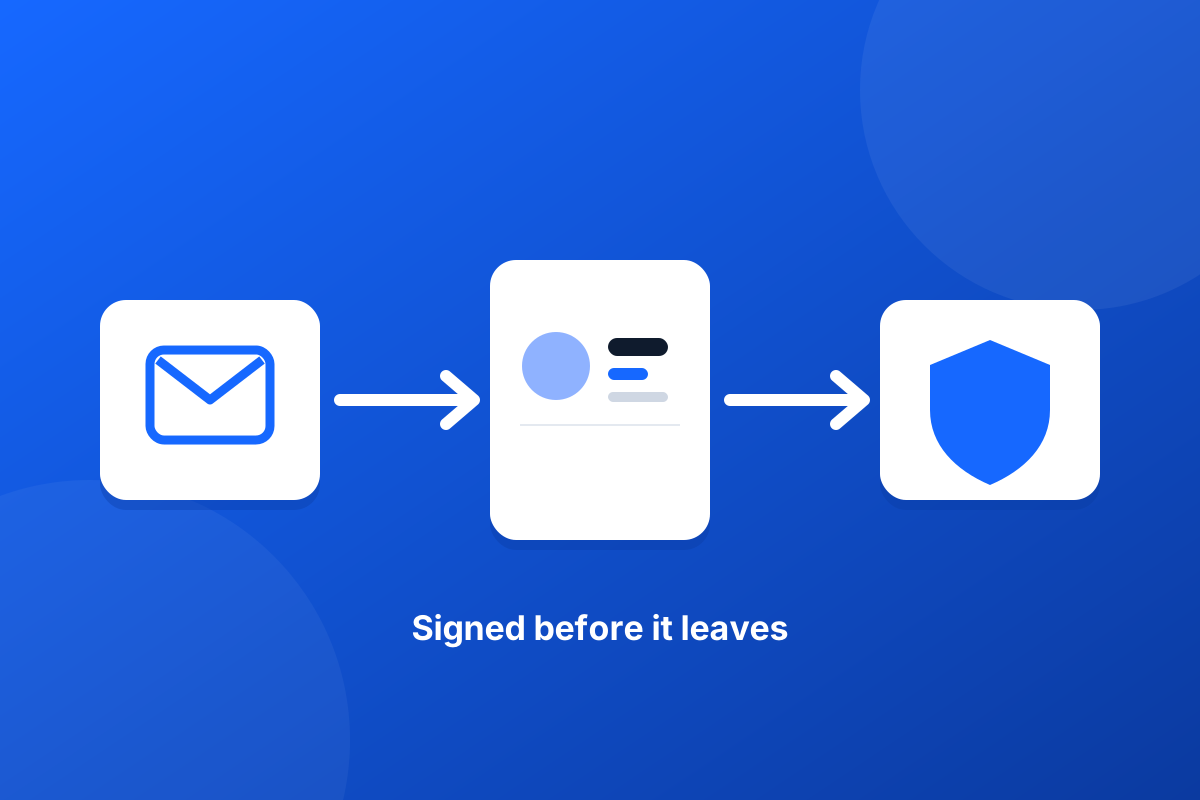
Running Mimecast, Proofpoint or another email gateway? How a server-side email signature fits in the mail flow, what to check, and what never to change.